Startup Disk Full on Mac: Find Where the Space Went
The alert arrives at the worst moment: you are exporting a video, installing an update, or saving a document, and macOS interrupts with Your startup disk is almost full. The reflex is to open Downloads and start deleting. That usually frees a few gigabytes, the alert comes back within a day, and nothing has been learned.
macOS is reporting that the startup volume does not have enough available capacity for the task at hand, which may need room for swap, installer staging, or temporary files. The useful response is to confirm available space and find large user-controlled data, not to infer a hidden snapshot problem from the warning alone.
Find out where the space went before deleting anything. Check free
space with df -h /, look at System Settings > General > Storage, and measure again
after moving one known item to the Trash. Remember that its space does not become
available until the Trash is emptied.
What the alert actually means
Saving, updating, and ordinary app work all need temporary capacity in addition to the size of the final file. When macOS cannot satisfy one of those allocations safely, it warns that the startup disk is almost full.
Apple does not publish the exact trigger threshold, and it varies with the size of the volume and what the system is doing at that moment. Treat the alert as a signal about headroom, not as a precise measurement you can reason backwards from.
Two consequences matter more than the number:
- A Mac low on disk space gets slow before it gets broken. Swap has nowhere to go, so memory pressure rises and the system starts compressing and paging aggressively.
- A macOS update can refuse to install even when the installer looks smaller than your free space, because it stages a full copy before applying it.
Measure before you delete
Start with the file system rather than with Finder, because Finder reports space in a way that already folds in reclaimable pools.
df -h /
On a Mac with a 1 TB drive that reads something like this:
Filesystem        Size    Used   Avail Capacity   Mounted on
/dev/disk3s1s1   926Gi    12Gi   299Gi     4%     /
The Used column is small because / is the sealed system snapshot, not your data
volume. Size reads 926Gi against a drive sold as 1 TB because df counts in binary
gibibytes and Apple counts in decimal gigabytes. Nothing is missing; the same bytes are
being described in two units.
For the container as a whole, ask diskutil instead:
diskutil info / | grep -i "Container"
   Container Total Space:     994.6 GB (994610155520 Bytes)
   Container Free Space:      321.0 GB (321045377024 Bytes)
Now you have a real baseline. Write the free-space number down. Every step below is judged by whether that number moves.
Where the space usually is
A full startup disk on a personal Mac is almost always one of six things. Work down this list rather than deleting whatever is largest.
| Suspect | How to confirm | Where it goes |
|---|---|---|
| Photos library | It is usually the largest single item in Home | Free up Photos storage |
| iOS device backups | ~/Library/Application Support/MobileSync/Backup |
Delete old iPhone backups |
| Mail downloads | Mail's account data grows without bound | Reduce Mail storage |
| Developer caches | Xcode, Docker, Homebrew, node package stores | Clear dev caches |
| Large forgotten files | Old exports, disk images, downloads | Find large files |
| Local Time Machine snapshots | Consider only after real files and a failing task still disagree | Understand local snapshots |
macOS folds several of these into the System Data category in Storage settings, which is what makes that bar look alarming and unexplained. It names a leftover, not a folder you can open; see what System Data actually contains.
When deleting does not free space
First confirm that the item was on the startup volume and that Trash was emptied. Then allow Storage settings time to refresh and compare the same measurement you recorded before the deletion. A category bar that has not redrawn is not evidence that the blocks remain unavailable.
APFS snapshots can retain references to deleted blocks, but a listed snapshot is not by itself a capacity fault. Apple says macOS counts Time Machine local-snapshot space as available and removes snapshots automatically as they age or space is needed. Listing them is a read-only diagnostic:
tmutil listlocalsnapshots /
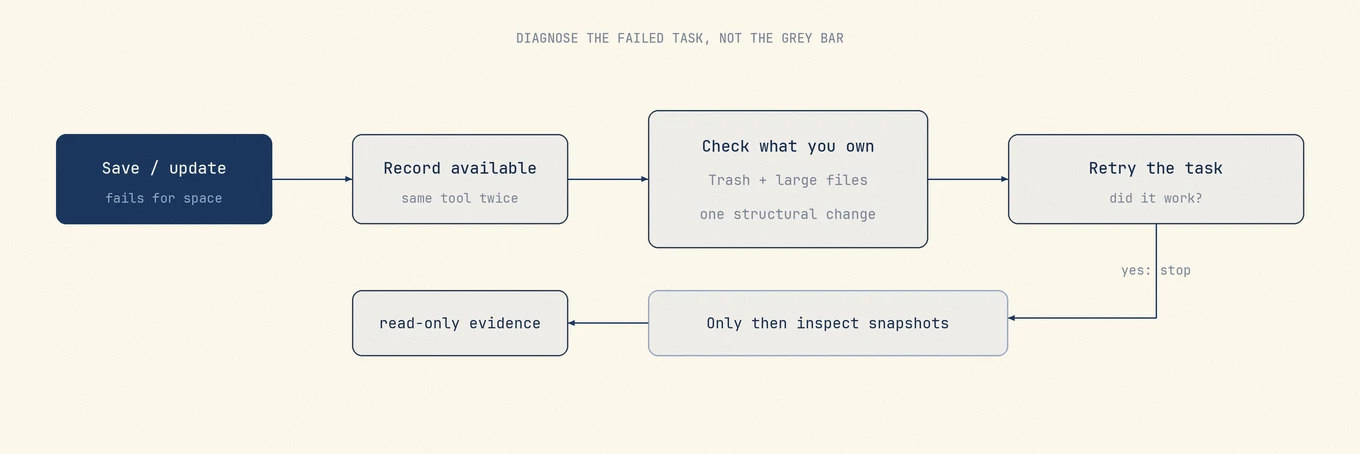
If entries appear, read Apple's current local-snapshot guidance before changing Time Machine settings. Investigate snapshots only when the original save, copy, or update still fails and the real files do not explain the capacity problem.
Use Storage settings for what it is good at
System Settings > General > Storage is useful for two things: the category bar gives you a rough shape of the volume, and the recommendations panel exposes controls you would otherwise have to hunt for, including emptying the Trash automatically and reviewing large files.
It is less useful as a measurement. The categories overlap, the numbers settle slowly
after a change, and System Data absorbs anything the classifier is unsure about. Use it
to navigate, use df and diskutil to measure.
What not to do
- Do not delete files from
/System,/Library, or/privateto make room. The system volume is sealed and read-only on modern macOS, and the parts that are writable are load-bearing. - Do not empty caches on a schedule. Regenerable caches come straight back and the first run of every app after the sweep is slower. See what is safe to clear.
- Do not trust a tool that promises to free a specific amount of purgeable space. Purgeable is an upper bound over mixed pools, not an inventory.
- Do not delete a Photos library, Mail data, or a backup folder in Finder to reclaim space. Use the owning app so its database stays consistent.
Get to a stable state, not a big number
Aim for headroom you keep rather than the largest one-off number. A Mac sitting with enough capacity for normal work avoids repeated warnings and leaves room for swap and temporary files.
Getting there usually takes one structural change rather than many small deletions: moving a Photos library or a video archive to an external disk, turning on Optimize Mac Storage for a large library, or removing a development toolchain you no longer use. Any one of those outlasts an afternoon of deleting screenshots.
Where a review tool fits
Mole measures before it offers to delete. It maps the volume by real on-disk size, shows what each candidate is before anything is removed, and moves items to the Trash instead of deleting them outright, so a wrong call is recoverable. It will not promise you a purgeable number it cannot prove.
Order of operations
- Record free space with
df -h /anddiskutil info /. - Confirm Trash state and find the largest real consumers, in Home before anywhere else.
- Make one structural change, then re-measure and retry the task that failed.
- Inspect Time Machine snapshots only if an unexplained mismatch remains.
- Stop when normal saves and updates have headroom, not when a tool reports a satisfying total.
FAQ
Why does the alert come back the day after I delete files?
Because the deletions did not change the large recurring consumers. A growing Photos library, device backup, developer store, or download queue can consume the small margin again. Measure the same categories before and after instead of assigning the return to a snapshot without evidence.
How much free space should a Mac have?
There is no official figure, and any specific percentage you read is someone's rule of thumb rather than an Apple specification. Practically: enough for a full macOS update to stage, plus room for swap under your normal workload.
Does the alert mean the drive is failing?
No. It reports capacity, and says nothing about the health of the drive. That is a separate question with separate symptoms.
Can I ignore it?
For a while, yes, and macOS will keep working by reclaiming purgeable space. You pay for it in a Mac that slows down under memory pressure and updates that start failing, so fixing it beats dismissing it every day.