How to Find and Delete Old iPhone Backups on Mac

Old iPhone and iPad backups can be among the largest hidden items on a Mac. The folders are intentionally opaque, so size alone cannot tell you which device, date, or restore point a backup belongs to. The safe cleanup method is to identify each set in Finder, verify that another current recovery path exists, then remove only the obsolete sets.
Where the backups live
When you back up an iPhone or iPad to your Mac rather than iCloud, the data goes to:
~/Library/Application Support/MobileSync/Backup
Each backup is a folder with a long identifier for a name, which is why it is meaningless to browse by hand. Check the total, and it is often a shock:
du -sh ~/Library/Application\ Support/MobileSync/Backup 2>/dev/null
On a Mac that has backed up several devices, this folder can become very large. A permission error from Terminal may mean it lacks Full Disk Access, not that no backups exist. Apple's backup management guide documents the same folder, but the folder view is for locating a set, not deciding what to delete.
Remove them by name, not by folder
The safe way to delete backups is through the interface that labels them. Connect the iPhone or iPad, select it in Finder's sidebar, open the General tab, and choose Manage Backups. The list shows device names and dates. Control-click a backup to delete it, show it in Finder, or archive it. A lock beside a backup identifies an encrypted set.
Archiving matters before a risky iOS beta, a device migration, or a major app-data change. An archived backup is preserved as a fixed restore point instead of being updated by the next backup. Keep the newest verified backup for each active device and any archived restore point you intentionally need. Age alone is not a deletion rule.
A note on iCloud versus local
If a device now backs up to iCloud, do not assume the cloud copy is current. Check the device's latest successful iCloud Backup date first. Local and iCloud backups also cover different data depending on sync settings, so the existence of one does not automatically make the other redundant.
Encrypted local backups can include saved passwords, Wi-Fi settings, Health data, and call history that unencrypted backups omit. Apple's encrypted backup guide lists the differences. Before deleting the last encrypted local backup, confirm that you still know its password and that the replacement backup contains what you expect. Resetting a forgotten backup password lets you create a new encrypted backup, but it does not make the old encrypted sets usable again.
Under the hood: why a backup is an opaque blob
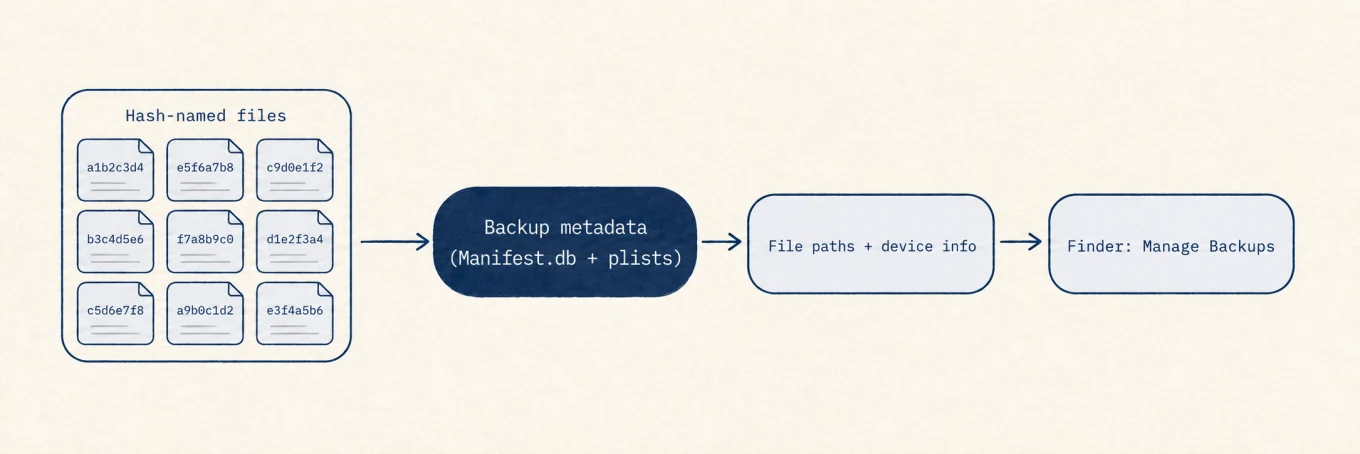
A device backup is not a browsable copy of your phone. Every backed-up file is stored
under a name that is a hash of its original path and domain, spread across subfolders,
and a SQLite database, Manifest.db, maps those hashes back to real names. That design
explains the unfamiliar filenames, but does not by itself prove the backup is complete.
Deleting individual files can break references in the manifest and damage the backup.
Finder's Manage Backups shows device names and dates from the backup's metadata, so use
that view to identify and remove a whole backup rather than judging hash-named files.
Where a disk map helps
A disk map can reveal that MobileSync/Backup is large, but it cannot decide which
restore point is expendable. Mole's Analyze view is useful for discovery; Finder's
Manage Backups remains the right place to identify, archive, and delete backup sets.
A safe order of operations
Measure the backup folder, identify every set in Finder, check the latest iCloud or replacement local backup, and preserve any restore point needed for a migration or beta. Delete whole obsolete sets through Manage Backups, never individual hash-named files. The space is valuable only after the recovery path is proven.