Mac disk analyzer
Turn a disk or folder into a map
Analyze scans the disk or folder you choose and shows files as blocks sized by the space they use. Large folders are easy to spot; you decide whether their contents are still needed.
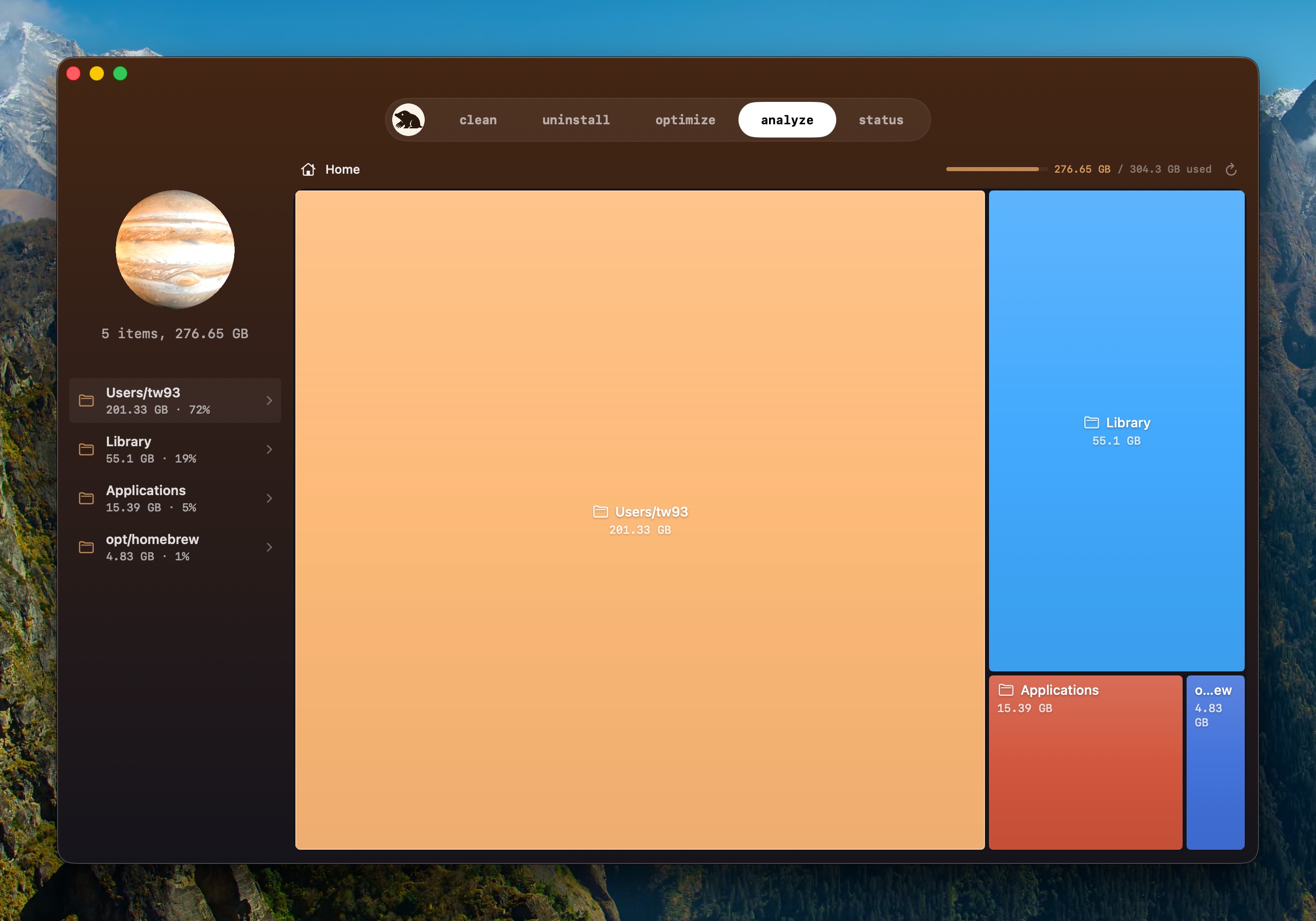
Explore folders and check their contents
Open a block, go back using the path bar, show an item in Finder, or rescan a single folder. Folders whose size cannot be read remain visible with a retry option, so an incomplete scan is not mistaken for unused space.
See how much space AI models use
Local models can take tens of gigabytes, but Ollama may share hash-named blocks between models and only its own command knows which blocks are still referenced. Analyze shows the weight of model stores while Clean protects them. The same boundary covers Claude, Codex, and Grok sessions: conversation history can be more valuable than the code it helped produce.
Move only confirmed files to Trash
Protected navigation roots remain view-only. Elsewhere, moving an item to Trash is a separate confirmed action guarded by the same path validation as the other destructive tools. Analyze never auto-selects the largest block and never turns a size ranking into permission to delete.
File size is not the same as space you can free
APFS clones, hard links, sparse files, snapshots, purgeable storage, and missing permissions can make logical size differ from physically recoverable space. Use the treemap to find ownership, then compare free space after a confirmed removal. A block's area is evidence about where to look, not a guarantee of bytes reclaimed.
Scan for free, delete only if needed
Disk and folder scanning is free. Moving an item to Trash can be completed twice before purchase. Download Mole or read how to find large files without losing context.