Reduce Apple Mail Storage on Mac Without Losing Mail
Apple Mail can hold many gigabytes on a Mac because searchable, offline mail requires local message data and, depending on the account settings, downloaded attachments. The safe way to reduce that footprint depends on what you mean by cleanup: deleting a local download is reversible, while removing an attachment from an IMAP message can change the server copy too. That distinction matters more than the number of gigabytes.
Where Mail keeps its weight
Mail stores its local data in two places. The mailboxes and message database live
under ~/Library/Mail, and because Mail is a sandboxed app, more of its working data
sits under ~/Library/Containers/com.apple.mail. Measure both:
du -sh ~/Library/Mail ~/Library/Containers/com.apple.mail 2>/dev/null
Attachments are often the largest part, but the exact mix depends on the account and its download policy. These folder totals do not separate messages, attachments, and caches. Measure before changing anything, and remember that Full Disk Access may be required for Terminal or a disk analyzer to read these protected folders.
Decide whether you want local or permanent cleanup
Mail's Message › Remove Attachments command is easy to misunderstand. It removes the attachment from the message, not merely from a temporary local cache. Apple warns in its attachment guide that for IMAP accounts the attachment is also deleted from the mail server and cannot be retrieved from there later. Save and open anything important first, and treat this command as a permanent edit to the message.
If your goal is only to reduce future local downloads, use Mail › Settings > Accounts › Account Information › Download Attachments instead. Depending on the provider, you can choose All, Recent, or None. This preserves the server message while changing what Mail keeps ready offline. Some media attachments may still download automatically, so this is a policy rather than an instant purge button.
Other options to review:
- The Junk and Trash mailboxes still occupy disk until emptied. Erase deleted items and empty junk only after confirming there is nothing to recover.
- Old newsletters and automated mail are often safer targets than personal or work correspondence. Use View › Sort By › Size or Mail search to review the largest messages, then delete them in Mail so the database and server stay in sync.
- Large attachments worth keeping should be exported to a normal folder, backed up, and opened once before you remove them from their messages.
Do not delete files inside ~/Library/Mail by hand. Mail has to keep message files,
mailbox state, search indexes, and server state consistent, and Finder cannot do that.
Rebuild fixes indexing, not storage
Mailbox › Rebuild is useful when messages appear missing or search results are wrong. It is not a cleanup command. For IMAP and Exchange accounts, rebuilding can discard the local copy and download the mailbox again, temporarily increasing network and disk activity. Use it to repair a mailbox, not to reclaim space. Apple's Mail storage guide instead recommends deleting reviewed large messages, saving then removing attachments, and emptying deleted items when server storage is the problem.
Under the hood: the Envelope Index and .emlx files
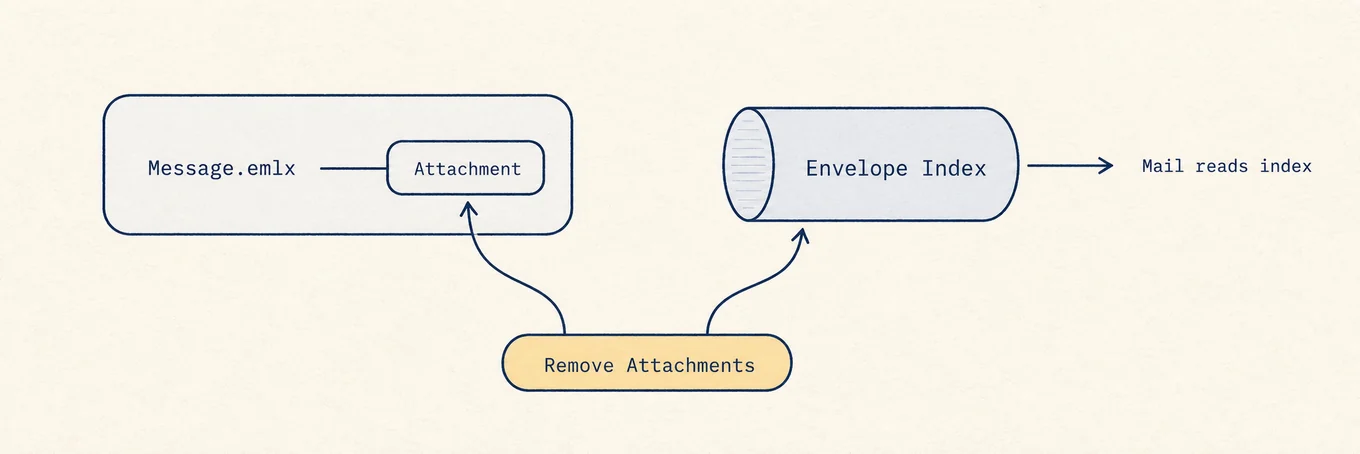
Mail stores each message as an individual .emlx file, the raw message plus a little
metadata, inside per-account mailbox folders, and keeps a separate SQLite database, the
Envelope Index, holding the searchable metadata: senders, subjects, dates, flags. The
messages are the small part; attachments, saved alongside their .emlx, are the
weight. Because the Envelope Index is what Mail actually reads to draw your mailboxes,
deleting .emlx files by hand leaves the index pointing at messages that no longer
exist. Mail's own commands keep those layers consistent, but that does not make every
command reversible. Remove Attachments updates the message and its indexes together;
on an IMAP account, that updated message can then sync back to the server without the
attachment.
Where a disk map helps
Mail's footprint is spread across hidden Library locations, so a disk map can answer whether Mail is actually worth touching before you change a retention policy. Tools such as Mole's Analyze view should stop at measurement and safe cache cleanup; message and attachment decisions belong in Mail, where their server-side effect is visible.
A safe order of operations
First measure Mail's folders, then reduce future downloads in account settings, and only then delete disposable mail and empty Trash or Junk after review. Use Remove Attachments only when you intentionally want the server message changed and have saved anything important. This order reclaims space without confusing a local cache decision with an irreversible mail edit.