Free Up Chrome and Safari Storage on Mac Safely
Browsers are among the largest quiet consumers of disk on a developer or everyday Mac. A single Chromium profile can hold multi-gigabyte Cache, Code Cache, GPUCache, and service-worker stores while bookmarks and passwords remain small. Storage settings often fold that weight into System Data instead of a clear "Chrome" line.
This guide separates profile bulk you can rebuild from identity you must keep, explains why Safari's modern paths differ from legacy Caches, and shows how to free space without signing out of everything. When you finish, you should be able to measure a profile, clear only the disposable tier, and verify logins still work.
The real growth lives inside browser profiles, mostly Service Worker caches and abandoned profiles, not in one obvious folder. Use the browser's own site-data cleanup first; clearing caches alone keeps you logged in, and profile leftovers are only safe to remove once you have confirmed which browser owns them.
What actually grows inside a browser profile
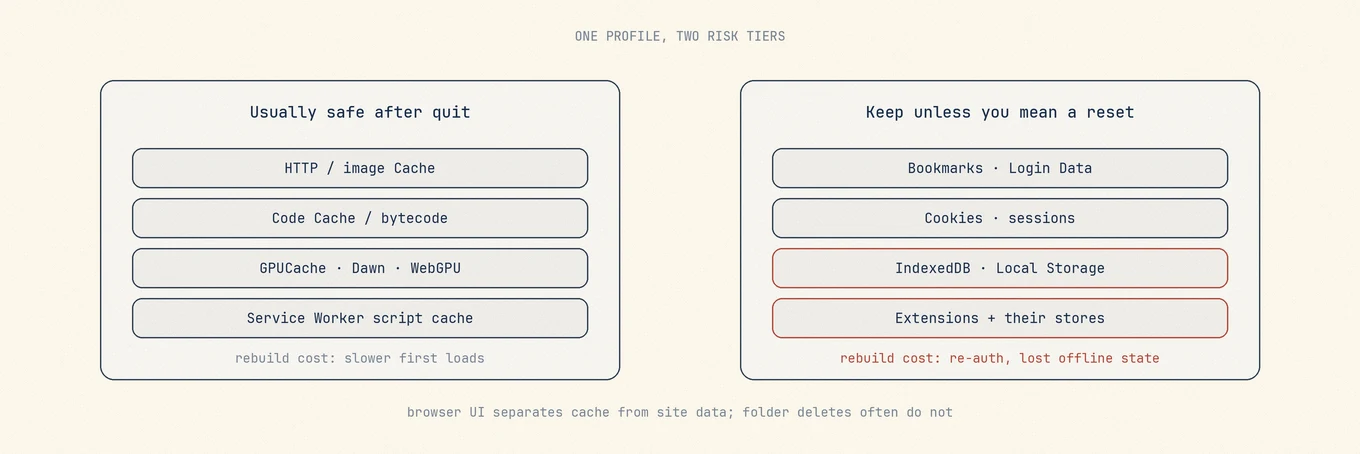
Think in layers, not one "browser folder":
| Layer | Role | Rebuild cost |
|---|---|---|
| HTTP disk cache | Images, scripts, media for faster loads | Low; first visit slower |
| Code / JS bytecode cache | Compiled script cache | Low; CPU on next launch |
| GPU / Dawn / WebGPU caches | GPU-side resources | Low |
| Service Worker + Cache Storage | Offline app shells, PWAs | Medium; apps re-cache |
| IndexedDB / Local Storage | App state, offline DBs | High if not synced |
| Cookies / Login Data | Sessions and credentials | High; you re-authenticate |
| Extensions + extension storage | Features and their local DBs | Medium to high |
| History / bookmarks | Navigation and sync | Depends on account sync |
Clearing cache is not the same operation as clearing site data. The browser UI separates them for a reason; folder deletion often does not.
Lab: measure the browser, not only System Data
Quit the browser first so files are not mid-write. Full Disk Access may be required for Terminal or a cleaner to see container paths. Permission errors mean access, not emptiness.
Chrome / Chromium family
Paths vary by channel and "Chrome for Testing":
du -sh ~/Library/Application\ Support/Google/Chrome \
  ~/Library/Caches/Google/Chrome 2>/dev/null
du -sh ~/Library/Application\ Support/Google/Chrome/* 2>/dev/null | sort -h
Drill into Default or Profile N:
du -sh ~/Library/Application\ Support/Google/Chrome/Default/* 2>/dev/null | sort -h
Typical heavy leaves under a profile: Cache, Code Cache, GPUCache,
Service Worker, sometimes IndexedDB. Only the first group is a light tidy-up.
Safari
Modern weight is often in the container; legacy Caches can be nearly empty:
du -sh ~/Library/Containers/com.apple.Safari/Data/Library/Caches \
  ~/Library/Safari \
  ~/Library/Caches/com.apple.Safari 2>/dev/null
Safari's heavy modern cache is often:
~/Library/Containers/com.apple.Safari/Data/Library/Caches/com.apple.Safari
The legacy ~/Library/Caches/com.apple.Safari/WebKitCache tree can look related while
holding almost nothing. Measure both before you celebrate.
Firefox
du -sh ~/Library/Application\ Support/Firefox \
  ~/Library/Caches/Firefox 2>/dev/null
Edge, Brave, Arc, Dia, and other Chromium builds
Same idea: Application Support holds the profile tree; Caches may duplicate or shadow
parts of it. Multi-profile machines accumulate abandoned Profile 12 directories;
measure each before deleting any.
Built-in cleanup first (preferred)
Chrome, Edge, Brave, Arc, and similar
- Use the browser Task Manager when CPU is the symptom (Chrome Helper); disk is a different job.
- Follow Chrome's Clear browsing data path and start with Cached images and files only.
- Time range matters: "All time" plus cookies signs you out everywhere.
- Remove unused profiles from the profile picker so internal registries stay consistent; do not guess-delete profile folders.
- Disable extensions you do not use; some keep large local stores.
Safari
- Use Safari's documented history and website-data controls with a bounded range, or Empty Caches from the Develop menu when only cache is in scope.
- On versions with profiles, remove a whole secondary profile from Settings.
- Prefer Safari UI over deleting
~/Library/Safariwholesale; history, Reading List, and other state mix there.
Firefox
Mozilla documents the split under Settings, Privacy & Security, Cookies and Site Data. Clear cached web content without wiping cookies and logins unless you mean to reset them.
Why the UI wins: browsers maintain indexes and quota accounting. Deleting random leaves can leave corrupt state that forces a longer repair on next launch.
Manual paths when the UI is not enough
Only after quit, and only for leaves you understand:
du -sh ~/Library/Application\ Support/Google/Chrome/Default/Cache \
  ~/Library/Application\ Support/Google/Chrome/Default/Code\ Cache \
  ~/Library/Application\ Support/Google/Chrome/Default/GPUCache 2>/dev/null
Delete a cache leaf, not the entire Default directory. Removing the whole profile
is a factory reset of that identity.
Worked example
A developer Mac reports "System Data" around 90 GB. Measurement shows:
~/Library/Application Support/Google/Chrome/Default/Cache          18G
~/Library/Application Support/Google/Chrome/Default/Code Cache      4G
~/Library/Application Support/Google/Chrome/Profile 3               22G
Profile 3 is an abandoned work profile. The safe path:
- Open Chrome's profile picker and remove Profile 3 from the UI if it still appears.
- If the folder remains and the profile is truly unused, quit Chrome and remove that profile directory only after confirming it is not the Default identity you need.
- Clear Default's Cache and Code Cache via Clear browsing data (cached files) or by deleting those two leaves after quit.
- Remeasure; confirm Default still has Login Data and you can open work sites signed in.
Do not delete the entire Google/Chrome tree to "save time."
Updater leftovers and abandoned profiles
Chromium updaters sometimes leave old version directories beside the live browser. Keep the tree that matches the running app. Before removing older staged directories, confirm that no running app, updater or pending installation needs them; keep anything uncertain. On multi-profile machines, remove abandoned profiles from the UI when possible.
Edge's updater store has an extra rule on some systems: payloads older than the installed Edge version can be removable, while equal-or-newer payloads may be pending updates. If you cannot identify the installed version or confirm a payload is unused, keep it.
Sync side effects
Clearing cache does not delete bookmarks that sync through a browser account. Clearing cookies and site data can sign you out and remove local website data; it is not the same as deleting bookmarks. History and open-tab sync depend on the vendor. Treat synced data like any cloud mirror: a delete here can change other devices.
Where a Mac cleaner helps
Mole can group known browser cache categories and show their sizes. Cookies, account state, site databases, and profile deletion stay in the browser's own UI; an entire Application Support profile must never appear as one safe cache checkbox.
Use Analyze or du to find which profile is huge; use the browser or a reviewed
cache list to remove. Pair with general
cache hygiene.
If you are removing the browser itself rather than trimming its profile, the guides to uninstall Chrome and uninstall Firefox start with saving bookmarks and profile data.
Common mistakes
Clearing "all browsing data" for disk space. You pay in re-authentication, not only in GB.
Deleting Default wholesale. That is a reset, not a tidy-up.
Trusting the legacy Safari Caches path alone. Measure the container.
Leaving Chrome open while deleting cache leaves. Writers may hold files.
Verify
- Relaunch; confirm profiles and logins you expect.
- Remeasure the same paths; cache leaves drop, profile roots remain.
- Load a few heavy sites once; slower first loads are normal.
- Empty Trash only after you accept the removals.
Order of operations
- Quit the browser.
- Measure Application Support and Caches roots; drill into the largest profile.
- Prefer Clear browsing data, cached files only.
- Remove abandoned profiles from the UI.
- Only then delete known cache leaves by hand if needed.
- Relaunch and verify identity still works.
- Empty Trash.
Further reading
- Chrome: Delete browsing data
- Safari: Clear browsing history
- Firefox: Clear the Firefox cache
- System Data
- Clear caches
- Chrome Helper high CPU
Browser storage is a cache and profile-management problem, not a reason to reset macOS. Measure the profile tree, clear disposable caches first, and treat logins and site databases as user data even when they sit next to a folder named Cache.
Measurement order when several browsers are installed
Safari, Chrome, and Arc side by side is the normal case, and guessing which one is heaviest wastes a pass. Sort the roots by total size first, then decide which tree to drill:
du -sh ~/Library/Application\ Support/Google/Chrome \
  ~/Library/Application\ Support/Arc \
  ~/Library/Containers/com.apple.Safari \
  ~/Library/Application\ Support/Firefox 2>/dev/null | sort -h
Start at the largest root. A single abandoned profile is often enough to account for the growth in System Data you could not place, so measure before you suspect macOS itself.
Site data and extensions: what to tick
When disk space is the only goal:
- Tick cached files.
- Leave cookies, passwords, and autofill unticked.
- Review extensions one at a time; uninstalling one you stopped using takes its local store with it, which is more controlled than wiping every store at once.
To reset a single site completely, use the browser's own delete-data-for-this-site control instead of the profile directory. It touches that one origin and nothing else.
Why browser profiles land in System Data
A large browser profile is usually counted as System Data. Clear 20 GB of cache out of the
profile tree and that figure can lag a day or two before it reclassifies, so read du and
actual free space rather than watching the category bar. More on why the bar drifts in
System Data.
FAQ
Will clearing browser storage log me out of websites?
Clearing only cached images and files normally preserves logins. Clearing cookies or other site data can sign you out or remove offline app state. Do not treat an entire Service Worker or profile directory as disposable cache.
Why does browser storage show up under System Data?
Browser profiles live in ~/Library, and macOS storage settings fold most of that tree into the System Data bar, so a 10 GB profile inflates a number that looks unrelated to any browser.
Are old updater files and abandoned profiles safe to remove?
Only after checking the contents and whether they are still in use. An uninstalled browser's profile may hold your only bookmarks or local site data. Back those up first, remove unused profiles through the browser where possible, and keep updater files if an installation or update may still need them.