List Local Time Machine Snapshots Before Deleting
Local Time Machine snapshots keep recent versions on the startup volume while the backup disk is unavailable. They can retain references to blocks that no longer belong to the live file system, but their existence is not a storage fault: Apple counts their space as available and removes them automatically as they age or another task needs capacity.
This guide explains the APFS mechanism, how to list snapshots without changing them, and the narrow cases where manual removal is justified. It also separates local snapshots from real Time Machine history on an external or network destination.
Leave local snapshots alone unless a real save, copy, or install still
fails after ordinary space checks. tmutil listlocalsnapshots / is a useful read-only
inventory. Apple’s public manual-removal path is to turn off automatic backups briefly,
wait for local snapshots to be removed, then turn backups on again. Advanced tmutil
deletion commands exist, but they discard local restore points and should not be a
routine cleanup step.
The wrong mental model
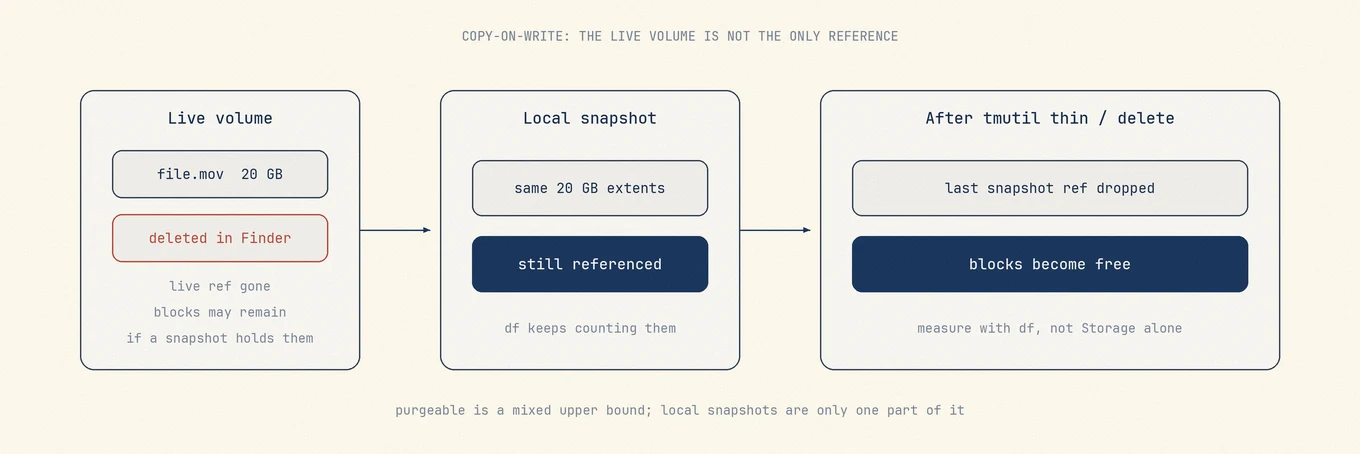
Visible file sizes do not explain every allocated APFS block. A file can leave Finder while a snapshot still references its old extents. That physical allocation can remain, but macOS may simultaneously count it as available because the system can remove the managed snapshot when capacity is needed.
Three different numbers get mixed in conversation:
| Number | What it answers |
|---|---|
| Finder / app "size" | Logical size of named files you can still see |
df used/available |
What the mounted file system reports after accounting rules |
| Storage "purgeable" | An upper bound on mixed reclaimable pools |
Purgeable is not a folder or a supported file inventory. Finder's available figure can include physically free space and purgeable disk caches, so the same capacity may appear used in one accounting view and available in another.
Under the hood: copy-on-write and snapshots
When Time Machine creates a local snapshot, the volume records a frozen view of extents. Later writes allocate new blocks, old blocks stay alive while any snapshot still needs them, and deleting a file only removes the live volume's pointer.
APFS copy-on-write explains why old blocks can remain allocated; it does not prove that a listed snapshot is blocking the current task. Apple documents local snapshots as automatically managed: they provide recent restore points when the backup disk is unavailable, their space is counted as available, and macOS removes them as they age or capacity is needed. They are not a substitute for the longer history on an external or network backup destination.
Local snapshot names usually look like:
com.apple.TimeMachine.2026-07-28-091530.local
The .local suffix is the usual signal that this is an on-disk local snapshot, not a
backup destination entry.
Local, external, and other snapshots
| Kind | Where | What to do |
|---|---|---|
Local TM snapshots on / |
Startup volume | Leave system-managed; remove manually only for a demonstrated need |
| Time Machine backups | External or network volume | Real history; do not erase to fix internal free space |
| Other APFS snapshots | Same volume, different names | Only delete if you know the owner |
| iCloud Optimize Storage | Cloud + local materialization | Eviction policy, not tmutil |
diskutil apfs listSnapshots / can show more than Time Machine alone. Other software
can create APFS snapshots. Do not delete unknown non-TM snapshots with a random
optimizer.

Lab: measure before you delete anything
Open Terminal and capture a baseline. Write the numbers down; memory lies.
date
df -h /
tmutil listlocalsnapshots /
diskutil apfs listSnapshots /
diskutil apfs list
How to read the output
Empty listlocalsnapshots. Local TM snapshots are not your problem. Map folders
with du or a treemap (large files) and look at
caches, Photos, Docker, or device backups.
Snapshots exist and physically free space is low. That is normal evidence, not a diagnosis. Check Finder's available capacity and retry the task that needs space before changing Time Machine.
diskutil apfs list shows a container with several volumes. Free space is shared at
the container level. A second volume can make one volume label look full while the
container still has room, or the reverse. Always look at the container free space, not
only the boot volume label.
Permission errors. Terminal may lack Full Disk Access for some protected trees. That is an access problem, not proof the disk is empty.
A controlled experiment
For a safe comparison, record Finder's available figure, diskutil info /, and the
result of the task that is failing. List snapshots without deleting them. Remove one
known, recoverable user file, empty Trash only after reviewing it, then retry the same
task. A Storage category that redraws slowly is not a failed write; the task itself is
the useful verifier.
What tmutil can do
Let the system manage snapshots first
No action is needed when saves, copies, and updates work. macOS removes snapshots as capacity is needed, which preserves recent restore points without taking space away from ordinary tasks.
Apple's public manual-removal path
When a real task still cannot allocate enough space and snapshots remain the demonstrated variable, Apple says to turn off automatic backups in Time Machine settings, wait a few minutes for local snapshots to be removed, then turn automatic backups back on. Re-enable the backup policy in the same session so a temporary diagnostic does not become a Mac that quietly stopped backing up.
Advanced tmutil thinning
The local tmutil manual documents
thinlocalsnapshots mount_point [purge_amount] [urgency]. With an amount and urgency from
1 to 4, it asks macOS to reclaim up to that many bytes from local snapshots. Check man
tmutil on the Mac before using it; a bare command copied from an article may omit the
target, amount, or urgency that gave the original example meaning.
Use it only after a reproducible allocation failure and a current backup, then retry that
same task. A larger df number by itself is not the goal.
Delete local snapshots for the volume
Use this only if the original save, copy or update still fails for lack of space after checking ordinary files and the Trash, you have a current backup, and listlocalsnapshots lists the relevant local snapshots:
tmutil deletelocalsnapshots /
Some versions use date-based deletion of a named local snapshot rather than a single slash form. Prefer the documented form for your OS, then always re-list:
tmutil listlocalsnapshots /
df -h /
Expect free space to rise over seconds to a few minutes, because APFS may release extents asynchronously. Sample twice.
What not to confuse with these commands
tmutil deleteagainst a backup destination removes real backup history. Different operation, higher stakes.- Deleting folders under
/.MobileBackupsin Finder is not a supported cleanup path. Usetmutilor system reclaim. - Leaving Time Machine off after a manual-removal test trades a temporary storage check for a missing backup policy. Turn automatic backups back on.
- Third-party "snapshot optimizers" that demand root without explaining the APFS model
add risk without teaching you anything you can re-check with
df.
Worked example (reading the story, not memorizing numbers)
Suppose Storage shows a large System Data category, tmutil lists several recent local
snapshots, and a macOS update still starts normally. Nothing needs fixing: the category
and snapshot list describe managed state, while the successful update proves the needed
capacity was available.
If the update fails for space, measure large live folders, confirm Trash state, and make one user-controlled change before retrying. Only when those files do not explain the failure should snapshot removal become a bounded experiment. After the experiment, retry the update and re-enable automatic backups. If it still fails, stop deleting snapshots; the remaining problem is another live folder, sparse file, clone, container volume, or non-Time-Machine snapshot.
Why free space still may not rise after thinning
Even with local snapshots gone:
- Other purgeable classes dominated the Storage estimate (cloud materializations, regenerable caches).
- Sparse files and clones make logical and physical sizes diverge (why totals disagree).
- Trash still holds the deleted items on the same volume.
- A second volume in the APFS container shares the free pool.
- A non-TM snapshot or a Time Machine destination still holds related data.
Each of those has its own measurement path. Snapshots are only one chapter.
Safety prerequisites
Before aggressive thinning:
- Confirm a recent successful backup to external Time Machine or another restore path you have actually opened and tested.
- Accept that versions stored only in deleted local snapshots are lost. New snapshots do not bring those old versions back.
- Prefer documented
tmutilover tools that cannot show a before/after free-space delta.
Local snapshots are normal. Manual removal is justified only by a real capacity failure, a current backup, and evidence that ordinary user-controlled storage does not explain it.
Common mistakes
Chasing the System Data number. The goal is usable capacity and a Mac that can update and save files, not a cosmetically small grey block.
Erasing the external backup disk because internal free space is low. That confuses local snapshots with backup history.
Deleting random Library folders because purgeable looked large. Purgeable is not a map of safe paths.
Measuring once immediately after thin. Wait and sample df again.
Ignoring container accounting. One volume label is not the whole story on APFS.
Where a review tool fits
A disk map in Mole's Analyze view can show large live folders. It does not own Time
Machine's snapshot policy. For snapshots, use Apple's current guidance, the local
tmutil manual, and the result of the task that needs capacity.
Mole's Clean does handle one snapshot case: when local snapshots exist, its System Data group shows a Local Time Machine Snapshots row, selected by default, that deletes them the same way the tmutil command does. The row stays hidden while a backup is running and never touches the backup disk or Time Machine's schedule; uncheck it to keep those local restore points.
Order of operations
- Confirm a real backup path still exists and automatic backups are enabled.
- Record Finder available space,
diskutil info /, and the task that fails. - Measure large user-controlled folders and review Trash before touching snapshots.
- List local snapshots without deleting them.
- If the same task still fails and snapshots are the remaining variable, use Apple's
temporary Time Machine setting path or the current
tmutilmanual. - Re-enable backups, retry the task, and stop when it succeeds.
Further reading
- Apple: About Time Machine local snapshots
- Apple: macOS Storage
- Related on this site: System Data, free up space, find large files
Local snapshots give Time Machine short-term restore points on the startup disk. Read the snapshot list together with available capacity and the task that needs space. The list alone is not a reason to delete anything.
FAQ
Does deleting local snapshots affect my Time Machine backup disk?
No. Local snapshots live on the startup volume. Removing them does not rewrite the history on the external backup destination, but it does remove the recent offline restore points that existed only on the Mac.
Why does free space not change right after emptying the Trash?
Moving a file to Trash does not release its space until Trash is emptied. Storage categories may also update slowly. A snapshot can retain old blocks, but Apple counts managed local-snapshot space as available and reclaims it when another task needs room.
Is it safe to delete all local snapshots at once?
Do not make it a routine. External backup history remains separate, but deleting all local snapshots removes the recent restore points available while that disk is disconnected. Use it only for a demonstrated capacity failure and with a current backup.