Purgeable Space on Mac: Can You Delete It?

Finder says the disk has 321 GB available. Storage settings shows a large grey band
labelled purgeable. df reports a different number again, in a different unit. None of
the three is lying, and none of them is answering quite the same question.
Almost every "my Mac says it is full but I cannot find the files" problem turns out to be a measurement problem before it is a storage problem. Knowing which question each number answers resolves most of them.
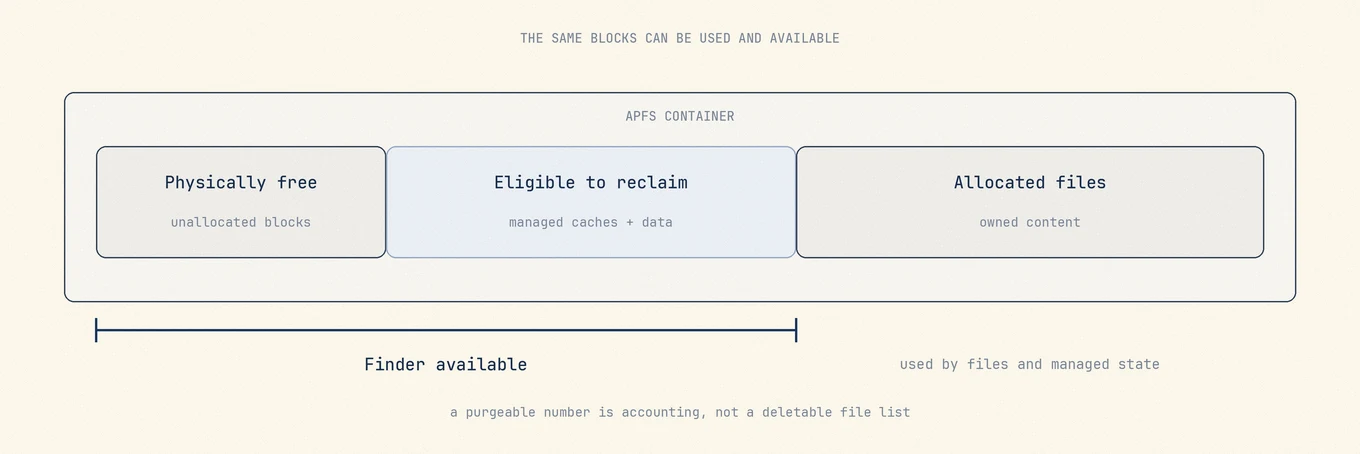
Finder's available figure includes physically free space and disk caches macOS considers purgeable. Other tools expose different layers of the APFS container, so their numbers need not match. Purgeable is not a folder or a reliable deletion target; macOS reclaims eligible data when another task needs the capacity.
Three numbers, three questions
Run these on any Mac and you will get three different figures for the same volume.
df -h /
diskutil info / | grep -i "Container"
On the machine used for this article:
/dev/disk3s1s1   926Gi    12Gi   299Gi     4%     /

   Container Total Space:     994.6 GB (994610155520 Bytes)
   Container Free Space:      321.0 GB (321045377024 Bytes)
df says 299Gi available. diskutil says 321.0 GB free. Those are the same quantity:
321 decimal gigabytes is 299 binary gibibytes. Apple reports storage in decimal GB,
while df -h prints binary units and labels them Gi. Before concluding that space has
vanished, check whether you are comparing GB against GiB.
The Used column reading 12Gi is the other surprise. On modern macOS, / is the sealed,
read-only system snapshot. Your files live on the data volume, which shares the same
APFS container. That is why per-volume "used" figures do not add up to the container.
| Question you are asking | The tool that answers it |
|---|---|
| How much can I write right now | diskutil info / container free space |
| What does the file system report for this volume | df -h / |
| What is macOS willing to promise an app | Finder's "available" |
| Where did the space go, by category | System Settings > General > Storage |
Purgeable is an accounting category, not an inventory
Apple's Storage settings guide defines available storage as free storage plus purgeable disk caches, and notes that space can be both used and available at the same time. macOS does not expose a supported per-file list that adds up to Finder's purgeable figure.
Optimized cloud content, regenerable caches, and APFS snapshots can all affect what the system can retain or reclaim, but they follow different ownership rules. Their presence does not prove that one of them is the largest part of the displayed number. A tool that promises to free an exact purgeable total before allocation pressure tests it is turning an estimate into an inventory it does not have.
You cannot purge it on demand, and that is by design
No supported command says "release purgeable space now." macOS reclaims the blocks when an allocation needs them, which is the useful behaviour: a snapshot or a downloaded cloud file is worth keeping right up to the moment the space is wanted.
So a Mac reporting little physically free space may still complete a large write because
the request triggers reclamation. Start with the task that is failing and the Storage
categories you can identify. Do not thin snapshots merely because tmutil
listlocalsnapshots / returns entries: Apple says snapshot space is counted as available
and Time Machine removes snapshots automatically as they age or capacity is needed.
sudo purge is a different thing entirely
Search results conflate the two constantly, so: purge is a real macOS command with
nothing to do with disk purgeable space. It flushes the file system cache in memory,
forcing cached disk pages out of RAM. Apple built it for benchmarking, so a second run of
a test does not read from a warm cache.
sudo purge
It frees no disk space and deletes no files. It throws away cache the system just spent time building, which makes the next few minutes of work slower while everything is re-read from disk. On a healthy Mac there is no reason to run it, and running it on a schedule only costs you performance.
If your actual question is about memory rather than disk, read memory pressure instead: the number that matters there is pressure, not the amount of free RAM.
Purge on Mac explained puts this command, purgeable space, and Purge apps side by side.
Why Storage settings takes a while to agree
After you delete something large, the Storage pane often keeps showing the old figure. The categories in that view are computed by a background process that samples the volume rather than recounting it on every change, and several categories overlap.
That makes the pane a good map and a poor instrument. Use it to see the shape of the
volume, and use df or diskutil before and after a change to find out whether the
change worked.
A short diagnostic
When free space does not match your expectation, this order resolves it in a few minutes.
- Record Finder's available figure and
diskutil info /before changing anything. - Check Storage settings and measure the largest user-controlled folders or libraries.
- Confirm whether Optimize Mac Storage is on before treating a local cloud placeholder as a complete offline copy.
- If Time Machine is enabled and snapshot behavior is the remaining question, list snapshots without deleting them and compare the result with Apple's current local-snapshot guidance.
- Repeat the write, update, or copy that originally failed. A changed dashboard number is not the same as a successful task.
Where a review tool fits
Mole reports what it can prove: real on-disk sizes for the things it lists, before and after totals for anything it removes, and no headline promise about purgeable pools it cannot inventory. When the space is pinned by snapshots rather than by files, the useful answer is to say so rather than to show a bigger number.
FAQ
Should I try to get purgeable space to zero?
No. Purgeable space is mostly working state that benefits you: snapshots you might need, cloud files you can open instantly, caches that keep apps fast. Driving it to zero trades all of that for a number.
Why does Finder show more available space than df?
Finder includes space macOS is confident it can reclaim. df reports what the file
system currently has unallocated. Both are correct answers to different questions.
Does an external drive have purgeable space?
External APFS volumes can also contain snapshots. Whether any of that space is reclaimable depends on who created and manages the snapshot; Finder's label alone does not identify the owner.
Is purgeable space a sign of a problem?
No. Treat a failed save, copy, or update as the problem to diagnose. A large purgeable label without a failing task can simply be macOS retaining useful data until capacity is needed.