Choosing Mac Tools Beyond Sensei

Looking for a Sensei alternative usually means you want hardware visibility, storage insight, or maintenance tools without committing to one vendor's full suite. Sensei (from Cindori) combines disk tools, health-oriented dashboards, and cleanup-adjacent features in a polished package. The right substitute depends on which of those jobs you actually run weekly, not on a feature checklist race.
Prices, editions, and macOS requirements change; verify current vendor pages before buying. This comparison is about job fit, sampling cost, permissions, and safety posture. When you finish, you should be able to list the jobs you used last month and map each to the smallest tool that can do it safely.
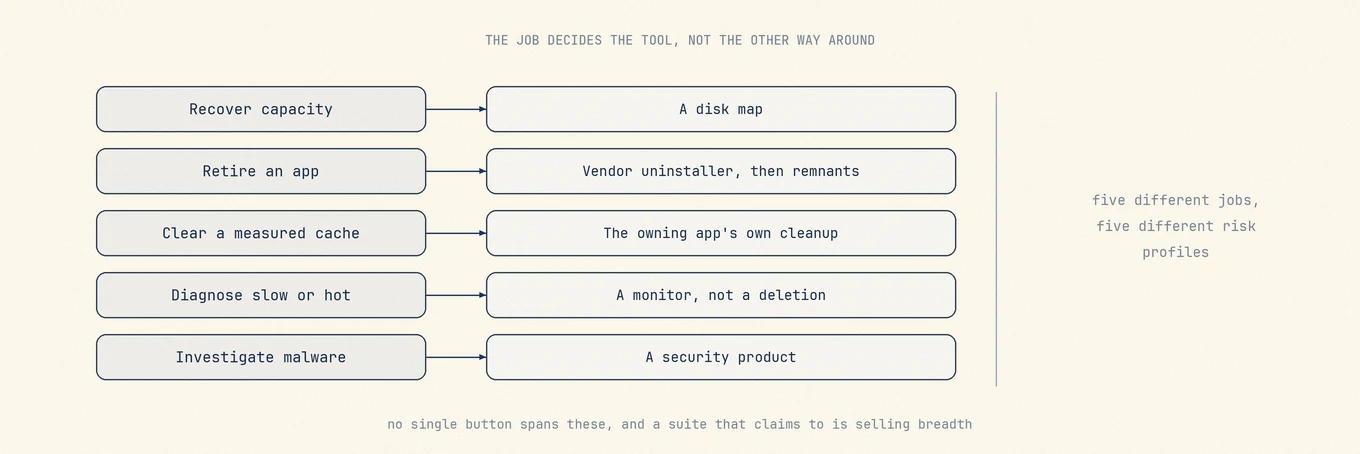
Pick a replacement by job, not by brand. A menu-bar dashboard covers live sensors, a disk visualizer helps investigate storage, and a review-first cleaner handles uninstall and cleanup. Sensor coverage depends on both the Mac and the app; compare the readings and estimates each tool actually provides.
Hardware dashboards read sensors; they do not invent health
Most menu-bar and dashboard tools sample overlapping kernel and IOKit sources: CPU load, memory pressure, network counters, disk I/O, battery charge, and on many Macs thermal pressure. Differences that matter in practice:
| Dimension | What to compare |
|---|---|
| Sampling cost | How often expensive probes run; whether idle Macs stay cool |
| Sensor coverage | Model-specific fans, power, drive SMART |
| History | On-disk charts vs last-minute sparklines |
| Writes | Read-only monitoring vs fan/SMC control helpers |
| Cleanup coupling | Whether delete UI sits next to graphs (and how safe it is) |
A beautiful gauge that samples SMART or heavy disk probes on every paint can cost more than the insight is worth. Good tools cache expensive probes, degrade one metric when a sample fails, and never thrash disks for a menu bar tick.
For pure monitoring choices, see beyond iStat Menus. For fans specifically, see fan control apps. For temperatures, see check Mac temperature.
Start with the job, not the brand
| Job | Success looks like | Tool class |
|---|---|---|
| See where disk went | Path-level map, totals that make sense for APFS | Disk analyzer |
| Free space safely | Reviewable candidates, recoverable deletes | Cleaner / uninstaller |
| Watch live load | CPU, memory, network with low overhead | Menu bar / status |
| Hardware health | Battery, drive SMART, thermals over time | Hardware dashboard |
| Benchmarks | Repeatable scores you trust | Benchmark suite |
| Malware | Detection and response | Security product |
Sensei spans several middle rows, and many people only need one or two. Matching the narrowest tool avoids paying for, and authorizing, surfaces you will not use.
Evaluation criteria (use these before price)
- Exact paths and consequences before deletion?
- What needs Full Disk Access, a privileged helper, or always-on sampling?
- Ordinary removals recoverable, with skips and failures reported?
- Hardware data read-only, or does anything write SMC / fan curves?
- License: subscription vs one-time, Mac count, major-version policy?
- Explicit non-goals (no malware theater, no guaranteed speedups from deleting prefs)?
A polished dashboard that cannot answer those questions is still a risk surface.
Alternatives by job
Built-in macOS tools
System Settings, Storage, Apple's
Activity Monitor,
Console, tmutil, diskutil, and Battery settings cover occasional checks without
another resident process, login item, helper, or subscription. Their weakness is Library
attribution and unified remnant review, so they are the right starting point when
maintenance is rare.
Mole for review-first cleanup, software, disk map, and status
Mole combines a disk treemap, cache and remnant review, app updates, startup items, and short live status trends. It deliberately stops short of malware scanning, deep SMART history, and benchmarking; fan writes are a separate privileged action. That fit is useful when the recurring job is reviewable maintenance rather than long-term hardware telemetry.
Disk maps only: DaisyDisk, GrandPerspective, OmniDiskSweeper
When the only question is "what is large?", see beyond DaisyDisk. Remember APFS clones, snapshots, and unreadable directories make honest tools disagree.
Leftovers only: AppCleaner or a dedicated uninstaller
When the recurring job is retiring apps (beyond AppCleaner).
Live metrics only: Stats, MenuMeters, Activity Monitor
When you want menu bar load without cleanup. Stats is the common free lightweight pick.
Deep sensors and history: iStat Menus
When historical charts and broad sensor coverage matter more than cleanup. It is a monitor, not an uninstaller.
Sensei itself
Use Sensei's current feature page to verify sensor, benchmark, cleanup, licensing, and macOS-support claims before comparing it with another tool. Those details change more quickly than the job map in this article.
Large suites: CleanMyMac and peers
Large suites often bundle more features and may use subscriptions. Evaluate them with the same safety questions as any cleaner (beyond CleanMyMac).
Stay with Sensei when it matches
Sensei remains solid when you specifically want Cindori's hardware and disk tooling, benchmarks, and their maintenance UX, and you accept their licensing and permission model. Switch only if another set fits real weekly jobs better.
Quick comparison
| Option | Disk map | Cleanup / remnants | Live status | Hardware depth | License (verify) |
|---|---|---|---|---|---|
| macOS built-in | Basic | Manual | Activity Monitor | Battery settings | Included |
| Sensei | Strong focus | Suite-style | Yes | Strong focus | Check vendor |
| Mole | Treemap Analyze | Review-first Clean + Software | Status + menu bar | Sensors, battery, optional fans | One-time style |
| DaisyDisk + AppCleaner + Stats | DaisyDisk | AppCleaner | Stats | Limited | Per tool |
| iStat Menus | No | No | Deep history | Sensors | Paid |
| CleanMyMac | Yes | Broad suite | Some | Varies | Often subscription |
Permissions and safety posture
- Read-only monitoring should not need a root shell.
- Deleting files should show paths, prefer Trash, and re-validate at execution.
- Fan or SMC writes imply a privileged component that outlives the UI (fan control context).
- Drive health probes can be expensive; good tools cache and avoid hammering disks on every paint.
- Avoid any alternative that demands payment before you can see what it would delete.
Worked example: three real weekly patterns
Pattern A: "I only open it when the disk is full."
You need a disk map and occasional cache/leftover review. Built-in Storage + a treemap
(or Mole Analyze + Clean) is enough. A full hardware suite is optional weight.
Pattern B: "I watch sensors all day and clean once a month."
Split the jobs: Stats or iStat for the menu bar; a review-first cleaner when space is
tight. Do not require the monitor to also be your uninstaller.
Pattern C: "I care about drive health, benchmarks, and one polished window."
Sensei (or a similar hardware-first suite) may still be the honest fit. Do not force a
minimal tool stack if you truly use the hardware depth weekly.
Practical migration path
- List the jobs you used Sensei for last month (disk, clean, monitor, benchmark).
- Keep Sensei if two or more of hardware health, benchmarks, and its disk tools are weekly habits.
- Otherwise assemble the narrow set: built-in + one analyzer, or a review-first multi-tool like Mole, plus security software only if you need that job.
- Revoke Full Disk Access from tools you uninstall.
- Confirm Time Machine or another backup before bulk cleanup.
Common mistakes
Replacing a suite with another suite for "simplicity." Count weekly jobs first.
Assuming more sensors mean better maintenance. Sampling has a cost.
Letting cleanup ride along with monitoring without path review.
Forgetting to revoke FDA after uninstalling the old tool.
Decision rule
A Sensei alternative is a job map, not a single default winner. Choose the smallest set of tools that exposes paths, limits privilege, and matches how you actually maintain the Mac.
Order of decisions
- Write down last month's real jobs (not the feature page).
- Map each job to a tool class in the table above.
- Prefer built-in for rare jobs; pay only for weekly friction.
- Check permissions and recovery before installing anything that deletes.
- Uninstall what you do not open; revoke access.
Further reading
- Sensei product and feature page
- Apple Activity Monitor guide
- iStat Menus alternatives
- DaisyDisk alternatives
- CleanMyMac alternatives
- Do you need a Mac cleaner
- Fan control apps
Why sampling cost deserves its own line
Refreshing a CPU percentage every second is usually fine. Triggering SMART queries, unbounded directory sizing, or unthrottled process-and-icon walks on every paint is not. A tool can heat an idle Mac while claiming to monitor health.
Good designs put expensive probes on a slow tick, keep the last known good sample when a probe fails, and never blank a whole dashboard because one sensor timed out. "More sensors" is not automatically better maintenance.
Permission checklist before you install
Write down what you are willing to grant:
- [ ] Full Disk Access (Library scanning)
- [ ] Accessibility / input monitoring (global hotkeys)
- [ ] Privileged helper (fans or system changes)
- [ ] Open at login
One week later, revoke anything unused. After uninstall, check Full Disk Access again.
How this relates to "do you need a cleaner"
If your real job is occasional free space, start with do you need a Mac cleaner. This article is for people who already want tools and are choosing between a hardware suite and a composed stack, not for everyone.
How to compose a stack without overlap
A stack of DaisyDisk plus AppCleaner plus Stats works well as long as each tool keeps to one job:
- The disk map locates the problem and does not delete on your behalf
- The uninstaller opens when you retire an app, not as a weekly full-disk sweep
- The menu bar tool stays light and carries no cleanup buttons
Do not let the three share one "select all". Grant and revoke their permissions separately. If you find yourself opening all three every week, consider consolidating the jobs into one tool with a review flow rather than installing a fourth suite.
Three things to check beyond the price
- Major-version policy: does a one-time purchase include the next major release, or is there an upgrade fee?
- Mac count: are a laptop and a desktop both covered?
- Exit path: how easy is a subscription to cancel, and what permissions survive an uninstall?
Feature pages rarely spell these out. Before you order, open the purchase page and the permission list in System Settings and check each line; that tells you more than comparing feature tables.
FAQ
Why do different tools report different battery health numbers?
Tools can use different system readings, sampling times, and calculations. Compare what each percentage means before treating a higher number as better data. A monitoring app cannot directly measure battery information the hardware and system do not expose.
Do I need a monitoring app running all the time?
Only while you are watching a real symptom, such as a thermal or battery issue. A resident dashboard costs ambient CPU and menu bar space; for occasional checks, opening a tool on demand is enough.
Can one app replace everything Sensei did?
The jobs are different enough that two focused tools usually beat one suite: a sensor dashboard for live numbers, plus a review-first cleaner for storage, uninstall, and maintenance.