Mac Fan Control Apps Compared: Macs Fan Control, TG Pro

Fan control software is a narrow category with an unusually wide trust surface. Some thermal and fan readings are available without elevation; changing a fan target usually is not. Current tools commonly install a privileged helper, and that helper may outlive the app unless the vendor removes it. What you install it for is smaller than it sounds: a fan curve does not remove heat, it moves heat, and only as fast as the vents and the room allow. Judge these tools by what they reach in the hardware, and by what they had to install to reach it.
What raising a fan floor actually buys
A faster fan moves more air across the heat sink, so the chip sheds heat earlier and the temperature curve during a long job flattens sooner. That can delay throttling under sustained load, which is the real benefit. It costs noise, fan wear, dust pulled through the machine, and battery on a laptop. It does nothing about the source: a runaway process, a blocked vent, or failing cooling hardware are all still there afterwards.
Bjango and smcFanControl document an important limit. Bjango's fan documentation says iStat Menus cannot lower fans below the speed the system would normally use, only raise them. smcFanControl's README makes the same promise in older words: a minimum only, never below Apple's defaults. You add a floor underneath the firmware's decision; you do not replace the decision.
Under the hood: reading is a query, writing is a privilege
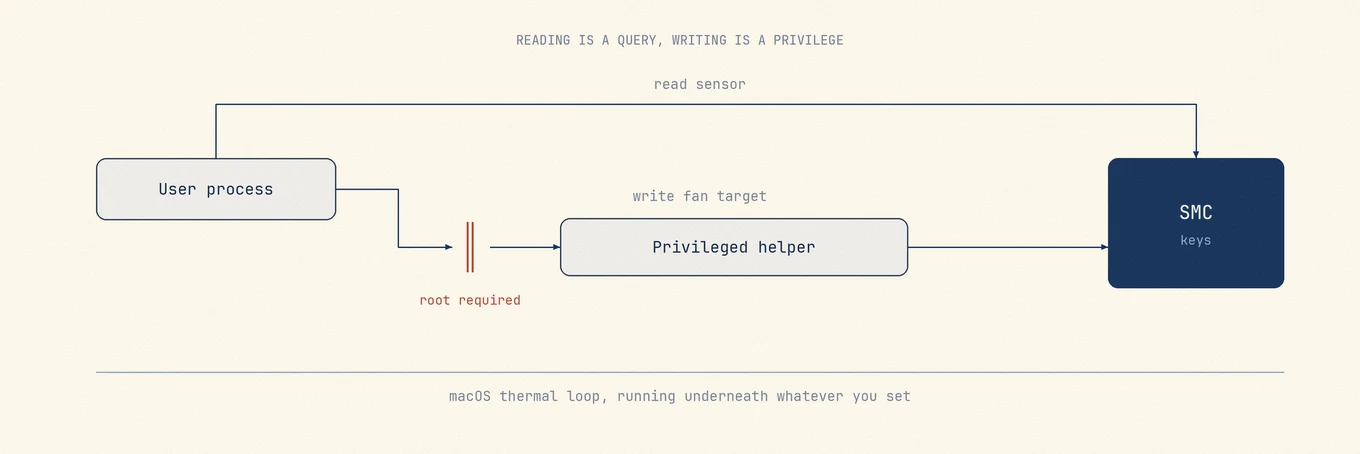
Macs expose thermal and fan data through the System Management Controller, a small always-on controller with a key and value interface. Which readings are available without elevation varies by model and by the API a monitor uses; iStat Menus, for example, documents a separate helper even for its temperature and fan views. Reading can therefore widen the install surface too, although writing is the more sensitive operation.
A fan target normally travels through a second program with elevated privilege. Common designs include a launchd daemon installed through Service Management, a setuid binary, or a sudoers rule. The installation mechanism is only one part of the security story. Apple's own secure-helper guidance also requires the helper to authenticate its runtime client, validate every request, and expose as little privileged work as possible. SMJobBless checks signing requirements when installing or updating a helper, but it does not make an arbitrary XPC protocol safe by itself.
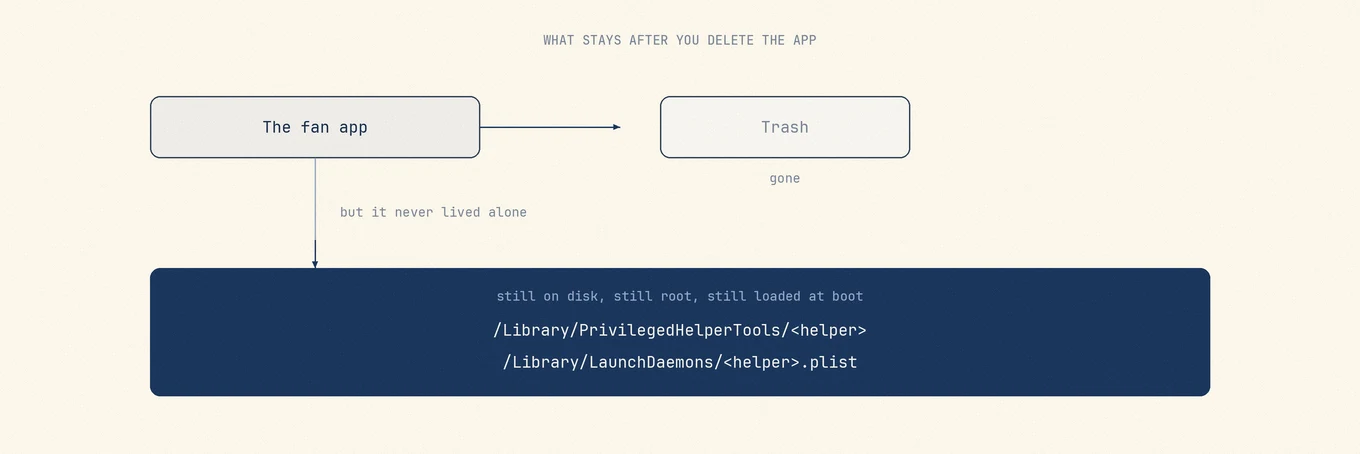
A common legacy layout places the helper in /Library/PrivilegedHelperTools and a
launch daemon in /Library/LaunchDaemons. Other Service Management designs differ.
Dragging only the app bundle to the Trash may leave a separately installed component
behind, so check the vendor's removal instructions before installing. If the
documentation does not say what is installed and how it is removed, you have learned
something anyway.
Apple Silicon changed the shape of the problem. The SMC key namespace is not the Intel one, and sensor names and counts vary by machine, so each tool carries a per-model table and new hardware support arrives in release notes. Fanless models such as the MacBook Air have no fan to write to at all. And macOS keeps its own thermal control loop running underneath whatever you set. On recent chips it asserts itself directly: Tunabelly's FAQ states that M3 and M4 series hardware can restrict fan control and that no third-party app can override that, and Bjango lists the same behavior as a known issue when macOS has turned the fans off. Two vendors describing the same wall is the clearest signal available.
The tools, and what each one reaches
Macs Fan Control, the common starting point
Macs Fan Control from CrystalIDEA is the tool most people meet first. It shows fan speeds and temperature sensors, including third-party drive sensors over S.M.A.R.T., and can run a fan at a fixed RPM or tie it to a chosen sensor. It lists Intel and Apple Silicon Macs across the full range, with current M-series support in a release dated April 2026. The app is free, and a Pro tier adds saved fan presets as a one-time purchase licensed per computer.
Its privileged component is fully documented. The
uninstall instructions name the launch daemon
com.crystalidea.macsfancontrol.smcwrite.plist and the helper
com.crystalidea.macsfancontrol.smcwrite, and current versions remove both from the
app's own More menu. Sensor-driven RPM is the reason to choose it, and the reason to be
deliberate: a custom mapping is the easiest way to own a Mac that is loud for a rule you
no longer remember writing.
TG Pro, the rules and diagnostics choice
TG Pro from Tunabelly Software is the widest reader in the group: per-core CPU on Apple Silicon, GPU, storage over S.M.A.R.T., battery condition, and board sensors that vary by model, alongside temperature-triggered Auto Boost rules, alerts, CSV logging, and diagnostic reports. It lists macOS 10.13 through macOS 26 and Intel through the M5 generation, with a release dated March 2026. It is a one-time purchase, and its FAQ states that one license covers up to three Macs for personal use and that 2.x updates have been free.
Fan control runs through a helper at
/Library/PrivilegedHelperTools/com.tunabellysoftware.TGFanHelper with a matching
launch daemon. Choose it when you want rules, logging, and alerts rather than a slider,
and read its own statement about hardware limits first.
iStat Menus, fan control inside a monitor
iStat Menus from Bjango is a system monitor first, and fans are one panel within it. Version 7.3 requires macOS 11 or later, and its sensor coverage includes temperatures, fans, frequencies, and voltages. The fan documentation offers automatic, a custom curve that ramps with sensor temperature, and manual, with the raise-only limit stated plainly. Viewing temperatures and fan speeds at all requires its separate helper. Licensing is one-time in single and family editions, with discounted upgrades from the previous major version, and it is also inside the Setapp bundle.
Take it when you want the monitor and the fan panel comes with it. The rest of what it does belongs in a menu bar monitor comparison.
smcFanControl, historically important and now stale
smcFanControl is the ancestor of this category and needs a status report more than a recommendation. It is GPL-2.0, and its central idea was right: set a minimum only, never below Apple's defaults. The repository is not archived, but the shipping evidence is old. The last tagged stable release is 2.6 from October 2016, the only newer tag a 2018 beta, the last commit December 2022, and the compiled build its README links is still that 2016 one. The repository description says it controls the fans of every Intel Mac while the README also claims Apple Silicon; with nothing released since 2016, treat that line as unverified. Install it to read a piece of Mac history, not to cool a current Mac.
Mole, three presets instead of a curve
Mole offers three presets without a custom curve editor: Auto, Cool, and Max. SMC writes go through a root XPC
helper daemon named com.tw93.MoleApp.systemhelper, installed with SMJobBless and
protected by an explicit XPC peer-signature check, deliberately not a sudoers rule or a
setuid binary. A preset is a hold rather than a setting: quitting the app requests a return to Auto. Fan and thermal readings
also appear on the Status tab with a 60-second sparkline, and in the menu bar popover.
The boundary is the missing feature: no per-sensor curves, no thermal repair. If your
question is
which sensor should drive which fan at which RPM, the tools above answer it and this one
does not. Licensing is one-time with free updates for two Macs on macOS 14 or later,
with no telemetry.
Since 1.16, Cool starts at a quieter 40% floor and raises speed with sustained CPU heat, easing down as the Mac cools. It is an automatic preset, not a custom curve editor. Before quitting, Mole checks that Auto has been restored; if that cannot be confirmed, it lets you cancel quitting or explicitly quit anyway.
Quick comparison
| Tool | Reads | Writes fan speed | Privileged component | Licensing model |
|---|---|---|---|---|
| Macs Fan Control | Fans, sensors, drive S.M.A.R.T. | Fixed RPM or sensor-based | Helper and daemon, paths published | Free, optional one-time Pro |
| TG Pro | Widest sensor set, battery and drive health | Auto Boost rules, manual where allowed | Fan helper and daemon, paths published | One-time, up to three Macs |
| iStat Menus | Full monitor plus sensors | Curve or manual, raise only | Separate helper required for sensors | One-time, single or family |
| smcFanControl | Temperatures and fans | Minimum speed only | Not documented in the repository | GPL-2.0, no release since 2016 |
| Mole | Sensors and fans on the Status tab | Three presets; requests Auto on quit and warns if unconfirmed | SMJobBless helper, signature checked | One-time, two Macs |
A safe order of operations
Name the workload first. A fan that rises during a compile, an export, or a game is usually the cooling system responding normally, not a fault to fix. Then check airflow: a hard flat surface, clear vents, and nothing soft under a laptop resolve more fan complaints than any tool on this page.
Only then consider a floor, and treat it as a comfort setting for one known job rather than a repair. Set it, run the job, hand control back to automatic afterwards. A tool that cannot restore automatic control on quit or sleep is holding your fans rather than helping them. When the app goes, use its documented uninstall path so any separately installed helper is removed too.
If the fan is loud at idle after all that, the problem is diagnosis rather than fan control, and the next steps are in why your MacBook fan is loud. If the worry is a temperature reading rather than the noise, how to check Mac temperature covers what that number does and does not mean. Most people should never run a manual fan curve. The default curve knows the model, the sensors, and the limits, and between the two of you it is the one that read the hardware specification.