Remove Office for Mac Without Losing Outlook Mail

Microsoft publishes a complete uninstall procedure for Office on Mac, and it works. The part worth slowing down for is a single sentence in the middle of it: three of the folders it asks you to delete hold your Outlook mail.
Microsoft says so plainly. Most guides that reproduce the folder list do not, and the list is long enough that by the time you reach those three you are deleting on autopilot.
The three folders that are not leftovers
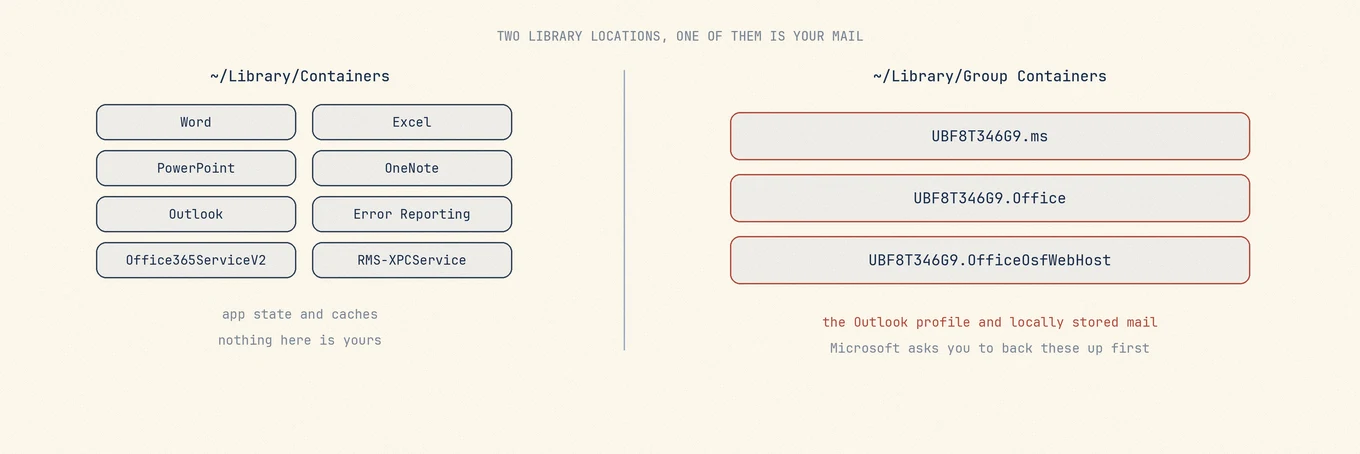
Office keeps its state in two places under your Library, and the second one is where the risk is.
~/Library/Containers holds one folder per app: Microsoft Word, Microsoft Excel,
Microsoft PowerPoint, Microsoft OneNote, Microsoft Outlook, plus service folders like
Microsoft Error Reporting and com.microsoft.Office365ServiceV2.
~/Library/Group Containers holds three shared folders: UBF8T346G9.ms,
UBF8T346G9.Office, and UBF8T346G9.OfficeOsfWebHost.
Microsoft's Office for Mac uninstall procedure carries its own warning for that second set: Outlook data will be removed when you move those three folders to the Trash, and you should back them up before deleting them.
If your mail is a normal IMAP or Exchange account, the server still has it and a reinstall re-downloads it. If you have on-my-computer folders, archived mail that was never on a server, or an imported .olm, that content lives only in those folders.
Copy them out before the app goes
The safe move takes a minute. In Finder, press Command Shift G, go to
~/Library/Group Containers, and copy the three UBF8T346G9 folders to somewhere
outside your Library, such as an external drive or a folder on your Desktop.
Do this while Office is still installed and closed. A copy made afterwards is a copy of whatever survived, which is not the same thing.
Then follow Microsoft's order
Quit every Office app first. Move the apps from Applications to the Trash. Then remove the Containers folders, then the three Group Containers folders. Microsoft finishes with removing the icons from the Dock and restarting.
The restart matters more than it looks. Office runs background services and a reporting process that hold files open, and removing folders underneath a running process leaves you with a partial delete and no error message.
Signing out is a separate action from uninstalling
Removing the apps does not release the license from your Microsoft account, and it does not cancel a subscription. If the reason you are uninstalling is to move Office to another Mac, deactivate on the account side as well; if the reason is billing, cancel the subscription in your account. Neither happens because the files are gone.
What is safe to remove afterwards
Once the apps and their containers are gone, the remainder is ordinary: preference plists, caches, saved application state, and receipts. None of it holds anything you made. It is also the part people spend the most time on, which is backwards. The five minutes are better spent on the copy in the previous section.
Font collections are the one exception worth checking. Office installs fonts, and if you used them in documents that other people will open, removing Office removes the fonts those documents expect.
The list is long enough that reading it matters
The uninstall is not difficult. It is tedious, and tedium is what makes people stop reading halfway through a list of nine folders that all begin with Microsoft. The three that matter look exactly like the six that do not.
This is the case for having the whole footprint in front of you at once. Mole enumerates it with a size beside every entry, so a 40 MB error-reporting container and a 12 GB mail store are told apart by looking rather than by opening. Whatever you clear is recoverable from the Trash, which on a list this long is the safety net that matters.
Telling whether your mail is on the server
Check the account type, its retention settings, and what is actually available in webmail.
IMAP and Exchange can restore mail that has finished syncing and remains on the server. POP may keep or remove server copies depending on the account settings, so do not infer that a backup exists from the account type alone. Check important messages in webmail. Treat On My Computer folders and locally imported .olm archives as local data that needs its own backup.
Outlook's account settings show the type for each account. A group of folders in the sidebar that belongs to no account is almost always a local archive, and that is the part worth exporting first. Outlook exports to .olm on its own; put the file somewhere outside your Library, not in one of the folders you are about to delete.
What Mole lists for this app, and what it leaves alone, is in Uninstall Office on Mac without deleting Outlook mail.