Uninstall Dropbox Without Losing Local Files
Dropbox is unusual among Mac apps: uninstalling it is designed not to touch your files. Dropbox says so in its own instructions, and then adds a warning about what happens if you go one step further and delete the folder yourself.
That gap between the two actions is where the mistakes live. Removing the app and removing your Dropbox folder feel like one job and are not.
Uninstalling leaves your files exactly where they are
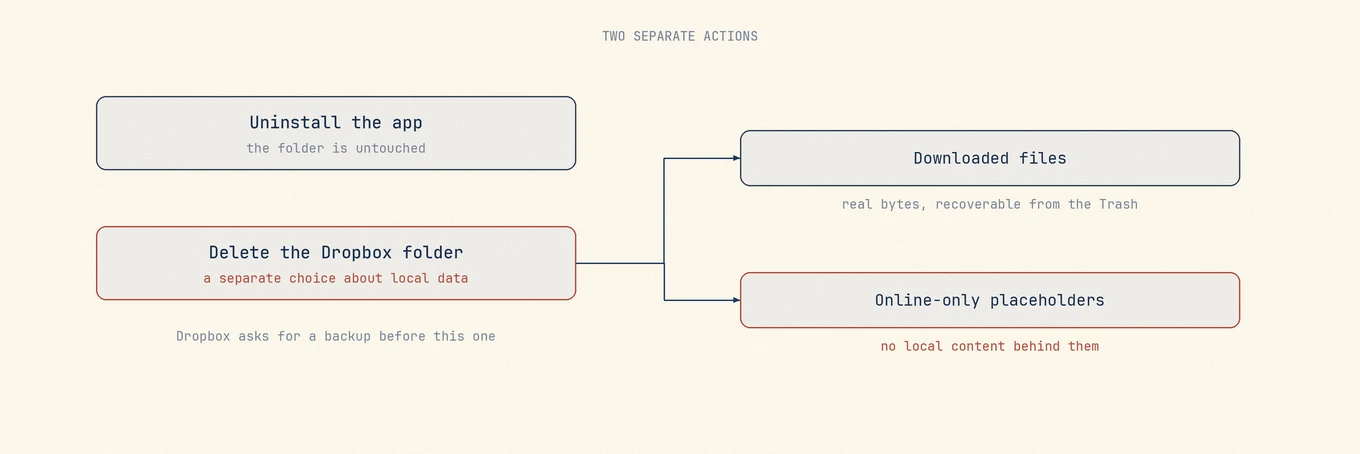
Quit Dropbox from the menu bar, then drag Dropbox from Applications to the Trash. That is the whole official Dropbox uninstall, and Dropbox states it will not delete your account or remove the Dropbox folder from your hard drive.
After uninstalling, the Dropbox folder remains. Files already downloaded stay local; online-only placeholders do not become downloaded files just because the app is gone.
Deleting the folder is the step that needs a backup
The same Dropbox page offers folder deletion as a separate optional action and attaches a warning to it: before moving your Dropbox folder to the Trash, make sure you have a backup of your data stored in another location.
That warning is doing real work. Online-only files are the reason. If you used selective sync or smart sync, some items in that folder are placeholders rather than files, and a local copy of a placeholder is not a copy of anything. Deleting the folder while those items have never been downloaded means the local side has nothing to recover from, and the only remaining copy is the account you may be closing.
If you intend to keep the files and stop using the service, download everything first, copy the files to a separate backup, and confirm they open without Dropbox before deleting the folder.
Modern macOS moved where the files live
Recent macOS versions moved Dropbox onto the system File Provider mechanism, which relocates the synced content out of a plain folder in your home directory and into a system-managed location that Finder presents normally.
Practically, this means a path you wrote down years ago may no longer be where the data is, and a manual sweep for a folder named Dropbox can miss the real one entirely, or find an empty shell and report that everything is gone. Check in Finder rather than by path, and let the sidebar tell you where the folder actually resolves.
The parts that are genuinely disposable
With the app gone and the folder decided, what remains is ordinary: caches, logs, preferences, and a login item that no longer has anything to launch. There is nothing in that set you cannot lose.
Dropbox also installs a Finder extension and, depending on version, a system extension. Those are registered with macOS rather than being loose files, so they clear through System Settings rather than by deleting something. If a Dropbox entry lingers in Finder's sidebar or the share menu after everything else is gone, that registration is why, and a restart usually settles it.
Check what is left before you decide anything is missing
Two things are worth confirming. That no Dropbox process is still running, and that the folder you are looking at is the real one rather than a stale mount point.
Mole is useful at exactly this moment: it shows the app's remaining footprint and each item's size, so an empty leftover folder and a folder holding forty gigabytes are distinguishable at a glance instead of by opening each one. What you clear goes to the Trash, which for a sync client is the right default, since the mistake you want to be able to undo is the one you make in a hurry.
Telling placeholders from real files
The status icon beside each name in Finder is the answer: filled means the content is local, a cloud or outline icon means the item is a placeholder and the content is still online.
For a whole folder, select it and press Command I, then compare the size against what Dropbox reports on the web. A large gap means most of it has not been downloaded.
To pull everything down, right-click inside the Dropbox folder and choose Make Available Offline, then wait until every status icon is filled before you touch anything. On an ordinary connection this can take a while, and leaving a folder of tens of gigabytes overnight is safer than discovering afterwards that you need to fetch it back from an account you were about to close.
What Mole lists for this app, and what it leaves alone, is in Uninstall Dropbox on Mac without deleting the Dropbox folder.