Uninstall Java on Mac: JDKs, JRE Leftovers, PATH

There are two questions hiding inside "uninstall Java on Mac", and answering the wrong one is how people end up with a broken toolchain. The first is which Java you have. The second is what else on the machine expects it to be there.
Oracle's own instructions are short, and the most important line in them is not a step. It is a warning about a directory you should leave alone.
Before touching a file, run /usr/libexec/java_home -V. It turns a vague Java install
into a list of actual JDKs and paths, which lets you remove one version through the same
package manager or installer that put it there. The commands under /usr/bin are system
stubs, not the runtime you are looking for.
Do not remove Java from /usr/bin
Oracle's current macOS JDK installation guide
states it directly: do not attempt to uninstall Java by removing the Java tools from
/usr/bin. That directory is part of the system software, and any change is reset by
Apple the next time macOS updates.
This is the single most common way the job goes wrong. Typing which java returns a
path under /usr/bin, which looks like the answer, and it is not. On macOS those are
stubs that point at whatever runtime is actually installed. Deleting them removes the
signposts, not the building, and macOS restores them later anyway.
Know which Java you are removing
A runtime and a development kit are different installs with different removals.
The Oracle JRE, the consumer runtime with the browser plug-in and the preference pane, lives in three places Oracle names:
/Library/Internet Plug-Ins/JavaAppletPlugin.plugin
/Library/PreferencePanes/JavaControlPanel.prefPane
~/Library/Application Support/Oracle/Java
A JDK is separate, installs under /Library/Java/JavaVirtualMachines/, and removing it
requires administrator privileges. You can have several side by side, which is normal
and often deliberate.
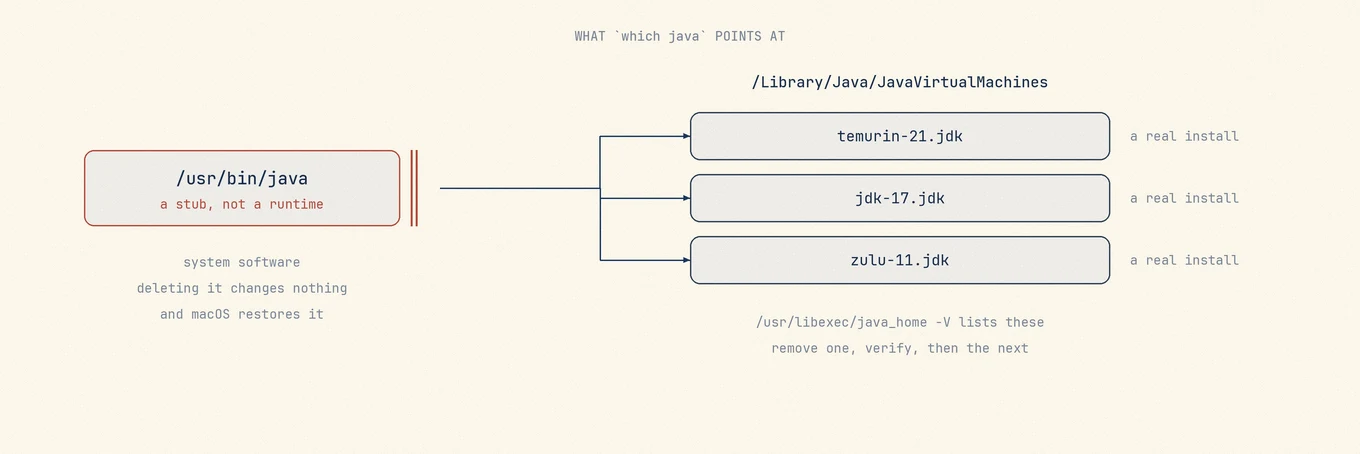
List what is actually installed before deciding:
/usr/libexec/java_home -V
This prints every JDK the system knows about, with its version and path. If that list has one entry, the choice is simple. If it has four, the next section matters.
Removing the wrong JDK breaks other software
Java is rarely installed for its own sake. Android tooling, Elasticsearch, Minecraft launchers, JetBrains IDEs, Apache tooling, and several enterprise VPN and printing clients all ship with or depend on a JVM. Some bundle their own copy and are unaffected. Others resolve whatever the system offers and stop working when it changes.
If a JDK was installed by a package manager, remove it the same way it arrived. A
Homebrew-installed temurin comes out with brew uninstall, and pulling its files by
hand leaves the package database claiming it is still there.
Remove a JDK the supported way
For an Oracle JDK installed from a .pkg, Oracle's documented removal target is the
matching directory under
/Library/Java/JavaVirtualMachines/ that carries its version in the name, and it needs
sudo. Remove one version at a time and check the tools that matter to you before
removing the next.
Afterwards, /usr/libexec/java_home -V should no longer list it, and any
JAVA_HOME you set by hand in a shell profile now points at nothing. That variable is
the second most common cause of a toolchain that fails after a clean removal.
Check before you close the terminal
/usr/libexec/java_home -V
java -version
The first shows what remains. The second either reports a version or tells you no runtime is installed, which on a machine you meant to clear is the correct answer rather than an error.
Where a footprint view helps
Java's leftovers are small, scattered, and dull: caches, preferences, a plug-in, a preference pane. The interesting part is the inventory, and the terminal already gives you that. If you would rather see the whole footprint of a JDK or of the apps that bundle one, in a single list with sizes, Mole does that without asking you to know the paths in advance.
Three places to check afterwards
The first is your shell profile. A hand-written JAVA_HOME in ~/.zshrc or
~/.zprofile does not leave with the JDK. It keeps pointing at a path that no
longer exists, and every new shell inherits the broken variable. Remove the line,
or change it to export JAVA_HOME=$(/usr/libexec/java_home) so it follows
whatever the system has.
The second is your IDEs. JetBrains tools and Android Studio record a specific JDK path per project and do not follow a system change, which shows up as one project failing to build while the command line is fine.
The third is anything a package manager installed.
brew list | grep -i -E 'jdk|temurin|zulu|openjdk' shows what came from Homebrew.
Those come out with brew uninstall; deleting their directories by hand leaves
the package database believing they are still installed.