Run Mac Maintenance Without Ritual Cleans

"Run Mac maintenance" still brings up decade-old advice: weekly cache wipes, forced Spotlight rebuilds, Launch Services nukes, and third-party buttons that promise a healthier system. Modern macOS already performs much of that work on its own schedule. Useful maintenance is narrow, evidence-based, and reversible. Ritual purification is not.
For a preventive list that starts with backups and updates, see the Mac maintenance checklist. This article is about mechanisms: what the system already does, which manual actions still help, and which belong in a museum. When you finish, you should be able to name a symptom, pick one class of change, and measure whether it helped.
Modern macOS needs almost no ritual maintenance. Run a targeted action only when you have a symptom: reindex Spotlight when search results are wrong, clear a specific cache when one app misbehaves, and skip purge scripts and RAM cleaners entirely, because the system already manages both.
What "maintenance" meant, and what changed
Older guides assumed:
- Font and dyld caches needed periodic hand deletion
- Spotlight needed calendar reindexes
- Launch Services needed
lsregister -killstyle resets - Free RAM was a goal
On current macOS:
- Purgeable storage and local snapshots thin under pressure (snapshots)
- Memory cache is intentionally used; Activity Monitor's memory pressure matters more than free RAM
- Software Update is the primary security maintenance path
- Background indexing settles after large imports (mds / mdworker)
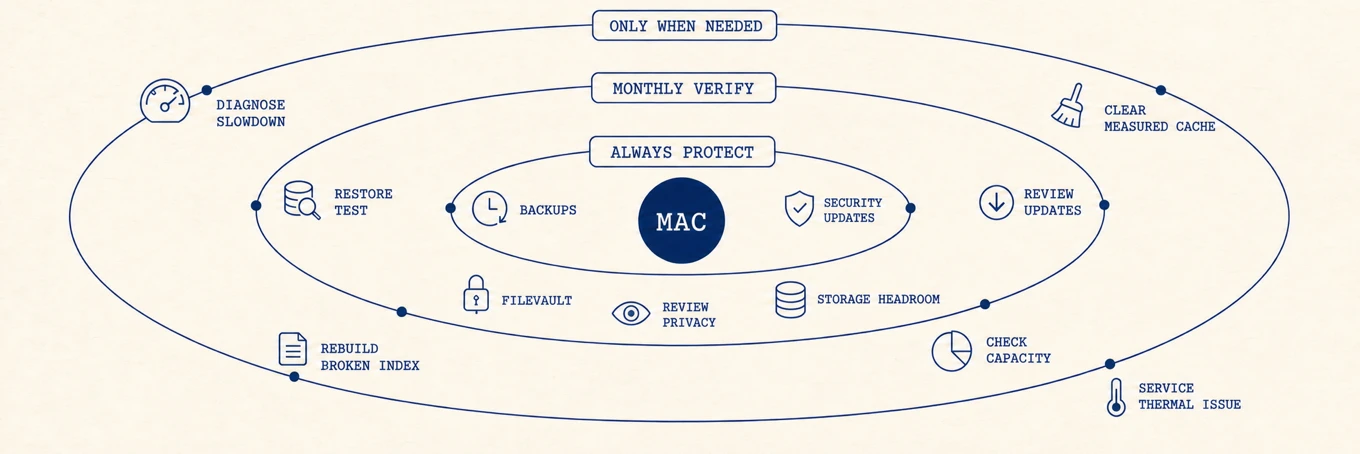
If the Mac is responsive, encrypted, backed up, and has comfortable free space, doing nothing is valid maintenance.
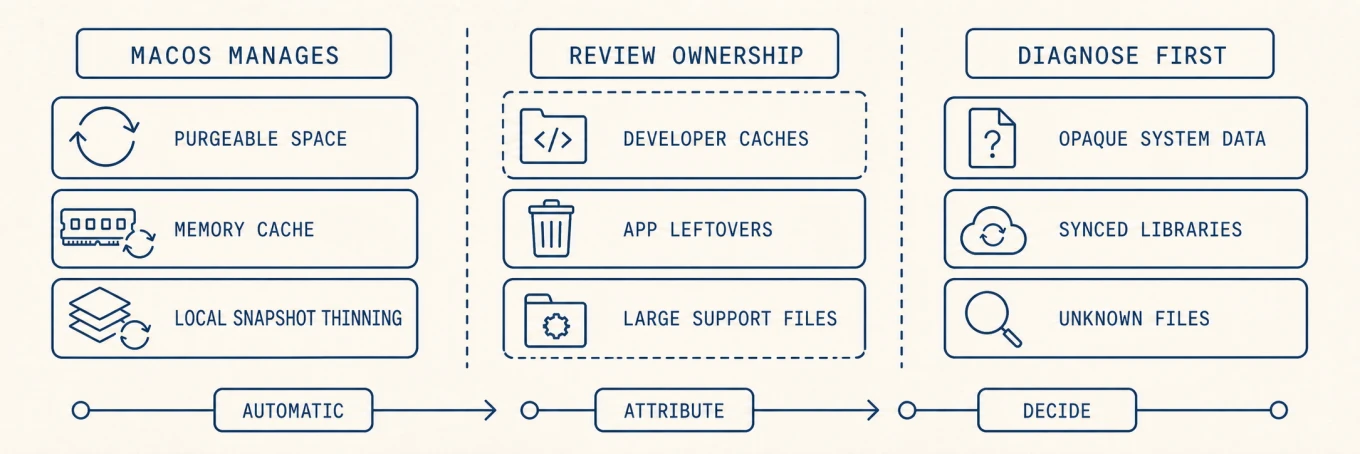
Leave updates and snapshots to the system surfaces that own them. Apple's macOS update guide covers the update path, and local snapshots are managed automatically and already counted as available space. Neither is work a weekly maintenance script should be repeating.
Reasonable maintenance, when you have a reason
1. Updates and security posture
Install macOS and App Store security updates on a known-good network. Apple's macOS update guide recommends backing up first. Update browsers and anything that handles untrusted content. Confirm FileVault and a tested backup before large upgrades. A cleaner is not a substitute for patches.
2. Startup and background load
Slow login is often too many login items, not a dirty font cache. Review startup and background items one owner at a time. Prefer disable over delete. Distinguish:
- Visible Login Items
- Background Items managed by Service Management / BTM
- launchd agents and daemons with real plists
- Protected vendor or Apple components that should stay read-only
3. Disk capacity with ownership
When free space is low:
- Measure with Storage settings,
df, and a folder map (large files). - Clear caches you can name.
- Let macOS manage local snapshots; investigate them only when a real allocation still fails after the file review.
- Retire apps with uninstall hygiene.
4. DNS versus routing table (two different tools)
Flushing DNS can help after a bad resolver or VPN glitch:
sudo dscacheutil -flushcache; sudo killall -HUP mDNSResponder
That clears resolver caches. It does not rebuild your routing table.
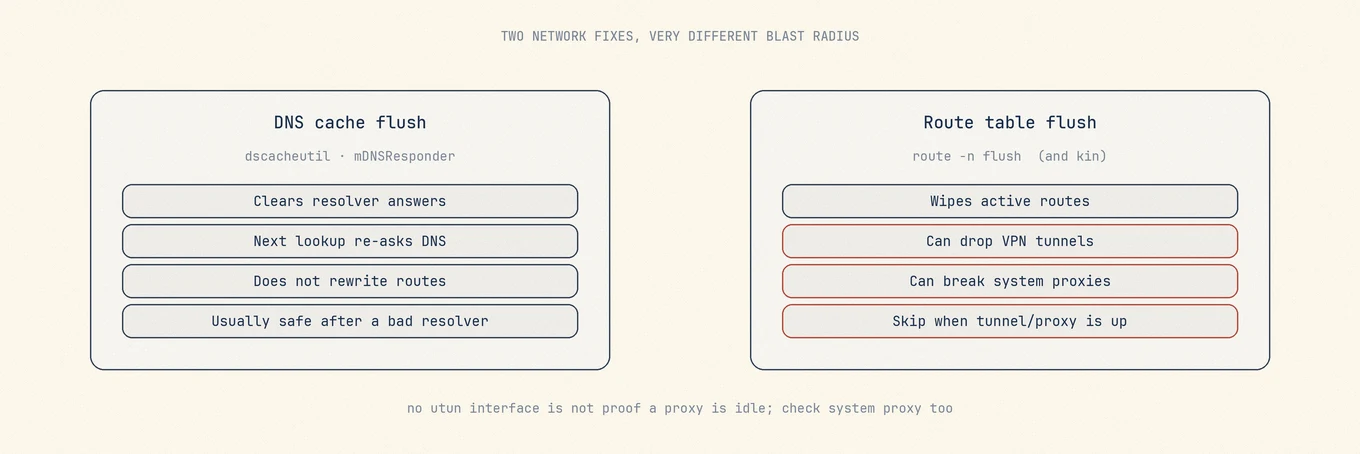
Flushing routes (route -n flush style operations) is sharper: it can disrupt active
VPN tunnels and system HTTP/SOCKS proxies. Clients that only set a system proxy may
create no utun interface, so "no VPN interface" is not proof that a route flush is
safe. A maintenance utility should skip with a reason when a VPN or proxy is active,
not force a green checkmark.
5. Quick Look, icon services, and user-level caches
After stuck previews or corrupted thumbnails, rebuilding user-level Quick Look or icon caches can help. Prefer documented, user-scoped resets over deleting random system folders. Quit apps that own the previews first. Expect first previews to be slower while caches refill.
6. Process and thermal diagnosis
Heat, fans, and runaway processes are not fixed by deleting preferences. Use Activity Monitor and guides for slow Macs, kernel_task, and temperature.
When a Spotlight reindex is justified (and when it is not)
Rebuilding the entire metadata store is expensive: hours of CPU, heat, and battery. Consider it only when:
- Spotlight systematically misses known files on a volume that should be indexed
mdutil -sshows a stuck or failed state after you fixed the underlying disk problem- You have already ruled out exclusions, network volumes, and privacy settings
Check status first:
mdutil -s /
Do not schedule monthly reindexes "for performance." Indexing spikes after OS upgrades or large photo imports are often normal catch-up, not corruption. See mds and mdworker.
Maintenance theater: skip by default
| Action | Why it is a poor default |
|---|---|
| Weekly "junk" wipes | Rebuilds healthy caches; adds I/O and slower launches |
lsregister -kill style Launch Services nukes |
High collateral; use only narrow, documented rebuilds |
| Blind full Spotlight reindex | Hours of CPU; only after a real index failure |
| Font cache deletion as a universal fix | Rarely the cause |
| Turning off SIP to "clean deeper" | Security boundary, not a maintenance switch |
| Third-party "speed up" that edits unknown plists | Preference loss without a performance theory |
| Paying to see scareware scan results | Sales-flow tells |
If an article cannot name the failure mode it fixes, it is not maintenance advice.
Worked example: "Mac feels slow after travel"
Symptoms: fans spin on login, first app launches take long, disk not full.
Baseline:
df -h /
# Activity Monitor: Memory pressure, CPU top processes
Findings: disk has 80 GB free; memory pressure yellow only for a minute after login; login items include three chat apps, two updaters, and a cloud sync client.
Change one class: disable two unused login items and one updater you launch manually. Reboot. Time the same app launch path. If improved, stop. Do not also wipe caches, rebuild Spotlight, and flush routes in the same afternoon. You will not know what helped.
How to run a maintenance batch safely
- State the symptom (full disk, stuck preview, bad DNS, slow login).
- Capture a baseline (
df -h, Activity Monitor sample, or a timed launch). - Change one class of thing, not five.
- Re-test the same workload.
- Record what ran, what skipped, and what failed.
A good helper shows ran / skipped (reason) / failed instead of a single success animation. Skipped is not failure when the skip protects a VPN session or a running install.
Where a maintenance tool fits
Mole's Optimize view groups selected Quick Look, cache, and metadata repairs into one reviewable run. It reports skipped work with a reason, including network operations that are unsafe while a VPN or system proxy is active. Software Update, Time Machine, and malware response remain separate system or security jobs.
Use Clean for disk candidates, Software for apps and startup, Status for live metrics, and Optimize for a bounded maintenance pass with visible outcomes.
Common mistakes
Scheduling cleanup because a calendar said so. Maintain for a named reason.
Confusing DNS flush with route flush. Different blast radius.
Rebuilding Spotlight because the Mac "feels slow." Measure CPU and disk first.
Running five fixes without a baseline. You cannot learn.
Decision rule
Maintain for a named reason, with a measurement before and after. Prefer Apple's update and backup paths over third-party deep cleans. When a utility helps, demand path-level review, recoverable deletes for file work, and honest skips.
Order of operations
- Name the symptom and write a baseline metric.
- Apply updates and confirm backup if the job is security or upgrade prep.
- Fix startup load or free space if those match the symptom.
- Use DNS flush only for resolver issues; skip route flush on VPN/proxy.
- Deep rebuilds only after a diagnosed failure.
- Re-measure the same metric; keep only what improved it.
Further reading
- Apple: Update macOS
- Apple: About Time Machine local snapshots
- Maintenance checklist
- Speed up a Mac
- Why is my Mac slow
- mds / mdworker
The Mac does not need a weekly exorcism. It needs headroom, updates, and the occasional targeted fix.
Maintenance log template
No tool required. Six lines in a notes app are enough to make a pass reviewable a month later:
Date:
Symptom:
Baseline: (df / login seconds / process name)
Change: one class only
Re-test:
Verdict: keep or revert
Read a few of those back after two weeks and the same three entries keep earning their place: an update, fewer login items, or free disk space. Nothing exotic ever makes the list.
When to stop and suspect hardware
Some symptoms are not maintenance problems at all. Stop running passes and move to hardware diagnosis or a reinstall assessment when:
- Disk health reports a failure, or a volume unmounts itself repeatedly
- Heat and high kernel_task persist with no load, after you have ruled out dust and blocked vents
- Memory pressure stays red with heavy swapping while an app has a known leak
A maintenance tool cannot fix a failing disk, and it is not a substitute for a targeted app update. At that point, book the repair instead of running another script.
Which view owns which job
- Disk candidates and caches you can name: Clean
- App inventory, update detection, and startup items: Software
- A bounded, reviewable system maintenance pass: Optimize
- Live load and fans: Status and the menu bar
Run all four in the same afternoon and you will not be able to say which step helped. Pick the one the symptom points at, and stop there.
FAQ
Should I run a cleaner or maintenance app on a schedule?
No. Scheduled cleanup deletes rebuildable files the system would reuse, then pays to rebuild them. Run targeted maintenance when you have a symptom and can name what it should fix.
Does reindexing Spotlight make the Mac faster?
It fixes wrong or missing search results; it does not speed anything else up, and the hours of background indexing it triggers briefly make things slower.
Are RAM cleaners and purge scripts worth using?
No. macOS manages memory pressure and file caches itself; force-freeing them discards warm data that the next action has to load again, which reads as the machine getting slower.