Check AirPods and Accessory Battery Levels on Mac

On an iPhone the answer is a widget away. On a Mac, checking whether your AirPods, Magic Mouse, or Magic Keyboard is about to die means knowing where macOS decided to put that information, and it is not where most people look first.
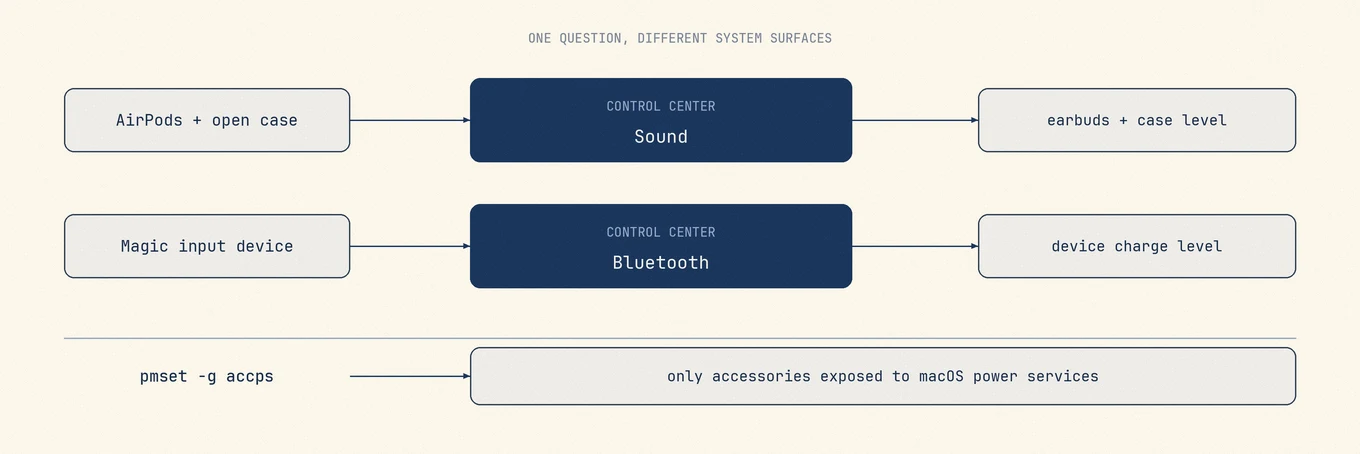
No Battery item in System Settings lists every accessory. Apple puts Magic Keyboard, Magic Mouse, and Magic Trackpad charge levels under Bluetooth. AirPods use a slightly different route through Control Center's Sound panel, especially when the earbuds are still in their case.
For AirPods, open the case or take the earbuds out, hold them near the
Mac, then open Control Center > Sound and select the AirPods. For an Apple keyboard,
mouse, or trackpad, open Control Center > Bluetooth. From the command line,
pmset -g accps lists the accessories that macOS exposes to power management.
The two built-in routes
For a Magic Keyboard, Magic Mouse, or Magic Trackpad, Apple says to open Control Center and click Bluetooth. The same level appears in the optional Bluetooth menu-bar item. A Magic Mouse cannot be used while it is charging; the keyboard and trackpad can.
AirPods are documented separately. Apple says to open the case or take the earbuds out, hold them near the Mac, then use Control Center > Sound. Selecting the AirPods there shows the charge state available for the earbuds and case. Playback is not a prerequisite.
Apple's current Mac instructions do not describe an iPhone-style Batteries widget in Notification Center. Advice that tells you to add one is usually carrying an iPhone or iPad step over to macOS.
From the command line
pmset is the power management tool, and its accessory subcommand lists battery-reporting
devices:
pmset -g accps
On a Mac with nothing connected, the output covers just the built-in battery:
Now drawing from 'AC Power'
 -InternalBattery-0 (id=22282339)   79%; AC attached; not charging present: true
Accessories exposed through the power-management service join that list. Treat it as a command-line view of what that service knows, not as proof that every Bluetooth device or every part of an AirPods set must appear there.
To confirm what is actually connected in the first place:
system_profiler SPBluetoothDataType
That prints the controller, then a Connected section and a Not Connected section, each device with its address, vendor, product id, firmware version, and minor type (Headphones, Keyboard, Mouse). Battery keys appear only under connected devices, so check there before deciding a device reports no level at all.
Why a device shows no battery level
Not every Bluetooth accessory reports one, and none of these cases is a fault:
| Situation | What is happening |
|---|---|
| Device is paired but not connected | macOS has no live session to read a level from |
| Third-party headphones | Battery reporting over Bluetooth is optional; many brands do not implement it |
| AirPods case is closed or not nearby | Open the case near the Mac, then check Control Center > Sound |
| Device connected to another Apple device | Only the device holding the connection can read it |
| Older or generic accessories | No battery service in their Bluetooth profile at all |
When a third-party headset never shows a level, the device is not publishing one. No app on the Mac can invent it.
AirPods and the case
The case level can appear on a Mac. The important preconditions are physical rather than hidden in Settings: open the case or remove the earbuds, keep them near the Mac, and look under Control Center's Sound panel. A closed case across the room is not maintaining the same live session, so stale or missing information is expected.
If the case still does not appear, check the status light on the case or use an iPhone or iPad. That is a fallback for a failed report, not a permanent macOS limitation.
Low battery, silently
Apple documents AirPods low-charge notifications on iPhone and iPad, plus tones in the earbuds. It does not document an equivalent Mac setting for accessory charge reminders. Do not build a charging routine around a notification macOS may never send.
Two habits cover the gap. Charge on a schedule instead of waiting for a level, because these accessories last long enough that the warning you are waiting for never comes. And if you use a Magic Mouse, its charging port is on the underside, so it cannot be used while charging: a five-minute top-up before a meeting beats a full charge started the moment it dies.
Where a monitor fits
Mole puts connected accessory batteries in the same status view as the Mac's own battery, CPU, memory, and thermal state, so the answer is in the menu bar rather than three clicks into Bluetooth. It reports the levels the system publishes for connected devices and shows nothing for accessories that do not publish one, rather than guessing a number.
For the Mac's own battery, including cycle count and condition, see how to check MacBook battery health.
FAQ
Why do my AirPods not show a battery level on my Mac?
Open the case or take the earbuds out, hold them near the Mac, then check **Control Center
Sound**. If they are connected to another device or too far away, the Mac may have no current level to show.
Can I see the AirPods case battery on a Mac?
Yes, on supported AirPods. Open the case near the Mac, then select the AirPods in Control Center > Sound. If the report does not arrive, use the case status light or an iPhone or iPad as a fallback.
Does macOS warn me when an accessory battery is low?
Apple does not document a general Mac setting for accessory low-battery notifications. AirPods can play a low-charge tone, and a current level remains available through the surfaces above when the device reports it.
Why does my third-party mouse show no percentage?
Battery reporting is an optional part of the Bluetooth profile and many manufacturers skip it. If the device does not publish a level, nothing on the Mac can display one.