Lock Mac Keyboard for Cleaning (No Built-in Mode)
Wiping a MacBook keyboard with the Mac awake is a small disaster. The cloth presses twenty keys at once, Spotlight opens, something gets renamed, a document collects a line of nonsense, and if the screen was locked you have just spent three failed password attempts on a microfibre cloth.
macOS has no built-in keyboard lock. There is no cleaning mode in System Settings, and the obvious candidates do not do what people expect them to.
Locking the screen does not stop keystrokes; it sends them to the password field. An input-blocking tool can prevent accidental typing, but it does not replace Apple's shutdown and unplugging instructions for cleaning. Some MacBooks can turn on when a key or the trackpad is pressed, even after shutdown; see Apple's startup guidance.
Why locking the screen is not enough
Pressing Control-Command-Q locks the screen, which feels like it should be safe. Three things stay live behind that lock.
The keyboard, because the lock screen needs it to accept your password. Every wipe gets typed into that field, and enough wrong attempts make macOS impose a waiting period before it will take another one.
The trackpad, so a palm resting on it while you work around the hinge counts as a click.
And on a Mac with Touch ID, the sensor: brushing it is an unlock attempt, and after several failed reads macOS stops accepting fingerprints until you type the password.
The options, in order
| Approach | Stops keys | Stops trackpad | Cost |
|---|---|---|---|
| Shut down | Until powered on again | Until powered on again | Some models start when a key or the trackpad is pressed |
| Sleep with the lid closed | Yes | Yes | Cannot clean the keyboard with the lid shut |
| Lock screen | No | No | Failed logins, nothing protected |
| Screen saver | No | No | Any key exits it immediately |
| Input-blocking tool | Yes | Depends on the tool | Mole's implementation needs Accessibility permission |
If you clean rarely, shut down. It needs no software and takes a minute. Everything below exists because a minute of friction is enough to make people skip a weekly clean.
What an input-blocking tool actually does
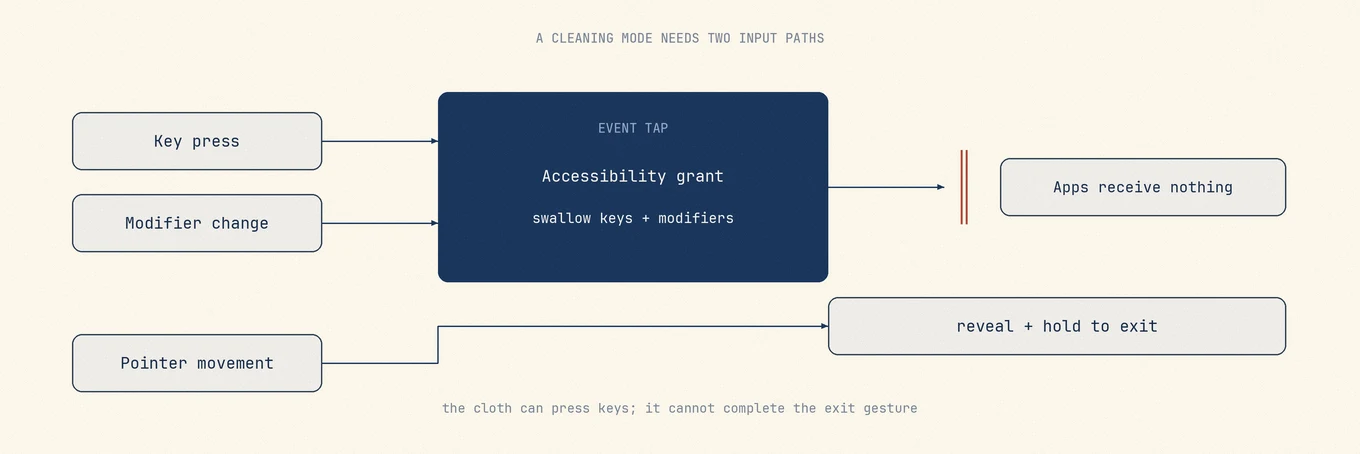
Mole blocks keystrokes with a Core Graphics event tap. This implementation requires
Accessibility permission under System Settings > Privacy & Security. Apple's
CGEventTapCreate documentation
describes the tap, placement, event mask, and callback that make this possible.
An event tap sits in the input path and can swallow events before they reach apps, which is the same capability a keylogger needs. That is why macOS puts it behind an explicit grant. Every cleaning-mode app needs it, so the question is never whether the app asks, only whether you trust the developer holding it.
Then check how you get out. A tool that exits on any key defeats itself, because the cloth will press a key. The exit has to be something a cloth cannot do by accident.
How Mole handles it
Mole includes a Clean Screen mode built around that constraint. It blocks keyboard events at the event-tap level, so key presses, key releases, and modifier changes never reach your apps while it is active.
Getting out takes two deliberate steps. The exit control stays hidden until the pointer travels far enough to look intentional, and once visible it has to be held for a full second rather than clicked. A cloth dragged across the trackpad produces neither, which is the point: a single click or a single key is precisely what a cloth does by accident.
Mouse movement stays out of what the tap intercepts. Pushing a hundred events a second through the same tap that has to swallow keystrokes risks macOS disabling it for being too slow, and that tap is the part doing the real work.
It starts from the menu bar or a keyboard shortcut, so cleaning costs you nothing you had open.
Cleaning the hardware safely
Blocking input prevents accidental typing, but does not make powered-on cleaning safe. Apple's hardware care instructions are in How to clean your Apple products.
The parts most often ignored:
- Shut down and unplug the Mac before using a damp cloth. Disconnect accessories too. On some MacBooks, pressing a key or the trackpad can turn it back on, as Apple's startup guidance explains.
- Never spray anything directly onto the Mac. Dampen the cloth, not the machine. Liquid follows gravity into the keyboard.
- Use a soft, lint-free cloth. Paper towels shed and can scratch a display coating.
- Keep moisture out of every opening, including the gaps around the keys, the ports, and the speaker grilles.
- Do not submerge anything, and do not use bleach or hydrogen peroxide on the surfaces.
- Check Apple's current guidance for your specific model before using alcohol wipes or compressed air. Advice that circulates online is often about a keyboard design Apple no longer ships.
Displays deserve their own caution. Modern Apple displays have coatings, and a nano-texture display in particular has a specific cleaning procedure and a specific cloth. Using the wrong thing there is not reversible.
A routine that works
- Use Clean Screen only to block accidental input. Before cleaning with a damp cloth, exit the mode, shut down the Mac, and unplug power and accessories.
- Dampen a lint-free cloth away from the Mac. Never over it; keep the Mac powered off.
- Work from the display outward, then the keyboard, then the palm rest and trackpad.
- Let everything dry fully before waking or restarting.
- Reconnect power and accessories, then turn the Mac back on.
FAQ
Does macOS have a keyboard cleaning mode?
No. There is no built-in setting that disables input while the Mac stays awake. Shut down and unplug before damp cleaning, but remember that a key or trackpad press can start some MacBooks.
Is it safe to give an app Accessibility permission?
Mole's input-blocking implementation needs this permission. It grants meaningful control, so check who develops the app and what it uses the permission for before allowing it.
Will locking my screen protect the keyboard?
No. The lock screen accepts keyboard input by design, so wiping types into the password field and can trigger the delays macOS applies after repeated failures.
Can I just close the lid?
That stops input, but you cannot clean the keyboard you have just covered. It works for cleaning the outer case and nothing else.