Best Mac Cleaner Apps, Ranked by What Being Wrong Costs

Every roundup in this category ranks tools by how much they claim to delete. That is the wrong axis. A cleaner that removes 40 GB and takes your offline model library with it has done worse than one that removes 12 GB and can name every path it touched. Knowing what not to touch is the product.
So this list is ordered by a different question: when the tool is wrong, how much does it cost you, and how quickly can you tell? The method matters more than the list, because the tool you end up evaluating may not be on it.
Why "junk found" totals are not comparable
Two honest tools can scan the same disk on the same afternoon and report 8 GB and 47 GB. Neither has to be lying. Four things drive the spread, and none is visible in the number.
Whether it counts caches the app rebuilds immediately. A thumbnail or font cache the owning app regenerates seconds after the next launch is a loan, not a reclaim. Counting it inflates the total and costs you a slower launch. Both choices are defensible, and no tool labels which one it made.
Whether it counts purgeable space. macOS reports available storage as free space plus purgeable disk caches, and exposes no supported per-file list that adds up to that figure, so a tool promising to free an exact purgeable total is turning an estimate into an inventory it does not have. Mechanics in what purgeable space is.
Whether it double counts APFS clones. On APFS a copy can share the original's blocks until one side is modified. Watch it: note the used column, make one real copy and one clone, look again.
df -k /System/Volumes/Data | tail -1
cp big.dat plain-copy.dat
cp -c big.dat cloned-copy.dat
df -k /System/Volumes/Data | tail -1
du -sh .
Measured with a 200 MB file, the plain copy took 204800 KB from the volume and the clone
took 8 KB. du -sh then reported 600M for a directory the container had given up roughly
400 MB for, because per-file accounting still credits the clone with its full allocation:
stat -f "%z %b" cloned-copy.dat reports the same 409600 blocks as the original. Any
scanner summing per-file sizes inherits that arithmetic.
Whether it double counts hard links. One inode can carry many names. du deduplicates
by device and inode within a single invocation and cannot deduplicate across two:
mkdir a b && mv big.dat a/ && ln a/big.dat b/link.dat
du -sh a b           # 200M and 0B, the shared bytes counted once
du -sh a; du -sh b   # 200M and 200M, the same bytes counted twice
A cleaner that walks each category separately and adds the subtotals is running the second
line, not the first. Package stores and developer trees are full of linked content, so
find <dir> -type f -links +1 is worth running before you believe any total.
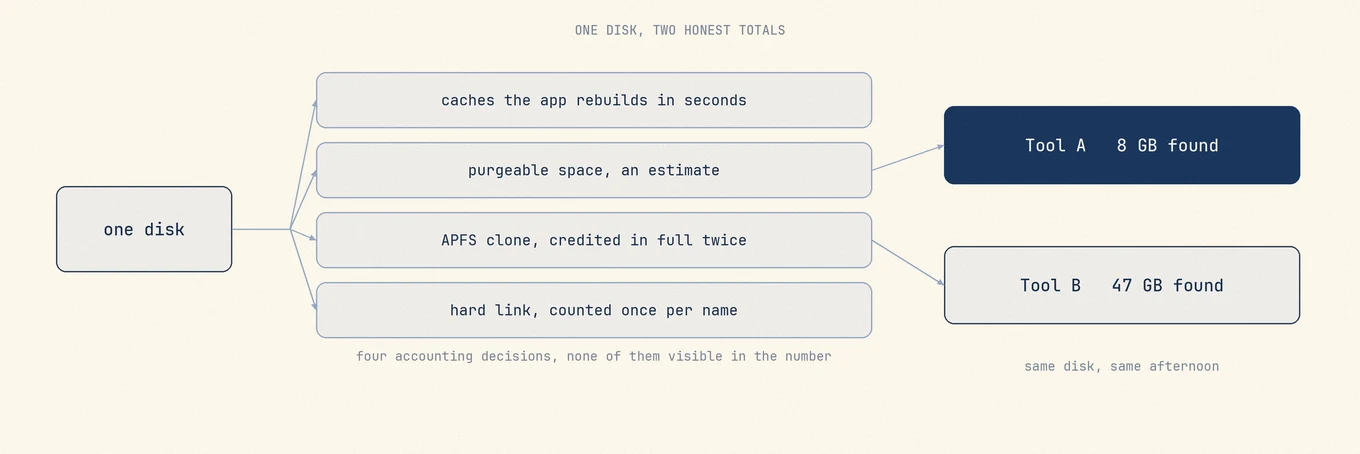
Comparing two totals compares two definitions. What is comparable is the list underneath: paths, owners and sizes, judged one at a time.
The checklist, as mechanisms rather than vibes
Each question has a failure attached. If a product page cannot answer one, that is the answer.
- Does it show path, owner and size before removal? Without all three you cannot audit the decision or disagree with part of it. A category labelled "System Junk" with a number beside it is not a list.
- Does it distinguish cache from state?
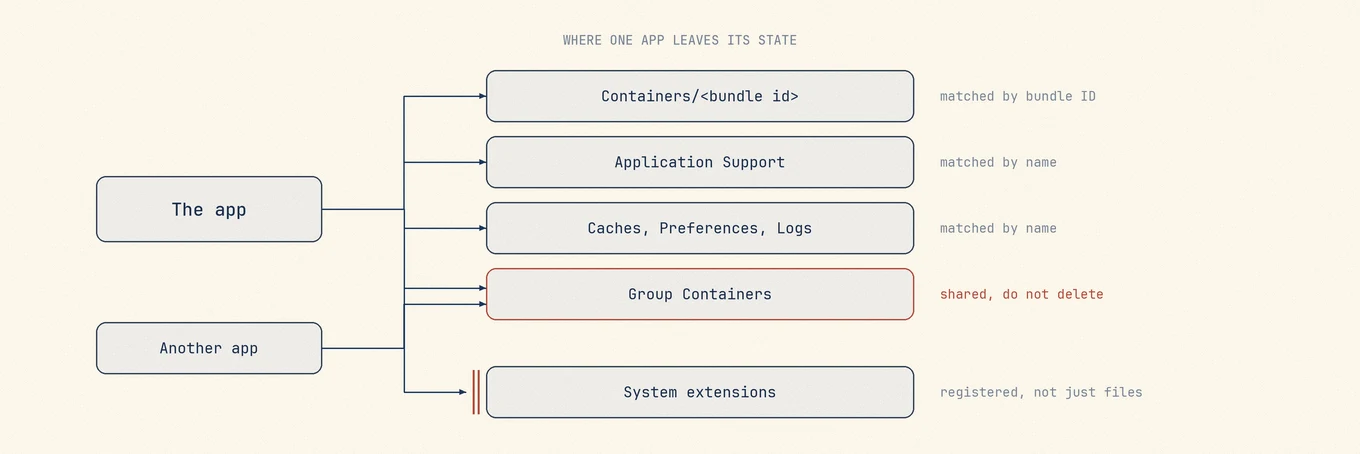
~/Library/Caches/<bundle id>is normally regenerable.~/Library/Application Support/<app>frequently is not: licenses, local databases, profile data. A browser profile holds both, inches apart, and a tool that treats the Library uniformly will eventually take the wrong half. - Does it defer to an app that tracks its own references? Content-addressed stores
share blobs between items, so only the owning tool knows which blob is still referenced.
That is why
brew cleanupanddocker system pruneexist, and why deleting by age inside such a store breaks the items still pointing at what went. - Are ordinary removals recoverable? Trash preserves a recovery window but does not
release space until emptied;
unlinkremoves the file directly. Silence about skipped and failed items also means the reported total was never reconciled with what actually moved. - What does it need Full Disk Access for, and when does it ask? The need is real: a directory an unprivileged process cannot stat contributes zero and looks exactly like an empty one. The signal is the order. Asking before showing you anything is asking for trust it has not earned.
- How fast do its rules move when macOS does? OnyX shipping a distinct build per major macOS release is the clearest public evidence that maintenance behavior is bound to the OS. A changelog answers this better than a feature list, and a license covering only the current major version tells you who is expected to pay for the next round of that work.
The one test that separates a careful cleaner from a matcher
Install two apps from the same vendor. Uninstall only one of them. Then watch whether the
tool offers you the shared Application Support parent, or the shared group container, as
removal candidates.
Microsoft Office is the easiest case to run because the shape is documented. Word, Excel
and Outlook each get a folder under ~/Library/Containers, while
~/Library/Group Containers holds three shared folders named UBF8T346G9.ms,
UBF8T346G9.Office and UBF8T346G9.OfficeOsfWebHost. That prefix is the vendor's team
identifier, not an app's, and Outlook's mail lives in that shared set. Uninstall Word alone
and a name matcher sees "Microsoft" in a folder name and offers it.
The failure is structural rather than sloppy. Display-name matching finds vendor-named folders and cannot tell which app in the suite owns them. Bundle-identifier matching is precise for per-app paths and finds nothing at all for a group container, whose name is deliberately not an app's identifier. Neither strategy holds the answer; only a check for whether any still-installed app claims that path does.
A tool that lists the shared parent is matching on names. A tool that leaves it alone is reasoning about ownership. The difference never shows up in a feature table, and it predicts how the tool behaves on the day it meets something its author never saw.
The tools, by the job they are built for
Mole for a reviewed all-in-one cleanup
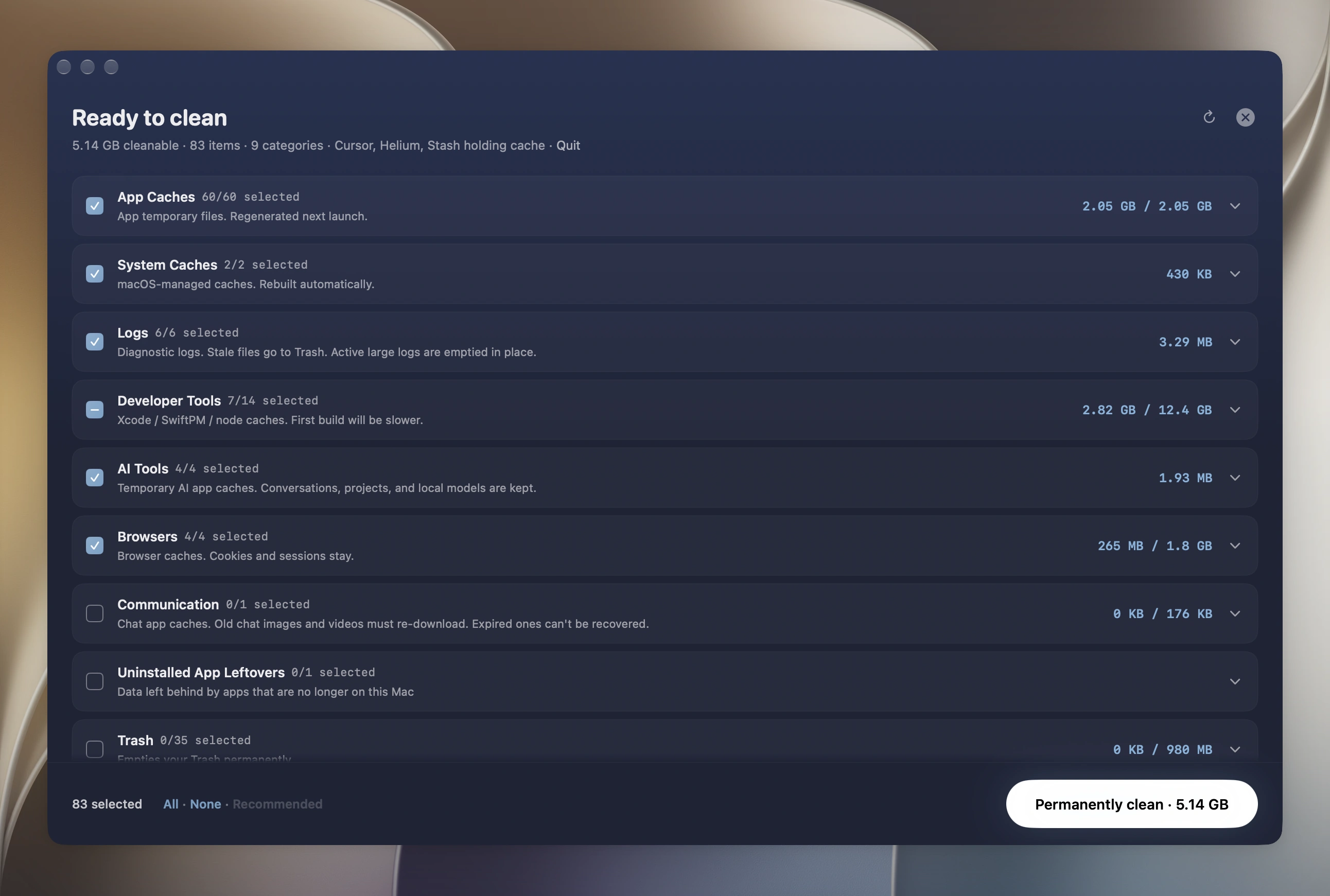
Mole covers the five jobs that otherwise mean five apps: cache cleanup, app uninstall with remnant discovery, system maintenance, a disk treemap and live hardware status, in one native app with a menu bar panel.
What earns it the first slot is the order it does things in. It scans first and shows every
candidate with its exact path, owner and size, and anything it is not confident about
arrives unchecked, so the default action is always the smaller one. Cache cleanup is permanent by default, with a Trash option in Settings. App uninstall uses the Trash. Batch operations report what they skipped and what failed. Everything runs
locally with no upload and no telemetry, and cleanup operations are recorded in
~/Library/Logs/mole/operations.log, so what it did is a file you can read rather than a
number you have to trust.
In ordinary Clean, the work sits in the protection list, which is question three turned into specific paths.
~/.ollama/models, ~/.lmstudio/models and ~/.cache/huggingface are never candidates,
because those tools share content-addressed blobs between models. Session histories under
~/.codex/sessions, ~/.claude/projects and ~/.grok/sessions are never touched at any
age. Library/Caches/com.apple.e5rt.e5bundlecache carries the word cache in its name and
is excluded anyway, because it holds Apple Neural Engine compiled models. A scanner cannot
derive those; they are decisions made one path at a time.
The riskiest single item on a Mac gets the same treatment. The installer payload at
/macOS Install Data is often 12 GB and looks ideal, but deleting it mid-update leaves a
machine that will not boot. The row is hidden if an update is pending, if the payload was
written within the last 14 days, or if an installer is running, and an unreadable signal
counts as risky and hides it too. At deletion time the privileged script re-runs all three
checks and exits non-zero if they no longer hold.
To clean: open Clean, let the scan finish, read the grouped result, uncheck anything you want to keep, confirm. To retire an app: open Software, select it, and Mole gathers the caches, preferences, launch agents, logs and containers it scattered at install time, each with path and size, alongside its login items and background services. It does not offer the shared parent a still-installed sibling owns, which is the test above answered in the product rather than in a claim.
It is $19 once with free updates including major versions, one license covers two Macs, it needs macOS 14 or later, and there is a 14-day refund. Scanning is free and each paid tool runs twice for free, so you can confirm all of this before paying.
Its boundary, plainly: not malware response, not a backup, not a substitute for a vendor uninstaller on software shipping drivers, VPN components or system extensions. Ordinary Clean does not delete model weights or AI chat history, because those stay with the tools that track them. The separate AI Cleanup & Care page can list Codex and Claude Code sessions past each tool's retention window, plus Claude Code sessions whose project is gone, unchecked for individual review.
CleanMyMac for a guided suite
MacPaw's CleanMyMac is the most polished product here and the one most people mean by Mac cleaner, bundling cleanup, uninstall, malware scanning and performance tools behind a guided flow.
MacPaw currently offers both subscriptions and one-time purchases. Its purchase documentation explains the distinction that matters: a subscription includes updates to the current major version and upgrades to future major versions, while a one-time purchase includes only updates and fixes for the current major version. MacPaw also documents feature differences between its own store, the App Store and Setapp, so compare the edition too. The guided flow is a real benefit if you do not want to read a path list, and a cost if you do. Longer comparison in CleanMyMac alternatives.
AppCleaner for retiring a single app
FreeMacSoft's AppCleaner is free with an optional donation and does one job: drag an app onto its window and it finds the files that app scattered at install time. That single scope is why it has survived a decade, and its site currently labels version 3.6.8 as compatible from Mojave through Tahoe. Review its matches rather than accepting them, and send software with drivers or system extensions through its vendor uninstaller first.
DaisyDisk for seeing where the space went
DaisyDisk draws your volume as a sunburst map, still the most pleasant way to decide which folder to investigate. It uses a one-time license according to its pricing documentation; check the current terms there. It is a map, not a cleaner: it will not tell you whether a large folder is disposable. Its Collector deletes permanently after a short cancellation window. Why two maps of one disk disagree is covered in choosing a disk analyzer.
OnyX for named maintenance operations
OnyX from Titanium Software is free and exposes maintenance operations as direct controls rather than recommendations. The vendor is explicit about the per-OS builds: "There's a specific version of OnyX for each major operating system version. Use the correct version, and don't try to use a version intended for an earlier operating system." Run only an operation you can already name.
The free command-line route
Much of this is free if you are comfortable in a terminal. du -sh * sorted by size
answers where the weight is, ncdu makes that interactive, and the
Mole CLI is free and open source under GPL-3.0 via
brew install mole, covering clean, uninstall, optimize, analyze and status. Every
clean, uninstall, and optimize command supports --dry-run. It shares the Mac app's user
whitelist and operations-log location. The wider free set is in
free Mac cleanup tools.
How they compare on the axis that matters
| Tool | Shows paths before removing | Recoverable by default | Protects reference-tracked stores | License |
|---|---|---|---|---|
| Mole | Yes, path, owner, size per candidate | Uninstall: Trash; caches: permanent by default | Yes, explicit protection list | $19 once, two Macs, free updates |
| CleanMyMac | Partly, grouped by category | Varies by module | Not documented as a category | Subscription or current-major purchase |
| AppCleaner | Yes, for the app you dragged in | Yes, Trash and Undo | Not applicable, single-app scope | Free |
| DaisyDisk | Yes, it is a map | No, permanent deletion after a short cancellation window | Not applicable, no rules | One-time, check vendor page |
| OnyX | No, operations are named not itemised | No | Not applicable | Free |
What none of them should promise you
Software cannot repair storage health, add memory or lift a thermal limit. SSD wear is a physical property of the flash, RAM is a part you either have or do not, and throttling is firmware protecting the machine. A tool claiming to speed up your hardware is doing marketing rather than engineering. A large found number is not evidence of quality either, and by now you know why: it is a definition. A product paid according to how alarming its result looks has an incentive pointing away from you.
The scareware pattern lives in the sales flow rather than the code. It found you, through a pop-up or a bundled installer rather than a search you started. It reports an alarming count before finishing the scan, or before you granted it the access it would need in order to know. Payment unlocks the identity of the results rather than the action, so the locked screen shows a total and nothing else. And no named company, no version history, and no way to read what a given operation does. Apple's guidance on recognizing and avoiding scams covers the rest.
When you should not buy anything
If your Mac has comfortable free space and no diagnosed problem, you do not need any of this. macOS already manages purgeable data and local snapshots under pressure, and a cleanup that is not solving a symptom is risk taken for no gain. If the machine is slow rather than full, deleting files will not fix it, because a CPU loop or a thermal limit is not made of bytes. Paying makes sense on repetition, when you would otherwise stitch four tools together every month, and that question is worth settling before any product comparison: do you need a Mac cleaner.
FAQ
What is the best Mac cleaner app overall?
For most people who want one app rather than four, Mole is the one worth trying first: it shows every candidate with its path, owner and size before anything moves, sends uninstalled apps to the Trash, protects reference-tracked stores such as local model libraries, logs every operation to a file you can read, and costs $19 once for two Macs. Scanning is free without a license, so you can check its result list against this description first.
Why do two Mac cleaners report completely different amounts of junk?
Because they answer different questions. One may count caches the owning app regenerates on next launch and the other may not, one may include purgeable space macOS never promised to hand over, and either may credit an APFS clone or a hard-linked file with its full size in two places at once. Compare the candidate lists rather than the totals.
Are Mac cleaner apps safe to use?
Check the exact paths and owners, whether ordinary removals are recoverable, and whether the tool defers to the owning app for stores that track their own references. These checks help assess risk; they do not guarantee a safe result. Review each selection and keep a current backup. A total alone is not enough information to approve a deletion.
Is there a good free Mac cleaner?
Yes, several, and they are narrow rather than crippled. AppCleaner for retiring an app, GrandPerspective for mapping a disk, OnyX for named maintenance operations, and the free and open source Mole CLI in a terminal. The full set is compared in free Mac cleanup tools.
Where to start
Run the shared-parent test on whichever tool you are considering, then match tool to job: a map when the question is where the space went, a remnant scanner when you are retiring an app, a named operation when you already know which one, and an integrated tool like Mole when assembling four apps every month has become the actual cost. The head-to-head comparisons are in CleanMyMac alternatives, AppCleaner alternatives and DaisyDisk alternatives.