Is CleanMyMac Safe for Mac? What to Check First

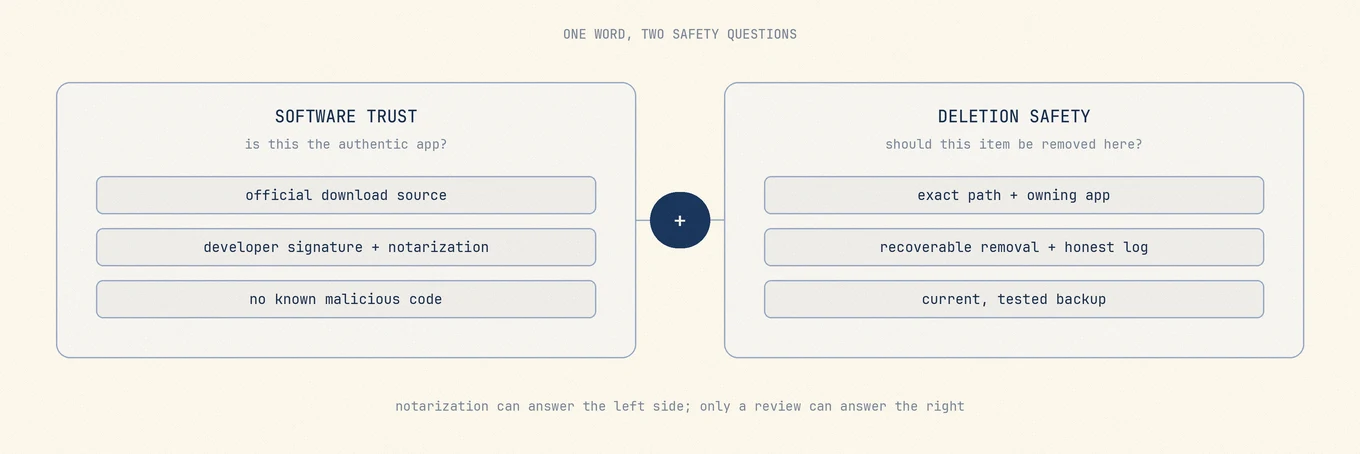
“Is CleanMyMac safe?” sounds like a yes-or-no question, but it contains two different questions. One is whether the app is authentic and free of known malware. The other is whether every cleanup suggestion is appropriate for your Mac, your files, and the apps you use. Those questions need different evidence.
The short answer
CleanMyMac is a legitimate commercial Mac utility from MacPaw. It is notarized by Apple and is also distributed through the Mac App Store. That is meaningful evidence about the app's identity and known malicious code. It is not a guarantee that every selected cache, support file, login item, or application component is safe for every person to remove.
Use it as a reviewable maintenance tool, not as an automatic verdict on what your Mac does not need. Download it from MacPaw or the App Store, keep it updated, inspect the scan details, grant only the permissions required for the job, and keep a current backup before deleting anything that is difficult to recreate.
What Apple checks, and what it does not
Apple describes notarization as a service that scans submitted software for known malware. Gatekeeper also checks the developer signature and whether the app has been altered. These controls answer an important question: did this software come from an identified developer, and did Apple detect known malicious content in the submitted build?
They do not inspect the meaning of every cleanup rule against your current disk. Apple does not know whether an offline browser profile is your only copy, whether two apps share a container, or whether a vendor-specific uninstaller must remove a privileged helper. A notarized cleaner can still make a poor recommendation, just as a notarized file manager can delete the wrong file when given the wrong instruction.
Apple says Full Disk Access can expose data from Mail, Messages, Safari, Home, Time Machine backups, and some administrative settings. Treat that permission as a capability boundary, not as a routine setup checkbox.
Seven checks before you let any cleaner delete
- Does the result show exact paths, owners, sizes, and categories before removal?
- Does it separate rebuildable cache from preferences, messages, databases, profiles, downloads, and shared containers?
- Does it use the owning app's cleanup or uninstall interface when one exists?
- Can ordinary removals be recovered, and does the result report skipped and failed items instead of hiding them?
- Which feature needs Full Disk Access, Automation, a login item, or a privileged helper, and can you avoid that permission for your current task?
- Is the cleaner updated quickly when macOS and third-party apps change their storage layout?
- If the recommendation is wrong, what does recovery cost: a download, a sign-in, a rebuild, or irreplaceable personal data?
The largest “junk found” number is not automatically the best result. A good scan makes the boundary easier to inspect before it makes the total look impressive.
How CleanMyMac fits this checklist
MacPaw documents that CleanMyMac requests Full Disk Access so it can scan protected areas, and says its Safety Database and Smart Selection are used to avoid unsafe cleanup choices. Those are useful product controls, but the vendor's description is not a substitute for checking the categories selected on your own Mac.
CleanMyMac is broad: cleanup, uninstalling, performance, privacy, and security-oriented features sit in one suite. Breadth is convenient when you want guided maintenance and vendor support. It also means permissions and risk differ by module. Clearing a measured browser cache is not the same operation as removing an app with a helper, changing login items, or investigating malware.
For the first run, choose one narrow job. Open the details, leave personal libraries and shared data alone, and compare the result with macOS Storage settings or the owning app. If a feature cannot explain what it will change, do not approve that category merely because the total is large.
A safer first run
- Install the current build from MacPaw or the App Store, not a download mirror.
- Confirm that Time Machine or another tested backup is current.
- Scan first and open the detailed list before approving cleanup.
- Start with clearly rebuildable caches owned by apps you recognize.
- Leave messages, photos, browser profiles, local models, downloads, and shared containers to their owning apps unless you have verified another copy.
- After cleanup, open the affected apps and verify the result before removing your backup or emptying any recoverable location.
You can review and revoke Full Disk Access later in System Settings. If you no longer use the feature that needed broad access, reducing that permission is a reasonable cleanup step of its own.
When a cleaner is the wrong tool
- If the Mac has comfortable free space and no diagnosed problem, do nothing.
- If you suspect malware, use a maintained security product rather than a cache cleaner.
- If an app installs drivers, VPN filters, system extensions, or privileged helpers, use its vendor uninstaller first.
- If Photos, Messages, Mail, a browser profile, or a local model library is large, use that app's storage controls so it can preserve sync state and shared data.
If you are deciding whether Mole can replace the CleanMyMac jobs you use, read the detailed Mole vs CleanMyMac comparison. For the deletion boundary itself, see what Mac cleaners should never delete and how to run Mac maintenance safely.
FAQ
Is CleanMyMac malware?
There is no basis to describe the current official CleanMyMac build as malware. Apple notarizes it, and it is available through the Mac App Store. Download source, signature, and current version still matter, so avoid unofficial mirrors and modified copies.
Does Apple notarization mean every cleanup is safe?
No. Notarization checks submitted software for known malicious content and supports identity and integrity checks. It does not validate each proposed deletion against the files, apps, and workflows on your Mac.
Is it safe to give CleanMyMac Full Disk Access?
It is a powerful permission, not an automatic sign of bad intent. Grant it only to the official, current app when a feature you chose needs it. Review the selected categories, and revoke the permission later if you no longer need that feature.
Should I use Smart Care or review modules separately?
For a first run, review modules separately. One narrow task makes the permission, result, and recovery cost easier to understand. A combined workflow is more reasonable after you know what each selected module changes.