Disable Startup Programs and Login Items on Mac

Startup behavior includes visible apps opened at login, background items registered by apps, launchd agents and daemons, system extensions, and other app services. Disabling one can reduce login work or stop an unwanted helper, but it can also disable sync, updates, hotkeys, VPN, backup, or security features. Identify the owner and purpose before judging an item by its name.
Start in System Settings › General › Login Items & Extensions. Change one owner at a time, log in again, and check the feature that owner was providing. An unfamiliar launchd name is a reason to trace it back to an app, not a reason to delete the file.
Login Items: the visible list
Open System Settings › General › Login Items & Extensions. Apple's Login Items guide documents both sections on this screen. The top section, Open at Login, lists apps, documents, folders, or servers that open when you sign in. Select anything you do not need starting automatically and remove it with the minus button. Removing an item here does not uninstall it; it only removes that login instruction.
Allow in the Background: the hidden helpers
The same screen has a second section, Allow in the Background, grouped by developer. These can be updaters, sync helpers, menu bar utilities, and supporting services. Turning a switch off withdraws permission for that app's registered background work. Quit or log out before judging an already-running process, then test the owning app because menu bar status, sync, automatic updates, or hardware integration may depend on it.
To diagnose login delay without changing the list, hold Shift while logging in until the Dock appears. macOS temporarily prevents automatic login items for that session. If the symptom disappears, return to the list and disable candidates one at a time.
Why an app relaunches after you quit it
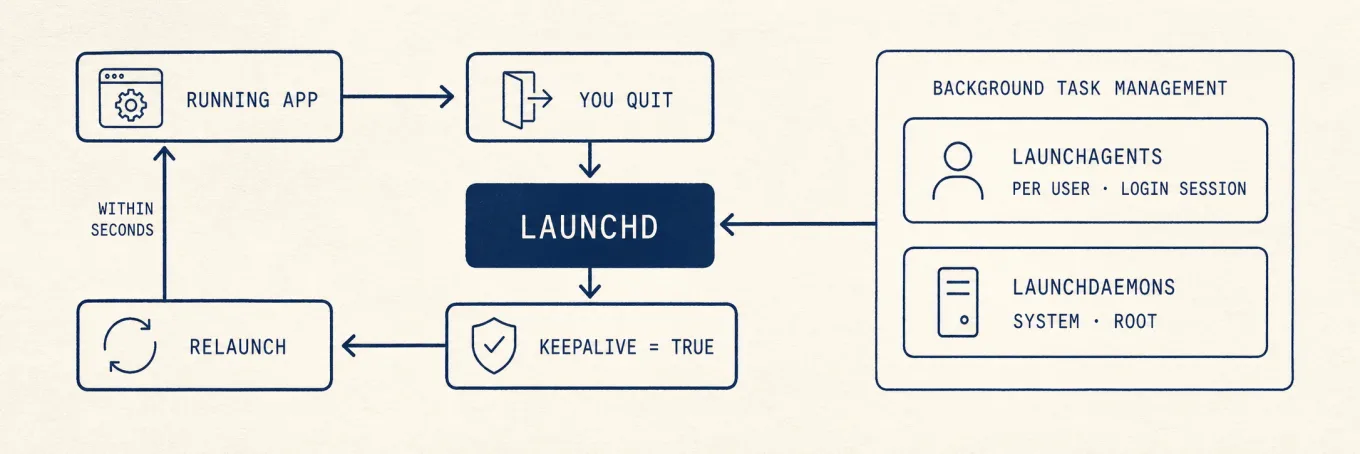
An app can relaunch because of a launchd job, a Service Management login item, an app
extension, a helper requested by another process, or the app's own preference. Legacy
launchd definitions commonly appear in ~/Library/LaunchAgents,
/Library/LaunchAgents, and /Library/LaunchDaemons, but those folders are not a
complete inventory. For a read-only view of the current user domain:
launchctl print gui/$(id -u)
The output is diagnostic and uses service labels that do not always match filenames or app names. Prefer the app's own setting, the macOS background switch, or the vendor's uninstaller. Do not guess a plist from a process name and delete it.
Do it safely
Toggle one item in Settings, log out and back in when necessary, and test the feature
that owns it. Re-enable the item if sync, backup, input devices, VPN, security, or app
updates stop working. Leave Apple services and /Library/LaunchDaemons alone; a vendor
daemon should be removed by its vendor uninstaller, which can also unload services and
remove privileged components safely.
Under the hood: launchd, and why an app will not stay quit
launchd manages many background jobs. On macOS 13 and later, apps can register login
items, agents, and daemons through Apple's
SMAppService.
Extensions have their own lifecycle. A launchd
plist can use RunAtLoad, KeepAlive, sockets, paths, timers, or other conditions;
KeepAlive is not the explanation for every relaunch. Agents in
~/Library/LaunchAgents run per user inside your login session; daemons in
/Library/LaunchDaemons run in the system domain and can start before login. They run
as root by default but can specify another user. Changing system-wide definitions
normally requires admin rights; user-owned agent files have a different scope.
Since Ventura, Background Task Management gives users visibility and control over many third-party background items, but it is not a promise that every service is represented as one simple switch. Its protected database is system state and should not be edited directly.
Where an integrated inventory helps
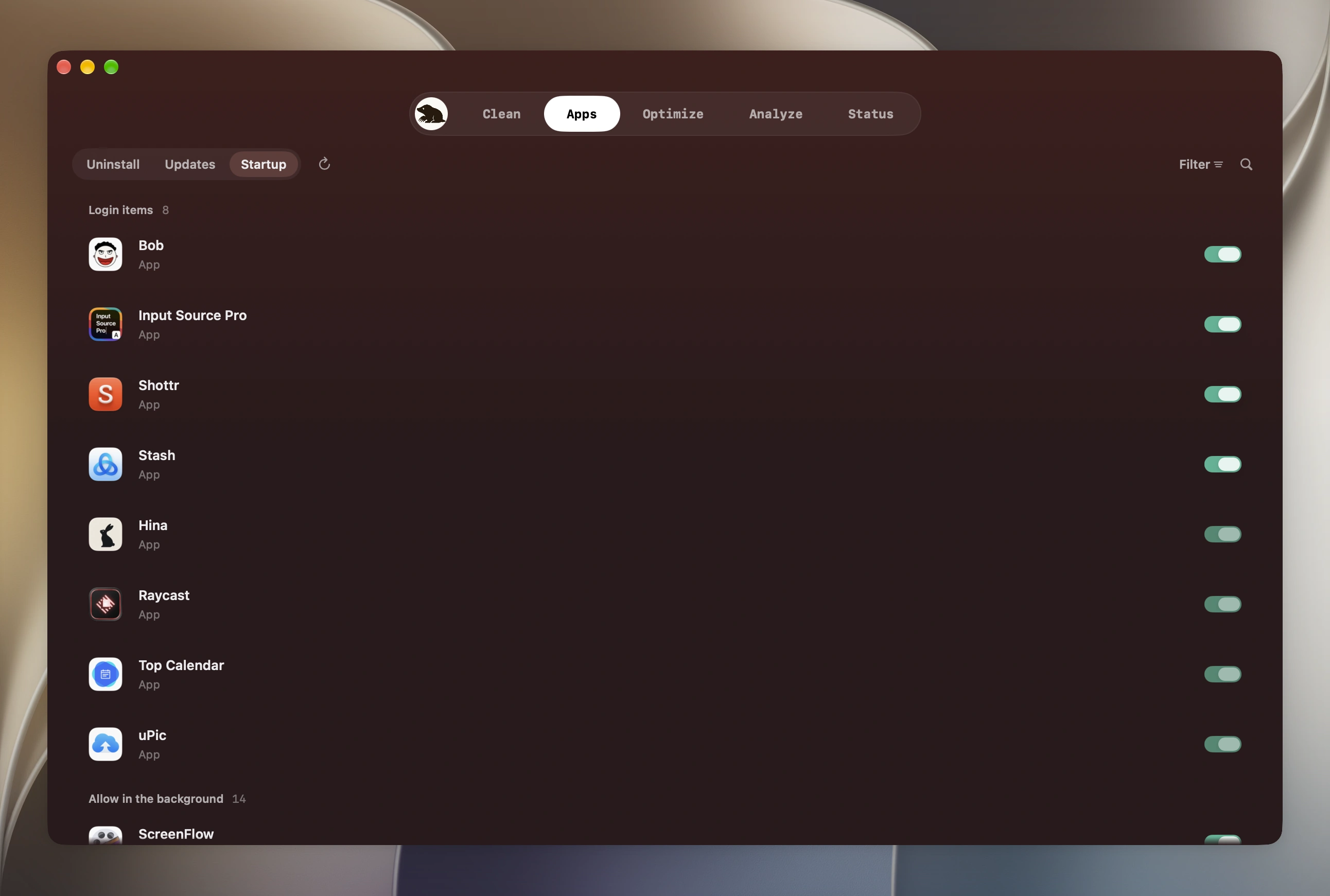
The two Settings sections and the launchd folders are three separate places for one question, what starts on its own and what keeps things alive. Mole's startup management gathers them into one list, shows what each item is, and lets you toggle the ones it can safely match to a validated launchd job or a system-registered login item. Anything it cannot prove should route to System Settings instead of writing to a protected database or inventing a service label. Coverage must stop at the identity the tool can verify.
A safe startup audit
Measure login or idle impact, identify the vendor and feature, disable one item through its app or Login Items & Extensions, then test. A smaller list is not automatically a better Mac: backup, security, sync, and device helpers may be worth their cost. Avoid manual plist and Background Task Management database edits.