A Mac Maintenance Checklist That Prevents Problems

Good Mac maintenance protects recoverability, security, and working headroom. It does not require weekly restarts or monthly cache purges. Use a calendar for checks that are easy to forget, such as verifying backups; use symptoms and measurements for actions that have a rebuild or deletion cost.
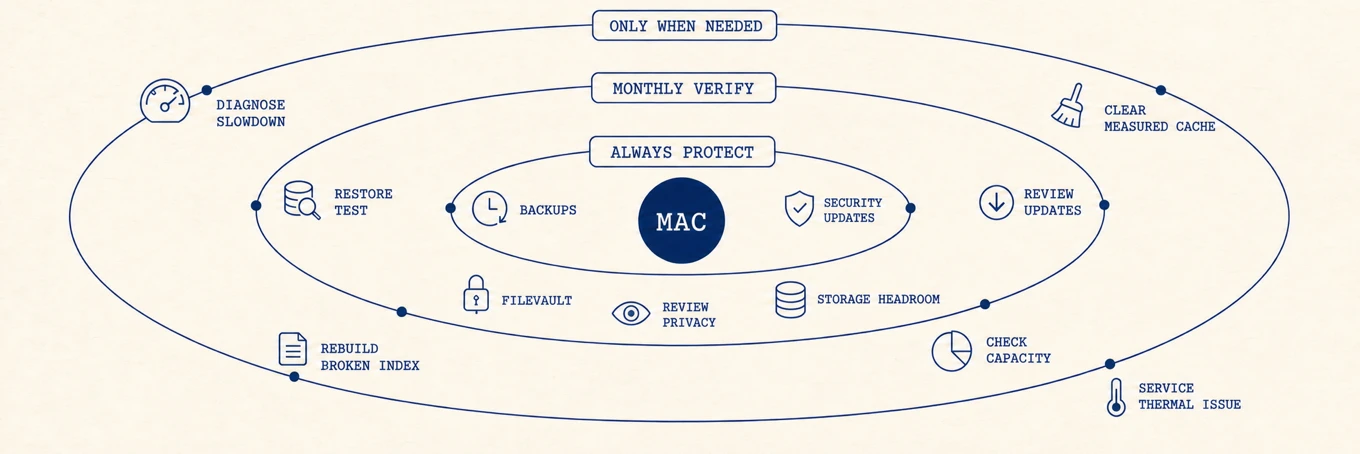
Keep these protections on continuously
- Backups: let Time Machine or another versioned backup run, and keep at least one copy independent from cloud synchronization. Sync can propagate deletion and corruption; any version history it offers has its own retention limits and does not replace an independent backup. Encryption and an off-site copy protect against device loss as well as accidental deletion.
- Security updates: keep automatic security responses and suitable app updates on. Stage major OS and production-tool updates when compatibility matters.
- FileVault and screen lock: confirm disk encryption is enabled and the recovery method is stored somewhere you can access without the Mac. If you chose a FileVault recovery key, the only copy must not live on the encrypted startup disk it is meant to unlock.
- Storage headroom: leave enough physical capacity for updates, swap, builds, and temporary work. The amount depends on your workload, not a universal percentage.
Once a month, verify rather than clean
- Check the latest successful backup and perform a small restore occasionally. Opening a restored file tests more than a green status icon. Time Machine can manually verify a network backup, but that check does not replace testing whether your important files restore and open.
- Review pending updates and release notes for apps that do not update automatically, then apply them in a recoverable window.
- Check physical available space in System Settings › General › Storage. If it is trending down, map what is large before deleting anything, following how to free up space and how to find large files.
- Review privacy access for camera, microphone, screen recording, Full Disk Access, and automation. Remove permissions from apps you no longer use.
Every few months, reduce unattended surface
- Uninstall apps you stopped using through the vendor's workflow when they install helpers, drivers, or extensions. Then review leftovers without deleting shared data. How to completely uninstall apps covers where the leftovers hide.
- Review startup and background items. Keep backup, security, sync, and device helpers you still need. Identify unknown entries first, then disable confirmed unused items one at a time and test.
- Review account and device access. Remove retired devices, unused browser extensions, stale app sessions, and old recovery contacts where appropriate.
- Check battery condition and real runtime on a laptop. A trend plus symptoms is more useful than reacting to one capacity reading.
Do these only when evidence calls for them
- Restart to apply updates or test a stuck process, not to purge healthy memory.
- Clear a cache when it is measured and large or an app's troubleshooting guide calls for it. Rebuilding every cache on a schedule wastes time and network traffic.
- Rebuild Spotlight or Mail indexes only when search or mailbox behavior is broken.
- Change fan behavior only for a known sustained workload. Automatic thermal control remains the default.
- Investigate heat. If the fan is
loud, work through why a MacBook fan runs loud,
and if
kernel_taskis eating CPU, that is a thermal response to diagnose. - Diagnose slowness while it happens. Capture CPU, memory pressure, disk I/O, capacity, thermal state, and network context before restarting or cleaning.
The rule that keeps maintenance useful
Every change should have an observed problem, an expected result, a recovery path, and a verification step. Change one variable at a time. If you cannot explain what an item owns or how it will be recreated, do not delete it.
When a check fails
A failed check should lead to one bounded repair, not a larger maintenance sweep. If a test restore will not open, fix the backup destination or backup job before cleaning anything. If available storage keeps falling, compare the same top-level folders on two dates and follow the owner that grew. If an unknown privacy grant remains, identify the signed app and revoke only that grant. If a retired login item returns after being disabled, remove it through the owning app or vendor uninstaller instead of editing a system database.
Repeat the check that failed. A new backup icon, a smaller disk number, or a quieter login is not enough when the restore, save, or startup behavior still fails.
Where an integrated tool helps
Built-in tools cover backup, updates, privacy, activity, and storage. Mole gathers several measurement and review surfaces when switching between them becomes repetitive. It does not replace Time Machine, FileVault, vendor uninstallers, release notes, or a restore test. Those are the foundations; cleanup is optional work around them.
The durable checklist
Keep backups, encryption, security updates, and storage headroom healthy. Monthly, verify a restore, review updates, capacity, and privacy. Occasionally retire apps, background access, and old accounts. Restart, clear caches, rebuild indexes, or alter fan behavior only in response to evidence. Maintenance should reduce risk and surprise, not create a recurring deletion ritual.