Revisiting Mole’s Clean and Analyze Pages
A recent roundup of Mac cleanup complaints on Reddit kept returning to System Data: why did it take hundreds of gigabytes, and could it be deleted? Mole could clean some of those files, but they were scattered across caches, logs and developer tools. I started there and revisited Clean and Analyze together. These are decisions from the 1.16 development cycle; some are in Preview, and the rest are for the next version.
Show the space we can actually handle
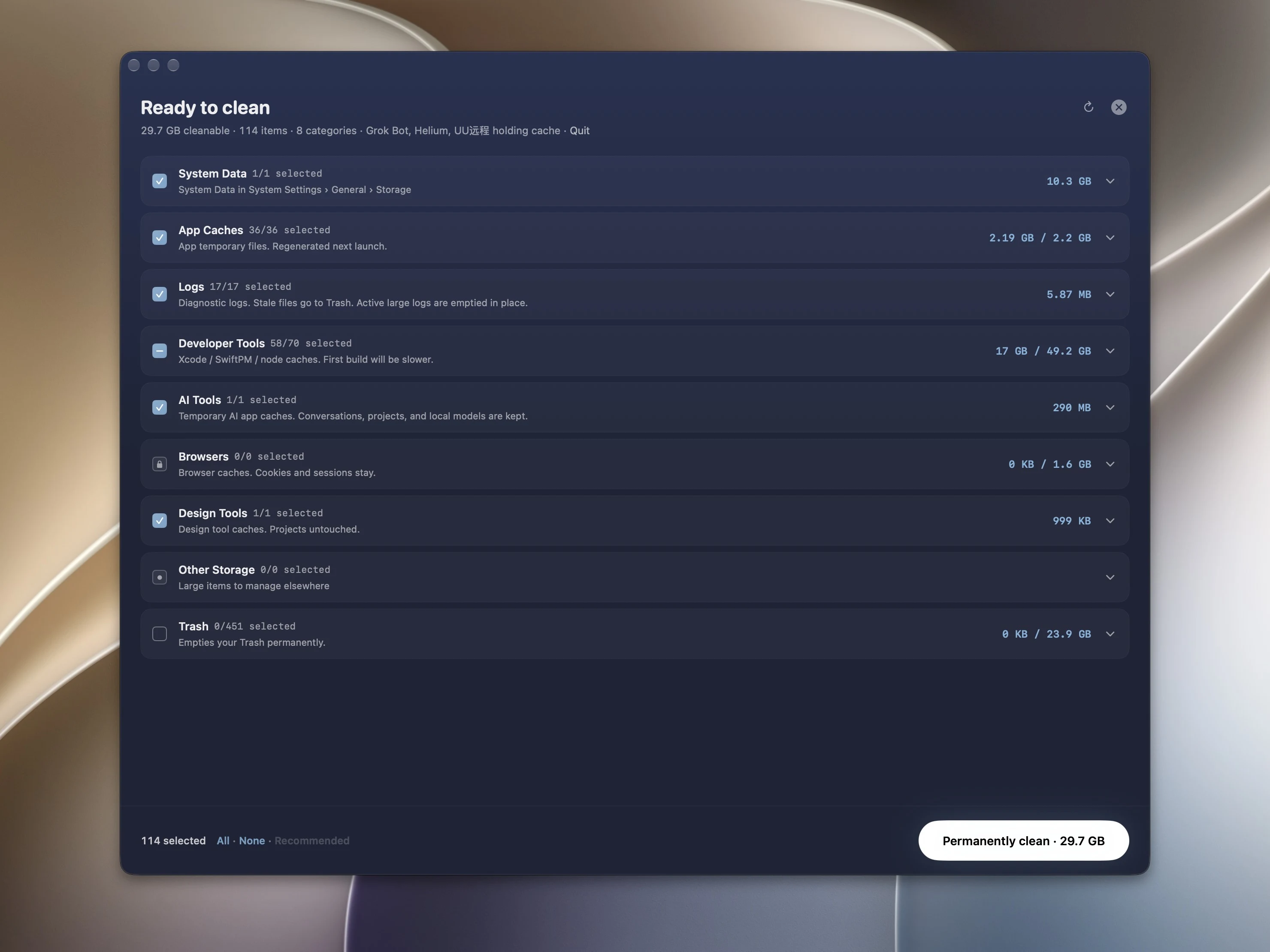
System Data now leads the Clean review. It groups removable local Time Machine snapshots, system caches and logs, leftover installers and orphaned background services. The heading reports the space Mole measures for those items. It does not try to match the whole number in System Settings by adding local iCloud copies or space macOS will release itself.
Other large items need a different treatment. My Mac then had a 119 GB iPhone backup and a roughly 79.5 GB Parallels virtual machine. Backups, virtual machines and local AI models go under Other Storage, with their size and a place to manage them. They cannot be selected and do not count as cleanable space. Finding something large is not permission to remove it.
Three numbers answer different questions: System Data in System Settings is a category, Mole’s scan lists targets it can handle, and available disk space is what you can use afterward. Apple’s explanation describes System Data as Apple and third-party files outside the other categories. The category is not a list of files waiting to be deleted.
For a large backup, first check which device it belongs to and whether you still need it for recovery. Open Parallels to check the projects and files inside a VM, and check whether a local model is still used by a tool. Mole keeps management links beside these items so you can reach the application responsible before deciding what to remove.
Find the large file directly
Analyze gained a Largest Files list: up to 30 files of at least 100 MB beneath the current folder, ranked by storage actually used. An iCloud file that has not been downloaded does not rise to the top on its nominal size. App bundles stay out of this list. When browsing above Library, its app data stays out too; opening Library itself lets you inspect the files inside.
I tried 10 entries and considered 50. Ten was too few; fifty started to look like a second file browser. Thirty was enough. The narrow sidebar also went through a capsule and a divider before returning to two plain labels. They change color, not weight, so switching does not make the text jump.
A file has a logical size and an amount of space actually allocated on disk. Largest Files uses the latter. A cloud file without a full local download can look large without occupying that much local storage. Look at allocated space, then inspect the contents, rather than deciding from the name alone.
To compare before and after, check available space on the same disk. Files moved to Trash still occupy storage until it is emptied, as Apple explains. Downloads and sync running in the background can also change the result. Scan totals help you choose items; they do not guarantee an identical increase in free space.
Expand the name, reduce the popups
The first answer to a truncated name was a floating card. It covered nearby text and sometimes truncated the name again inside the card. The final version extends the name in place, with the same font and the current row’s background. It looks like the row has grown sideways.
The treemap had a different problem: little cards appeared everywhere as the pointer moved, changing position as they went. Missing names, types and sizes now appear in a fixed area above the map. A tile that already shows its information does not repeat it. Right-click menus keep the actions and drop the redundant name and size.
I checked the other name lists too. The Apps column already had enough room, so it did not get the extension. As with the menu bar numbers, some of the work was deciding where to stop. A little less interruption while using the app was the point.