Remove Chrome Without Losing Saved Passwords
Google's Chrome uninstall instructions have two parts on Mac, and the second one is labelled optional. Quit Chrome, drag it from Applications to the Trash, and then, optionally, delete your profile information.
Whether to delete that profile depends on what it contains and which data you have already synced or backed up. Being signed in is not enough on its own.
Signed in and signed out are different uninstalls
With Chrome sync enabled, selected data such as bookmarks, history, passwords, and extensions can also be stored in your Google Account. Check which types are enabled and that the data has actually synced before deleting the local profile.
If you were not signed in, or sync was off, or you used a separate profile that was never linked to an account, the local profile may be the only copy. Export anything you need unless you have checked another backup.
Google also notes the other direction: signing out and deleting locally does not remove what is already on Google's servers. Local deletion and account deletion are two different jobs, and doing one does not do the other.
Where the profile lives
Google names the location:
~/Library/Application Support/Google/Chrome
Inside it, each profile is its own directory: Default for the first one, then
Profile 1, Profile 2, and so on. The names in Chrome's profile switcher do not
appear here, so the folder that belongs to a person is not obvious from the outside.
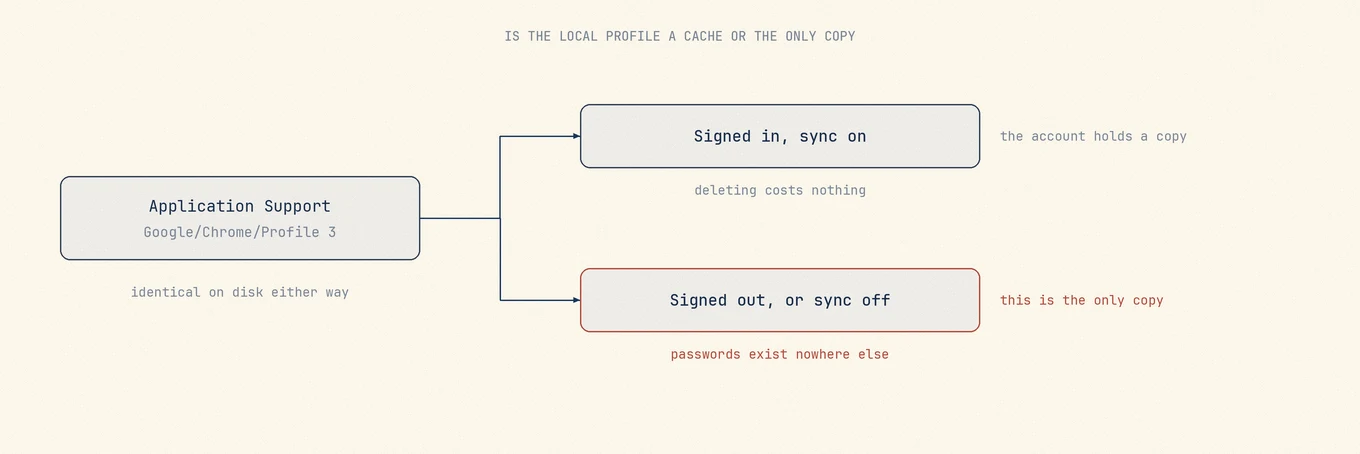
If more than one person used this Mac under one macOS account, treat every numbered profile as someone's data until you have checked.
Export what is only here, first
Before removing anything, open Chrome once more and export what has no server copy. Passwords and bookmarks both export from Chrome's own settings, and both produce a file you can read without Chrome installed. Export before uninstalling. If you already removed the app but kept the profile, you can reinstall Chrome to open it again.
If you are moving to another browser rather than clearing the Mac, import from the existing Chrome profile instead, following the new browser's import instructions. Keep the profile until you have checked the imported data.
Chrome leaves a background updater
Chrome installs Google's update service, which is shared across Google apps and does not leave with the browser. If Chrome is the only Google app on the machine and you want it gone, that service is a separate removal; if you still use Google Drive or Google Earth, leaving it is correct.
This is why a Mac with Chrome removed sometimes still shows a Google-related login item or a background process. It is not a failed uninstall.
What is safe once the profile decision is made
Caches, code caches, GPU caches, crash reports, and the media cache are large and disposable. On a browser that has been in use for years these are often the biggest items by far, which is why removing Chrome frees more space than people expect and why clearing the caches alone is a reasonable alternative to uninstalling.
Seeing which profile is which
The awkward part is that the folder holding a year of saved passwords and the folder
holding a throwaway test profile look identical from Finder, and both are named
something like Profile 3.
Mole lists the Chrome files it identifies with each item's size, and sends what you clear to the Trash. Size helps you find large folders, but it cannot tell you which profile is unused. Check the profile in Chrome before removing it. That ordering matters more on a browser than on most apps, because the expensive mistake is silent: nothing breaks, a password is simply not there the next time you need it.
Where the password and bookmark exports are
Both exports are available in Chrome's own settings. Do this before uninstalling; otherwise, you may need to reinstall Chrome while its profile is still intact.
Passwords are in the password manager inside Settings, and exporting asks you to confirm your Mac login password first. The export is a plain-text CSV, readable by anyone who can open this Mac, so import it into wherever it is going and then delete the file properly. Do not leave it in Downloads.
Bookmarks export from the menu at the top right of the bookmark manager and produce an HTML file every major browser reads.
If you are switching browsers rather than clearing the Mac, importing directly in the new browser may save an export step. Follow its import instructions, then check that the data arrived before deleting the Chrome profile.
What Mole lists for this app, and what it leaves alone, is in Uninstall Chrome on Mac without deleting other Google apps.