Uninstall Creative Cloud Without Losing Your Files
Adobe's current desktop-app removal page tells you to try Repair first. If Repair resolves the launch, sign-in, or update problem, there is no need to uninstall. Proceed to Uninstall only when Repair does not fix it.
If you do want it gone, the risk is not the leftovers. It is a folder sitting in your home directory that, since February 2025, may hold the only copy of files you still need, and that gets renamed into something that looks exactly like junk.
Copy four things out before you start
Adobe names all four across its uninstall and Cleaner tool pages. None of them are obvious from Finder.
~/Creative Cloud Files. This is not in your Library folder; it is in your home
directory, next to Documents and Downloads. Adobe discontinued Creative Cloud Synced
files and deleted the cloud copies, and states there is no way to recover deleted files
after that. Whatever is in this folder locally is what you have. Adobe recommends
backing it up somewhere other than the folder itself.
It also gets renamed. Once you sign out, the folder stops being hidden and becomes
something like Creative Cloud Files Personal Account you@example.com ####@AdobeID.
A folder with that name, appearing in your home directory right after an uninstall,
reads as debris. It is not.
~/Library/Application Support/Adobe/CoreSync/. Adobe explicitly says to save a
copy of this before running the Cleaner tool, and points at the cloudnative folder
inside it if you are short on space.
Plug-ins, presets, and workspaces. Third-party plug-ins and preference files live inside the Adobe product folders and go with them. A Photoshop workspace you tuned over a year is a preference file, not a setting stored in your account.
Installers for anything old. Adobe provides downloads for the two most recent versions only. Remove an older app without keeping its installer and there is no supported way back.
The order Adobe requires
You cannot uninstall the Creative Cloud desktop app first. Adobe gates it: every Creative Cloud app, Photoshop, Illustrator, Premiere and the rest, has to be uninstalled before the desktop app's uninstaller will do its job.
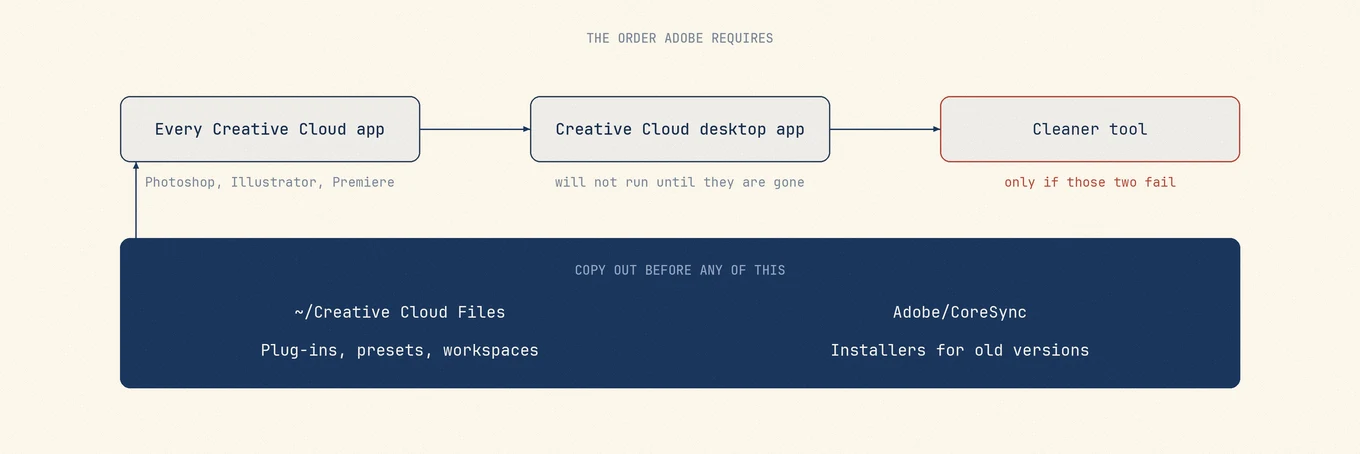
Then run the Creative Cloud Uninstaller app. It opens the dialog with Repair and Uninstall, and only Uninstall removes it. On a managed or enterprise Mac you may not have the privileges to do either, which is a question for whoever administers the machine rather than a problem to work around.
One official instruction no longer works
Adobe's uninstall page tells you to verify your files are synced before running the uninstaller, and warns that files not synced to your account could be lost. That instruction predates the change described on Adobe's own synced files page: the old Creative Cloud Synced Files service was discontinued, and its cloud copies were deleted in February 2025. This is not a statement about all Adobe cloud documents or Creative Cloud Libraries.
So the step cannot be completed as written, and following it can leave you believing
something was backed up when nothing was. The action that replaces it is the first item
in the previous section: copy ~/Creative Cloud Files somewhere else yourself. Both
pages are current, and they disagree.
The Cleaner tool is for a broken install, not a thorough one
Adobe describes the Creative Cloud Cleaner tool as a utility for experienced users to clean up corrupted installations, and lists when it applies: apps that will not install or update after a repair or uninstall, a desktop app that will not launch after a reinstall, sign-in failures that survive the usual fixes.
"Completely remove older Adobe software" is on that list, which is why it gets recommended as a routine deep clean. It is not one. Adobe's own preparation steps ask you to back up files and folders to prevent potential data loss, collect logs first in case support has to get involved, and quit a specific set of background processes, including Creative Cloud Core Service, Adobe Content Synchronizer, Creative Cloud Libraries Synchronizer, and the Creative Cloud Interprocess Service.
If a normal uninstall worked, you do not need it.
What is left afterwards, and who owns it
Adobe writes across your user Library and the system Library: application support, preferences, caches, logs, privileged helper tools, and background services that outlive the apps. Most of it is disposable.
Searching for "Adobe" and deleting the results is the instrument most guides reach for, and on this vendor it is the worst possible one. Almost every file matches, including the four that matter, so a name filter cannot separate a font cache from a year of presets. Ownership is the only filter that works, and Finder does not show it.
This is where Mole is worth the detour: it presents the whole footprint as a reviewable list with sizes, so the decision is made once, with everything visible, instead of folder by folder in a Go to Folder window. Anything you clear goes to the Trash, which on a footprint this large is the difference between a mistake you notice and one you do not.
Confirming the copy actually arrived
After copying ~/Creative Cloud Files, compare the item count and total size on
both sides rather than trusting that the folder appeared.
Also open the copied files to confirm they contain the content you need. Matching counts or sizes do not prove that every file is complete. For the discontinued Synced Files service, do not assume missing content can still be downloaded. Check other backups or devices and ask Adobe support about your specific files before removing the originals.
After you sign out, the folder in your home directory is renamed to something
like Creative Cloud Files Personal Account you@example.com ####@AdobeID. It
looks like a temporary directory and it is the same folder you had before. Rename
it to whatever you like, but not before the copy checks out.