App Still Running After Uninstall on Mac? Find Login Items and Launch Tasks
Dragging an app to the Trash removes its bundle from Applications. It does not always stop helpers registered as login items, LaunchAgents, or background services. If Activity Monitor still shows the app’s name after uninstalling, check what is starting the process before deleting anything else.
This guide covers helpers that keep running after an uninstall: identify the process, find its owner, then decide what to disable. For related steps, see How to completely uninstall apps on Mac or How to disable startup programs on Mac.
Confirm the process is really leftover
- Open Activity Monitor and search for the process name.
- Note % CPU, Memory, and whether it reappears after Quit.
- Double-click the process and check Open Files and Ports for a path under
/Applications,~/Library, or/Library. - If it stays gone until the next login, look for a login-time launcher rather than a crash loop.
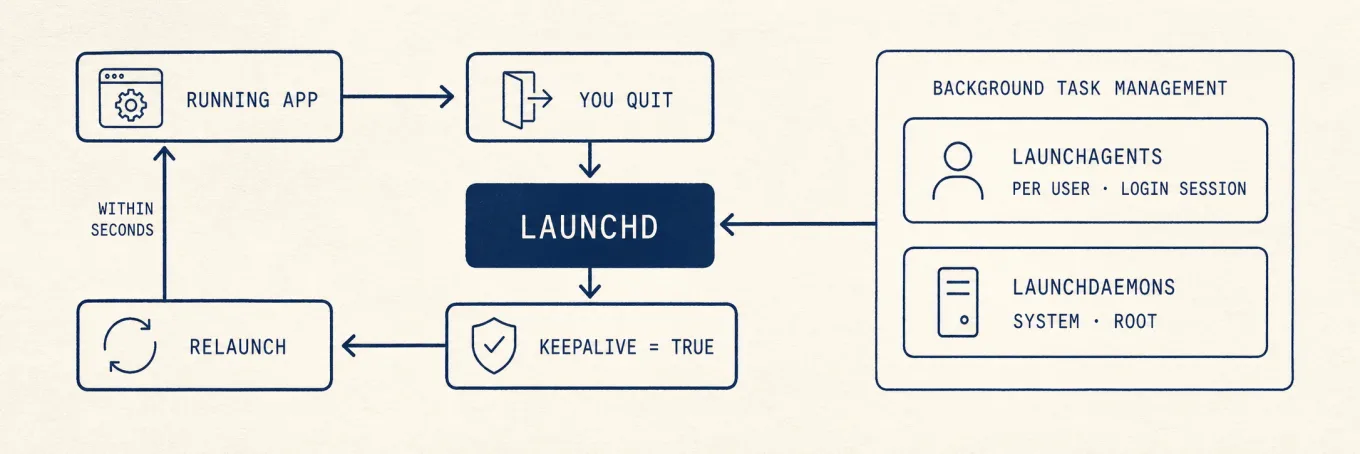
- If it returns within seconds, look for a LaunchAgent or another app that relaunches it.
A shared updater, sync client, or input method can serve several products from the same vendor. Stopping it without checking ownership can break an app you still use.
Map the process to an owner before you delete anything
| Clue | Where to look | What it usually means |
|---|---|---|
Path still under /Applications/Something.app |
Finder | The app remains; you may have removed a shortcut or another copy |
Path under ~/Library/Application Support or a vendor folder |
Finder / ls |
Support files remain; a helper may still be registered |
Label in launchctl matching the vendor |
Terminal (read-only) | A LaunchAgent or LaunchDaemon is starting it |
| Entry under Login Items | System Settings | macOS will open it at the next login |
No clear owner; shared name like Helper or Updater |
Vendor docs | Check ownership; shared helpers need a product-specific uninstall |
These read-only checks do not change the system:
ps aux | grep -i [name]
launchctl print gui/$(id -u) 2>/dev/null | grep -i [name]
Replace [name] with a short, unique fragment of the process name. Grep output is a lead, not a delete list.
Turn off login and background items first
Apple documents login items in Open items automatically when you log in.
- Open System Settings › General › Login Items & Extensions.
- Under Open at Login, remove only the entry matching the uninstalled app.
- Under Allow in the Background, turn off the matching developer switch if the helper is listed there.
- Log out and back in, then check Activity Monitor again.
- Consider removing leftover files only after the process stays gone.
Disabling a login item stops automatic startup. It does not uninstall the app or cancel a subscription.
When launchd is the restart source
If the process returns without a Login Items entry, inspect these directories for labels you recognize:
~/Library/LaunchAgents/Library/LaunchAgents/Library/LaunchDaemons
Use the vendor’s uninstaller if available. Deleting a plist by guesswork can leave a service partly registered. If you must remove a leftover agent after a failed uninstall:
- Confirm that the label matches the product you removed.
- Unload it using the vendor’s steps, or use
launchctl bootoutonly when documentation names that label. - Move the plist to Trash only after unloading succeeds.
- Restart and verify that the process is gone and unrelated apps still work.
Do not delete items under /System. Do not disable security products, MDM agents, or VPN helpers unless you are authorized to do so.
Shared helpers versus true leftovers
| Situation | Safer move |
|---|---|
| Helper path still inside an app you use | Leave it; uninstall only the intended product |
| Helper reappears only after opening another vendor app | That other app owns it |
| Helper starts at login with no remaining app | Disable its login and background entries, then review leftovers |
| Name matches adware or an unknown unsigned binary | Quarantine the file; do not run it or bulk-delete Library folders |
Once the process stops, review leftover preference and support files separately. Mac uninstall leftovers: review before you delete covers size and ownership checks without treating every Library folder as trash.
What not to do
- Do not repeatedly force-quit a helper. Find what relaunches it.
- Do not wipe all of
~/Library/LaunchAgentsbecause one name looks familiar. - Do not remove LaunchDaemons belonging to backup, security, or management tools you still use.
- Do not assume emptying the Trash removes login-item registrations.
If Mole’s uninstall review lists a leftover agent, confirm its owner before deleting it.
FAQ
Why does the process come back after Force Quit?
A login item, LaunchAgent, parent app, or vendor updater may be starting it again. Force Quit stops the process, not whatever relaunches it.
Is it safe to delete every file matching the app name?
No. Shared containers, plugins, and documents can share a vendor name. Match the bundle ID or documented paths, and keep project files out of the uninstall.
Do I need to restart in Safe Mode?
Only if Finder still blocks removal while the process keeps restarting. Apple’s uninstall help mentions Safe Mode for apps that will not quit, not as a first step.
Will turning off Background Items uninstall the app?
No. It only limits automatic background work for that developer entry. Remove the app bundle separately if it is still installed.