Creative Cloud Won’t Uninstall on Mac? What to Check
Adobe's standard uninstall guide assumes the Creative Cloud desktop app can open, list apps, and run Repair or Uninstall. This guide covers blocked dialogs, stuck uninstallers, permission errors, and when to use Cleaner while protecting project files.
If everything works, follow How to uninstall Adobe Creative Cloud on Mac. Use this guide when that process fails.
Protect project files before any retry
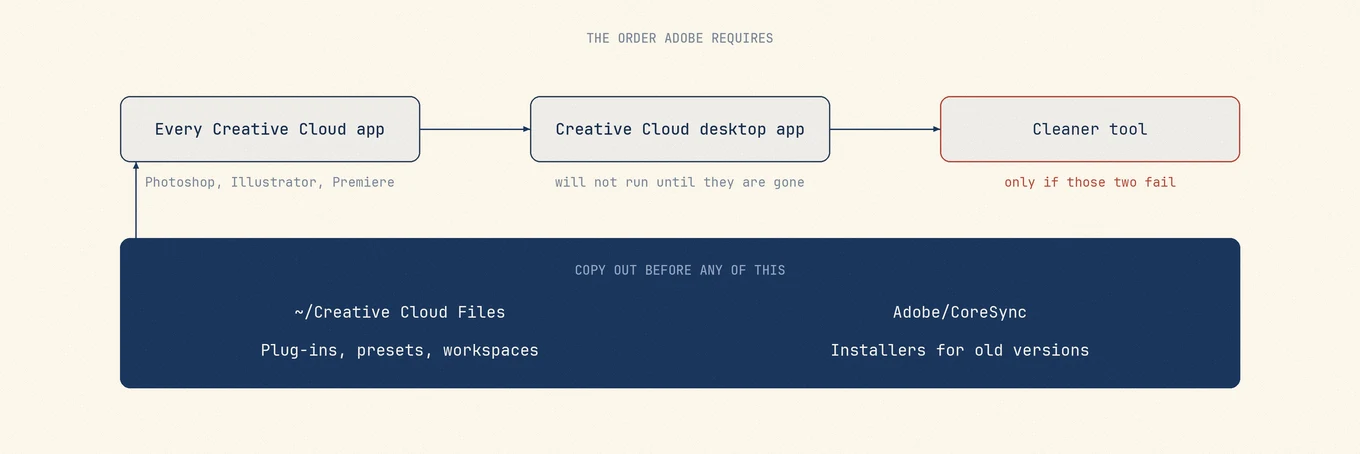
Before trying Repair, Uninstall, or Cleaner again, back up these files:
| Item | Why it matters | Safer holding place |
|---|---|---|
~/Creative Cloud Files (and renamed variants) |
May be the only local copy after Adobe ended cloud sync for that folder | Outside Adobe folders, on an external disk or in non-Adobe cloud storage |
~/Library/Application Support/Adobe/CoreSync/, especially cloudnative |
Adobe asks for a backup before Cleaner | A folder you control outside Adobe folders |
| Product presets, plugins, workspaces | Stored in each product's Application Support folders | Zip each app's files before Cleaner |
| Project files in Documents, server shares, or custom disks | Separate from the desktop app; easy to delete by mistake | Leave originals in place and back them up; never point Cleaner at them |
Adobe's desktop app uninstaller and Cleaner are separate tools. Cleaner is for damaged installs, not a shortcut past a working uninstaller. Start with Uninstall Creative Cloud desktop app and Adobe's Creative Cloud Cleaner Tool help page for your macOS version.
Match the symptom to the next step
| Symptom | Likely cause | Next action |
|---|---|---|
| Uninstall grayed out or disabled for Creative Cloud desktop | Creative Cloud apps still installed | Uninstall Photoshop, Premiere, and other CC apps first |
| "Close the following applications" never clears | Hidden helper or crashed Adobe process | Quit Adobe menu bar apps, then check Activity Monitor for Adobe/CC processes; restart once if stuck |
| Repair finishes but Uninstall still fails | Broken package receipts or partial install | Sign out of Creative Cloud, restart, retry Uninstall once; then consider Cleaner |
| Permission denied or admin password rejected | Standard user on a managed Mac | Ask the administrator; do not bypass with arbitrary sudo deletions |
| Cleaner reports files in use | App or helper still running | Fully quit Adobe processes, disconnect sync, retry |
| Finder still shows Adobe folders after a "successful" uninstall | Expected leftovers and renamed Creative Cloud Files | Keep the renamed files folder until you verify projects; review leftovers separately |
Ordered recovery when Uninstall will not finish
- Back up the four file groups above.
- Quit every Adobe app, including Creative Cloud in the menu bar.
- Uninstall individual Creative Cloud apps first. Adobe requires this before removing the desktop app.
- If Creative Cloud still launches and the problem involves login or updates, try Repair once.
- Choose Uninstall when Repair does not apply or has already failed.
- If Uninstall still fails after a restart, use Adobe Creative Cloud Cleaner with the product options Adobe documents for your case.
- After Cleaner, check that
~/Creative Cloud Files*still exists, possibly under a renamed folder, before deleting leftovers.
Do not start by manually deleting /Applications/Adobe* while helpers are running. That creates the damaged state Cleaner is meant to repair.
Keep vs delete after a failed or partial run
| Path / item | Keep until verified | Candidate to remove later |
|---|---|---|
| Renamed Creative Cloud Files folder in your home folder | Yes | Only after projects are copied elsewhere |
| Premiere / Photoshop project folders you created | Yes | Never part of uninstall |
Applications/Adobe* after Cleaner finishes successfully |
Usually gone | If a partial app remains, remove it only with Adobe's steps |
| Shared fonts you installed system-wide | Review | Fonts may be used outside Adobe |
| License / sign-in tokens in Keychain | Leave unless Adobe support directs otherwise | Removing them saves little space |
Leftover preferences after a clean uninstall can wait. Mac uninstall leftovers: review before you delete explains how to check what still uses them.
What not to do
- Do not run Cleaner first on a healthy install.
- Do not delete a renamed Creative Cloud Files folder just because it appeared after sign-out.
- Do not force-quit WindowServer or start in macOS Recovery to "finish" an Adobe uninstall.
- Do not wipe
~/Library/Application Support/Adobewhile Adobe tools you still use are installed.
If a third-party uninstaller lists Adobe leftovers, exclude possible project folders until you check their contents. Mole can help review leftover preferences after Adobe's tools finish; it does not replace Adobe's uninstaller or Cleaner for a broken CC install.
FAQ
Repair or Uninstall first?
If Creative Cloud opens and the issue involves launch, login, or updates, try Repair once. Choose Uninstall when you want to remove the desktop app and its Creative Cloud apps are already gone.
When is Creative Cloud Cleaner appropriate?
When Adobe's standard uninstaller fails or the install is damaged, with partial apps, broken receipts, or repeated failures. Back up CoreSync and Creative Cloud Files first.
Will Uninstall delete my Premiere projects in Documents?
The desktop app uninstaller should leave projects saved outside Adobe's sync folder intact. Do not include them in manual cleanup, and back them up before using Cleaner.
Why did a huge Creative Cloud Files folder appear after uninstall?
Adobe renames and unhides that folder after sign-out, so it can look like leftover junk. Check its contents before moving it to the Trash.