Mac Internet Speed Test: networkQuality and Its Four Results

A speed test website gives you one download number and one upload number, and the next site gives you two different ones. Neither tells you why a video call stutters on a line that tests at several hundred megabits. macOS has its own test, networkQuality, which measures throughput against Apple's servers and also measures how much the connection slows down while it is busy. That last number is usually the one that explains the stutter.
This guide runs the built-in test, reads its four results, explains why two tests disagree, and shows what to change before you blame the provider.
Run the Built-in Test
networkQuality ships with macOS Monterey and later. Open Terminal and run:
networkQuality
It connects to Apple's test servers, fills the connection for about twenty seconds, and prints a summary. By default it measures download and upload at the same time. To measure them one after the other, the way most speed test websites do, add -s:
networkQuality -s
A few options are worth knowing:
| Option | What it does |
|---|---|
-s |
Download first, then upload, instead of both at once |
-I en0 |
Test through one interface, for example Wi-Fi or a USB Ethernet adapter |
-M 30 |
Stop after 30 seconds at most |
-c |
Print the result as JSON for a script |
-v |
Print more detail during the run |
Run man networkQuality for the full list. Apple's own page on Network Responsiveness describes the same tool.
The test moves real data. Its manual warns that it uses data on your plan, and on a fast line one run can move more than a gigabyte, so keep it off metered hotspots unless that is what you want to measure.
Read the Four Results
| Result | What it measures | What it explains |
|---|---|---|
| Download capacity | How fast data can arrive | Large downloads, streaming quality |
| Upload capacity | How fast data can leave | Cloud backups, video you send in calls |
| Idle latency | Round trip time with nothing else running | The best case for responsiveness |
| Responsiveness | Round trips per minute (RPM) while the line is full | Calls, games and remote desktops during other traffic |
Responsiveness is the number most tests leave out. Apple reports it in round trips per minute and labels it Low, Medium or High. To turn it into a delay you can compare with idle latency, divide 60,000 by the RPM: 200 RPM means each round trip takes about 300 ms while the line is busy, and 1,000 RPM means about 60 ms.
The gap between idle latency and loaded latency is the useful part. A line with 48 ms idle and 300 ms under load is fast when quiet and slow to respond the moment something else uploads. That pattern is called bufferbloat: the router or modem queues more data than it can send, and every packet waits behind the queue. Apple's page names Smart Queue Management on the router as the usual fix.
Why Two Tests Disagree
Different numbers from different tests do not mean one of them is broken. They usually measure different things:
- Server and route. Each test picks its own servers. A nearby server on a well-connected network reads higher than a distant one.
- Parallel or sequential. Testing both directions at once shares the Wi-Fi air between them. On one Mac, download read 526 Mbps with both directions running and 589 Mbps measured alone. Use
-sbefore comparing with a website. - Wi-Fi conditions. Distance, walls, the channel and other devices change the result from one room to the next. Testing over Ethernet, or with
-Ion a wired adapter, separates the line from the Wi-Fi. - Other traffic. iCloud Photos, a backup or a software update running in the background takes part of the line. Find it first with the per-app network check.
- VPN and proxy. If a VPN or a proxy carries the test, the result describes that path, not your line. Compare once with it off.
A Fair Comparison
- Pause large transfers: iCloud sync, backups, downloads and updates.
- Run
networkQuality -sthree times and keep the middle result. - Run it again close to the router, or over Ethernet, to see what the line delivers without Wi-Fi in the way.
- If idle latency is fine but responsiveness is Low, start a large upload and run the test again. A large drop points at queueing on the router rather than at the provider.
- Write down the time, the network and the results. Speed varies through the day, so one evening result is not the whole picture.
If Wi-Fi drops or stutters rather than just running slowly, Wi-Fi keeps disconnecting and Wi-Fi stutter and AWDL cover those cases.
Where Mole Fits
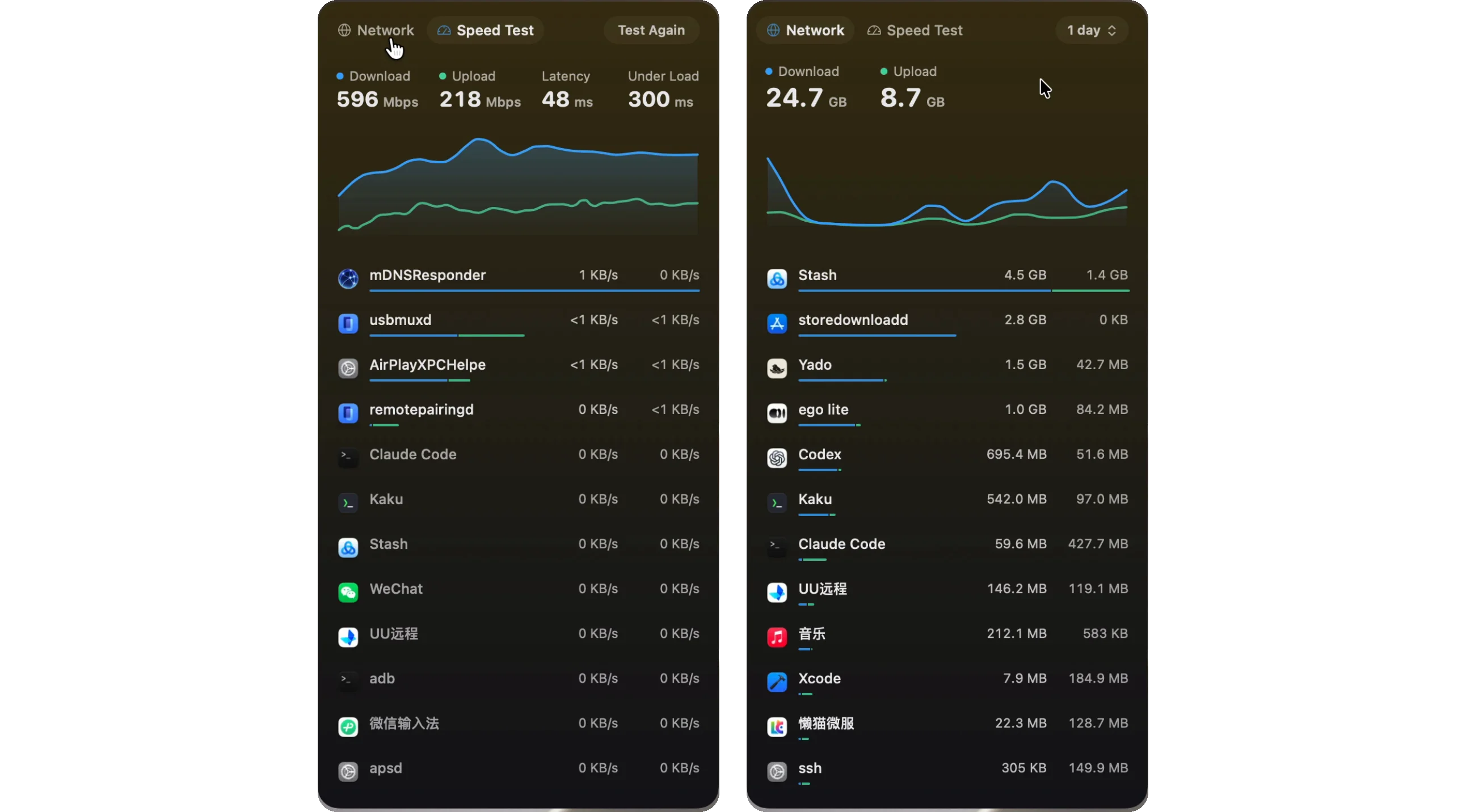
Mole runs the same networkQuality test from the menu bar. Click the upload and download rates in the menu bar and choose Speed Test: it starts when the tab opens with no earlier result on screen, measures download and then upload, and shows four figures, Download, Upload, Latency and Under Load, with the run's curve below them. Under Load is the 60,000 / RPM conversion above, so it reads in milliseconds beside idle latency. The result stays until you choose Test Again. Mole runs no test server of its own and sends nothing anywhere itself; the traffic is the test's, to Apple's servers.
The Network tab beside it answers the other question, which app is using the line. It shows live rates per app, or what each app received and sent over windows from one minute to 30 days, with the test's own traffic kept out of Mole's row. The network card on Status adds the Wi-Fi signal and link rate, so a slow result can be checked against a weak signal before you call the provider.
FAQ
Is networkQuality more accurate than a speed test website?
Neither is more accurate in general. Each measures the route to its own servers. Use networkQuality -s when you want a result comparable with sequential website tests, and look at responsiveness when the complaint is calls or games rather than downloads.
What is a good RPM?
Apple groups results into Low, Medium and High rather than publishing a pass mark. Compare the loaded delay with idle latency on the same line: when the loaded figure is several times higher, the connection queues under load.
Why is my upload so much lower than my download?
Most home connections are sold with less upload than download, so a gap is normal. Check your plan before treating it as a fault, then test over Ethernet to rule out Wi-Fi.
Does running the test use my data allowance?
Yes. The test downloads and uploads real data, and on a fast line one run can move more than a gigabyte. Avoid repeated runs on a metered connection.