ChatGPT Slow on Mac? Separate Typing Lag from Slow Answers
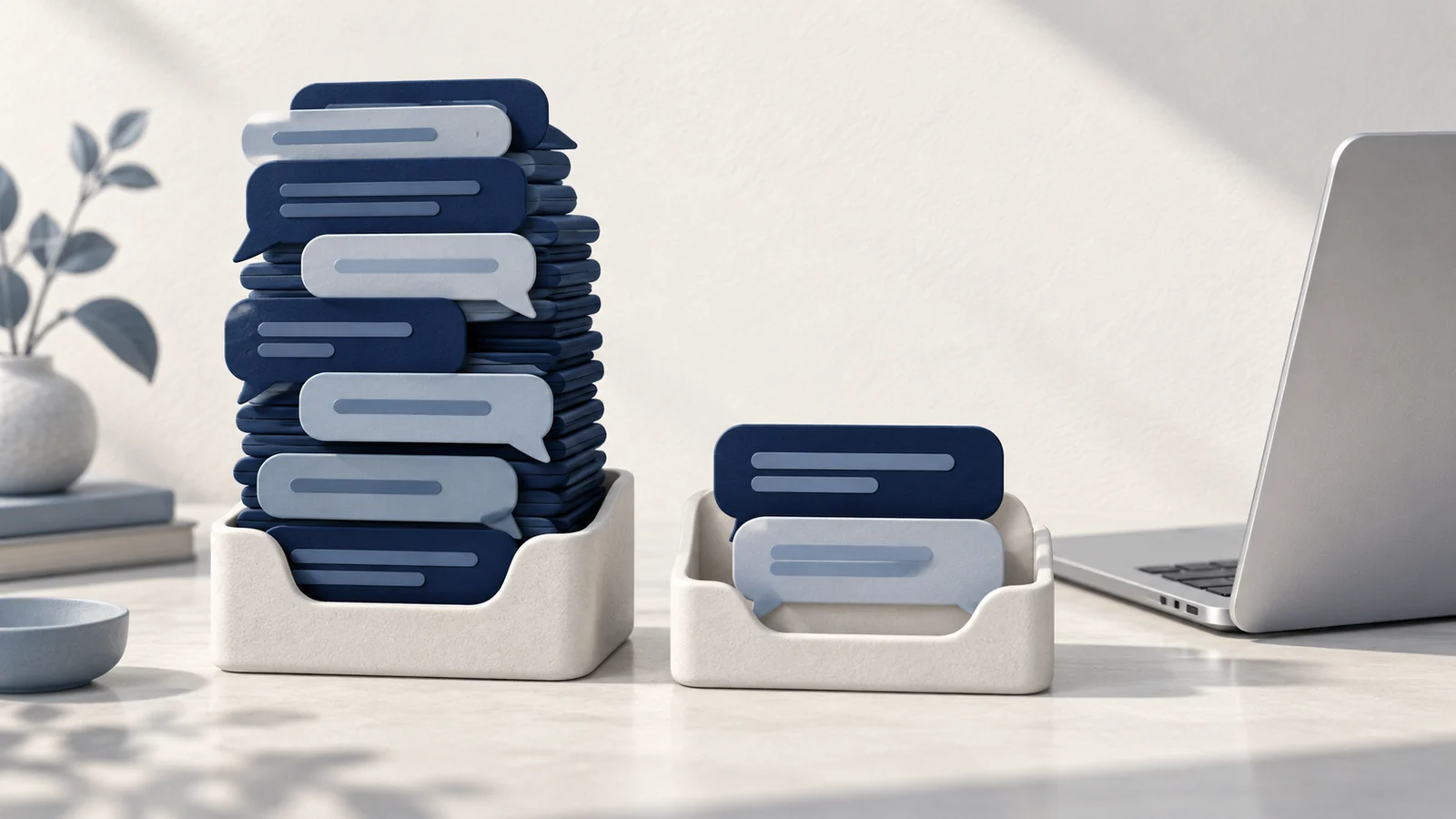
When ChatGPT is slow on a Mac, separate a delayed answer from a sluggish interface. Waiting for the first token while the rest of the Mac works normally points to a different investigation from typing lag, frozen scrolling or every app becoming slow. Deleting chats or clearing the whole Mac is a poor first experiment because it changes several things at once.
Compare a new conversation with the slow one
Save any unsent text. Open a new conversation and try a short, ordinary question using the same model and network. Then return to the original conversation and compare typing and scrolling, not just answer speed.
OpenAI's troubleshooting guide includes starting a new chat when a conversation is long, restarting the app and checking service status. A faster new conversation narrows the problem to that comparison. It does not prove that your Mac needs more RAM or that the old conversation must be deleted.
Keep the original conversation. For ongoing work, carry a short summary of the decisions and necessary context into the new one. Review that summary before relying on it, since a shorter conversation also has less context.
Locate the delay before changing anything
| What you see | A useful comparison |
|---|---|
| Typing and scrolling lag in one conversation | New conversation in the same app |
| The desktop app lags but the website does not | Same account and short prompt in each |
| Only one browser profile is slow | Private window without extensions |
| Every app on the Mac becomes sluggish | Activity Monitor's CPU and Memory views |
| The interface stays responsive but answers arrive late | Service status, model and a second permitted network |
These comparisons are diagnostic, not proof of a specific bug. For instance, a browser that feels faster may be loading a different conversation or have different extensions. Keep the prompt and workload as similar as possible.
Run a small comparison you can repeat
Use a harmless text-only prompt that does not need browsing, file analysis or an external tool. Keep the model the same where the interface allows it. A request that reads a large document is not a fair comparison with a short greeting, and a model doing additional reasoning may take longer for reasons unrelated to the Mac.
Record three observations separately: whether text appears promptly as you type, how long it takes for the first visible response, and whether scrolling remains smooth while the answer arrives. A stopwatch or a short note is sufficient. You are looking for a repeatable difference, not a universal good response time.
Try the original conversation, a new conversation in the same client, and then that new short task in a browser or the Mac app. Change only the client for the last comparison. If only the original thread lags, keep it as a reference and continue with a reviewed summary in a new thread. If the app and browser both wait before answering but typing stays smooth, local rendering is a weaker explanation.
Repeat a result once before acting on it. A single fast answer may reflect a transient service change. Stop this comparison if it would consume a significant usage allowance or repeat a tool action with side effects; a diagnostic prompt should not send messages, place orders or change files.
Check memory pressure while the problem happens
Open Activity Monitor › Memory and reproduce the slow typing or scrolling. Apple's memory explanation distinguishes memory pressure from a simple amount of used RAM. Note whether pressure changes, whether swap grows during the task, and which process grows.
A large ChatGPT or browser process is a clue. The more useful evidence is whether it keeps growing during the same workload and whether closing that conversation or restarting the app changes the symptom. Save work first. A force quit can discard an unsent prompt or interrupt a local task.
Disk cleanup does not add RAM. If the whole Mac is under pressure, reduce concurrent work and follow the memory-pressure guide. If only a particular conversation lags while the machine remains comfortable, keep investigating the client or conversation instead.
Test browser state without deleting your history
For the website, try a private window and sign in normally. This is a cleaner first comparison than removing all browser data. If it works, test extensions individually in the usual profile, especially those that modify pages. A private window is not guaranteed to disable every extension, so check what is allowed there.
If a site-data reset becomes necessary, target ChatGPT's site data and expect to sign in again. Preserve unsent text and any local-only work before proceeding. Clearing cookies is not the same operation as deleting conversations from your account. Avoid broad Library-folder deletion as a desktop-app reset.
Read the result before clearing anything
An improvement in a private window identifies a useful area to investigate, not the exact culprit. Private browsing changes cookies, extensions and other session state together. Return to the ordinary profile, disable one page-modifying extension for ChatGPT, reload the same test, then restore it if the symptom remains. Keep required organizational controls in place.
If the normal profile alone still fails, a targeted site-data reset is the next narrower experiment. First copy unsent text, check that you can sign in again and close other ChatGPT tabs that may recreate session state. In the browser's settings, find website data for the ChatGPT domains actually in use and remove only those entries. Reopen the site and repeat the short test. Do not choose a global erase-history option just because it is easier to find.
A successful reset establishes that the changed browser state mattered. It does not establish that a particular cache file was corrupt, and it says nothing about the amount of disk space needed by the account's conversations. If the reset makes no difference, stop repeating it and preserve the comparison results for support.
Recognize a service or connection problem
Check OpenAI's status page when answers stall across clients. An incident may explain the delay, while a green status page does not rule out an individual account or connection problem. On a managed network, involve its administrator rather than disabling required security controls.
If the issue persists, report the app or browser version, macOS version, model, time and which comparison changed the result. Send a conversation link or diagnostic recording only through the support channel and review it for private content. That evidence is more useful than a claim that cleaning an arbitrary number of gigabytes made the model faster.
Prepare a useful support report
A useful report can be short but specific: macOS and client versions, the model, the local time and time zone, the exact symptom, and which of the conversation, client and private-window comparisons changed it. Include a non-sensitive reproduction prompt if the issue occurs without private work. Avoid claiming a memory leak from one screenshot of a large process.
OpenAI's troubleshooting instructions ask for browser console errors and a HAR capture when persistent problems need deeper investigation. A HAR is a record of browser network requests, not a Mac performance report, and it can contain private URLs, request content or authentication information. Collect one only through the support instructions, review or sanitize it before sending, and do not attach it to a public forum post.
If the slowdown happens only in the Mac app, say that clearly instead of supplying an unrelated browser trace. If it happens only while a particular tool is running, name the tool and stage. Those distinctions let support investigate the failed operation rather than infer the problem from a general description of a slow Mac.