Deleted Large Files on Mac but Free Space Didn’t Increase?
You deleted a multi-gigabyte folder, emptied the Trash, and free space barely changed. Something may still hold the deleted files’ blocks, or Storage settings may not have refreshed.
Before deleting more, check where the space is held. For background, see What is System Data on Mac, What is purgeable space on Mac, and How to delete local Time Machine snapshots on Mac.
Run these checks before deleting more
- Confirm the files are not still in Trash.
- Compare Finder free space with
df -h /and APFS container free space. - List local APFS and Time Machine snapshots.
- Check the purgeable and available space labels in Storage settings.
- Allow time for reindexing after a large deletion, then recheck the same three readings.
- Only then look for large folders you can safely remove.
Skipping these checks can lead you to delete unrelated files without resolving the mismatch.
Step 1: Confirm Trash is empty
Files in Trash still use disk space. Empty Trash, wait a few seconds, and check again. If you deleted files from an external volume, empty Trash while that volume is mounted to free the space on that disk.
Step 2: Compare three free-space readings
| View | Question it answers | Common mismatch |
|---|---|---|
| Finder / Storage settings | How much space macOS reports as available | Categories lag after large deletions |
df -h / |
Free space reported for the volume mounted at / (often in Gi) |
Units differ from decimal GB in Settings |
diskutil container free |
Shared free space inside the APFS container | Snapshots and other volumes use the same pool |
Read-only commands:
df -h /
diskutil apfs list
diskutil info / | grep -i "Container Free"
If df shows more free space but Storage settings does not, the deletion freed blocks. Give Settings time to refresh.
Step 3: Local snapshots still reference old blocks
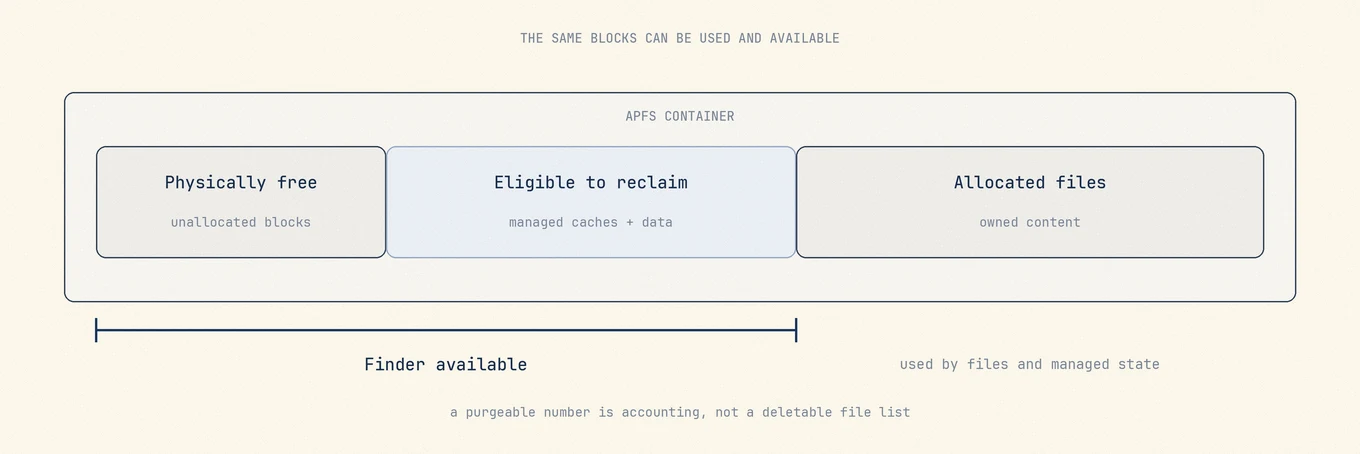
Time Machine local snapshots and some system update snapshots retain previous data blocks. Apple explains that Time Machine snapshot space counts toward available storage and is reclaimed automatically when needed. See View APFS snapshots in Disk Utility.
List them without deleting:
tmutil listlocalsnapshots /
diskutil apfs listSnapshots /
If snapshots are present after a large deletion and free space is unchanged, wait for automatic thinning or follow Apple's documented snapshot management. For manual thinning, use the snapshots guide linked above rather than deleting unrelated files.
Step 4: Purgeable space is not a folder you emptied
Storage settings may count substantial purgeable space as available while df reports less free space. Purgeable content is data macOS expects it can reclaim when needed, not a directory you emptied by deleting files from Documents. Forcing it clear with third-party tricks is unsafe and usually unnecessary; let macOS reclaim it when a large write needs room.
Step 5: Storage panel delay is normal
After multi-gigabyte deletions, Spotlight and Storage accounting can lag. You may notice:
- Category bars barely moving for minutes or longer
- System Data temporarily growing while files are reclassified
- Finder and Settings briefly reporting different available space
Recheck df and container free space after the Mac has been idle. Do not delete more just because the gray System Data bar has not updated.
Step 6: Only then look for real remaining bulk
If the checks confirm that free space is unchanged, look for:
- A second copy, such as a Downloads export or cloud file downloaded elsewhere
- An app-managed library that copied the content
- iOS device backups or disk images you did not touch
- Files still in Trash on an external volume
Use folder-size tools to investigate, not as proof that every large folder is disposable. Mole's Analyze view can highlight large folders you own, but Storage categories will not necessarily match folder totals.
Safety boundaries
- Do not delete
/Systemor sealed system snapshots. - Do not wipe
~/Librarybecause System Data looks large after a deletion. - Do not treat purgeable space as a manual cleanup target.
- Do not thin snapshots on a managed Mac without checking the backup policy.
FAQ
I emptied Trash and free space still did not move. What next?
Compare df -h / with Storage settings, then list local snapshots. If df shows more free space, wait for Settings to refresh. Otherwise, check snapshots and any remaining copies.
Why did System Data grow right after I deleted files?
Storage categories can lag after large deletions, temporarily making System Data look larger. Recheck after the Mac has been idle before treating the increase as new clutter.
Should I delete local snapshots immediately every time?
No. macOS manages them for backups and updates. Thin them only when you understand the backup impact and follow the dedicated snapshots guide.
Can Finder’s Get Info show how much free space is on the disk?
Get Info reports the folder's logical size. It does not account for APFS clones, snapshots, or shared container free space. Use it to find large folders, not to audit free space across the disk.