Mac System Data: Why Storage Display and Folder Sizes Don’t Match
Storage settings show a large System Data category, but Finder’s Get Info totals for visible folders do not add up to it. Both can be right: Storage estimates categories, while Finder measures paths your account can access.
Understanding the mismatch helps you avoid deleting the wrong folders just to make the numbers agree. For contents and safe cleanup order, see What is System Data on Mac. For purgeable versus free space, see What is purgeable space on Mac.
What each tool measures
| Instrument | Reports | Blind spots |
|---|---|---|
| System Settings › General › Storage | Category estimates after indexing | Updates can lag; hidden paths and snapshots complicate comparisons |
| Finder Get Info / folder size | Logical size of the selected folder tree | Protected paths may be excluded; clones and sparse files complicate sums |
du on a path |
On-disk blocks the command can access | Permission errors leave data uncounted; no System Data label |
df / APFS container free |
Volume and container free space | No category labels |
Apple describes Storage categories in Check storage space on your Mac and APFS shared containers in Disk Utility help. Neither says that visible folder sizes should add up to System Data.
Why the numbers do not match
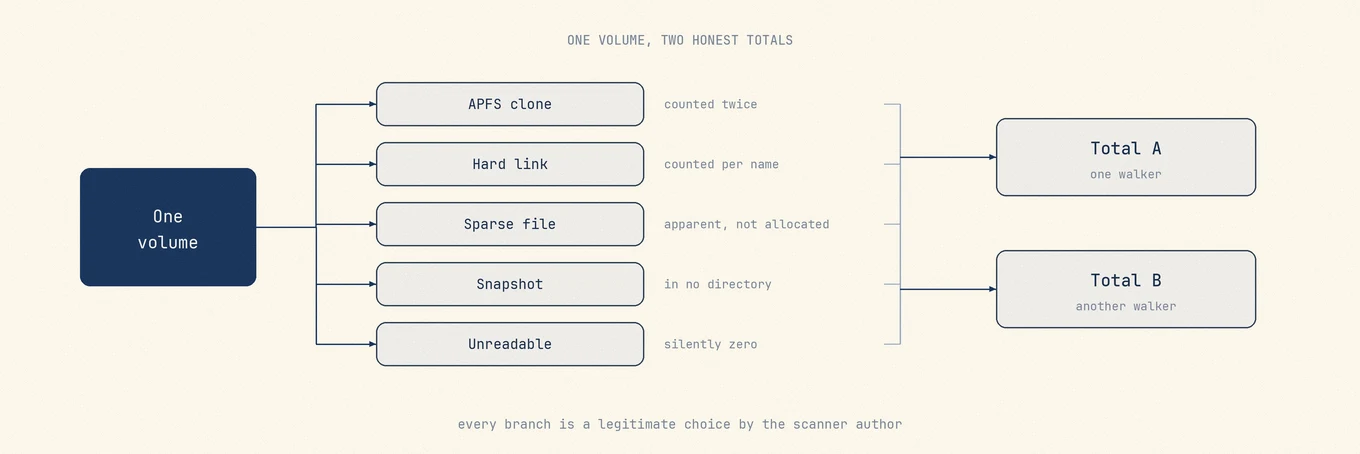
- Scope. System Data accounts for caches, logs, virtual memory, device backups, support files, and local snapshot effects. These do not form one Finder folder.
- Permissions. Without Full Disk Access,
du ~/Libraryskips protected locations. Those bytes still occupy space, even if the command cannot count them. - APFS features. Clones, snapshots, and sparse files make summed Get Info totals a poor check of container free space.
- Time. Storage can take time to reclassify files after large changes; folder sizes update when you remeasure.
- Purgeable overlap. Space can count as used in a category and as available because macOS can reclaim it.
Read-only cross-check:
df -h /
diskutil apfs list
du -sh ~/Library/* 2>/dev/null | sort -h
Use du output to identify folders worth checking. This command hides permission errors; missing output does not prove a folder is empty. If you see “Operation not permitted” when measuring a path, the result is incomplete.
A practical reconciliation workflow
- Record Storage’s System Data and Available figures.
- Record
dfand APFS container free space. - List local snapshots without deleting them.
- Measure large, accessible directories you control: recognized
~/Librarysubfolders, Documents, and virtual machines you created. - Account for inaccessible paths and APFS storage effects rather than assuming Finder is wrong.
- Delete only items you can restore, then recheck
dffirst and Storage later.
If available space is sufficient, a large System Data category alone is not a problem. Clean up when space is tight and you have identified files you control and can restore.
What will not force the numbers to match
| Action | Why it fails as a “make numbers match” tactic |
|---|---|
Deleting random /Library folders |
Can break apps without changing the category as expected |
Wiping all of ~/Library/Caches blindly |
Mixes disposable caches with offline data that may be costly to replace |
| Erasing snapshot internals by hand | Risks backup integrity; use documented snapshot tools only |
| Expecting any disk analyzer to match System Data exactly | Analyzers measure accessible folder trees; System Data is not one tree |
Mole’s Analyze view can help locate large folders you can open, but its totals need not match Apple’s System Data category.
Related checks when available space is the real problem
- Local snapshots retaining deleted blocks: Delete local Time Machine snapshots
- Deleted files but no increase in free space: Deleted files, space not freeing
- iOS backups, Mail data, or developer files in support directories: manage them through the relevant apps or tools
FAQ
Can I open a “System Data” folder in Finder?
No. System Data groups files from many locations; it is not a single folder you can open.
Why is Get Info on Macintosh HD smaller than Storage used space?
Get Info and Storage account for space differently. Modern macOS also separates system and data volumes within one APFS container. Check container free space when assessing capacity.
Will emptying Caches make System Data equal my folder sum?
Unlikely. Clearing caches does not resolve differences caused by logs, virtual memory, snapshots, backups, or support files outside the folders you measured.
Is a large System Data number always urgent?
No. Available space matters more than the category’s size. If space is tight, look for files you control and can restore; the totals do not need to match.