Keep Your Mac Awake While Using Less Battery
macOS turns off the display and puts an idle Mac to sleep to save power. Downloads, long compiles, local model runs, and presentations may need it to stay awake, sometimes with the lid closed.
Keep-awake tools temporarily change that behavior. Set a duration and restore normal sleep when the job ends. An unlimited session is easy to forget and can leave the display on overnight, using power and generating heat.
Screen awake and system awake are different
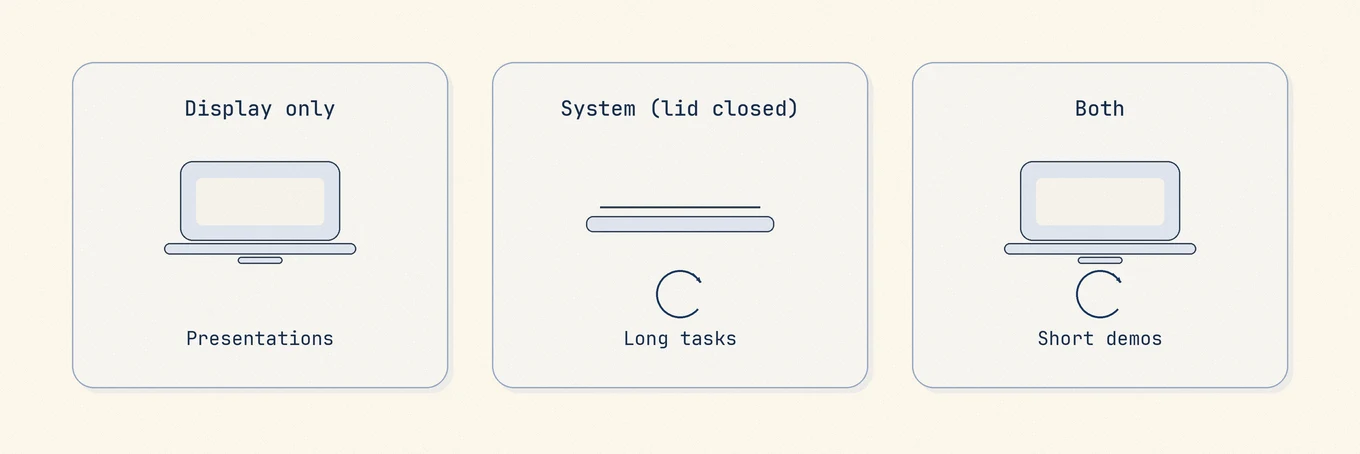
Keeping a Mac awake can mean several different policies:
| Policy | Keeps display awake | Keeps system awake with lid closed | Typical use |
|---|---|---|---|
| Display only | Yes | No | Presentations, reading, monitoring a live view |
| System / closed-lid tasks | Not necessarily | Yes | Long downloads, SSH connections, overnight encodes on a laptop on power |
| Both | Yes | Yes | Demo machines and short supervised sessions |
Apple's own Energy settings still matter underneath: low power mode, display brightness, and "Prevent automatic sleeping on power adapter when the display is off" in System Settings › Battery / Energy change the baseline before any third-party override.
Apple documents sleep and wake behavior in Change Energy Saver / Battery settings (wording varies by macOS version). Check these settings first if a keep-awake tool behaves differently than expected.
Prefer timed sessions over infinite ones
An unlimited session is easy to forget. A timed session ends automatically:
- Pick the shortest duration that covers the job, such as 1 or 4 hours. If you choose an unlimited session, you will need to stop it manually.
- Start the job.
- Let the timer end, or stop it when the job ends.
- Confirm the display and sleep behavior return to normal.
If you need something longer, start another deliberate session. Do not leave an unbounded override running because it might be convenient tomorrow morning.
Pause when the battery is low
Pause the session before the battery runs out.
| Situation | Safer behavior |
|---|---|
| On battery, level still healthy | Short timed session only; dim the display if you do not need full brightness |
| On battery, around 20% | Pause the keep-awake session; let macOS protect the remaining charge |
| Plugged in after a low-battery pause | Resume only if you still want the override |
| Unlimited session | Keep it running across a restart only if you still need it; otherwise prefer a timed session |
| Closed-lid work on battery | Prefer power adapter; closed-lid plus keep-awake plus battery is how laptops go empty in a bag |
A presentation needs the display on. A long download usually only needs the system to keep running; in a mode that supports closed-lid work, the display can stay off. Keeping it on for a download uses unnecessary power.
Check whether sleep interrupts the job
Before you force the Mac awake, check whether sleep is even the problem:
- Is the job waiting on network authentication that drops when the Mac sleeps? Keep-awake helps.
- Is the job single-core bound and merely slow? Keep-awake will not shorten it.
- Is thermal throttling the limiter? More awake time at high temp may not finish sooner; fix airflow or reduce concurrency.
- Is the display the only thing sleeping while the process continues? Then you may not need a tool at all.
Activity Monitor › Energy and a simple timestamped log from your job give better evidence than guessing.
Use less power during long jobs
- Plug in for long unattended work.
- Lower brightness when the display must stay on.
- Disable only the sleep behaviors you need for the session; leave Power Nap and other defaults alone unless you know why.
- Stop the session when you leave the desk.
- For demos, use a timed mode so a forgotten Mac does not run until the battery dies.
Where Mole fits
Mole's Keep Screen On lives in the menu bar with durations you pick (including until you stop), modes that cover display, closed-lid tasks, or both, and battery-aware behavior: sessions pause around 20% battery and can resume once power is connected. An unlimited session can survive a restart when you still want that policy. Timed sessions restore the previous mode and remaining time correctly after interruptions.
You can check and stop the session from the menu bar. A time limit and low-battery pause help prevent forgotten sessions, and the other everyday controls are in the same panel.
If you also care about heat and process load during long sessions, keep Status and menu bar readings open beside this one.
FAQ
Is caffeinate enough?
Terminal caffeinate is fine for deliberate, short, scriptable jobs when you know which flags you passed. A menu bar control is easier to see and cancel. Both can drain a battery if you forget them.
Will Keep Screen On stop the battery from wearing out?
No. It temporarily prevents sleep so a task can continue. On battery, prefer short sessions and pause near 20%. Battery Care features (where available) are a separate topic from display sleep.
Can I keep a Mac awake in a bag?
No. Closed-lid work belongs on a hard surface with airflow, preferably on power. A keep-awake session in a bag is a heat and shutdown risk.
Does Mole need a license for Keep Screen On?
No. Keep Screen On is available without a paid license. Choose a duration and mode from the menu bar.