How to Delete Ollama and LM Studio Models on Mac

To delete an LM Studio model or clear Ollama's model storage, start with each tool's own inventory instead of removing blobs in Finder. Local AI tools can fill a disk quickly because model weights are the product, not a small cache around it. A model may be downloadable again, but the download can be expensive, a revision can disappear, or its license and access can change. Inventory models through the owning tool and preserve chats, fine-tunes, adapters, prompts, and project data separately.
Delete a model in LM Studio
- Open My Models in LM Studio and find the model by name and size.
- Use that model's delete action. Do not remove a similarly named folder in Finder.
- Run
lms lsafterward to confirm that the model is no longer in LM Studio's inventory.
LM Studio lets you choose the models directory, so a path copied from another Mac may be wrong. If you changed that directory, check the configured location before judging how much space the deletion recovered.
Remove an Ollama model
List the installed names first, then pass the exact name to Ollama:
ollama ls
ollama rm MODEL_NAME
Run ollama ls again after removal. This lets Ollama update shared manifests and blobs instead of leaving the model store in an unknown state.
Where local AI tools store their weight
The models are almost always the heavy part, and each one is measured in gigabytes.
- Ollama keeps models in
~/.ollama/modelsby default, or in the directory set byOLLAMA_MODELS. Its current CLI reference usesollama lsto inventory models andollama rm <model>to remove one by name. This is safer than deleting files by hand because the tool can update its own model store. - LM Studio lets you choose the models directory. Use My Models in the app or
lms lsto list local models and sizes, then remove a model through LM Studio so the app's catalog remains consistent. Do not rely on one hardcoded hidden path. - Hugging Face libraries cache downloads in
~/.cache/huggingface/hub, which grows as scripts pull models and datasets unlessHF_HOMEor another cache setting changes the root.hf cache lsinventories repositories and revisions. Preview an exact removal withhf cache rm model/<repo> --dry-run, or preview detached and incomplete revisions withhf cache prune --dry-run. The Hugging Face cache guide documents both commands.
Check the totals directly so you know what you are dealing with:
du -sh ~/.ollama/models ~/.cache/huggingface 2>/dev/null
Cache and data are not the same thing
This distinction keeps cleanup safe. A published model may be downloadable again, but a local fine-tune, adapter, converted quantization, or private checkpoint may not be. Desktop AI apps can also keep conversation state and attachments in Application Support or synchronize some history to an account. Check the app's export and sync behavior rather than assuming either that every chat is local or that every local file is disposable. Model caches are large, but they are not free to recreate.
Removing an AI app completely
If you are done with a tool, the app bundle is the small part. To reclaim the real
space you have to remove its models and support files too, the same problem as
uninstalling any app completely.
For Ollama, remove named models with ollama rm before uninstalling the app. For LM
Studio, remove models from its configured directory through the app. For a desktop
chat client, export needed history and follow the vendor's uninstall guidance before
reviewing support data. Do not delete an entire Application Support container merely
because its name matches an app.
Step-by-step guides to uninstall Ollama and
uninstall LM Studio cover stopping models first and checking
default and custom model locations before anything is deleted.
Under the hood: how the tools store models, and why size is inherent
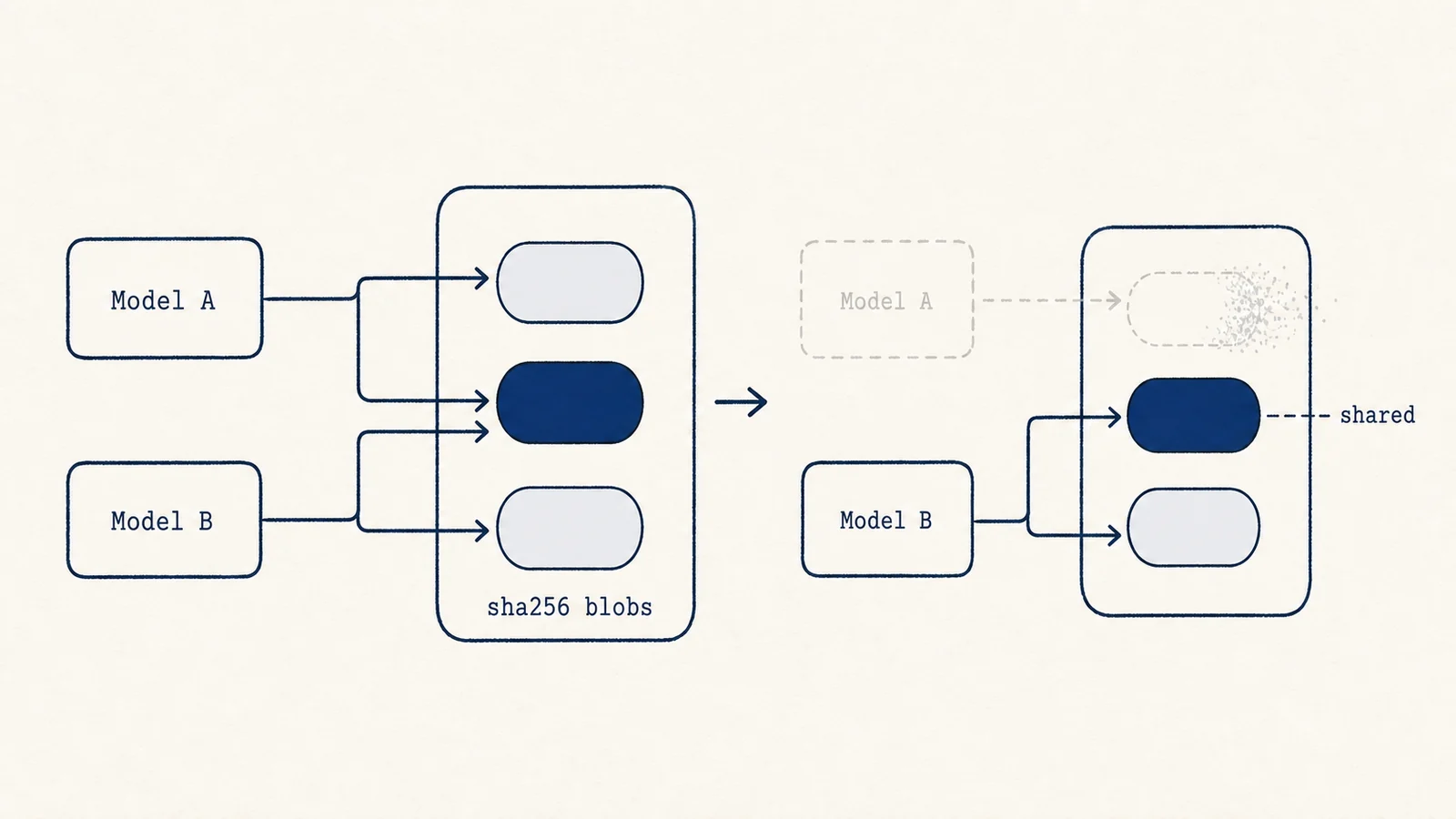
Ollama keeps each model as content-addressed blobs (files named by their sha256
hash) under ~/.ollama/models/blobs, with small manifests that link a model name
and tag to the blobs it needs. Two models built on the same base layer share blobs,
so ollama rm deletes a manifest first and frees a blob only once nothing else
references it. That is exactly why deleting blob files by hand is risky: you can
orphan a model that still points at them. The size is not overhead, it is the model:
billions of parameters still require gigabytes even after quantization, and larger or
higher-precision models require far more, because the weights are the thing. Hugging Face's
cache works the same way, storing immutable snapshots keyed by revision so repeated
pulls deduplicate. This is why the rule is "remove through the tool's own command":
it keeps the content-addressed store consistent instead of leaving dangling blobs.
Where a disk map helps
A disk map such as Mole's Analyze view can reveal an unexpected model store, but
model names, shared blobs, and revision references belong to Ollama, LM Studio, or
Hugging Face. A general cleaner should avoid model stores and chat transcripts unless
the user identifies an exact target. Config folders a command-line AI tool leaves
behind, and command-line tools unused for 30 days, are a different matter: the far Moon
on the Clean page, AI Cleanup & Care, lists them for you to confirm one by one. Ollama
is the one model store Mole touches, and only through ollama rm: AI Cleanup & Care
lists models unused for a month for you to check.
A safe order of operations
List models with their owning tool, distinguish published weights from private or locally transformed artifacts, export unique conversations and adapters, then remove one named model at a time. Recheck disk use because shared blobs may limit the space reclaimed. Remove whole support directories only as part of a verified uninstall with no data left to preserve.