Clean Up Xcode Without Losing Release Artifacts

Xcode spreads storage across build output, indexes, archives, device support, simulator devices, and downloadable platform runtimes. Some is reproducible; some is the only copy of a release archive or its dSYMs. The safe approach is to measure each category, remove it through Xcode when possible, and preserve artifacts tied to shipped builds.
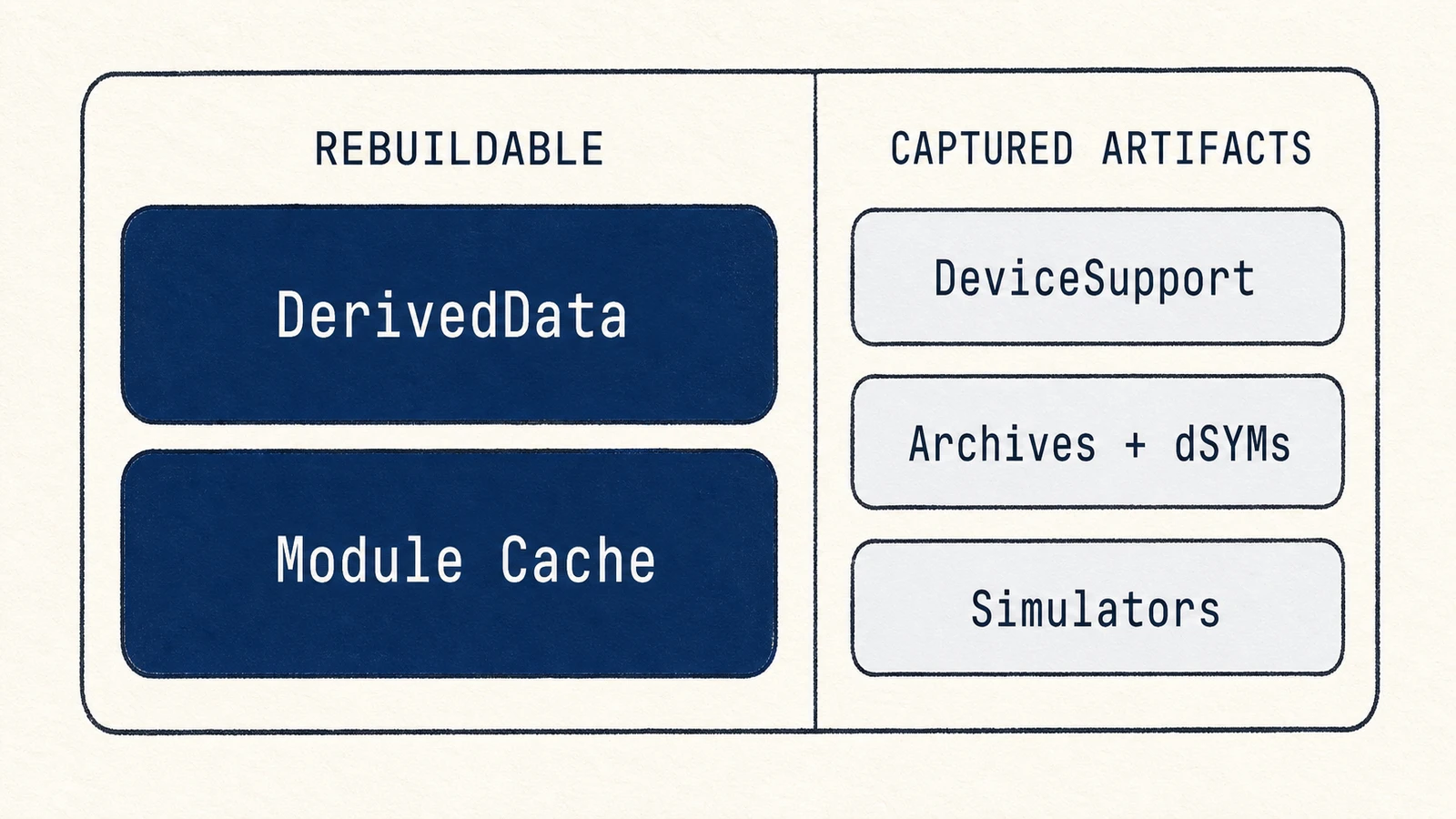
A useful first cut is to separate things Xcode can rebuild from things only you can replace. DerivedData and indexes are usually rebuildable if the source, dependencies, and toolchain are still available. Simulator devices can contain unique test data. Archives and their dSYMs also need preserving when they correspond to software already in users' hands.
Where Xcode's gigabytes go
Start with the two main user-level roots:
du -sh ~/Library/Developer/Xcode/* ~/Library/Developer/CoreSimulator 2>/dev/null | sort -h
The usual heavy hitters are:
- DerivedData: build products, indexes, and module caches, usually one folder per project. It is rebuildable, but a full clear makes subsequent indexing and builds expensive. Target the stale project first.
- DeviceSupport: symbols and support artifacts captured for physical devices and OS builds. Old entries may still be useful for crash symbolication.
- Archives: saved builds from every time you exported or shipped an app. Apple says to retain the archive for every build you distribute because its binaries and matching dSYM files may be required to diagnose later crash reports. Archives for builds that never left your Mac are the safer cleanup candidates.
- Simulator devices and platform runtimes: devices live under CoreSimulator while downloadable runtimes are managed as Xcode components. They are not one cache.
Clearing each safely
DerivedData is best handled per project. Quit Xcode, use Xcode › Settings > Locations to reveal Derived Data, identify the stale project folder, and move that folder to Trash. Clear everything only when a global index or build problem justifies the rebuild cost.
Unavailable simulator devices have a dedicated command. It removes their device data, not just a list entry, so preserve any test data you still need before running it:
xcrun simctl delete unavailable
This removes device records whose runtimes are unavailable; it does not uninstall the runtime images themselves. Use Xcode › Settings › Components to inspect installed platforms and simulator runtimes with their recoverable sizes, then remove runtimes you can download again. Apple's Xcode components guide documents the same managed removal path. Use Window › Devices and Simulators for device records.
Review Archives in Window › Organizer. Preserve the archive and dSYM for every distributed build, including older production versions still in use. Apple's debugging information guide notes that binaries and dSYMs only work together when their build UUIDs match. DeviceSupport also deserves selective review rather than a blanket wipe.
Quit Xcode before moving DerivedData so indexes and build databases are not mid-write. Expect the next open and build to re-index, resolve dependencies, and recreate output; the duration depends on the project and what remains available.
Under the hood: why DerivedData is safe and DeviceSupport is not the same
DerivedData is reproducible build and index output. For each project Xcode makes a folder named with a hash of the project's path and fills it with compiled objects, module caches, indexes, and build products derived from source, settings, toolchains, and dependencies. Delete it and Xcode rebuilds what remains available, which may take time and network access. DeviceSupport is different in kind: when you debug a physical device, Xcode captures support and symbol data for that OS build. Simulator devices and runtime images are also distinct managed objects rather than ordinary cache folders. Archives are the one set worth keeping selectively, because they hold the dSYMs you need to symbolicate crash reports from App Store builds. Knowing which is a rebuildable cache and which is a captured artifact is the whole line between safe-to-clear and keep.
Where a disk map helps
A disk map such as Mole's Analyze view can show whether DerivedData, CoreSimulator, or Archives is the actual source of pressure. Xcode's Components, Devices, and Organizer views should perform the removal because they understand runtimes, devices, and release artifacts.
A safe order of operations
Quit active builds, measure Xcode and CoreSimulator separately, remove stale per-project DerivedData, delete unavailable simulator devices, and uninstall unused runtimes from Components. Review Archives against shipped versions and symbolication needs before removal. Reopen one important project and run a build before emptying Trash.