Clean Up Docker on Mac: Images, Build Cache, Volumes
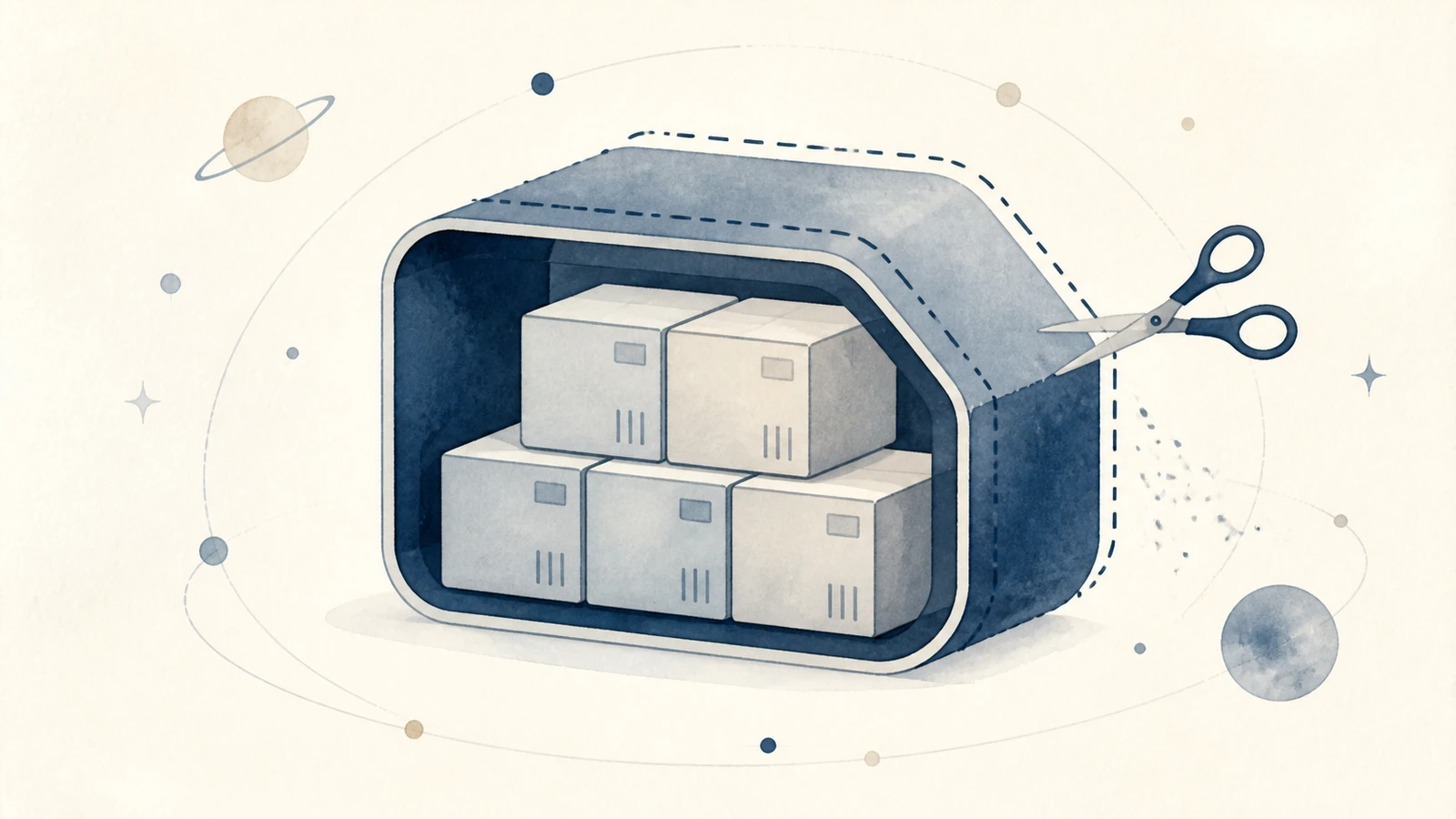
Docker Desktop can use tens of gigabytes because images, writable container layers, build cache, and volumes live inside a Linux virtual disk. These categories are not equally disposable. Build cache is usually reproducible; a database volume may be the only copy of important data. Safe cleanup starts with Docker's inventory, not its broadest prune command. If you want to remove Docker Desktop rather than free space inside it, see Uninstall Docker Desktop on Mac.
Why Docker's space does not come back
Docker Desktop on macOS runs a Linux VM and normally stores its data in a sparse
virtual disk named Docker.raw. Docker's
Mac storage guide
points to Docker Desktop › Settings › Resources › Advanced for its location, disk
limit, and actual space consumed. Move it with that control, not Finder. A sparse file
has a maximum logical size and a smaller physical allocation, so ls -lh alone can
make it look much larger than the capacity it currently occupies.
See what Docker itself thinks it is using:
docker system df -v
The detailed view breaks down images, containers, local volumes, and build cache.
"Reclaimable" means Docker sees no current reference that requires the object; it does
not prove that you will not need a stopped container, old image, or volume tomorrow.
Also inspect docker ps -a and docker volume ls before pruning.
Start with narrow cleanup
Always reclaim from inside Docker, not by deleting its virtual-disk file. Begin with the category you understand:
docker builder prune --filter until=168h
docker image prune
docker container prune
The first command removes build cache older than seven days; adjust the age to match
your work. The next two prompt before removing dangling images and stopped containers.
Run docker system df -v again after each step so you can see which action mattered.
Docker's pruning guide
documents docker system prune as a broader convenience command. Adding -a removes
all unused images, not only dangling layers. Adding --volumes expands the operation
to unused anonymous volumes, which can contain database files or other state. Do not
make docker system prune -a --volumes a default cleanup command. Before any volume
prune, inspect names and ownership:
docker volume ls
docker volume inspect <volume-name>
Compose-created volumes normally carry project and service labels. Identify the owning project and export or back up data that cannot be rebuilt before removing the volume.
Reclaiming the disk image itself
Can you delete Docker.raw to reclaim the space? Not as a Finder delete. The file is the
whole Linux VM disk, so removing it in Finder or with rm destroys every image,
container, and volume inside it, not just the slack, and Docker rebuilds an empty disk on
next launch. Reclaim from inside Docker instead: prune, then let the sparse disk return
blocks, and use Settings for the disk image location and limit. The huge number you see is
often the logical maximum of a sparse file, not the physical space in use, so measure the
actual allocation before assuming it is all recoverable.
After a prune, free blocks exist inside the Linux filesystem before macOS necessarily
receives them from the sparse disk. Current Docker documentation says a Docker.raw
image normally returns eligible host space within seconds; older Docker.qcow2 images
use a background process that can take minutes. Measure the actual disk usage again
instead of judging the file's logical maximum. A factory reset is not compaction: it
destroys local containers, images, volumes, and settings. Use it only when that complete
loss is intentional and important volume data has been exported.
Under the hood: why the file grows and will not shrink
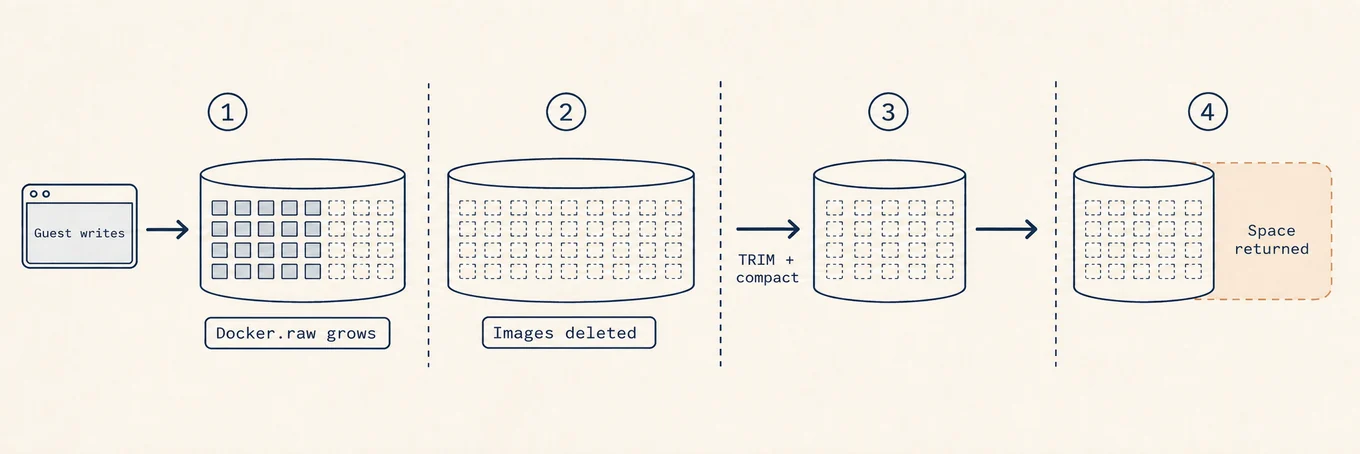
Docker Desktop runs a Linux VM, and Docker.raw is that VM's virtual disk: a sparse
file that grows as the guest writes but does not always hand space back to macOS
immediately when the guest deletes. Removing an image marks blocks free inside the VM's
filesystem. Docker Desktop can then use TRIM/discard and compaction to return eligible
blocks to the host. The timing
depends on its version and disk-image implementation. This is why a logical cleanup
and host-level capacity change need to be measured separately, and why deleting the
host file destroys the containers, images, and volumes stored inside it.
Where a disk map helps
A disk map such as Mole's Analyze view can reveal the virtual disk and its physical footprint. Docker's own CLI must decide which internal objects are referenced. The two views answer different questions: macOS shows where capacity is allocated, while Docker explains what that allocation contains.
A safe order of operations
Run docker system df -v, identify old projects and stateful volumes, export unique
data, and prune one category at a time. Recheck both Docker's internal totals and
macOS physical capacity. Use broad prune flags only after reviewing their expanded
scope, and never use a factory reset as a routine space-recovery shortcut. The fastest
safe win is usually old build cache, not unknown volumes.