JetBrains Caches on Mac (IntelliJ, WebStorm, PyCharm)
JetBrains IDEs like IntelliJ IDEA, WebStorm, and PyCharm keep several multi-gigabyte directories on a Mac, and only some of them are safe to clear. Caches and indexes rebuild on the next launch; configuration, plugins, and project data do not. The difference is what keeps a cleanup from turning into lost settings or a broken project.
This page is the JetBrains-specific companion to the general dev-caches guide. It
uses "Mole" only for Mole for Mac at mole.fit and its own mo command line tool,
and it does not quote per-IDE gigabyte figures, because they vary too much to be
useful; you measure on your own machine.
What JetBrains stores, and what is not just cache
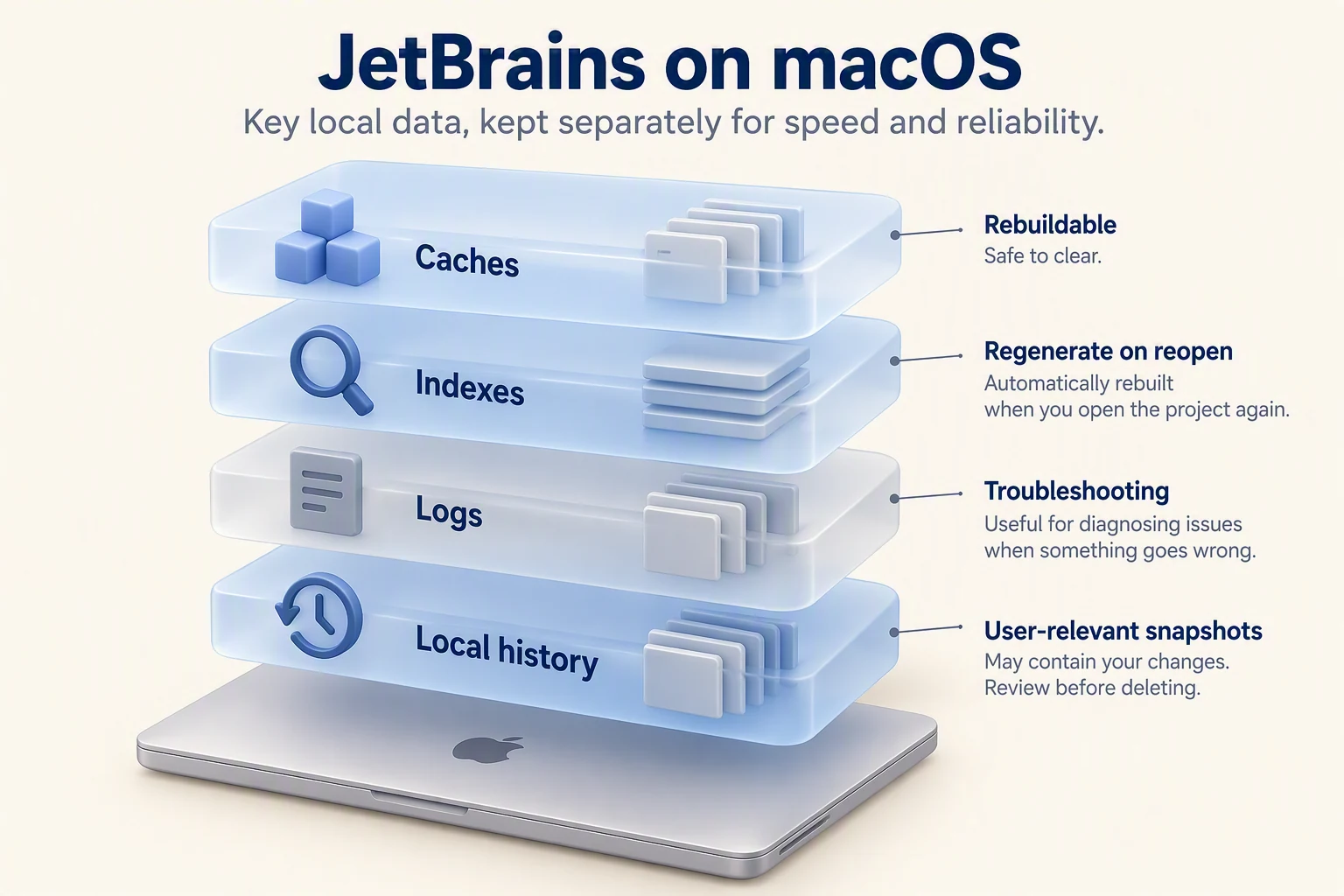
A JetBrains install is several directories with very different recovery costs. Treating them as one folder is where cleanups go wrong.
| Layer | What it holds | Rebuildable? |
|---|---|---|
| Caches | Compiled search data and temporary work files | Yes, on next launch |
| Indexes | The project index the IDE builds to navigate code | Yes, by re-indexing |
| Logs | Diagnostic text for troubleshooting | Yes; safe to clear |
| Config and settings | Keymaps, code style, preferences | No; this is your setup |
| Plugins | Installed plugins and their data | Partly; reinstalling loses local plugin state |
| Project data | .idea folders and Local History |
No; this is project and personal work |
The first three rebuild themselves and are the safe targets. The last three are your setup and your work, and they are not cache no matter which folder they sit in.
Prefer the IDE's own tools
Before deleting any folder, use the IDE's built-in path. File > Invalidate Caches clears the caches and indexes and offers to restart, which is the supported way to fix a stale index without touching settings. Confirm the exact menu wording in your current IntelliJ, WebStorm, or PyCharm version, since menu labels shift between releases.
If you manage several JetBrains products through the Toolbox App, it also exposes per-product cleanup and the location of each install. Quit the IDE before you review any folder by hand, so you are not deleting files the running process still holds open.
Finding the system directory on Mac
JetBrains documents its directory locations per version, and the exact
product-and-version subfolder differs on every machine, so locate yours through
the IDE (Help points to the log and configuration folders) rather than pasting a
stale absolute path. On current versions the parent folders on macOS are
~/Library/Caches/JetBrains and ~/Library/Application Support/JetBrains, with
logs under ~/Library/Logs/JetBrains.
Measure the parents to see where the weight actually is before removing anything:
du -sh ~/Library/Caches/JetBrains ~/Library/Application\ Support/JetBrains
That tells you how much is in the system directory versus the configuration directory. The system directory also contains Local History, so its total is not all disposable cache. Application Support holds settings and plugins.
A safe order
- Invalidate Caches through the IDE, and re-index once if navigation feels off.
- Measure the JetBrains parent folders so you know where the space is.
- Clear caches and indexes through the IDE dialog, leaving its optional Local History removal unchecked; review logs separately.
- Never delete
.ideaor Local History casually; that is project and personal work. - Restart the IDE and confirm the space came back before doing more.
The overlap with package managers and stray node_modules folders belongs to a
different guide: how to clear developer caches on
Mac covers npm, Cargo, pip, and Gradle, and
how to clean up Xcode covers DerivedData if you
also build with Apple's toolchain. An IDE is not a JDK, so removing a runtime is a
separate task in uninstall Java on Mac.
When a disk map helps
Once you know the JetBrains folders are large, a disk map is useful for seeing
which product and version holds the weight. Mole's Analyze view surfaces large
directories for review with their paths and sizes, and Clean lists cache
candidates; scanning is free without a license, and you decide what to remove.
That is a different job from mo purge, which sweeps rebuildable project build
output rather than IDE caches, as covered in purge on Mac
explained. For what Mole reviews versus what it
refuses to touch, see is Mole safe.
Further reading
- How to clear developer caches on Mac: the
package-manager and
node_modulesside. - Which Mac caches are safe to delete: the general regenerable-versus-not rule.
- Is Mole safe: what a review-before-delete tool will and will not remove.
FAQ
Will clearing caches delete my projects?
The default Invalidate Caches action does not delete your project files or Local History. Local History lives inside the IDE's system directory, though, and the dialog has a separate option that deletes it. Leave that option unchecked.
Invalidate Caches or deleting the system directory?
Invalidate Caches is the supported path: it clears caches and indexes on restart without removing settings or plugins, and keeps Local History unless you select its removal option. Deleting the whole system directory by hand can erase Local History. Settings and plugins normally live in Application Support, not that system directory.
Multiple IDEs or Toolbox: one cleanup or per product?
Each product and version keeps its own subfolder, so caches accumulate per product. Clear them per product through each IDE or the Toolbox App, and measure the JetBrains parent folders to see which install is actually large before removing anything.