Delete Old iOS Simulator Runtimes on Mac
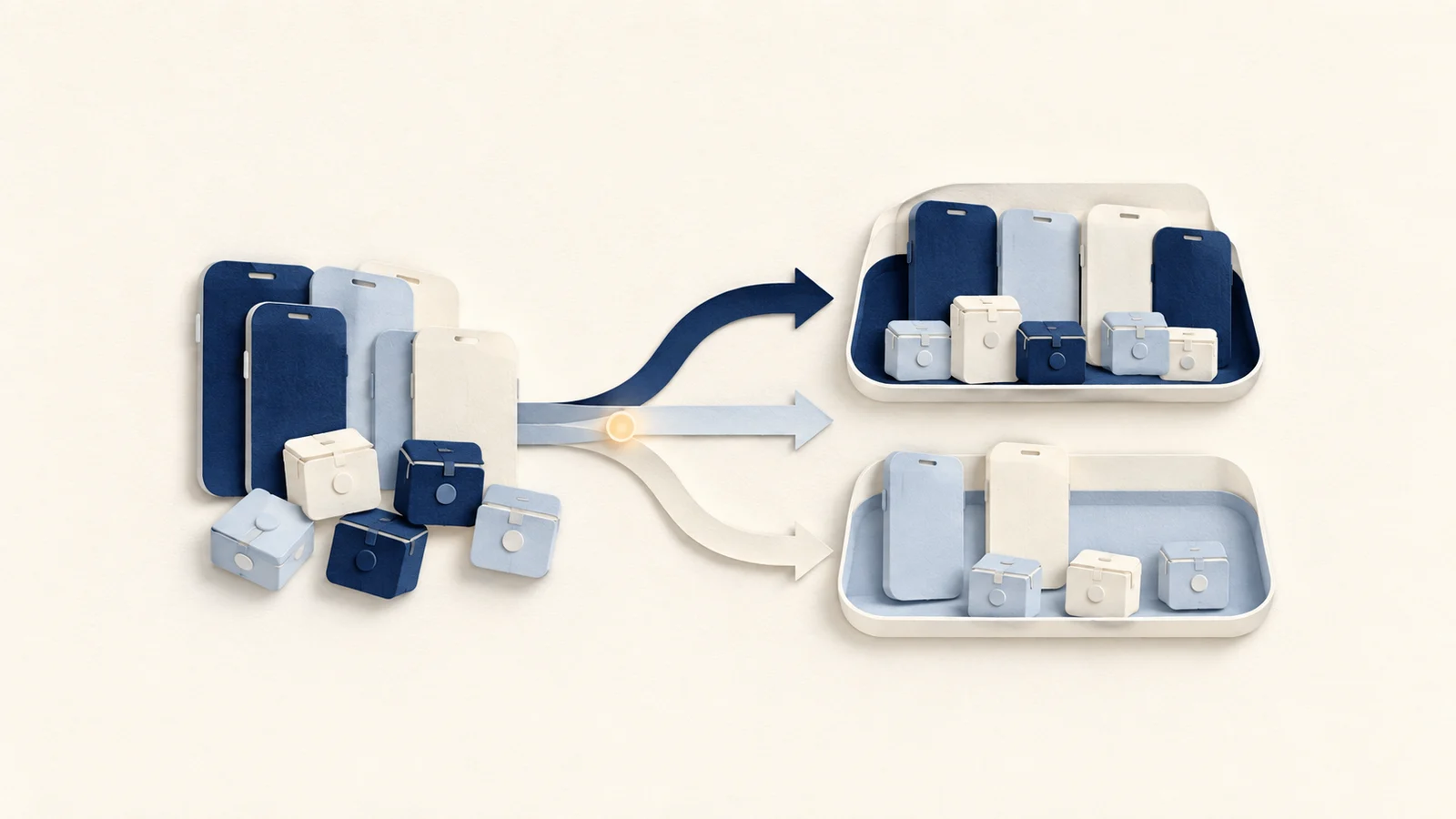
Xcode storage is not one cache. Platform runtimes, simulator devices, DerivedData, DeviceSupport, and Archives may sit near each other on disk, but they have different owners and very different recovery costs.
A downloaded runtime can use several gigabytes. A simulator device can then accumulate apps, databases, Keychain items, and test fixtures on top of that runtime. Deleting the wrong layer can turn a quick cleanup into a long download, a full re-index, or the loss of the exact state needed to reproduce a bug.
The safest rule is simple: measure the large category, identify its owner, and remove it through Xcode or simctl. Do not treat the entire Developer folder as disposable.
Start with a storage inventory
Before deleting anything, quit active builds and note what you still support. Record the Xcode versions, platform versions, physical-device OS versions, and release archives that remain relevant to current work.
Use Xcode › Settings › Components to see installed platform components. Apple documents this as the supported place to download and remove simulator runtimes: Downloading and installing additional Xcode components.
For a read-only command-line inventory, run:
xcrun simctl list runtimes
xcrun simctl list devices
Then use a disk analyzer to compare the broad categories under ~/Library/Developer and CoreSimulator. The size tells you where to investigate; it does not tell you what is safe to delete.
| Storage type | What it owns | Supported cleanup path | Recovery cost |
|---|---|---|---|
| Simulator runtime | A platform OS image such as iOS 18 | Xcode Settings › Components | Download and installation time |
| Simulator device | Apps and data for one virtual device | Simulator or simctl |
Device state is erased |
| DerivedData | Build products, indexes, and intermediates | Xcode Settings › Locations or a selected project folder | Rebuild and re-index time |
| DeviceSupport | Symbols and support files for physical-device OS builds | Selective review after checking device and crash needs | May lose offline debugging or symbol support |
| Archives | Built app plus dSYMs and distribution metadata | Xcode Organizer | May lose the matching symbols and distributable build |
Runtime images and simulator devices are different
A runtime is the downloadable iOS, watchOS, tvOS, or visionOS system image. A simulator device is a virtual iPhone, iPad, Apple Watch, Apple TV, or Vision Pro that runs on one of those images. Several devices can share one runtime.
This distinction explains two common surprises:
- Deleting a device does not necessarily recover the runtime's several gigabytes.
- Removing a runtime can make every device that depends on it unavailable.
Apple also distinguishes the runtime from the simulated hardware configuration in its Safari developer documentation: Adding additional simulators.
Remove old runtimes through Xcode
Open Xcode › Settings › Components, review each installed platform version, and remove only versions that no active project, test matrix, or support obligation still needs.
Keep a runtime when any of these are true:
- It is the newest installed version for a platform you develop for.
- A bug only reproduces on that OS version.
- CI or a local test plan explicitly names that runtime.
- Downloading it again would interrupt near-term work on a slow or metered connection.
Removing the runtime through Xcode lets CoreSimulator update its own records. Avoid manually deleting folders from /Library/Developer/CoreSimulator or /System/Library/AssetsV2; those directories may contain managed assets and records that a Finder deletion does not reconcile.
Mole's Clean review can list superseded downloaded runtimes that Apple reports as deletable. When you confirm one, Mole asks Apple's simctl runtime delete path to remove it. It rechecks the runtime at deletion time, preserves the newest runtime for each platform, and does not offer cleanup while Xcode or Simulator tooling is active.
Remove unavailable devices separately
When a runtime is gone, device records that depended on it can remain as unavailable entries. Review the list first, then remove only those unavailable records:
xcrun simctl delete unavailable
This command removes device records. It does not uninstall runtime images, and it does not delete available devices that still have a working runtime.
For a named device, use Window › Devices and Simulators in Xcode. This is easier to audit than deleting a UUID-shaped directory because the interface shows the device name, platform, and availability together.
Erase a device when the problem is test state
If a specific simulator has stale app data, a broken database migration, or an authentication state you want to reset, launch that device in Simulator and choose Device › Erase All Content and Settings.
Treat this like erasing a test phone. The shared runtime remains installed, but the selected virtual device loses installed apps, containers, Keychain items, databases, permissions, and other state. Before erasing, capture logs or export any fixture that is needed to reproduce the issue.
Creating one fresh device is often better than erasing every simulator. It gives you a clean comparison while preserving the failing state until the bug is understood.
Clean DerivedData by project, not by reflex
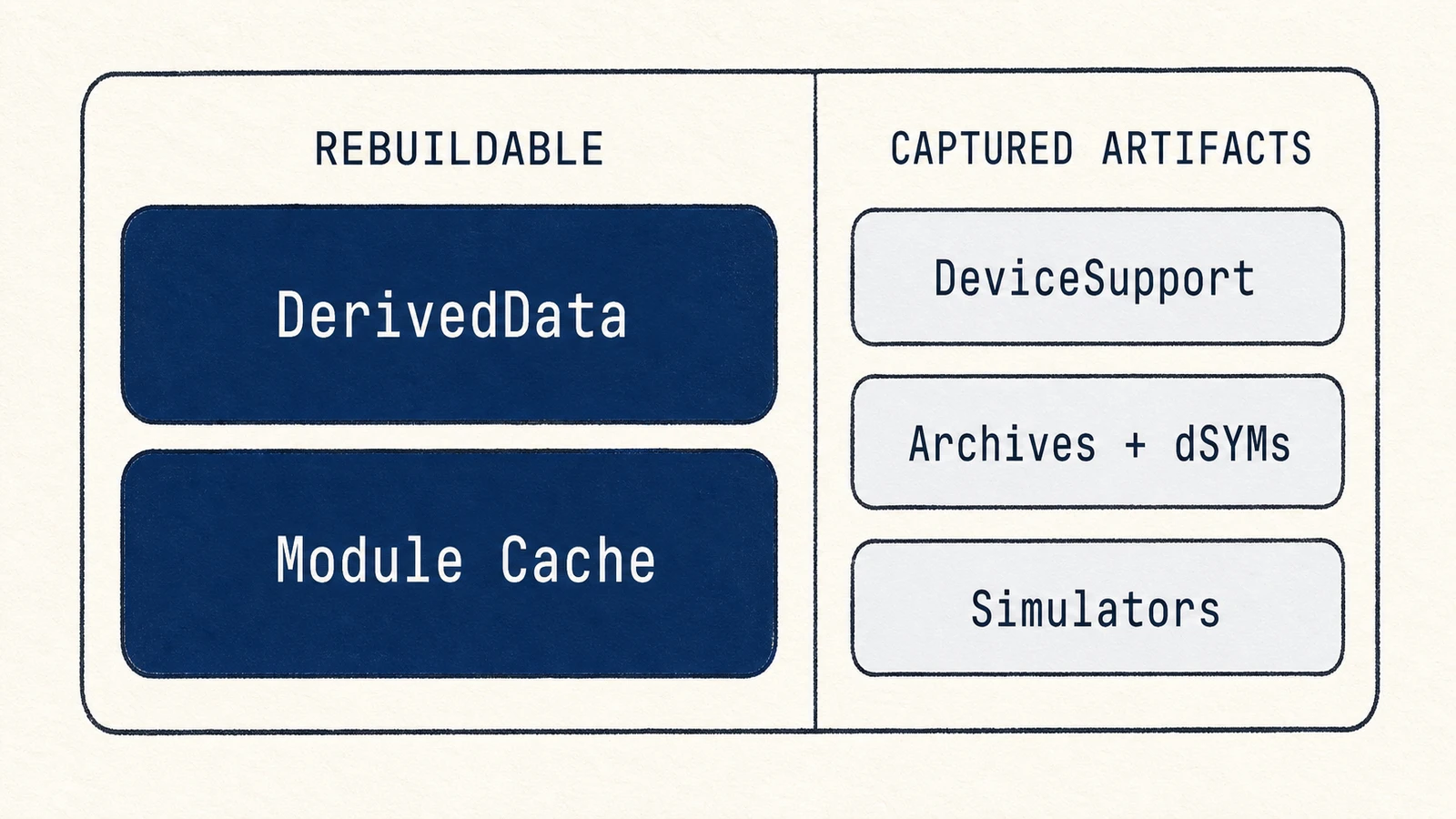
DerivedData contains build products, indexes, logs, and intermediate state that Xcode can recreate. It is usually lower risk than archives, but a full wipe makes every project rebuild and re-index.
Use Xcode › Settings › Locations to reveal the DerivedData folder. Sort by size and modification date, then remove the folder for an old or broken project first. If only one project has stale indexes or an invalid build cache, deleting every project's data adds downtime without freeing meaningfully more useful space.
After cleanup, open the affected project and expect the first build, code completion, and search index to be slower. That delay is the recovery cost of the space you reclaimed.
For a broader developer-storage workflow, including package caches and module caches, read how to clean up Xcode files safely.
Treat DeviceSupport as debugging material
DeviceSupport holds symbols and support data for physical devices and OS builds. Older entries can be large, but age alone does not prove they are useless.
Before removing an entry, ask:
- Do I still connect a device running this OS build?
- Could I need to inspect or symbolicate a crash captured from that device?
- Can Xcode download or recreate the required support files when needed?
If the answer is uncertain, keep it until the related device and crash window have passed. A disk map can identify a large version directory, but Xcode and the debugging requirement determine whether it has value.
Archives are not a cache
An .xcarchive contains the built app, dSYMs, and distribution metadata for a specific build. The matching dSYM can be essential when symbolizing a crash from a version already in users' hands.
Open Window › Organizer › Archives and review archives by product, version, upload status, and date. Preserve every archive associated with a live release unless the same symbols and build artifacts are stored and verified elsewhere. Delete obsolete local experiments only after confirming they were never distributed.
The useful question is not “is this archive old?” It is “can any user still send me a crash from this build?”
A repeatable cleanup workflow
Use this sequence when Xcode storage grows unexpectedly:
- Quit active builds, Simulator, and related command-line tooling.
- Measure runtimes, devices, DerivedData, DeviceSupport, and Archives separately.
- Remove unused runtimes in Xcode Settings, starting with superseded platform versions.
- Run
xcrun simctl delete unavailableonly after reviewing the device list. - Remove stale DerivedData for selected projects and accept the rebuild cost.
- Review DeviceSupport against physical-device and crash-debugging needs.
- Review archives in Organizer against every version users can still run.
- Measure again before doing another pass.
Stop when you have recovered enough space. Cleanup should answer a specific storage problem, not maximize the amount deleted.
What Mole does and does not do
Mole separates discovery from deletion. Analyze maps DerivedData, CoreSimulator, DeviceSupport, and Archives so you can see which category is large. Clean can offer Apple-reported superseded runtime images and remove a selected one through simctl after a fresh safety check.
Mole does not erase available virtual devices or delete release archives, and apart from the regenerable simulator system cache covered in the FAQ below, it does not remove CoreSimulator folders. Xcode remains the owner of components, devices, and archives, and you remain the owner of the test and release history they contain.
FAQ
Will deleting a simulator delete my project code?
No. Project source normally lives outside the simulator. Deleting or erasing a virtual device removes that device's installed apps and test state, so preserve anything needed to reproduce a bug.
Why did deleting devices recover less space than expected?
Several devices can share one large runtime. Deleting device data does not remove the shared platform image. Check Xcode Settings › Components to see whether an unused runtime is the larger layer.
Is it safe to delete the entire DeviceSupport folder?
Do not treat it as a blanket cache. Review old OS-build entries selectively, especially if you still debug a physical device or may need symbols associated with that version.
Can I delete every Xcode archive after uploading to the App Store?
Not safely by default. The local archive may contain the matching dSYM and exact distributable build for a version users still run. Keep it unless those artifacts are preserved and verified elsewhere.
Does Mole find old simulator runtimes?
Mole can list superseded downloaded runtimes that Apple reports as deletable and remove selected ones through simctl. The one CoreSimulator location it cleans on its own is the regenerable system cache in /Library/Developer/CoreSimulator/Caches, and only while no simulator or booted device is running. It does not decide which active test runtime, simulator state, or release archive you still need.