Clear Messages Storage on Mac Without Losing Chats
Messages can keep years of photos, videos, voice notes, and documents on a Mac. The important complication is synchronization: with Messages in iCloud enabled, deleting a message or attachment on the Mac deletes it from every device using that account, as Apple's Messages guide explains. Reducing storage is therefore a retention decision, not just local cache maintenance.
That makes the first step a small but important one: check whether Messages in iCloud is
enabled. Save the attachments that exist nowhere else, then do the cleanup from inside
Messages. Deleting chat.db or its Attachments directory by hand trades a visible
storage problem for a damaged history.
Where Messages stores attachments
Messages keeps its database and all received files under:
~/Library/Messages
The conversations themselves are small text; the weight is in ~/Library/Messages/Attachments,
where every image, video, and file lives. Measure it:
du -sh ~/Library/Messages/Attachments 2>/dev/null
On a Mac signed into an active iMessage account for years, this can be several gigabytes. Terminal may need Full Disk Access to measure it, and a permission error does not mean the folder is empty.
Choose a retention window deliberately
In Messages › Settings › General, Keep messages can be set to 30 days, 1 year, or Forever. A shorter window automatically deletes older conversations and attachments. If Messages in iCloud is on, that retention change applies across the synchronized message history. Before shortening it, save legal, financial, family, or project records that exist only in a conversation. There is no universal correct window.
Clear large attachments by hand
To reclaim space now without shortening your whole history, target the big files:
- In a conversation, open the Info panel (the details button), which shows the photos and files shared in that thread. In current Messages versions, click the contact or group icon, open a category such as Photos, then use Show More to select several attachments. Delete the large videos and image dumps you do not need. Save a copy first when the attachment is the only copy you have.
- Empty Recently Deleted only when you are sure. Apple allows recovery for up to 30 days, removes the messages from devices after 30 days, and permanently deletes them from iCloud after 40 days. Emptying it early removes that recovery window.
Apple also exposes a broader review surface in System Settings › General › Storage > Messages on supported macOS versions. It is useful for sorting large attachments, but the same synchronization warning applies. Review the conversation and file rather than deleting by size alone.
Do not remove files inside ~/Library/Messages by hand. The database, attachment
store, Recently Deleted state, and iCloud sync records need to change together.
Under the hood: chat.db and the Attachments store
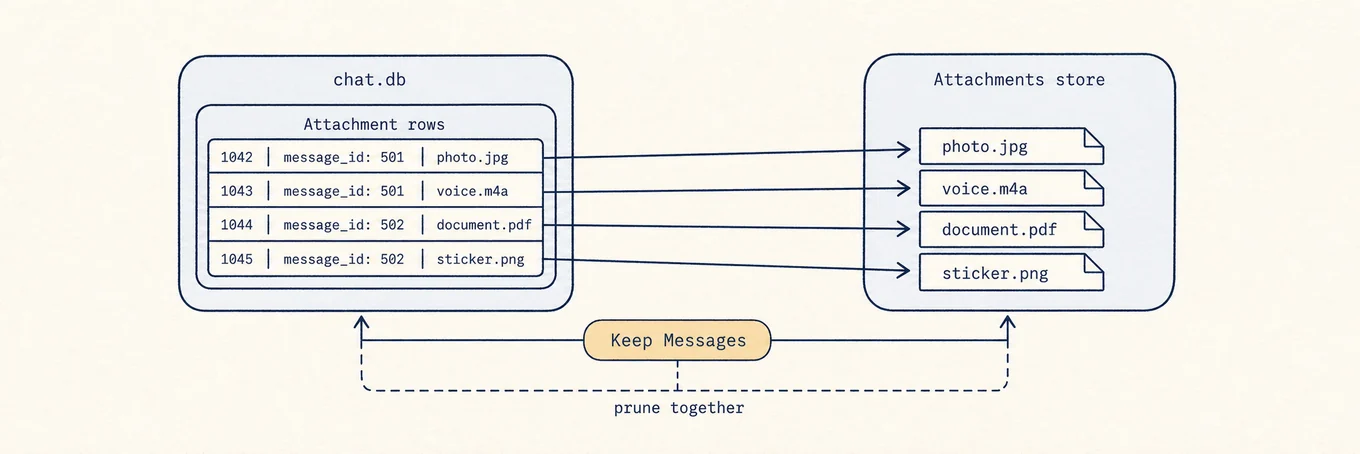
Messages keeps conversations in a SQLite database, chat.db, under
~/Library/Messages, and stores received files separately in the Attachments
folder, with database rows pointing at those files. The text of years of chat is
usually much smaller than the media. Setting Keep Messages to 30 days or a year
deletes old rows and their referenced attachment files together. With Messages in
iCloud, the deletion is also synchronized. This explains both why the operation
reclaims real space and why deleting attachment files by hand is unsafe: chat.db
would still point at files that no longer exist.
Where a disk map helps
A disk map can establish whether Messages is large enough to justify changing your history. Mole's Analyze view can surface the hidden Attachments folder, but it does not delete conversations. That boundary is useful: measurement can be automated, while a synchronized personal-history decision should remain in Messages.
A safe order of operations
Measure the Attachments folder, check whether Messages in iCloud is enabled, and save the unique files you need. Delete a few large attachments through the app before changing global retention. Use a shorter Keep messages window only when you are happy for older history to disappear across synchronized devices. Recently Deleted is your last recovery window, not another cache folder.