WindowServer Spikes After Connecting an External Display on Mac?

WindowServer composites what you see on your displays. Connect an external monitor, increase resolution or refresh rate, and WindowServer usage can climb in Activity Monitor. This guide covers that external-display case.
For a broader explanation, including Spaces and transparency, see WindowServer high CPU on Mac. Do not force-quit WindowServer: restarting it disrupts your session without reducing the display workload.
Reproduce with a controlled display comparison
- Note WindowServer CPU and memory usage with only the built-in display connected, the desktop idle, and few windows open.
- Connect one external display at its native resolution and default refresh rate.
- Wait two minutes at idle and record WindowServer usage again.
- Change one variable at a time: scaling ("Looks like"), refresh rate, HDR, or a second display.
- Restore the previous setting before testing the next variable.
If WindowServer usage jumps only with a specific setting, focus on that display configuration.
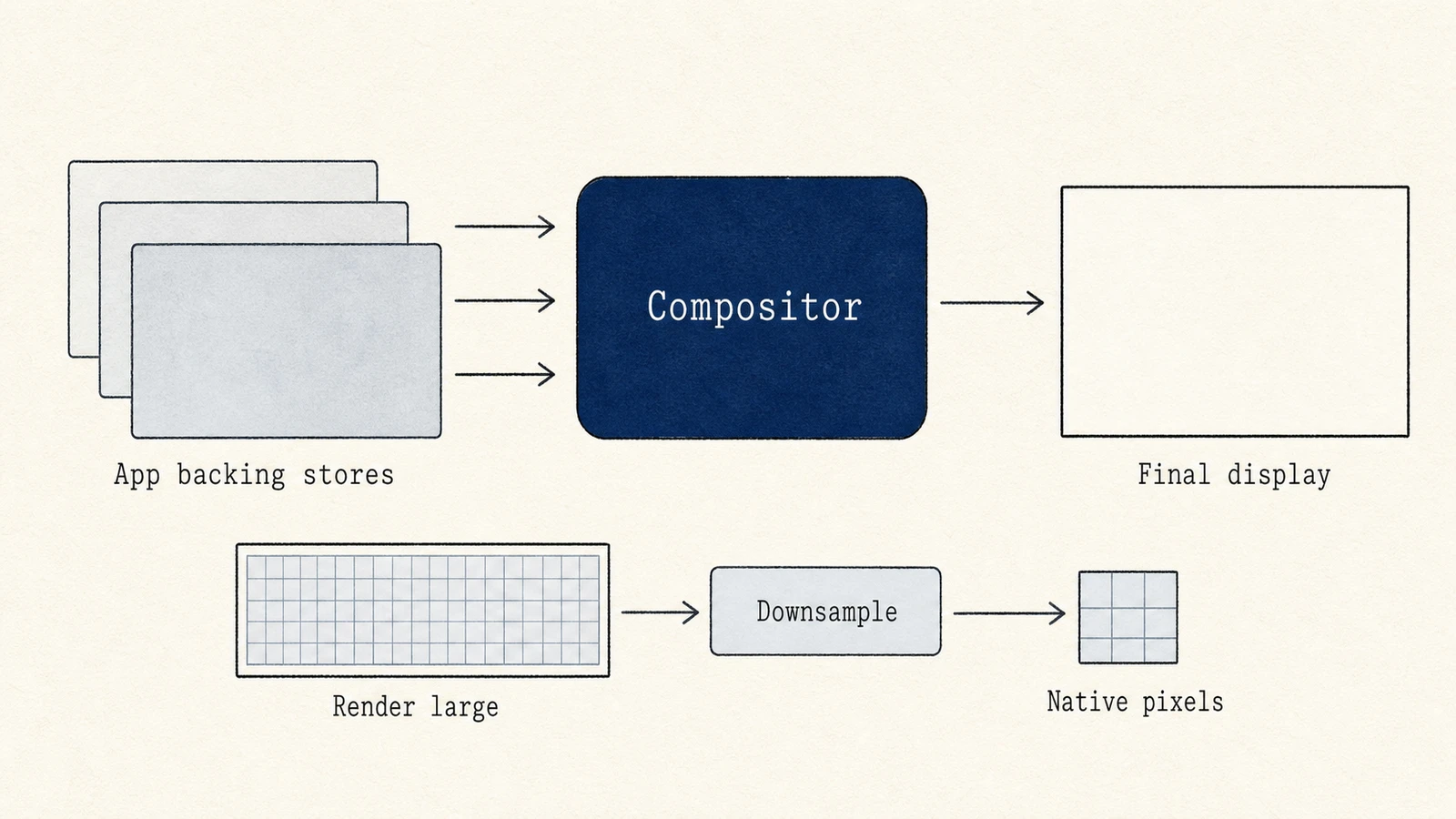
Checklist: external display factors that raise the baseline
| Factor | Why WindowServer works harder | What to try |
|---|---|---|
| Extra pixels (4K/5K, multiple monitors) | More framebuffer traffic per frame | Test one display; lower resolution temporarily |
| Non-native scaled modes | Larger render targets and downsampling | Prefer the display's native HiDPI option when available |
| High refresh rate (120 Hz+) | More frames to composite when content changes | Compare 60 Hz with the panel's maximum using the same content |
| HDR / wide color pipelines | More color processing per frame | Turn HDR off for the test |
| Clamshell mode (lid closed) with externals | The built-in display may sleep, but external desktops still need compositing | Compare lid open versus closed while connected to power |
| "Displays have separate Spaces" | More desktop surfaces to track | Test with the option off in Desktop & Dock |
| Mirrored versus extended displays | Different layout costs; mirroring is not always cheaper | Measure both; keep the layout you need |
Check connected displays in System Settings › Displays. Arrangement and resolution controls vary slightly by macOS version.
Separate display load from app redraw load
External monitors often hold large IDE windows, video timelines, or browser windows. Test whether the display or its content drives the load:
- Move the same windows to the built-in display and disconnect the external monitor.
- If WindowServer usage drops, the external display or its scaling and refresh rate likely contributed.
- If usage stays high, an app may be redrawing constantly. Check Activity Monitor's Energy tab and App Nap status, then quit likely candidates one at a time.
- Disable screen sharing, recording, and overlay tools for the comparison; they can add work involving composited frames.
| Pattern | Points to displays | Points to apps |
|---|---|---|
| Idle desktop, one empty Finder window, externals connected | WindowServer remains above the built-in-only baseline | Unlikely |
| Idle built-in-only usage is low; busy timeline on 4K external is high | Both; reduce scaling load, refresh rate, and timeline preview quality | Timeline preview may dominate |
| Spikes only when a specific app is frontmost | Secondary | That app's windows |
Safe changes that usually help
- Prefer native resolution over aggressive "More Space" scaling.
- Lower the refresh rate while troubleshooting.
- Use fewer external displays during heavy creative work if the Mac is older or fanless.
- Disconnect or power down unused displays rather than leaving black, full-resolution desktops attached.
- Reduce translucent desktop elements on the large screen during the test.
- Keep Battery or Energy settings at their defaults when testing a laptop with multiple displays on adapter power.
If overheating occurs only with a particular dock or HDMI adapter, retest with a direct connection or another cable before assuming GPU failure.
What not to do
- Do not force-quit WindowServer.
- Do not delete WindowServer-related files from
/System. - Do not "clean RAM" to fix compositor load; it does not reduce pixels.
- Do not start with an NVRAM reset when a scaling change already explains the usage.
If the external-display setup also causes heat, simplify it, then compare idle and load temperatures; see Mac temperature: idle vs load. Viewing WindowServer usage alongside temperature can help you compare the two.
FAQ
Is high WindowServer with a 4K display always a fault?
No. More pixels mean more work. Investigate if the Mac stutters, fans stay loud at idle, or battery life drops sharply compared with the built-in display alone.
Does closing the MacBook lid fix WindowServer?
Clamshell mode removes the built-in display from the workload, but WindowServer still composites every active external display. Compare usage with the lid open and closed.
Should I kill WindowServer to apply display changes?
No. Use System Settings › Displays. If changes get stuck, log out or restart the Mac. Killing WindowServer forces a disruptive relaunch.
Can cleanup apps lower WindowServer on multi-monitor setups?
Not by deleting caches. Display settings and app redraws drive the workload; cleanup tools do not reduce the pixels WindowServer must composite.