Mac Fans and Apple Silicon: When to Worry About Heat
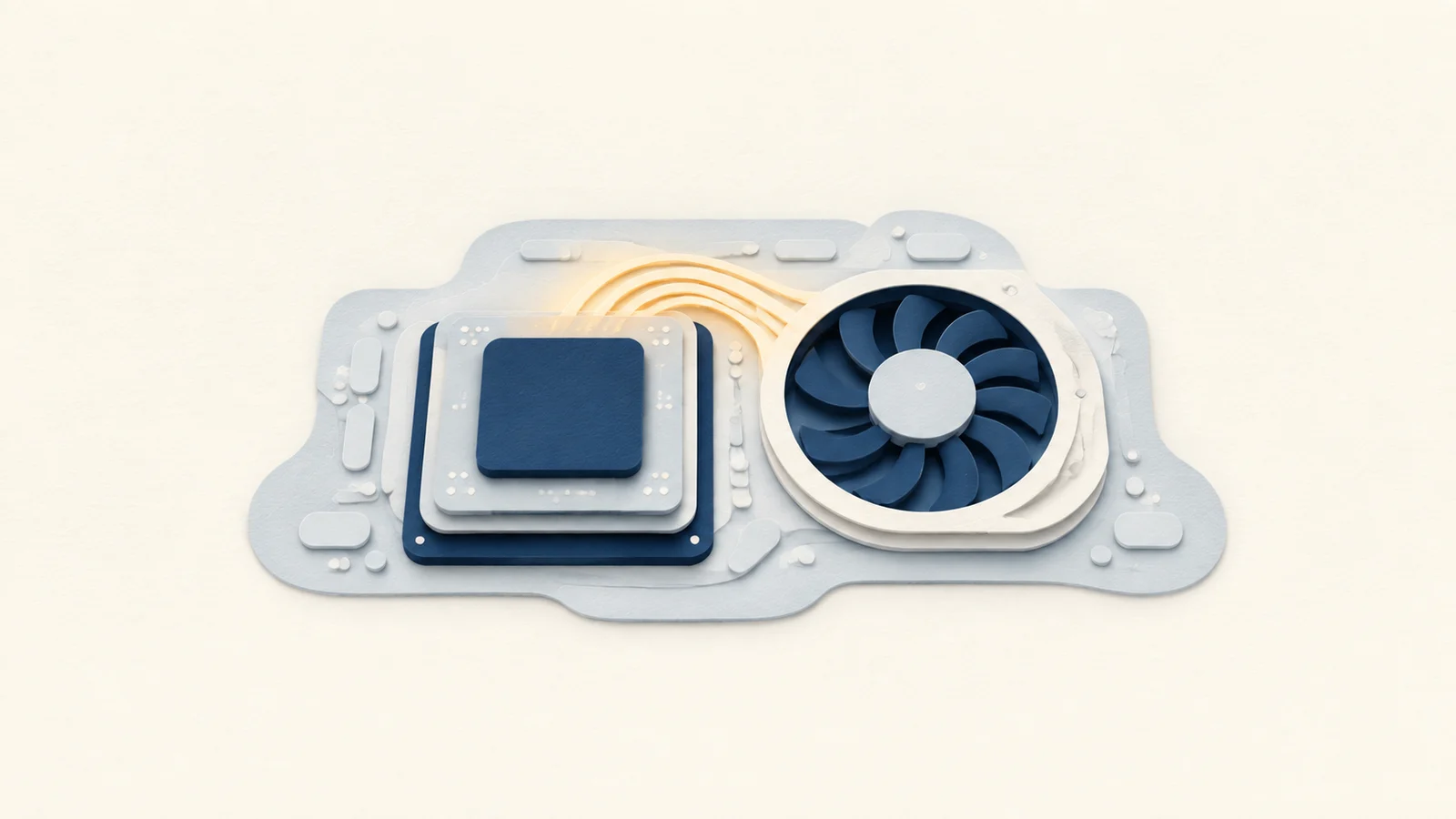
M-series Macs are efficient, but sustained CPU, GPU, Neural Engine, and media-engine work still becomes heat. The useful question is whether that heat follows a job you started or an unexpected process that never settles down.
A warm case during a video export or a large build is normal. A hot Mac while you are reading a static page deserves investigation. Check the workload, temperature trend, thermal pressure, fan response, and task duration together instead of treating one sensor value as a verdict.
What thermal throttling means
Apple Silicon monitors thermal conditions continuously. A Mac with fans can increase airflow before reducing performance. A fanless MacBook Air cannot add active cooling, so a sustained job eventually has to fit within the heat its enclosure can dissipate. In both designs, lowering available performance is a protection mechanism, not proof that the chip has already been damaged.
Throttling is visible as a repeatable change in work completed over time: later frames render more slowly, a long build's remaining steps take longer, or a game's frame rate falls after the chassis has warmed. Temperature alone cannot prove that. Different sensors describe different parts of the machine, and a short high reading can happen before performance changes at all.
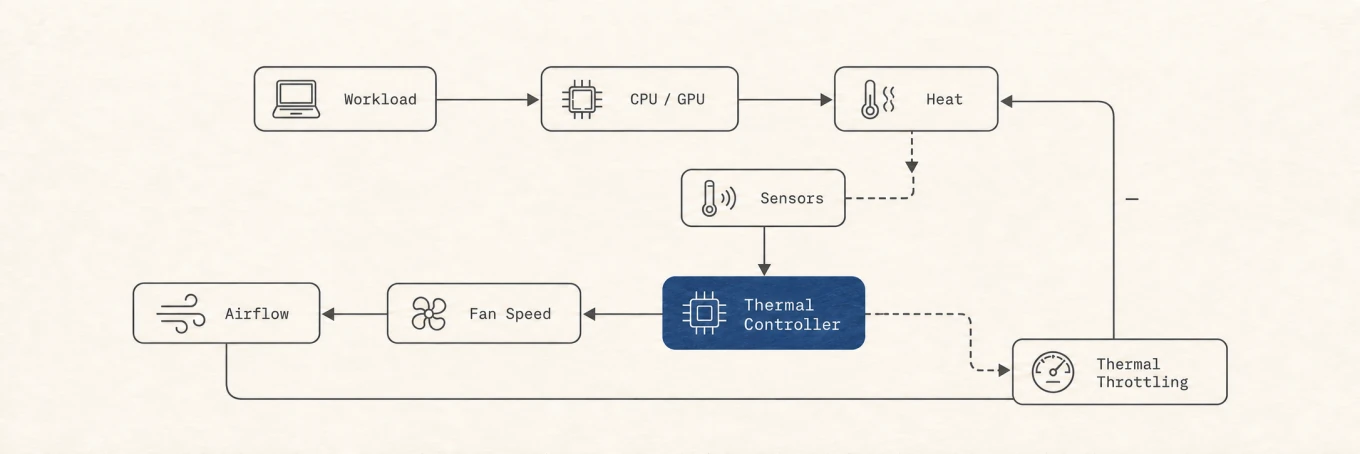
Read four signals from the same time window
| Signal | What it answers | What it cannot prove alone |
|---|---|---|
| CPU and GPU load | Which work is active and how much compute it uses | Whether the temperature is unsafe |
| Temperature trend | Whether heat is rising, steady, or falling | Whether performance has been reduced |
| Thermal pressure or state | Whether macOS is limiting work because of heat | Which app created the original load |
| Fan speed on a cooled Mac | How the cooling system is responding | Whether a loud fan indicates a fault |
Use the same five- or ten-minute window for all four. A fan value copied after the task ends and a temperature captured at its peak describe different moments. Mole's Status view keeps these signals beside the top processes so the timing is easier to compare; Activity Monitor can supply the CPU history and process ownership.
There is no temperature threshold that works for every Apple Silicon model, sensor, enclosure, and room. A value from another Mac is not a reliable pass or fail line for yours. A repeatable slowdown during the same job, accompanied by elevated thermal state, is stronger evidence.
Normal heat and heat worth investigating
| Situation | Usually expected | Worth checking |
|---|---|---|
| Video export, local model inference, game, or large Xcode build | High compute, rising heat, fan response where available | Performance falls early or the task never releases resources |
| macOS update, restore, or large file copy | Spotlight and background processing for a limited period | The same activity remains constant across restarts |
| External display | More WindowServer and GPU work | Idle heat begins only with one display mode or animated workload |
| Mac apparently idle | Low average load and falling temperature | Battery drain, heat, or a process holding a CPU core with no clear owner |
“Idle” needs a real check. A hidden browser tab can decode video, a cloud client can hash files, and Xcode can continue indexing after its window is closed. Sort Activity Monitor by CPU, wait at least a minute, and see whether the same owner stays near the top.
Common sources of unexpected heat
WindowServer and external displays
WindowServer draws and composites what appears on every display. More displays, higher refresh rates, scaled resolutions, video, transparency, and animated browser pages increase its work. If heat begins after connecting a display, change one variable at a time: close animation-heavy tabs, return to default scaling, or lower the refresh rate briefly. A matching drop in WindowServer load and temperature gives you evidence; changing five settings at once does not.
WindowServer is rarely something to force quit. Logging out or restarting the Mac stops it, but the process will return because it is part of the display system. Find the window, display mode, or app that raised its work.
A process that never settles
A browser helper, sync client, updater, local model, or development task can remain busy after its useful work ends. Identify the owning app, save work, and quit it normally. If the load disappears and returns only when one document, extension, or project opens, the smaller trigger is more useful than the helper's generic process name.
Repeatedly force quitting a helper can hide the symptom without fixing its parent app. Update the owner, disable one suspect extension or plug-in, and reproduce the same workload.
Spotlight after a large change
mds and mdworker index files for Spotlight. A system update, restore, source checkout, or large media move can keep them active for a while. If CPU use gradually falls, connect power and let the work finish. Constant activity across restarts is different and calls for checking the indexed volume or using Mole's Doctor view.
kernel_task at the top of Activity Monitor
Apple explains that one role of kernel_task is managing CPU temperature by making less CPU capacity available to processes that are using it intensely. It responds to a thermal condition; it is not the app that originally created the heat. Killing it is neither practical nor a repair.
Look earlier in the timeline for the sustained workload, blocked airflow, peripheral change, or background process. As the thermal condition improves, Apple says kernel_task activity reduces automatically.
A repeatable ten-minute test
- Disconnect optional high-load peripherals only if doing so will not interrupt work, and put the Mac on a hard surface with clear vents.
- Note the current CPU load, top processes, thermal state, fan speed, and temperature trend.
- Start one task that reliably creates the symptom. Keep the input, project, and display setup the same.
- Compare the first two minutes with the final two. Record task progress or frame rate as well as temperature.
- Let the task stop and watch whether load, thermal state, and fan speed return toward idle.
A machine that warms, completes the task at a steady rate, and cools afterward is behaving differently from one that stays hot after the owner quits. This test also separates short boost behaviour from sustained performance, which a single benchmark score can hide.
Cooling without fighting macOS
Keep vents clear and avoid bedding or other soft surfaces that block airflow. Close a runaway workload before trying to cool around it. On supported Macs with fans, Mole can switch among Auto, Cool, and Max modes, then return control to the system. Fan control changes cooling headroom; it does not fix a process, repair blocked hardware, or add a fan to a fanless Mac.
Cool starts at 40% of maximum speed, rises with CPU temperature between 75°C and 95°C, and reaches 100% at 95°C. The default-on return-to-Auto option requires both at least 5 minutes of manual cooling and 3 continuous minutes with smoothed CPU temperature no higher than 60°C and CPU load no higher than 20%. The timers can overlap; both conditions must be met. A brief pause in an intermittent workload is not enough. You can turn that option off to keep manual control. Returning to Auto means macOS chooses the fan speed; it does not mean Mole sets it to zero.
75°C and 95°C are parameters of Mole’s cooling curve, not universal overheating limits for every Mac. Speed rises promptly as temperature climbs and falls with extra margin, keeping small temperature fluctuations from making the fans repeatedly speed up and slow down. Use Auto day to day, then see whether Cool helps a long build or render by comparing the same task’s duration and temperature trend.
Max is useful for a bounded render, compile, or inference job when extra noise is acceptable. Auto remains the right default for ordinary work. Higher fan speed consumes power and adds noise, while a permanently high setting can conceal the fact that an app never returns to idle.
If a fan makes a mechanical sound, reports no response, or the Mac shuts down during modest workloads, return to Auto and investigate hardware rather than pushing the fan setting further.
For a fuller sensor workflow, see how to check Mac temperature and why Mac fans get loud.
FAQ
Does Mole let me control the fans?
Yes, on supported Macs that expose writable fan controls. Mole offers Auto, Cool, and Max presets and returns to Auto when manual control cannot be maintained. Fanless Macs do not show a fan control.
How do I find what is making my Mac hot?
Compare CPU or GPU load, the top processes, temperature trend, thermal state, and fan response during the same time window. A single temperature sample cannot identify the cause.
Is it safe to run the fans at maximum speed?
Max is a supported Mole mode for bounded heavy work, but Auto should remain the default. Stop and return to Auto if the fan sounds mechanically abnormal or the reading does not respond.
Is kernel_task causing the heat?
Usually no. Apple documents it as part of the response to CPU temperature. Find the sustained workload or cooling condition that appeared before kernel_task rose.