How to Update Every Mac App Safely
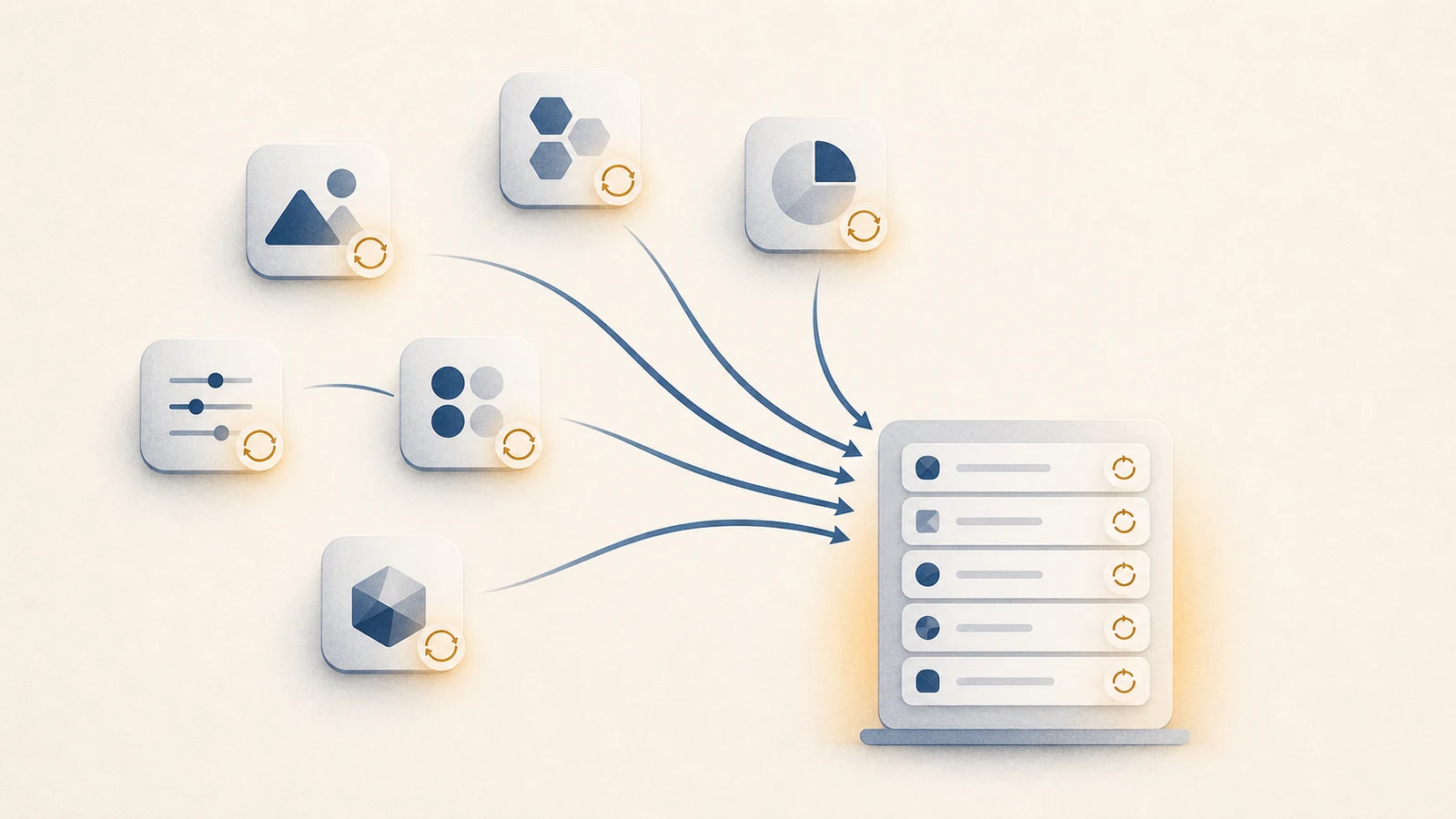
Mac apps can arrive through the App Store, a developer download, Homebrew, an enterprise manager, or another package system. Each channel has different trust, rollback, and automation rules. An update audit should identify the installed source before choosing how to upgrade; replacing an app through the wrong channel can lose licensing or create two managed copies.
One clue settles most update questions: where did this copy come from? The App Store,
the app's own Check for Updates command, and brew outdated each know about a
different set of software. Switching channels halfway through is how one app turns into
two managed copies.
| Installed source | Authoritative update surface | What not to substitute |
|---|---|---|
| Mac App Store | App Store Updates | A vendor download over the store-managed copy |
| Developer download | The app's updater or vendor download page | App Store or Homebrew unless you migrate deliberately |
| Homebrew formula or cask | brew outdated and brew upgrade |
The app's self-updater when Homebrew owns the version |
| Enterprise management | The organization's management portal | A local administrator workaround |
App Store apps
The App Store updates only apps installed through that channel. Open the App Store and
choose Updates in the sidebar. Automatic app updates live in App Store >
Settings, separately from macOS Software Update. Apple's
App Store guide documents
both paths. If you installed the third-party mas command-line tool, it can list
store-managed apps:
mas list
Do not treat absence from mas list as proof of origin; receipts, account access, and
tool limitations can affect what it reports.
Directly downloaded apps
Apps downloaded from a developer may use Sparkle, an Electron updater, a custom service, or a manual download page. Many expose Check for Updates in the app menu. Some check only while open; others install a login item or background helper. Read the app's own update settings instead of assuming one behavior from its download source.
Homebrew apps
Homebrew-managed formulae and casks change when an upgrade command runs, although some GUI apps installed as casks also have their own self-updaters. See what Homebrew considers outdated and upgrade the selected package or the full set:
brew outdated
brew upgrade wget
Replace wget with the formula or cask token reported by brew outdated, or run
brew upgrade without a token to upgrade the full outdated set.
Refreshing Homebrew's metadata is different from upgrading installed packages. Use
brew outdated to review updates and brew upgrade to request them; dependency handling
and apps with their own updaters can also change installed versions. The current
Homebrew FAQ explains an
important self-updater edge: for some casks Homebrew can compare the installed app
version and safely include it, while version :latest and ambiguous artifacts may be
skipped unless explicitly requested with a greedy option. Read brew info and breaking
changes for important services and toolchains before a broad upgrade.
macOS itself
System updates are separate from app updates:
softwareupdate -l
or System Settings › General › Software Update. Keeping macOS current matters for security, but it does not update every third-party app. Back up first and verify compatibility for drivers, virtualization, audio tools, and other system-integrated software. Apple's macOS update guide covers the same system channel and recommends backing up before installation.
Update safely, not merely quickly
Before a broad update pass:
- Confirm a recent backup and preserve installers or archives for critical tools.
- Read release notes for compatibility changes, database migrations, and dropped OS support.
- Verify that a direct download comes from the vendor and is code signed or notarized.
- Update a few non-critical apps first, then observe launch, documents, plug-ins, and background services before continuing.
- Keep the original installation channel unless you intentionally migrate ownership.
Automatic updates are excellent for timely security fixes when the app has a reliable rollback and compatibility record. A staged manual update is more appropriate for production toolchains, plug-in hosts, drivers, and machines with a narrow maintenance window.
Under the hood: why there is no single update button
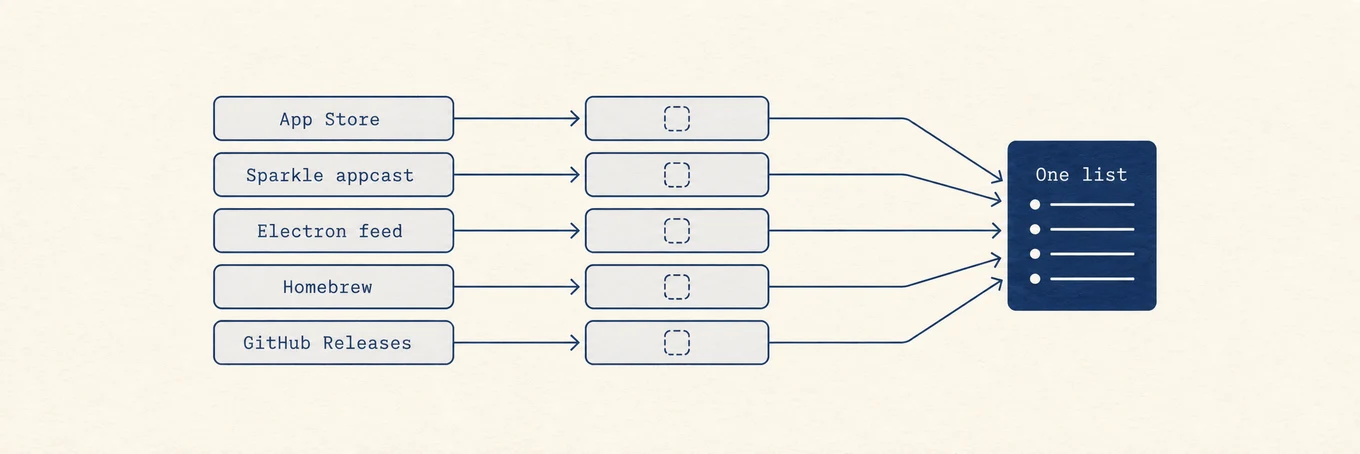
macOS has no single operating-system-level update service for all third-party apps. The App Store uses Apple receipts for store-managed software. Sparkle is a common standard for direct downloads: the developer publishes an appcast, the app compares versions, and a correctly configured updater verifies the download with EdDSA and Apple code signing. Sparkle's security documentation describes that double verification. Electron apps and vendor-specific updaters use their own feeds. Homebrew tracks versions in formulae and casks and upgrades on command. Each channel has different provenance and installation rules, which is why an overview must retain the source rather than flatten everything into one generic update action.
Where a unified inventory helps
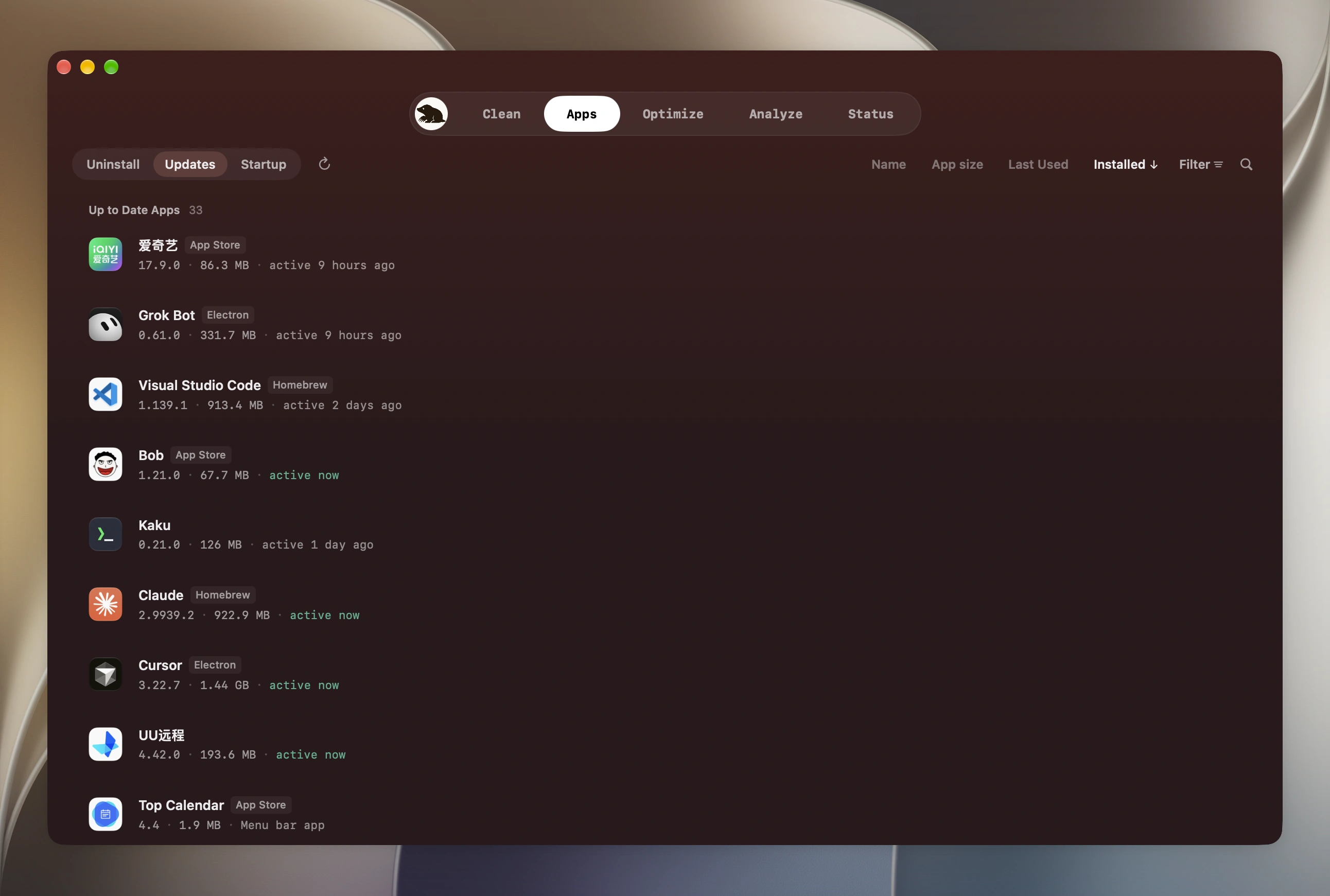
Mole's Software tab combines several update channels into one inventory and keeps the source visible. That saves discovery work, but each updater still needs to respect the app's signing, fallback, and ownership model. A unified list should not imply that all updates are interchangeable or equally safe to automate.
A repeatable update audit
Inventory each app's source, check the matching channel, read compatibility notes, back up critical state, update in stages, and verify the same documents and workflows after each batch. The goal is not to make every version number latest at once; it is to keep security and compatibility current without losing a known-good working environment.
After each batch, open the app and read its About panel or bundle version rather than assuming the installer won. Confirm one real document, plug-in, device, or background service that matters to your workflow. Finally, check the original channel again. An app that still appears outdated may have two copies on disk or an updater that replaced a different bundle than the one you launch.