Move Ollama Models to Another Drive on Windows
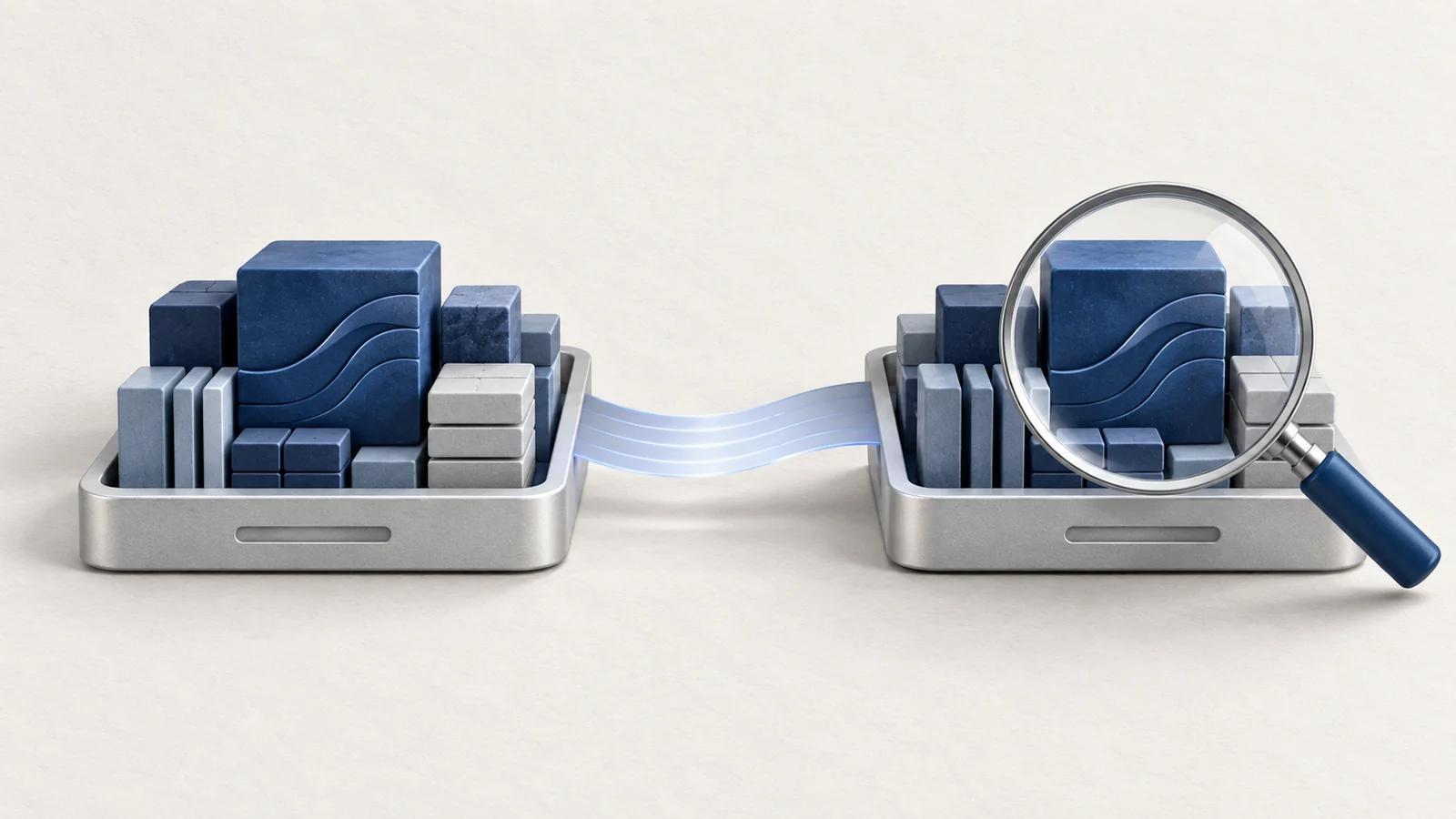
To move Ollama's downloaded models off the C drive, configure OLLAMA_MODELS for the account running Ollama. Moving the application itself is a different operation. Changing the variable alone does not copy existing models, so preserve the old store until the new one is verified.
This guide is for the ordinary Windows desktop installation. A service, container or WSL installation can run under a different account or configuration and must be handled at that owner.
Identify the current store before copying it
Ollama's Windows documentation distinguishes the application binaries, logs and model data. The default model store is under %USERPROFILE%\.ollama\models. A prior OLLAMA_MODELS setting can point somewhere else.
In a newly opened PowerShell window, inspect the user-level setting:
[Environment]::GetEnvironmentVariable("OLLAMA_MODELS", "User")
ollama list
A blank setting means there is no user-level override, not proof that a service or another account uses the default. Record the model list and inspect the folder used by this installation. The store contains blobs and manifests; retain their relative structure rather than copying only the largest files.
Check the two things a folder copy can get wrong
Before copying, confirm both the destination's free space and the exact source path. An old user-level override, a different Windows account or a second Ollama installation can make the default path misleading. Keep a note of the existing variable value, including whether it was absent, so rollback restores the original state.
At the destination, blobs and manifests should be directly inside the folder named by OLLAMA_MODELS. If the variable points to D:\AI\Ollama\models, the expected children are D:\AI\Ollama\models\blobs and D:\AI\Ollama\models\manifests. An accidental extra models level is a common configuration mistake to rule out before downloading anything again.
Use a dedicated empty destination for this migration. Do not merge into an unrelated store and assume matching filenames prove the contents are interchangeable. Keep enough space for the complete copied store and ordinary future use; changing the variable does not make two copies consume the space of one.
Copy first, then switch the application
Choose a local drive that has enough free space and will remain available. For example, D:\AI\Ollama\models can be a destination if that drive exists and your account can write there. A disconnected external drive is a predictable failure case, not a reason to grant the application administrator rights.
- Finish active generations and downloads, then quit Ollama from its system-tray menu.
- Copy the contents of the current model store to the chosen destination using File Explorer. Keep the original intact and resolve any copy error before continuing.
- Open Edit environment variables for your account from Windows search.
- Create or edit
OLLAMA_MODELSwith the destination path, then save it. - Relaunch Ollama from Start and open a new terminal.
Ollama's environment-variable instructions explain why the application must restart to inherit the change. A terminal opened earlier can retain the old environment. Do not create a second server just to test the variable while the tray application still runs.
An optional copy command for a large store
File Explorer is sufficient when its copy completes cleanly. For a large store where a copy log is useful, Windows includes Robocopy. The following PowerShell example assumes the verified source is the default store and the destination is a new dedicated folder. Replace both paths if the installation differs, and quit Ollama before copying.
$source = "$env:USERPROFILE\.ollama\models"
$destination = "D:\AI\Ollama\models"
robocopy "$source" "$destination" /E /L /R:1 /W:1
/L lists the planned work without copying. Read the source and destination at the top of the output. If they are correct, run the copy without /L and keep a log outside the model store:
robocopy "$source" "$destination" /E /R:1 /W:1 /TEE /LOG:"$env:TEMP\ollama-model-copy.log"
$copyExitCode = $LASTEXITCODE
$copyExitCode
/E includes subdirectories, while the retry options bound retries for a failed file. This example intentionally does not mirror or move the source. Do not add /MIR, /PURGE or /MOVE: their deletion behavior is unnecessary for preserving a rollback copy.
Robocopy uses nonzero codes for some non-failure outcomes. A code of 8 or greater indicates at least one copy failure. Even below 8, inspect the summary and any mismatched or extra files, especially if the destination was not empty. Resolve errors before changing the variable; a successful model listing cannot make a failed file copy complete.
Prove the new location works before removing the old one
Run ollama list again and compare it with the recorded list. Choose a model already shown and make a small request using its exact name. If the model is missing, stop and check the folder structure and setting rather than letting a new download disguise a failed migration.
Check the destination during the test and verify that the application is using the intended store. Keep the old directory until an important workload succeeds and any locally created models are backed up. A directory size match alone is weaker evidence than successfully using the required models.
If the switch fails, quit Ollama, restore the previous variable value or remove the newly added override, and restart. The untouched original store makes this recovery straightforward.
Make the verification stronger than a matching folder size
A running server may retain an old environment or a loaded model. Finish active work, quit the tray application and relaunch it after setting the new path, then open a fresh terminal. Compare ollama list with the saved inventory before asking any model to run. If a required entry is missing, investigate the path and manifests structure first.
For each locally created model that matters, test a small request after that fresh start. Testing only one common downloaded model does not establish that a custom model survived. Keep the original store until those required models and an ordinary application workload work correctly.
If it is still unclear which directory the server uses, inspect the current server.log in %LOCALAPPDATA%\Ollama around startup and loading, using the official troubleshooting locations. Check any reported configured path against the intended destination. A path in a newly opened terminal alone describes that terminal, not proof about a different already-running server.
Do not create a new download merely to make an empty destination look active. It can conceal an unsuccessful migration and consume more space on C. If the evidence is inconclusive, keep both stores and resolve the configuration before deleting the original. For rollback, quit the app, restore the recorded variable or remove the new override if none existed, then relaunch and verify the original model list.
Remove only the verified old model store
After validation, review the old models directory before removing it through File Explorer. Do not delete the entire .ollama directory, which can contain configuration and other state. Windows may permanently delete files that are too large for the Recycle Bin, so read the confirmation and keep any backup you need.
Moving models does not unload one currently in memory, and it does not guarantee faster generation. A slower destination can make initial loading take longer. If the problem is memory rather than C drive capacity, check the workload and the Windows memory guide.
For other AI downloads, Hugging Face has its own cache configuration. Set each tool's actual storage owner rather than moving a shared parent directory and hoping every application follows it.