WinDirStat, WizTree or Mole: Choose a Windows Disk Analyzer
When the C drive is full, WinDirStat, WizTree and Mole Analyze can help locate large directories. Differences include permissions, size accounting, navigation and what you do after locating a file, not just scan duration.
Define the task you are comparing
A quick directory-size map is different from regular work across caches, uninstalling and app updates. Compare the same drive with similar permissions and file state. Downloads, synchronization and installations can change content during a scan.
| Tool | Features to examine first |
|---|---|
| WinDirStat | A free, open-source disk-usage analyzer with directory and file-type views |
| WizTree | Its documented NTFS MFT scanning, current permissions and drive type |
| Mole | Disk-map navigation, file explanations and recycling alongside Clean, Apps and Status |
These are directions for comparison, not measured speed rankings. The WinDirStat site and WizTree site describe their features. WizTree reads NTFS file records directly; permissions and filesystem type affect the scanning method. Other drives do not necessarily meet the same conditions.
Check speed and coverage together
A normal Windows account may not read some system directories. Mole uses ordinary file access rather than requesting administrator approval for each Analyze action or installing an always-running indexing service. An unreadable folder is not empty, and the current scan total may differ from used drive capacity.
More content found under elevated access can reflect different scope. A different scanning method does not establish that more junk was found. Hard links, cloud placeholders and allocated size can affect numbers. WizTree's FAQ distinguishes file size and allocated size too.
Understand Size and Allocated with an example
Suppose a 1 KB file uses a filesystem with 4 KB allocation units. It may occupy a full 4 KB unit. In the opposite direction, a sparse file with a logical size of 10 GB can occupy much less storage. These hypothetical examples explain measurements, not benchmark the three tools.
Two hard-link paths can point to the same stored content, so adding their apparent sizes can count it twice. A cloud placeholder can show the full file size without storing the full local copy. Establish whether a total means logical size, allocated space or deduplicated storage before comparing it.
The WizTree FAQ also explains why file allocation totals can still differ from Windows' used-space figure: filesystem metadata such as directory indexes and security information occupies space outside the file list. A difference does not automatically mean hidden junk was missed.
Give each tool the same task
Choose a familiar directory, use the same account and scope, and avoid downloads or synchronization changing its contents. Compare directory rankings, unreadable locations, size accounting and the steps to open a file in Explorer. Scanning a whole drive with elevation and scanning a user folder without it are different tasks.
WinDirStat's current feature list includes accelerated local NTFS scans with elevation. An old assumption that it always walks every file is not a basis for ranking current tools. WizTree's high-speed NTFS scan requires administrator access; Mole uses ordinary file access. Those are implementation and permission choices, not measured speed ratios here.
Try a subsequent action too: identify who owns a large file, locate it, and decide whether to retain it or manage it in its own app. For tracking growth over time, saved scan results may matter more than the first scan's duration.
Mole connects finding files with the next action
Scan the system drive or a chosen directory, open map blocks to inspect their children, and locate them in Explorer. Confirm ownership before recycling unwanted ordinary files. Hibernation, paging, virtual disks and system paths have separate management boundaries rather than one removal action for everything large.
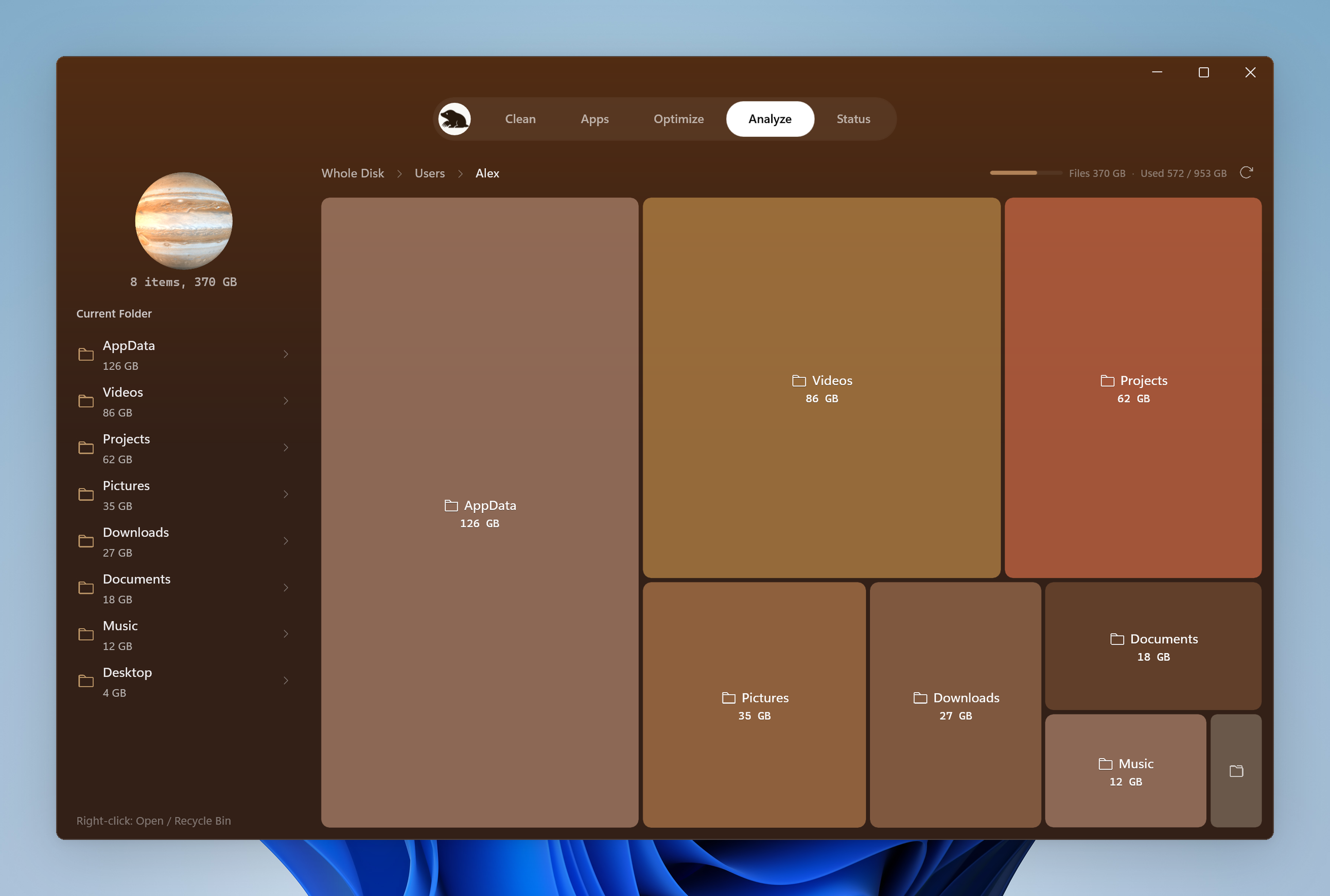
For caches, return to Clean and review items. For unused apps, follow their uninstall workflow. For current reads and writes, inspect Status. That connected work is why Analyze belongs in Mole; a disk map is not an automatic repair for every storage problem.
Try a directory whose contents you know
Compare the map, list and Explorer location, then evaluate permissions, the interface and subsequent actions. Keep independent copies of needed files before deletion. Recycle Bin recovery remains available only while the files remain there.
Start with the large-file guide, then see Mole's Windows design for the broader interface.