Mole Windows, a Cleaner Can Look Good Too
Mole brings Clean, Apps, Optimize, Analyze and Status into one Windows window. Open Clean and start with the Earth and the next action. After scanning, inspect the list. Information appears as the task needs it, rather than presenting every button and parameter at once.
A Windows utility can look good, but its design also lives in everyday decisions: whether lists are readable, effects are visible before confirmation, a task is downloading or installing, and content stays together in a wider window. Those details belong alongside colors and icons.
Five pages with a familiar way to work
Earth, Mars, Mercury, Jupiter and the Sun distinguish Mole's five pages. Navigation and placement stay consistent when you switch tools. Mouse controls sit alongside Ctrl + 1 through Ctrl + 5 for selecting pages and Ctrl + Tab for moving to the next one.
Mole is a native Windows app built with WinUI 3. The window, taskbar and tray use Windows entry points, and the interface follows system display scaling. Mac and Windows share a visual language while implementing permissions, shortcuts, installation and file handling for their own systems.

Good handling starts with understandable confirmation
Cleanup items, paths and sizes stay together. Regenerating caches have their default choices; offline downloads and personal data wait for the user's decision. Files in use name their owner. The selection and the next action belong to the same flow, without asking you to remember one page's total and guess what another page removes.
Apps uses a similar rhythm. Run the app's own uninstaller first, then handle selected leftovers. Files, registry registrations and personal data have their own review. An understandable confirmation is more useful for deciding than a more prominent cleanup button.
The cache boundaries and uninstall leftovers guide describe the same choices the interface presents.
Waiting should show what the task is doing
App updates identify downloading, administrator approval and installation as separate stages. When a total download size is available, progress shows a percentage. Downloads can be cancelled; once installation starts, the installer gets to finish its steps. Supported browsers can update while open and use the newer version after their next restart.
Clean and Apps lists remain centered in a maximized window, keeping paths, sizes and actions near each other rather than spreading a row across the whole display. Confirming an app's exit also names the software being closed.
Status and the tray keep everyday checks nearby
Status arranges CPU, GPU, memory, disk and network readings above the process list. Laptops have battery information. GPU and drive temperatures appear when the hardware provides readings. Search and process details are available for investigation without keeping every detail expanded at all times.
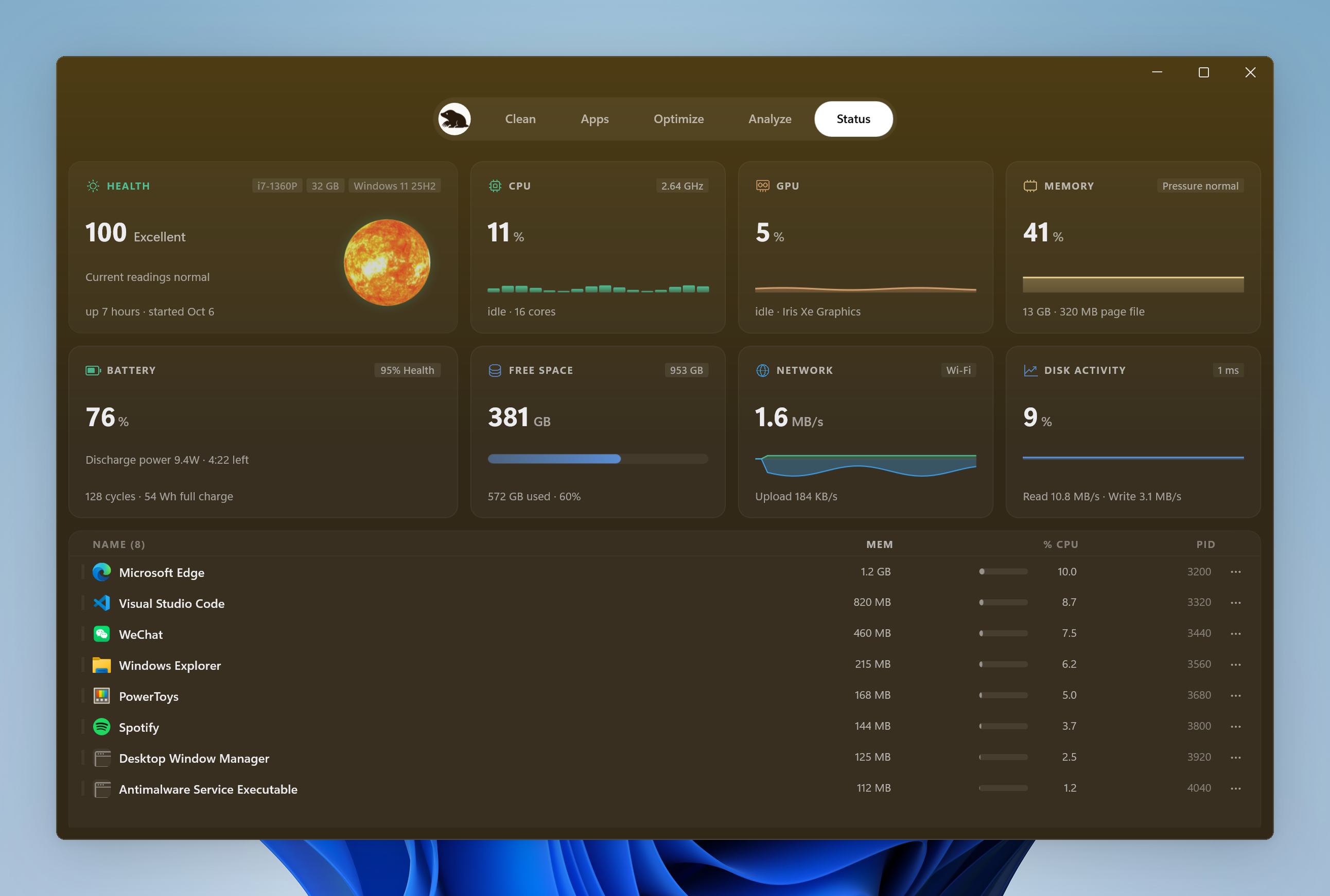
The tray keeps a smaller status panel with Keep Screen On and Clean Screen, so a temporary tool does not require finding the main window again. The keep-awake guide explains the control that shares this existing tray entry.
See the interface on the Windows site, then try Mole on the PC you use. Images show its layout and colors. To judge the handling, review a cleanup list, switch pages and complete a task you actually need.