# What Does Other Users & Shared Mean in Mac Storage?
> Other Users & Shared is a storage category, not a folder to empty. Identify old accounts and shared data before removing anything under /Users.
Published: 2026-08-31
**Other Users & Shared** in macOS Storage is a category, not a folder you can empty.
It is an estimate that can include other accounts, shared data, and files macOS cannot
classify more clearly. A large number is a reason to find the owner, not to delete
`/Users` by hand.
An old user account, the `/Users/Shared` folder, and the Storage label are different
things. They can contribute to the same number, but one does not make the others safe
to remove.
## What the label can include
The Storage view groups data by classification rather than by one physical directory.
Other Users & Shared can reflect home folders for accounts that still exist, homes left
behind by deleted accounts, items deliberately shared between local users, and app data
whose owner is not obvious from the summary.
Start with [Apple's Storage guide](https://support.apple.com/guide/mac-help/syspf5a64aa6/mac)
and treat the category as a prompt to measure real folders. It does not tell you whether
a folder contains photos, a project, a virtual machine, a download cache, or the only
copy of somebody else's work. Storage can also take time to reclassify after a change,
so the displayed total is not a reliable before-and-after receipt.
If the Mac still has enough available space for normal work and updates, do not chase the
label. If space is genuinely low, first identify the large account or folder and ask
whether its owner still needs it.
## Separate accounts from the Shared folder
Open **System Settings > Users & Groups** before opening Finder. The account list tells
you which people can still sign in. An account that appears there has a home folder that
may contain documents, Desktop files, Photos libraries, developer work, browser profiles,
and app data. Do not remove that home folder because its name looks unfamiliar.
`/Users/Shared` is different. It is one specific folder intended for files that more than
one local account can use. It is not a synonym for the Other Users & Shared Storage label.
A large file in Shared may be a deliberate handoff, an installer, a game library, or a
working file another account still expects. Check its name, owner, and whether anyone uses
it before moving it to the Trash.
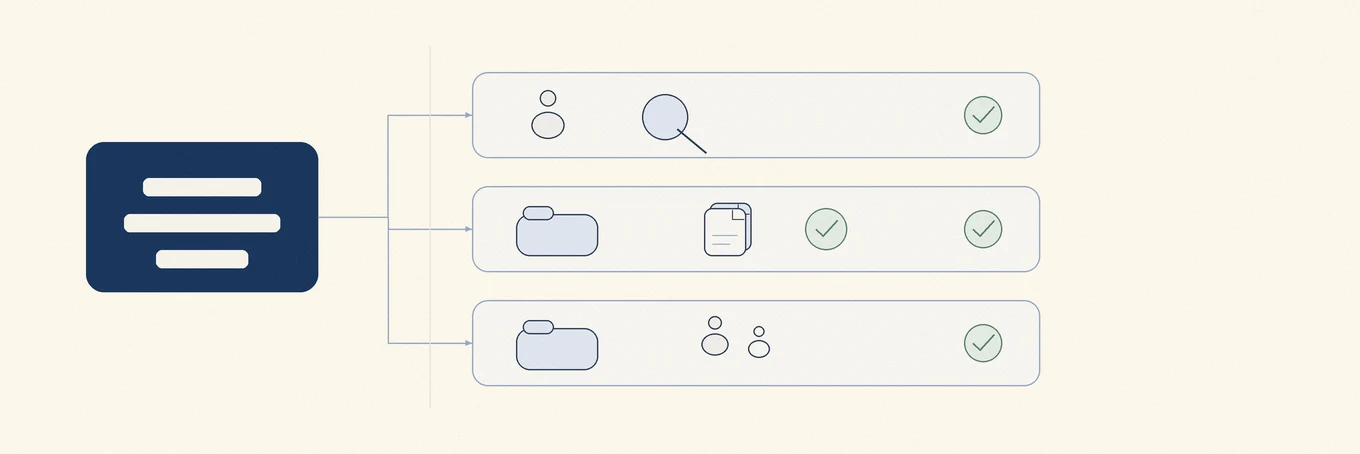
One Storage label can describe several kinds of data. An active account, an archived account, and a shared folder need different checks before any file is removed.
## Use account controls, not Finder deletion
When an account is genuinely no longer needed, use **Users & Groups** and follow
[Apple's account-removal choices](https://support.apple.com/guide/mac-help/mchlp1557/mac).
macOS can save the home folder as a disk image in `/Users/Deleted Users`, leave the home
folder in place, or remove it with the account. Those options make the recovery decision
visible before storage is released.
Do not drag `/Users/` to the Trash as a substitute. It can leave an account record
pointing at missing data, destroy a home folder without an archive, or remove files from
a person who still uses the Mac. An administrator also cannot delete an account that is
currently logged in, which is a useful safeguard rather than an obstacle to work around.
If the account belongs to somebody else, ask them to sign in and copy what they need
first. If it is an old account of your own, open the home folder or archive it before
choosing the irreversible option.
## Reclaim space in a safe order
Work from clear ownership toward uncertainty:
1. Remove downloads, installers, exports, or duplicate files whose owner and recovery
path you can name.
2. Ask the owner of an active account to clean their own large files or use the app that
owns them.
3. Archive a retired account first when there is any chance its documents are needed.
4. Remove the account through Users & Groups only after the archive or backup has been
checked.
5. Leave unknown Shared items, app containers, and folders belonging to another account
alone until their purpose is clear.
For a broader disk investigation, start with [how to free up space without losing files](https://mole.fit/blog/how-to-free-up-space-on-mac)
and [what System Data means](https://mole.fit/blog/what-is-system-data-on-mac). Both help distinguish a
large real folder from a changing Storage category.
## Verify the owner, the backup, and the space you recovered
Before deleting an account, note the size of its home folder and open the backup you plan
to keep. A disk image that exists but cannot be mounted is not a usable archive. Check a
few irreplaceable folders inside it, such as Documents, Desktop, Pictures, and any project
directory, while the original account still exists. If FileVault or another encrypted
backup is involved, confirm that the password and recovery information are available too.
After macOS removes the account, check the actual free space on the disk rather than
waiting for the Storage chart to redraw. The chart is a classification view and may lag
behind a completed deletion. A smaller Other Users & Shared number is useful confirmation,
but the more reliable result is that the intended account is gone, its chosen archive is
readable, `/Users/Shared` still contains the files people expect, and available disk space
has increased by roughly the amount you meant to remove.
If the number barely changes, stop before deleting more. The space may belong to a different
account, a separate volume, a virtual machine, or data macOS has not reclassified yet.
Repeatedly removing unfamiliar folders does not make the category more accurate; it only
makes recovery harder.
## FAQ
### Is Other Users & Shared the same as `/Users/Shared`?
No. `/Users/Shared` is one folder. Other Users & Shared is a Storage classification that
can include data from several accounts and locations. Inspect the actual folder and owner
before treating either one as disposable.
### Can I delete another user's home folder to free space?
Not by hand. If the account is no longer needed, use Users & Groups so macOS can offer to
archive or remove its home folder deliberately. If the account is active or belongs to
someone else, deleting it can remove their only local files.
### Why did the number remain after I removed an account?
macOS may need time to reindex and reclassify storage. An archived home folder can also
remain under `/Users/Deleted Users`, and other shared or account-related folders may still
exist. Check available capacity and named folders instead of repeating deletions until the
label changes.
---
Canonical HTML page: https://mole.fit/blog/other-users-shared-storage-mac
Blog index for agents: https://mole.fit/blog/llms.txt
Site index for agents: https://mole.fit/llms.txt