# When a Mac App Will Not Uninstall: Seven Causes, One Symptom Each
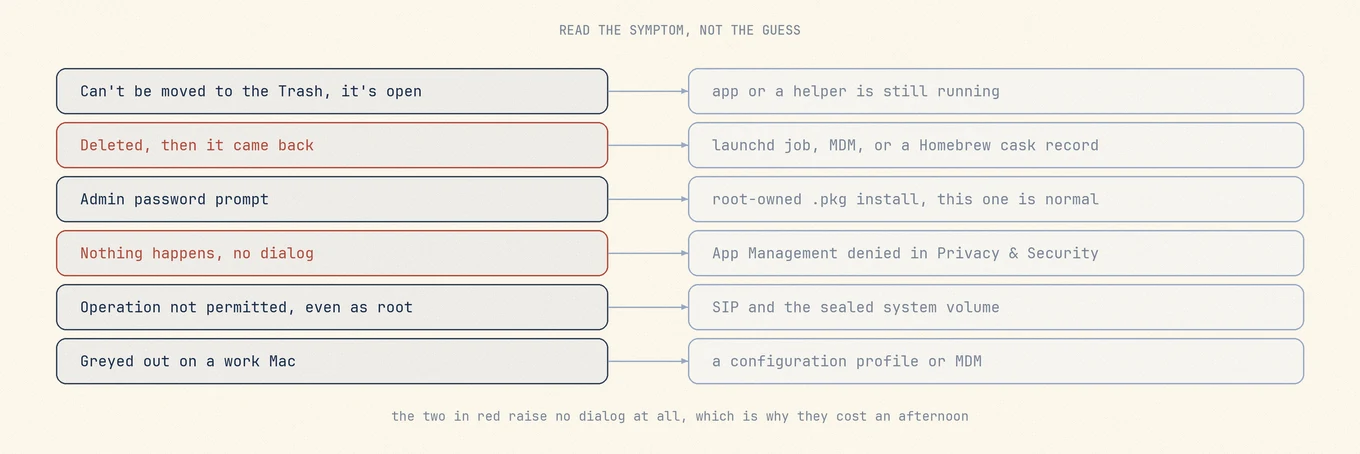
> It is in use, it comes back after deletion, nothing happens at all, or it is greyed out. Each symptom points at exactly one cause, from a running helper to launchd, SIP, App Management and MDM.
Published: 2026-08-18 | Updated: 2026-08-22
A failed uninstall on macOS is not one problem. Finder can refuse to move the bundle. The
move can succeed and the app can be back at the next login. The bundle can vanish while the
helper that annoyed you keeps running. Each is a different mechanism with a different fix,
so start from the exact thing your Mac did. For the ordinary sequence, see
[complete uninstall](https://mole.fit/blog/how-to-completely-uninstall-apps-on-mac); what follows assumes
that already failed.
## Start from the symptom
The wording of the refusal is diagnostic. Two of these six produce no dialog at all, which is why they get read as the tool being broken.
- **"The item can't be moved to the Trash because it's open."** Something is running,
often not the app you quit.
- **It was deleted, and it is back.** A launchd job, a profile, or a package manager put
it back.
- **Finder asks for an administrator password.** A `.pkg` left the bundle owned by root.
Normal.
- **Nothing happens. No dialog, no error.** App Management permission is denied.
- **`rm` as root says "Operation not permitted".** System Integrity Protection.
- **Greyed out, or it reappears on a work Mac.** A configuration profile or MDM owns it.
## 1. The app, or one of its helpers, is still running
Finder refuses to move a bundle whose files are open, and quitting the process you can see
is not stopping everything the app started. Activity Monitor lists every process, not only
the ones with a window. Search the vendor name and read the whole result set: an app called
Foo commonly ships `Foo Helper`, a `FooUpdater`, and a login-item bundle with an unrelated
display name. The **Apple menu > Force Quit** window is no substitute, because it lists
only applications with a UI presence.
```
pgrep -fl -i foo
lsof +D /Applications/Foo.app 2>/dev/null | awk '{print $1, $2}' | sort -u
```
`pgrep -fl` matches the full command line, so it catches a helper whose executable path
carries the vendor name even when its process name does not. `lsof +D` reports every
process holding a file inside the bundle.
Force quitting the parent does not reliably stop a helper. A helper is its own process
with its own PID, so killing the parent orphans it unless the parent tears it down on
exit. And if launchd manages the helper, killing either one only tells launchd to start
it again. That is the next section.
A Quick Look preview or Spotlight indexing can hold files in the bundle too, and a restart
clears both. If the message returns, Apple's
[app removal guide](https://support.apple.com/guide/mac-help/mh35835/mac) suggests Safe
Mode.
## 2. A launchd agent or daemon brings it back
This is the "I deleted it and it came back" case, and the most often misdiagnosed: people
check Activity Monitor, see nothing, and conclude the app was not running. On-demand
launching means that is not evidence.
launchd supervises background jobs. A job is a property list with a `Label`, a program,
and conditions for running it. `RunAtLoad` starts it when the job loads, `KeepAlive`
restarts it when it exits. A job with neither still comes back: `MachServices`, `Sockets`,
`WatchPaths`, `QueueDirectories`, and `StartInterval` all make launchd start the process
the moment something asks for it, so a helper that idles out after ten seconds and
restarts on its Mach service looks absent every time you check.
Definitions live in three places. `~/Library/LaunchAgents` is your user only, inside your
login session; `/Library/LaunchAgents` runs for every user at login; and
`/Library/LaunchDaemons` runs system-wide as root before anyone logs in, which is why a
daemon survives a hand uninstall and an agent often does not. `/System/Library/Launch*` is
Apple's and protected.
```
launchctl list | grep -i foo
launchctl print-disabled gui/$(id -u) | grep -i foo
grep -l -i foo ~/Library/LaunchAgents/*.plist /Library/LaunchAgents/*.plist \
/Library/LaunchDaemons/*.plist 2>/dev/null
```
In `launchctl list`, a label with a PID is running now and one with a dash is loaded and
waiting for a trigger; `print-disabled` reads the persistent disabled-state database, a
separate fact from whether a plist exists. Read the candidate with `plutil -p ` and
check that `Program` or `ProgramArguments` points at the app you are removing: vendors do
not always name the file after the label inside it.
### The order matters
Stop and disable the job first, then remove the plist, then remove the app.
```
launchctl bootout gui/$(id -u)/com.vendor.foo.helper
sudo launchctl bootout system/com.vendor.foo.daemon
launchctl disable gui/$(id -u)/com.vendor.foo.helper
```
Delete the plist while the job is loaded and launchd keeps a service whose definition no
longer exists on disk; it runs until the next reboot and can leave a stale entry in the
disabled-state database. Removing the app first is worse: the job respawns against a
missing executable and fails in a loop, which is where "it is gone but still shows in
Login Items" comes from.
On macOS 13 and later, apps register through
[`SMAppService`](https://developer.apple.com/documentation/servicemanagement/smappservice)
and those registrations live inside the app bundle, so there may be no plist to find.
Those belong to Background Task Management, controlled in
**System Settings > General > Login Items & Extensions**
([startup items guide](https://mole.fit/blog/how-to-disable-startup-programs-on-mac)).
## 3. It is a system app protected by SIP
System Integrity Protection is a kernel-level policy, not a permission bit. Apple
describes it as using kernel permissions to limit writability of critical system files,
applied "to every process running on the system, regardless of whether that process is
running sandboxed or with administrative privileges"
([Apple Platform Security](https://support.apple.com/guide/security/system-integrity-protection-secb7ea06b49/web)).
Since Big Sur the system content also sits on a separate, cryptographically sealed volume.
`csrutil status` prints whether protection is on, and Apple is explicit that "you can't
remove apps that are required by your Mac", a set that includes Mail, Music, Books, Notes,
Podcasts, Maps, News, and Stocks.
Turning SIP off to delete one bundle is a bad trade. It means booting to Recovery and
changing a machine-wide security policy; on Intel Macs, Apple notes that disabling it
removes protection for every partition on the physical storage device, and on Apple silicon
the Mac leaves Full Security. The win does not last either: the system volume is replaced
wholesale at the next macOS update, and no usable space is reclaimed.
Better: drag the icon out of the Dock, remove it from
**System Settings > General > Login Items & Extensions**, and if it keeps opening your
files, change the handler with **Get Info > Open with > Change All**.
## 4. It was installed by MDM or a configuration profile
On a managed Mac an app can be pushed back on the management server's schedule, and a
profile can be marked non-removable. The symptoms are a removal that undoes itself hours
later, a greyed-out control, or a launchd search that finds nothing because the reinstall
is driven remotely. Check **System Settings > General > Device Management**; if that
section is absent, the Mac is not managed and this is not your cause.
```
profiles status -type enrollment
sudo profiles list
```
The first reports enrollment through Automated Device Enrollment and whether it is user
approved; the second lists installed profiles and needs root. Then ask IT. Apple's guidance is to ask whoever provided a profile you cannot remove,
and it warns that removing a profile deletes everything that profile configured, so one
carrying your mail account takes that with it.
## 5. Ownership, and the permission that fails silently
**Finder asks for an administrator password.** Ordinary. A `.pkg` installer runs as root
and leaves the bundle owned by root, so moving it needs authentication. Confirm with
`ls -ld /Applications/Foo.app`. Receipts are worth knowing while you are here:
`pkgutil --files ` lists the paths a package placed, and `sudo pkgutil --forget `
drops the receipt from `/private/var/db/receipts` without deleting a single file.
**Nothing happens at all.** No prompt, no error, the app is still in `/Applications`, and
the tool you used reports a vague failure or falls back to something else. On macOS 14 and
later this is usually App Management, which Apple describes as "Allow apps to update or
delete other apps on your Mac". The tell is that the path is POSIX-writable and the write
still fails:
```
test -w /Applications/Foo.app && echo "posix says yes"
```
If that prints and the removal still does not happen, permissions are not your problem. Go
to **System Settings > Privacy & Security > App Management**, enable the app doing the
removal, then relaunch it, because many apps consult the permission only at startup.
## Under the hood: three refusals that look the same
POSIX permissions are the first gate: the bundle is owned by root, you are not, and `sudo`
resolves it, because the check is only about which user you are. TCC, the privacy layer
behind System Settings, decides after POSIX passes. App Management
is a TCC gate for one operation, modifying or deleting another app's bundle. Being an
administrator does not satisfy it and neither does `sudo`, because it is keyed to the
requesting program rather than the user, which is why its denial can surface as a generic
error with no prompt.
SIP is below both and refuses root outright. A POSIX denial sets `EACCES` and prints
`Permission denied`; a SIP denial sets `EPERM` and prints `Operation not permitted`. The
first means try again with authority, the second means there is no authority to try again
with.
## 6. A system extension or network filter is still active
Security software, VPN clients, and virtualization products install system extensions. The
app bundle registers the extension; it is not the extension. Delete the container while the
extension is active and the registration is left with no owner, which is how a Mac keeps
filtering traffic through software you believe you removed.
```
systemextensionsctl list
```
The output shows team identifier, bundle identifier, and a state such as
`[activated enabled]`. Deactivation belongs to the containing app and often needs a restart,
so run the vendor's uninstaller first.
[Uninstalling antivirus on Mac](https://mole.fit/blog/how-to-uninstall-antivirus-mac) covers the teardown
order for this class.
## 7. It came from the App Store, or from Homebrew
**Mac App Store apps.** Deleting the bundle does not remove the purchase. The case that
catches people is the setting Apple words as "Automatically download apps that you
purchased from the App Store on other Mac computers and devices": if a second Mac on the
same account still has it, that setting can bring it back. Turn it off in
**App Store > Settings**.
**Homebrew casks.** If you installed with `brew install --cask foo`, trashing the app
leaves Homebrew believing it is installed. `brew list --cask` still shows the token, and
the next `brew upgrade` can reinstall the app you just deleted, a real "it came back" cause
with no launchd job involved. Run `brew uninstall --cask foo` instead. Homebrew's manpage
describes `--zap` as removing "all files associated with a cask" and warns it "may remove
files which are shared between applications", so reach for that one deliberately.
## After a successful delete: what stays behind
**Login Items & Extensions still lists it.** Either an "Open at Login" entry pointing at a
missing path, or a Background Task Management record for a service whose program is gone.
Remove it with the minus button in **System Settings > General > Login Items &
Extensions**; macOS often clears these itself after a restart.
**A menu bar icon appears at boot.** Something still loads a binary: usually a launch agent
you never removed, or a helper the installer copied into
`~/Library/Application Support/`.
**A privileged helper survives.** Software that needed root installs into
`/Library/PrivilegedHelperTools/