# How to Uninstall Antivirus on Mac Without Breaking Your Network
> Security software registers a system extension, a network filter, launch daemons and sometimes a profile, so dragging it to the Trash leaves the filter running. Vendor by vendor removal, then how to verify nothing is left.
Published: 2026-08-15 | Updated: 2026-08-22
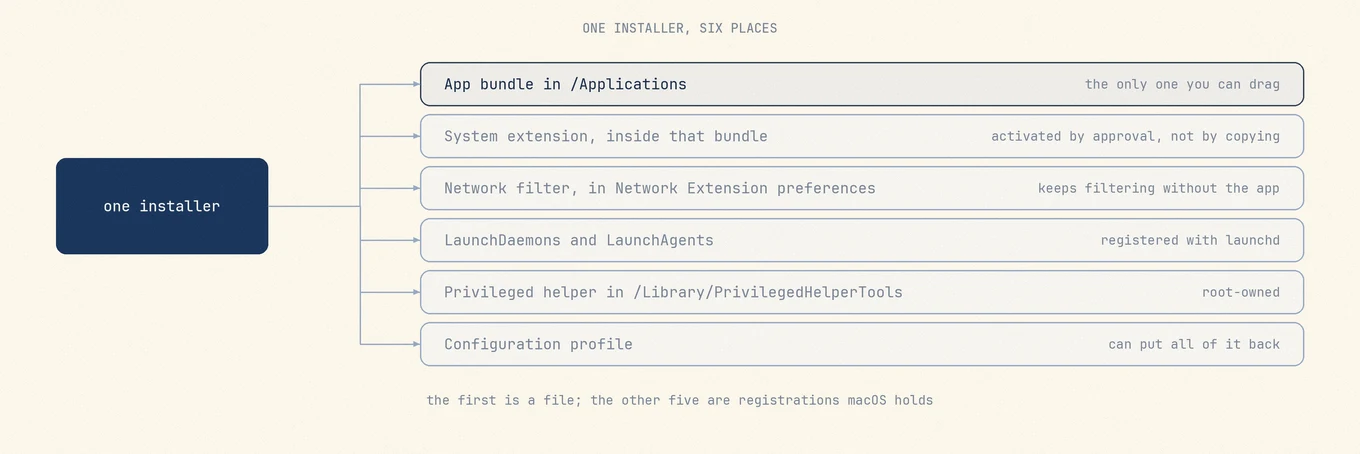
An antivirus product is not one app. It is an app bundle plus a set of registrations macOS
holds on its own side of the fence: a system extension, a saved network filter
configuration, one or more launchd jobs, usually a privileged helper, and on a managed Mac
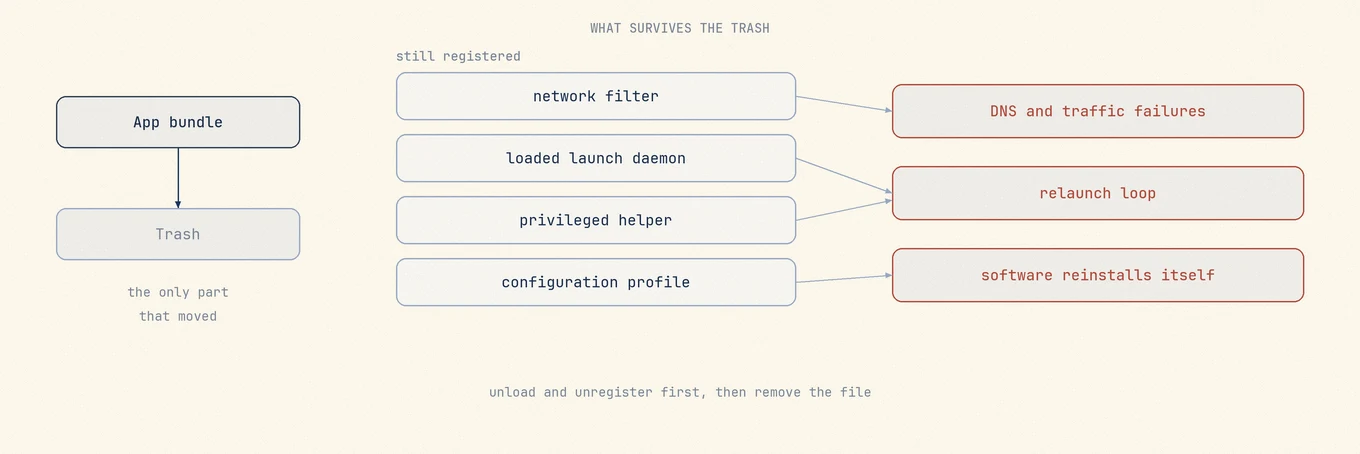
a configuration profile. Dragging the bundle to the Trash removes the front end and leaves
every registration in place. That is why this category has a reputation for being
unremovable, and why the first move is the vendor's own uninstaller rather than Finder.
## What a security product installs beyond the app bundle
You can inventory the whole surface read-only, on any Mac, in about a minute:
```
systemextensionsctl list
ls -la /Library/LaunchDaemons /Library/LaunchAgents ~/Library/LaunchAgents
ls -la /Library/PrivilegedHelperTools
profiles list
pkgutil --pkgs | grep -i vendorname
```
**A system extension** carries the code that inspects files and traffic, replacing the
kernel extensions this software used to ship, which is why old advice about deleting a
`.kext` no longer describes anything. Apple's
[system extension guide](https://developer.apple.com/documentation/systemextensions/installing-system-extensions-and-drivers)
says where it lives: "System extensions reside inside your app's
`Contents/Library/SystemExtensions` folder." Activating one requires your approval, which
is why installing security software always involves a trip into Settings. Apple's
[deployment technote](https://developer.apple.com/documentation/technotes/tn3134-network-extension-provider-deployment)
adds the property that matters at removal time: a provider packaged this way "runs in a
global context, completely independent of the logged in user."
**A network content filter or transparent proxy** is a separate object, and it is the one
that takes people's internet away. The configuration that turns it on belongs to the
system rather than the app.
[NEFilterManager](https://developer.apple.com/documentation/networkextension/nefiltermanager)
is explicit: "The filter configuration is stored in the Network Extension preferences
which are managed by the Network Extension framework," and changes take effect only when
the owning app explicitly saves them.
**launchd jobs** start the background pieces. `/Library/LaunchDaemons` runs as root at
boot, before anyone logs in; `/Library/LaunchAgents` runs for every user at login;
`~/Library/LaunchAgents` runs for you. A plist in those folders is a registration with
launchd, not an ordinary settings file.
**A privileged helper** under `/Library/PrivilegedHelperTools` is a root-owned executable
paired with a daemon that should be unloaded before the file goes anywhere. **A
configuration profile**, on a Mac deployed by an employer or school, carries the extension
approvals and filter payloads so the software installs without prompting anybody, and the
same mechanism can put it back.
Only the first of these is a file you can drag. The rest are registrations macOS holds, each with its own owner and its own removal path.
## Why dragging it to the Trash cannot work
Apple documents one piece of good news, and it is narrower than it first reads: "The
system automatically uninstalls any system extensions when the user deletes the
corresponding app." That covers the extension inside the bundle, and says nothing about
the other registrations, none of which are inside the bundle.
The filter configuration is behind the most common complaint here. It has its own lifetime
in the Network Extension preferences, and Apple documents its removal as an explicit call
the owning app makes. Deleting an app never makes that call. What remains is an enabled
filter pointing at a provider that no longer exists, and the symptoms are the ones people
report after a half-removal: DNS lookups that fail, a browser that hangs on every page,
connections that time out while the Wi-Fi icon shows a full signal. The network is fine.
Traffic is being handed to a filter that cannot answer.
The launchd jobs are the second failure. Deleting an executable does not deregister the job
that starts it, it converts a working service into one that fails on every launch, and a
job configured to stay alive gets retried in a loop, which is where the "my fan spins up
after I uninstalled it" reports come from. Deleting the plist while the job is loaded is
the mirror image: launchd keeps the job until the next reboot with nothing on disk behind
it. The helper and the profile survive for the same reason, and a profile carrying a
software payload will reinstall what you deleted.
Every symptom of a half-removed security product traces back to a registration that outlived the file you deleted.
## The difficulty is a design decision
Security software that any process could silently uninstall would be worthless, since the
first thing capable malware would do is remove the thing watching it. So macOS puts both
ends of the lifecycle where a background process cannot reach: activation needs a human
clicking Allow in Settings (Apple's [alert page](https://support.apple.com/en-us/120363)
points at Login Items & Extensions on macOS 15 and later, Privacy & Security before that),
and deactivation is a request from the app that owns the extension. The friction is that
design working, and there is no sequence of `rm` commands that is the real uninstall being
kept from you.
## The rule: run the vendor's uninstaller first
Always, and before touching anything else. Only the containing app can submit a
deactivation request for its own extension. Only the app that saved the filter
configuration can remove it from Network Extension preferences. Only the vendor's tool
knows which of its components will reinstall the others if stopped out of sequence. No
third-party uninstaller can acquire those handles, so a remnant scanner, [Mole](https://mole.fit/)
included, is for what is left after the vendor tool has run, never a substitute for it.
If you already dragged the app to the Trash, put it back with **File > Put Back**, launch
it, and use its own uninstaller. The sections below say where each vendor keeps it.
## Where each vendor keeps its uninstaller
Every link below points at the vendor's own support site, which is where the current steps
live. Support pages move, so follow the page rather than this summary if the two disagree.
### McAfee
The uninstaller is already on the Mac, in Applications, named after the product you bought,
so a Total Protection install and a LiveSafe install do not use the same one. McAfee's
[article](https://www.mcafee.com/support/s/article/000002432?language=en_US) has you sign in
as an administrator, quit every McAfee app, then open **Go > Applications** and double-click
that uninstaller. Two of its steps are the reason to read it rather than improvise: it tells
you to click Allow when macOS prompts about a system extension, and it ends with a restart
as a numbered step rather than a suggestion. A dead Dock icon can survive the removal and
has to be dragged off by hand.
### Norton
Also a separate uninstaller app already in Applications. Norton's
[uninstall page](https://support.norton.com/sp/en/us/home/current/solutions/v134746139)
walks through **Go > Applications**, then double-click **Norton Uninstaller**, then "type
your administrator account password, and then click **Install Helper**", then the password
again, then **Finish**. The helper step is how the uninstaller gets the privileges to
unwind its own system-level components.
### Avast
An in-app uninstaller, on a page that opens by ruling out the obvious alternative: "Moving
Avast Security to the Trash or using Clean My Mac does not fully uninstall the
application." The
[documented path](https://support.avast.com/en-us/article/uninstall-mac-security/) is
**Avast Security > Uninstall Avast Security** in the menu bar, **Continue**, then your Mac
startup password and **Install Helper**. The same uninstaller also sits in **Applications**
as **Avast Security Uninstaller**, for when the app will not open.
### Bitdefender
A dedicated uninstaller binary rather than a drag. The
[uninstall page](https://www.bitdefender.com/consumer/support/answer/1784/) has you open
the Bitdefender folder, double-click **Bitdefender Uninstaller**, tick the product, click
**Uninstall**, and enter an administrator name and password. The same pass offers to
remove Bitdefender VPN, worth accepting if you are not keeping it, since that component
registers a network extension of its own.
### Malwarebytes
An in-app menu item. The
[uninstall article](https://help.malwarebytes.com/hc/en-us/articles/31589300070683-Uninstall-Malwarebytes-for-Windows-and-Mac)
routes you through **Help > Uninstall Malwarebytes** in the menu bar, a confirmation
prompt, and your Mac password. Unusually for this category, the same page also accepts
removal through Finder, which is a vendor statement about its own footprint. Older
`support.malwarebytes.com` uninstall articles now redirect; use the `help.malwarebytes.com`
page.
### Sophos
Two products, two answers. **Sophos Home**, the consumer product, uses a separate **Remove
Sophos Home** app launched from Spotlight. The
[page](https://support.home.sophos.com/hc/en-us/articles/115005499786-Uninstalling-Sophos-Home-on-Mac-computers)
is blunt about the alternative: "DO NOT drag Sophos Home to the Trash as this will not
uninstall the program." It installs a helper, asks for your password, and needs a restart.
The same page carries an optional section for removing Sophos system extensions afterwards,
and that procedure brackets `systemextensionsctl uninstall` between disabling and
re-enabling System Integrity Protection. That is the clearest statement of where the
boundary sits: even a vendor's own uninstaller does not always take its extensions with it.
Those steps are optional, exactly as the vendor labels them, and SIP is worth leaving on.
**Sophos Endpoint**, the managed product, uses **Remove Sophos Endpoint** from Launchpad,
but the
[documentation](https://docs.sophos.com/esg/endpoint/help/en-us/help/Uninstall/) gates it:
"If tamper protection is turned on, you need to turn it off before you can uninstall
Sophos Endpoint." That needs a Sophos Central administrator or the per-device password
held in that console, so on a work Mac it is not a user-side operation.
### Kaspersky
In-app, through the support panel. The
[uninstall page](https://support.kaspersky.com/us/kaspersky-for-mac/25/118671) walks
through **Help > Support**, **Uninstall**, **Uninstall** again, then administrator
credentials, and warns that the Chrome and Firefox extensions survive the app. Kaspersky
also publishes a separate [removal tool](https://support.kaspersky.com/16048),
`kavremover-mac`, for when the in-app path fails. Both pages carry 2024 dates, so confirm
against your version.
## If the Mac is managed, the answer is your IT team
Before spending an evening on this, check whether the decision is yours at all:
```
profiles status -type enrollment
profiles list
```
The first prints DEP and MDM enrollment state without administrator rights, the second
lists configuration profiles installed for your user, and the same information appears
under **System Settings > General > Device Management**. Apple's
[Device Management guide](https://support.apple.com/guide/mac-help/mh35474/mac) is plain
about what follows: "Some profiles can only be removed by a system administrator of your
Mac. If you can't remove a profile, your Mac may be a managed computer."
On a managed Mac the security software is a payload of that management. Remove it locally
and the profile reinstalls it. Try to disable tamper protection locally and you cannot,
because the password lives in a console you do not have. Ask IT to unassign it.
## Verifying the removal
This is where a half-removal gets caught while it is still cheap. Do it after the vendor
uninstaller has finished and the Mac has restarted, because several of these checks only
tell the truth after a boot.
**1. System extensions.**
```
systemextensionsctl list
```
On a Mac with nothing installed, the output is a single line reading `0 extension(s)`.
Otherwise each row names the team identifier, the extension's bundle identifier, its
version, and a bracketed state. Anything still carrying the removed vendor's identifier
means the deactivation did not complete. The tool does offer
`systemextensionsctl uninstall `, and some vendors document it for
exactly this case, but reach for it only when the vendor's page tells you to.
**2. launchd registrations.** Look for the vendor's labels in all three locations, then ask
launchd what is actually loaded:
```
ls -la /Library/LaunchDaemons /Library/LaunchAgents ~/Library/LaunchAgents
launchctl list | grep -i vendorname
sudo launchctl list | grep -i vendorname
```
The two `launchctl list` calls answer different questions: the first covers your login
session, the second the system domain where root daemons live. A leftover plist with no
matching loaded job is stale, a loaded job with no plist is a Mac that needs a reboot, and
a job in both is software still running. Mole shows the same three locations as one list,
which is the next section.
**3. Network filters.** A registered content filter appears in **System Settings >
Network** as a Filters entry, so no entry means nothing is enrolled. One still listed after
the app is gone is what is breaking your connection.
**4. Login items and extensions.** Open **System Settings > General > Login Items &
Extensions** and read both the login list and the background items below it. Vendor
components frequently outlive the app here.
**5. Running processes.** In Activity Monitor, search the vendor name and switch to **All
Processes** from the **View** menu so root-owned daemons are included. An empty result
after a restart is the confirmation you want.
**6. Receipts.** `pkgutil --pkgs | grep -i vendorname` names what the installer wrote,
which gives you the paths worth reviewing under `~/Library/Application Support` once the
active components are gone.
If the first three checks are clean, the product is off the machine and everything left is
disk space rather than behavior.
## What Mole does here, and what it refuses to do
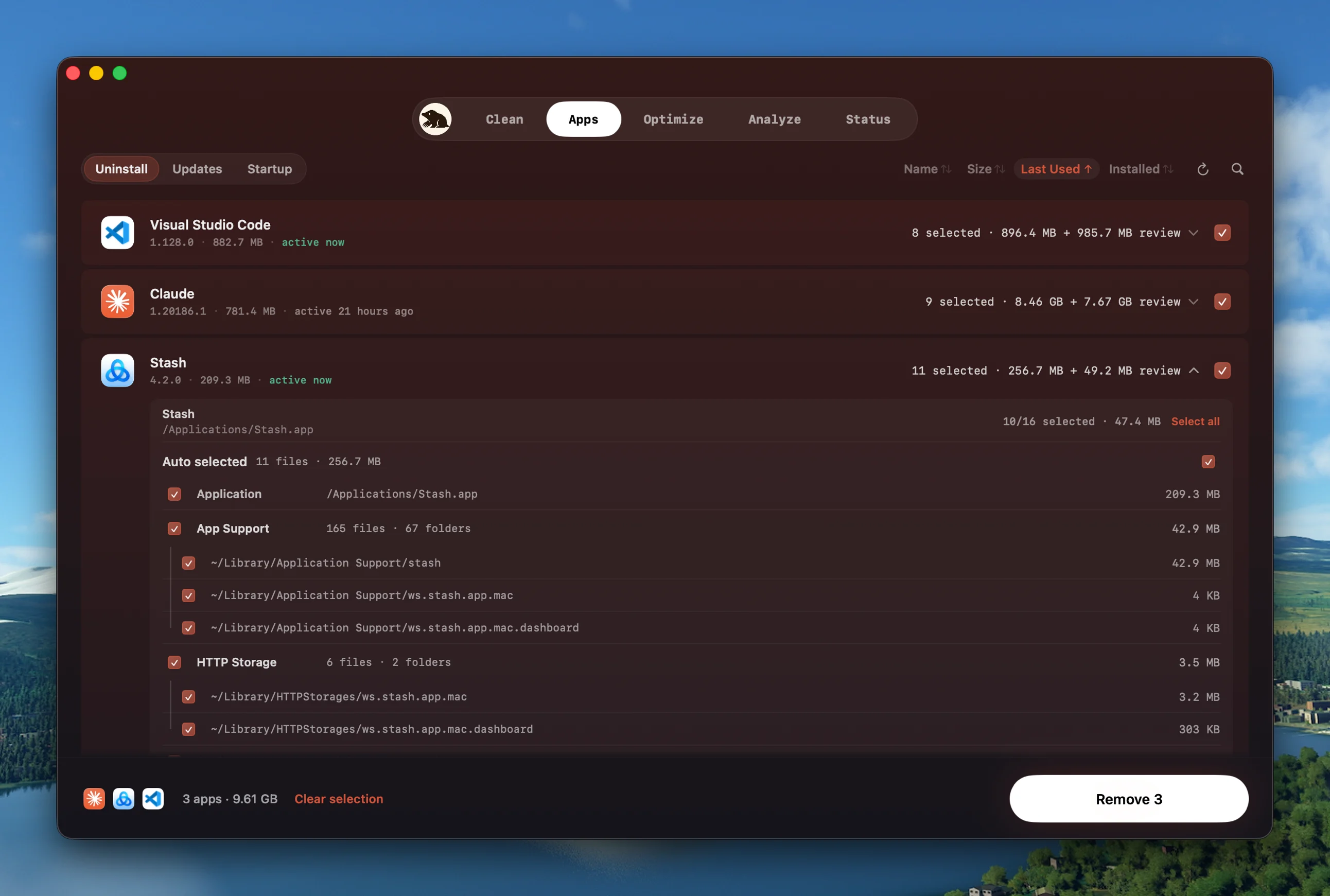
Every item an uninstall would touch, listed with its path and size, before anything moves. Low-confidence rows arrive unchecked, so the default action is always the smaller one.
[Mole](https://mole.fit/)'s Software tab holds the app inventory and the startup items on one screen, so
the launch agents, launch daemons, and login items a product registered are visible next
to the app that registered them, each with its real path.
For leftovers, Mole matches on bundle identity rather than name, and the system-level paths
it knows are the ones above: `/Library/LaunchDaemons/.plist`,
`/Library/LaunchAgents/.plist`, `/Library/PrivilegedHelperTools/`,
and the receipts under `/private/var/db/receipts`. Every system-level match is
review-confidence, meaning it arrives unchecked: you opt in to each path after reading it,
rather than opting out of a pre-ticked list. Removals go to the Trash, so a mistake is a
drag back out, skipped and failed items are reported, and everything runs locally.
Two refusals matter more than any of that. Mole scans `/Library/SystemExtensions` for
extensions owned by the app being removed, and when it finds one it raises an advisory
naming that extension and saying it may remain after the app is gone. It does not attempt
the deactivation, because it cannot: that request has to come from the owning app. And for
vendors whose products are locked, managed, or destructive to remove piecemeal, including
ESET, CrowdStrike, SentinelOne, Jamf, Palo Alto GlobalProtect, and Cisco Secure Client,
Mole declines to uninstall them at all and points at the vendor's official uninstaller.
The boundary is what makes the rest of this page trustworthy, so it goes unhedged: Mole is
not malware response, not a backup, and not a substitute for a vendor uninstaller on
software shipping drivers, VPN components, or system extensions. For antivirus, Mole's job
starts after the vendor's uninstaller has finished. In a terminal, the free and open source
[Mole CLI](https://github.com/tw93/Mole) covers the same review with `mo uninstall`, and
every destructive command takes `--dry-run` so you can read the path list first.
## FAQ
### My internet stopped working after I deleted my antivirus. What do I do?
Almost certainly a network filter configuration that outlived the app. It lives in the
Network Extension preferences, which the framework manages independently of the bundle, so
deleting the app leaves an enabled filter pointing at a provider that is no longer there.
Check **System Settings > Network** for a Filters entry and `systemextensionsctl list` for
a surviving extension. The fix is to reinstall the vendor's product and run its own
uninstaller. Reinstalling software you are trying to remove feels wrong and is still the
shortest path.
### Can I just delete the plists in /Library/LaunchDaemons?
Not as a first move, and rarely as a last one. A plist there is a registration with
launchd, so removing the file while the job is loaded leaves the job running until the next
reboot with nothing on disk to explain it. Once the vendor's uninstaller has run, the Mac
has restarted, and `sudo launchctl list` shows no matching loaded job, a stale plist is
inert leftover. Never remove one belonging to software still installed.
### The vendor's uninstaller asks for my password and then fails. What now?
Check three things. Is the Mac managed, in which case tamper protection or a profile is
blocking removal and the answer is IT. Is the product still running, since some
uninstallers cannot finish while their own daemon holds files open, so restart and retry.
And is the uninstaller current, since some vendors publish a standalone removal tool
separate from the in-app path. If all three are clean, vendor support is the next stop.
### Do I need to restart before checking whether it is gone?
Yes. Extension teardown and launchd deregistration both complete across a boot, so a check
run immediately after the uninstaller finishes can show leftovers already scheduled to
disappear, and can equally hide a daemon that will come back.
## Related reading
- [How to completely uninstall apps on Mac](https://mole.fit/blog/how-to-completely-uninstall-apps-on-mac)
for the general sequence, bundle identifiers, and shared containers.
- [Remove leftover files after uninstalling Mac apps](https://mole.fit/blog/how-to-remove-leftover-files-after-uninstalling-mac-apps)
for residue once the active components are confirmed gone.
- [What Mac cleaners should never delete](https://mole.fit/blog/what-mac-cleaners-should-never-delete)
for the other side of the same judgement.
---
Canonical HTML page: https://mole.fit/blog/how-to-uninstall-antivirus-mac
Blog index for agents: https://mole.fit/blog/llms.txt
Site index for agents: https://mole.fit/llms.txt