# Remove Leftover Files After Uninstalling Mac Apps
> Attribute Library residue by bundle identity, protect shared vendor data, and review leftovers after Trash or a long-gone install.
Published: 2026-07-29 | Updated: 2026-08-22
Point two remnant scanners at the same uninstalled app and you will get two lists. That
is not a bug. Each tool picks its own rule for ownership, its own refuse list, and its
own limit on administrator work. Those three choices decide everything on the screen.
Once you understand attribution, leftover cleanup stops being "who finds more junk" and
becomes "whose mistakes hurt less."
This guide is about the after state: the app is already gone, or it just landed in
Trash, and you want residue reviewed with the same care an uninstaller should have used.
For the full sequence while the app still runs, see
[complete uninstall](https://mole.fit/blog/how-to-completely-uninstall-apps-on-mac). For product choices,
see [beyond AppCleaner](https://mole.fit/blog/appcleaner-alternative).
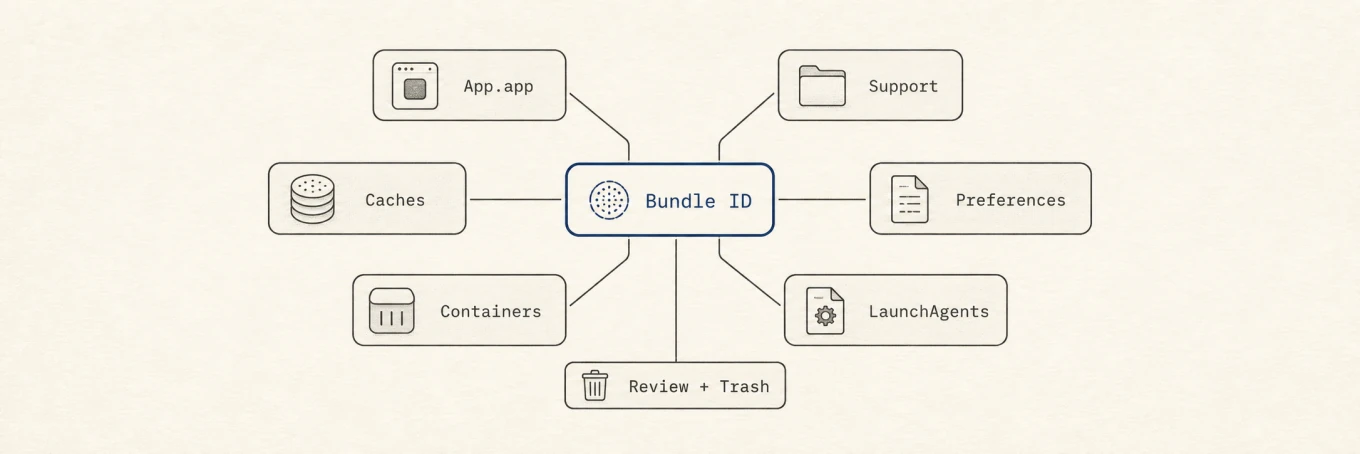
Dragging an app to the Trash removes only the bundle; its data stays under `~/Library` in Application Support, Caches, Preferences, and Containers. Attribute leftovers by bundle identifier, never by size or name, and review every candidate before deleting, or use an uninstaller that enforces exactly that.
## What "uninstall" actually means on macOS
macOS does not treat an application as one object with one delete button. There are at
least three layers:
| Layer | Typical location | Who should remove it |
|---|---|---|
| App bundle | `/Applications`, `~/Applications`, Setapp, etc. | You, Trash, or package manager |
| User support | `~/Library/…` | Remnant scanner or careful hand review |
| System / privileged | `/Library`, helpers, receipts, extensions | **Vendor uninstaller** first |
Dragging to Trash only guarantees the first layer. The middle layer is where generic
tools help. The third layer is where they often pretend and fail: drivers, network
extensions, privileged helpers, licensing daemons. Apple still tells people to prefer a
vendor Uninstall app for that reason
([Delete or uninstall apps](https://support.apple.com/102610)).
Removing the app bundle is only the top layer. User Library residue and system helpers are separate decisions with different risk.
## Where user leftovers actually live
Most third-party residue clusters under the home Library:
| Area | What it usually is |
|---|---|
| `Application Support/` | Databases, offline packs, project state |
| `Caches/` | Regenerable cache |
| `Containers/` and `Group Containers/` | Sandboxed homes and shared groups |
| `Preferences/` (+ ByHost) | Settings plists |
| `Logs/`, DiagnosticReports | Diagnostics |
| `Saved Application State/` | Window restoration |
| `HTTPStorages/`, WebKit, cookies | Network state for that identity |
| `LaunchAgents/` | User login helpers backed by a plist |
| `Application Scripts/` | Sandbox script packages |
System-level paths under `/Library` (LaunchDaemons, PrivilegedHelperTools, receipts under
`/private/var/db/receipts`) are a higher risk tier. Prefer the vendor remover; treat
generic scanners as review-only there.
A sandboxed app often looks tidy: primary container under
`~/Library/Containers/`. It may still use App Groups, Application Scripts,
shared caches, CloudKit, or Keychain items. Sandboxing narrows direct file access; it
does not guarantee a one-directory footprint. A non-sandboxed app can scatter across
Application Support, Caches, Preferences, Logs, Saved Application State, WebKit, and
Cookies. Wider scatter means more room for two tools to disagree.
## Attribution is the whole skill
Safe remnant discovery keys off **identity**, not marketing names.
### Bundle identifier versus display name
`com.example.widget` is stable across renames and localizations. Display names are not.
Two products can share a company folder (`…/Application Support/Google`) while only one
is uninstalled. Matching "Google" as a string is how scanners invent multi-gigabyte
false positives.
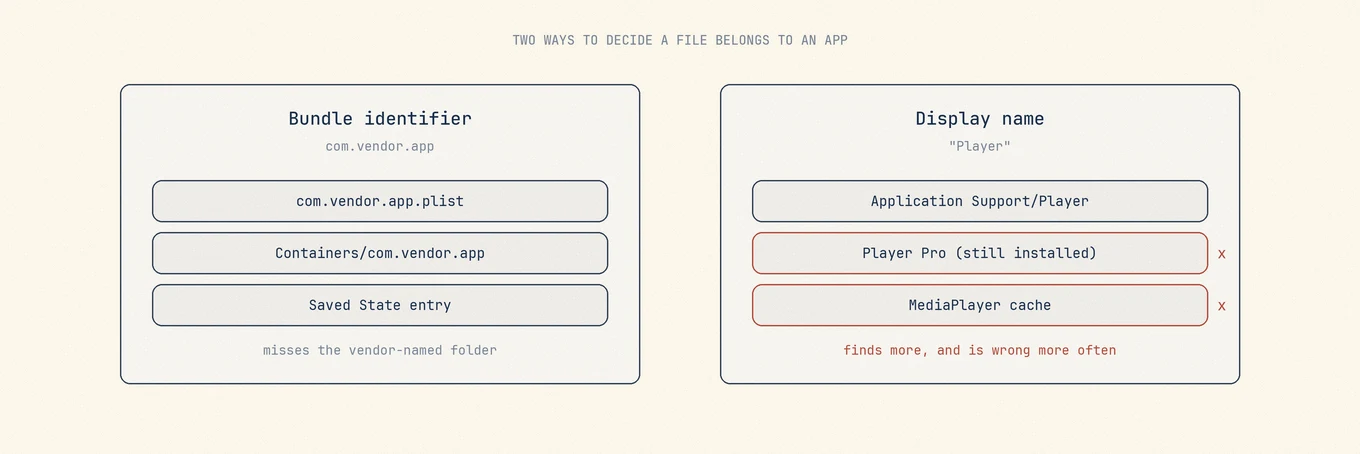
**Identifier matching** is precise and almost never proposes a sibling app's data. It
misses folders the app named after itself.
**Name matching** finds those folders, and also things that merely share a word. It finds
more and is wrong more often.
Identity matching is narrower and safer. Name matching finds more leftovers and is wrong more often when two products share a vendor folder.
Practical checks before any delete:
```
mdfind 'kMDItemCFBundleIdentifier == "com.example.widget"'
ls /Applications ~/Applications 2>/dev/null
```
If anything with that id still exists, treat shared support paths as **live**.
### Helpers and embedded identities
Modern apps ship helpers with related ids: `com.example.widget.helper`, names declared
in `SMPrivilegedExecutables`, login items under `Contents/Library/LoginItems`. A thorough
scanner collects those ids from the bundle **before** the app disappears. After the
bundle is gone, you only have what was recorded or what still sits on disk under exact
names.
### Group containers
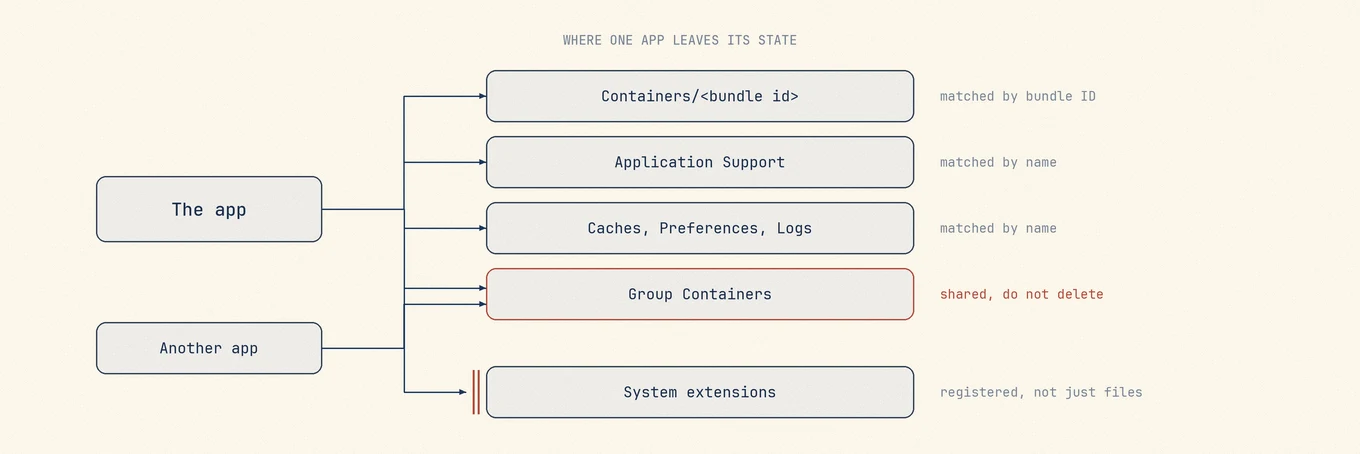
`~/Library/Group Containers/` holds shared suite data on purpose:
- `group.`
- team-scoped names such as `.`
- shared `group.*` spaces used by several apps
Only exact owner-scoped paths are candidates for automatic association. Shared group
trees should stay review-only or untouched when any sibling remains. This is the category
where "more found" tools cause real damage.
### Name variants and channel builds
`Foo Beta` may leave `Foo Beta`, `FooBeta`, and sometimes a stable `Foo` folder that
belongs to the release channel still installed. Channel-stripped base names are high
false-positive risk: keep them review-only unless you prove the stable app is gone.
Attribution should follow bundle identity into owned paths, not vendor-wide folders other apps still need.
## Three safe entry points
### 1. Vendor uninstallers first
Security agents, VPN clients, audio drivers, and endpoint tools know their own receipts
and extension teardown order. Run those before any Library walk. File deletion is not a
reliable deactivation workflow for system or network extensions; macOS registers them.
### 2. Review after the app is already gone
When the `.app` is gone, scan for paths still tagged with that bundle id or exact name
variants. Conservative defaults:
- **Often OK when owned:** caches, logs, saved state, crash reports
- **Review carefully:** Application Support, Containers, Preferences (licenses, offline
mail, project DBs)
- **Usually leave:** Group Containers without exact ownership, Documents outside Library,
anything another id still needs
Measure candidates:
```
du -sh ~/Library/Application\ Support/ \
~/Library/Caches/ \
~/Library/Containers/ 2>/dev/null
```
Permission errors usually mean Terminal lacks Full Disk Access, not that the folder is
empty.
### 3. The moment the app hits Trash
Many people trash first and think later. A watcher that notices a new `.app` in
`~/.Trash`, reads its Info.plist identity, scans related support files, and opens a
**review panel** catches residue without a scavenger hunt. Design constraints that
separate helpful from harmful:
- Never auto-delete the trashed app bundle (Put Back must work)
- Never pop for protected / AV / MDM classes
- Consume a one-shot suppression when **the cleaner itself** trashed the app during
uninstall, or the panel races the uninstall flow
- Gate on Full Disk Access; fail silent without it rather than prompt from background
[Mole](https://mole.fit/)'s trash-remnant review uses the trashed app's identity to propose related
files, keeps the app bundle itself recoverable, and suppresses the prompt for protected
software classes. The review is useful only when those ownership checks stay narrower
than a name search.
## Orphans are not "anything large in Library"
Discovering leftovers from apps you forgot requires **claim subtraction**: enumerate
candidate support folders, then subtract everything still claimed by installed software
(bundle ids, running apps, Launch Services registration, vendor roots). If the claim
scan is partial (timeout, unreadable dirs), the safe result is **zero orphans**, not a
guessy list. Tools that always find dozens of "junk" apps on a clean Mac are optimizing
for a sales number.
Quiet-period gates also matter: a config rewritten last week may belong to a CLI tool
the claim walk cannot see. Recent mtimes should suppress candidates.
## Worked example: two tools, one vendor suite
You uninstall Product A from a company that also ships Product B, still installed.
- Tool 1 (identifier-heavy): small list, mostly `com.vendor.productA.*` paths.
- Tool 2 (name-heavy): adds `~/Library/Application Support/Vendor` (4 GB) and a group
container both products use.
Tool 2 looks more thorough. It is proposing the deletion that can break Product B. The
total at the bottom of the screen is not a quality score. The categories above it are.
## Homebrew's orphaned receipt
If the app came from Homebrew Cask, removing only the `.app` can leave a Caskroom record
that blocks reinstall. After file leftovers:
```
brew list --cask
```
If the token remains, `brew uninstall --cask ` clears the association (accept
`--zap` only when you want brew's own broader cleanup). "Cask is not installed" after
the app is already gone is a **stale association**, not a reason to `rm -rf` random
Caskroom paths.
## What to refuse even when the name matches
- Still-installed siblings and channel twins
- Shared group containers and vendor parent folders
- Receipts and privileged helpers without a validated remover
- User documents outside Library
- AI chat stores and model directories that sit near cache paths
([AI cleanup](https://mole.fit/blog/how-to-remove-ai-tool-leftovers-mac))
## Common mistakes
**Maximizing the found list.** More candidates often means worse attribution.
**Deleting Group Containers by default.** Shared on purpose.
**Skipping the vendor uninstaller** for VPN, AV, audio, virtualization.
**Measuring without Full Disk Access**, then concluding "nothing left."
**Emptying Trash immediately** after a bulk remnant delete. Keep a day of normal use if
anything important might have been mis-attributed.
## Verify
1. Remeasure removed paths.
2. Confirm no login item or launch agent for that id remains
([startup items](https://mole.fit/blog/how-to-disable-startup-programs-on-mac)).
3. Launch sibling apps from the same vendor.
4. Empty Trash only after you accept the removals.
## Order of operations
1. Look for a vendor uninstaller if the app had drivers, extensions, or helpers.
2. Export or deauthorize while the app still runs, if that matters.
3. Quit the app and visible helpers.
4. Remove the bundle (or confirm it is already in Trash).
5. Review remnants by identity; leave shared containers alone.
6. Handle Homebrew cask receipts if applicable.
7. Keep items in Trash while you use the Mac normally, then empty.
## The first day after an uninstall
Most people empty the Trash the moment the app is gone. A slower schedule costs nothing
and keeps a way back:
1. On the first day, trash the app bundle and only the caches you have confirmed are
regenerable.
2. Leave Application Support and Containers alone, and use the Mac normally for a day.
3. If sibling apps and the vendor's other products still start clean, remove the second
batch.
4. For paths you are still unsure about, record the size with `du -sh` and decide a week
later.
Trash sits on the same volume, so nothing is freed until you empty it. What the wait buys
is a recovery window. If the disk is genuinely out of space, empty the regenerable caches
first for headroom and keep the disputed paths for later.
## Permissions and visibility
Without Full Disk Access, Terminal and most scanners cannot see inside Containers and
parts of the Library. `du` prints permission errors and still finishes with a total, and
that total is missing everything it could not open. The reading is not "nothing is left";
it is "you are not allowed to look".
- Grant Full Disk Access to Terminal, or to the tool running the scan, then measure again.
- Compare the numbers before and after. Deciding from the half-blind pass is how a
multi-gigabyte container gets called empty.
- Take Full Disk Access back from tools you have stopped using. It is the widest read
permission on the Mac, and a grant outlives the reason it was given.
## How this relates to the complete uninstall guide
[Complete uninstall](https://mole.fit/blog/how-to-completely-uninstall-apps-on-mac) is the order to follow
while the app is still installed: vendor uninstaller first, export or deauthorize, quit,
remove the bundle, then review what is left. This guide assumes the bundle is already
gone, which is what removes the easy evidence, and spends its length on the half that
remains: deciding which files the app owned and which it only shared.
## Further reading
- Apple: [Delete or uninstall apps on Mac](https://support.apple.com/102610)
- Related: [complete uninstall](https://mole.fit/blog/how-to-completely-uninstall-apps-on-mac),
[AppCleaner alternatives](https://mole.fit/blog/appcleaner-alternative),
[what cleaners should never delete](https://mole.fit/blog/what-mac-cleaners-should-never-delete)
Leftover cleanup is identity maintenance. The skill is not maximizing gigabytes; it is
proving ownership, protecting shared state, and keeping deletes recoverable.
## FAQ
### Is it safe to delete leftover files under ~/Library myself?
Only with attribution: match the folder to the app's bundle identifier, not to its size or a similar-looking name, and review each item before it goes. One wrong guess can take out another app's data or your own documents.
### Why do apps leave files behind at all?
macOS has no uninstall contract: dragging the bundle to the Trash is the whole mechanism, and everything the app wrote at runtime stays where it was written.
### Will a reinstall recreate what I deleted?
Rebuildable state, yes: caches, receipts, and default preferences come back on first launch. Documents, chat history, and licenses do not, which is why a careful tool pre-selects only what a reinstall would recreate.
---
Canonical HTML page: https://mole.fit/blog/how-to-remove-leftover-files-after-uninstalling-mac-apps
Blog index for agents: https://mole.fit/blog/llms.txt
Site index for agents: https://mole.fit/llms.txt