# What Free Mac Cleanup Tools Actually Cover
> Map what OnyX, AppCleaner, Stats, ncdu, and GrandPerspective each do well, where free stops, and how to recognise a scareware cleaner.
Published: 2026-07-24 | Updated: 2026-08-22
A cleanup budget of zero buys more than most people expect. The free tier in this
category is not a crippled demo of a paid product. Several of the best tools here are
free because they are narrow, open source, or written without a subscription business
attached. Price alone does not predict whether a tool is maintained. Release history
and scope do, and those are better reasons to decide whether you ever pay. Here is
where the line falls, tool by tool.
## What macOS gives you before you install anything
System Settings shows a storage breakdown and a Login Items list. Activity Monitor
attributes CPU, memory, energy, and disk I/O to a named process. Finder sorts by size
once you enable the column. Terminal has `du` and `df`. Time Machine handles the backup
that matters when a cleanup goes wrong.
The weakness of this set is assembly, not capability. Storage, startup, processes,
updates, and privacy live in five places, and hidden Library paths are hard to attribute
to an owner. Everything below is worth installing only if it collapses that cost for a
job you actually repeat.
## The free tools that are genuinely good
### OnyX for explicit maintenance operations
[OnyX](https://titanium-software.fr/en/onyx.html) from Titanium Software is free, with a
donation request, and it exposes maintenance operations as direct controls rather than
recommendations. Its current page lists verification of system files, cleaning,
maintenance, application uninstallation, cache deletion, database and index rebuilding,
and Finder, Dock, and Safari configuration. It still ships a separate build for every
major macOS release, and the page is explicit: "There's a specific version of OnyX for
each major operating system version. Use the correct version, and don't try to use a
version intended for an earlier operating system." Download the build matching your OS,
and only run an operation you can already name.
### AppCleaner for retiring an app
FreeMacSoft's [AppCleaner](https://freemacsoft.net/appcleaner/) is free with an optional
donation. You drag an app onto its window, it finds the files that app scattered around
the system at install time, and it deletes the ones you confirm. That single job is the
whole product, which is why it has survived. The site currently labels version 3.6.8 as
compatible from Mojave through Tahoe, while its release notes date that binary to July
2023. Treat it as a fast remover for straightforward apps, and review its matches
rather than inferring current rules from the compatibility label. The usual boundary
applies:
software with drivers, VPN components, system extensions, or privileged helpers should
go through its own vendor uninstaller first, and a remnant scanner is for the rest.
### GrandPerspective for seeing where the space went
[GrandPerspective](https://grandperspectiv.sourceforge.net/) draws a treemap of a
volume, so each file is a rectangle sized by its bytes. It is open source under the GPL,
requires macOS 11 or later, and version 3.7.2 shipped in May 2026, so it is actively
maintained. The SourceForge download is free; the same app is also sold on the Mac App
Store as a way to fund development. A map does not tell you whether a large folder is
disposable, but it ends the guessing about which folder to investigate.
### ncdu when you live in the terminal
[ncdu](https://dev.yorhel.nl/ncdu) is a disk usage analyzer with a text interface, MIT
licensed, packaged for macOS along with most Unix systems, and maintained on two tracks:
a current Zig version, 2.9.2 as of October 2025, and a long-term support C version, 1.22
from March 2025. You navigate directories by size and can delete from inside the
interface behind a confirmation prompt. It is the fastest way to answer "what is big in
here" in a shell you already have open, and it has no opinion about what is safe to
remove.
### Stats for menu bar monitoring
[Stats](https://github.com/exelban/stats) by exelban is an MIT licensed menu bar system
monitor for macOS 12 and later, installable with `brew install stats`. It covers CPU,
GPU, memory, disk, network, battery, Bluetooth devices, a clock, and sensor readings for
temperature, voltage, and power. Its README still labels fan control as legacy mode,
but the project has continued to ship fan-helper and new-chip compatibility fixes, and
version 2.12.15 arrived in May 2026. Treat fan control as a secondary module whose
compatibility needs checking, rather than as abandoned. For the common case of wanting
temperature and load visible at a glance, it does the job people usually pay for.
### The Mole CLI for terminal-driven cleanup
The [Mole command-line tool](https://github.com/tw93/Mole) is free and open source,
installed with `brew install mole`, and covers clean, uninstall, optimize, analyze, and
status from the shell. Every destructive command accepts `--dry-run`, so you can read
the exact path list before anything moves, and file operations append to
`~/Library/Logs/mole/operations.log`.
## Under the hood: what free actually buys, and what it cannot
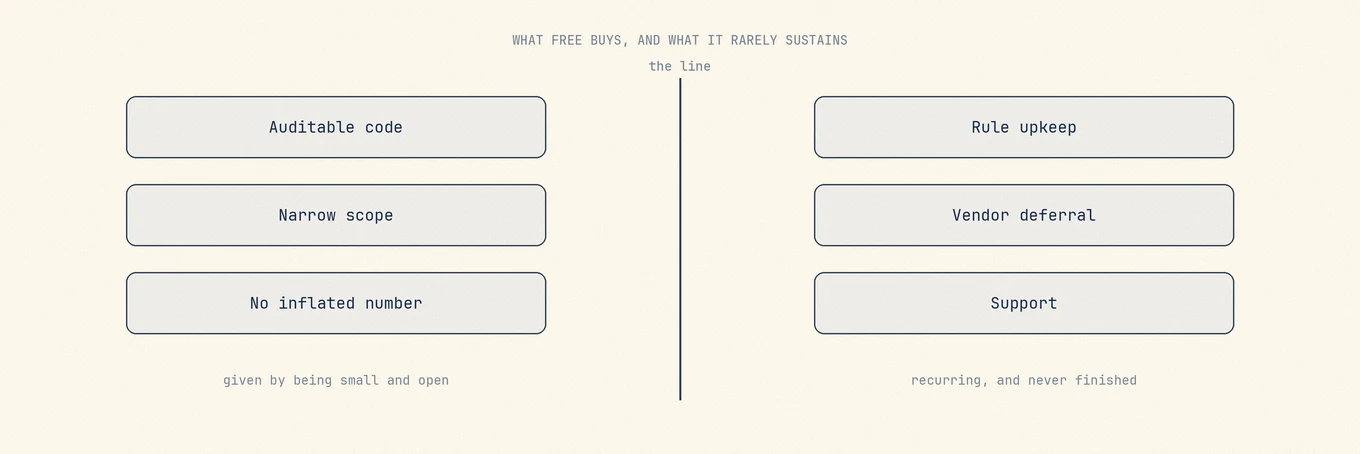
Free and open source can buy three real things. You can read the code, so a claim about
what a tool deletes is checkable rather than purely trusted. Many projects keep a narrow
scope because one maintainer can sustain it. And a project that is not paid according
to the size of its result has less incentive to inflate that result. None of this
guarantees careful maintenance, but it makes the work easier to audit.
What every tool must sustain is the part of this category that never finishes. The hard
work in a cleanup tool is not the deleting. Deleting is a few lines. The work is keeping
the catalogue of what is safe to delete correct while the platform moves underneath it.
A macOS release can relocate or protect data differently. Popular apps change where
they put data, split containers, or introduce stores that look like caches and are not.
A rule written confidently two years ago can quietly become a rule that removes your
offline library. OnyX shipping a distinct build per macOS version is the clearest public
evidence of this: low-level maintenance behavior is bound to the OS, so the correct
answer changes as the platform does and somebody has to redo the work. The same is true
of deferring to vendor uninstallers, and of answering the mail when a removal goes
wrong. None of that is a one-time effort. Some projects fund it with sales, some with
donations, and some with a maintainer's time; the changelog tells you more than the
license model.
The structural warning sign follows from the same logic in reverse. If a tool's revenue
depends on how alarming its result looks, its incentive points away from you. A product
paid for scanning wants a big number. A product paid for being correct wants a small,
explainable one.
The recurring work in this category is not the deleting, it is keeping the catalogue of what is safe to delete correct while the platform moves underneath it.
## How to recognise a scareware cleaner
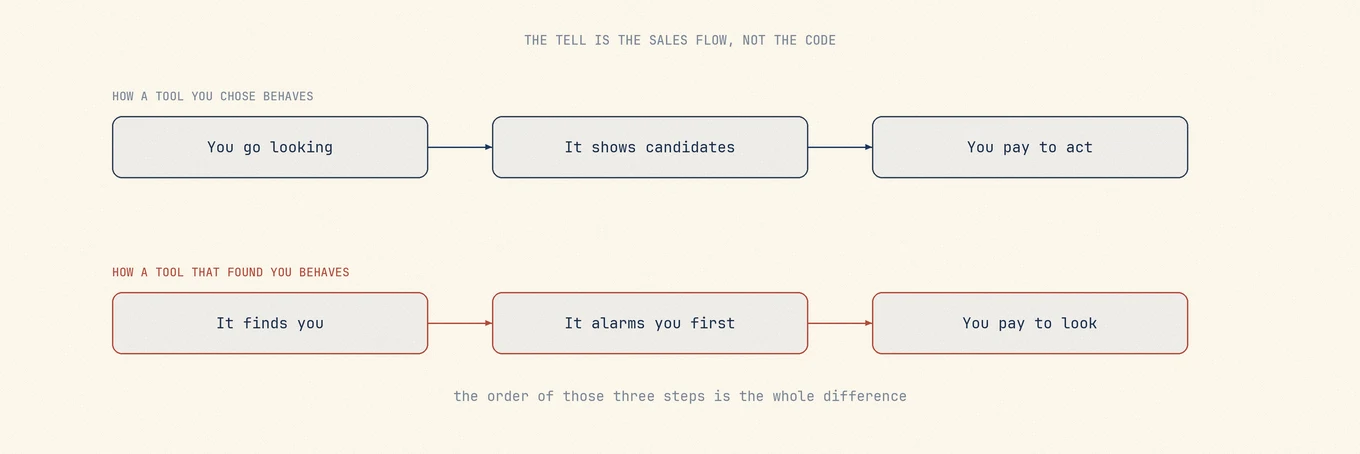
The techniques are consistent, and they live in the sales flow rather than the code:
- It found you. It arrived through an unsolicited pop-up, an ad on an unrelated page, or
bundled with another installer, rather than a search you started.
- It reports an alarming problem count before it finished scanning, or before you
granted it access to anything it would need in order to know.
- Payment unlocks even the identity of the results, not just the action. That is a
warning sign, especially when the locked screen shows only an alarming total.
- It asks for Full Disk Access or an admin password before showing a single result.
- The subscription is easy to start and hard to cancel, with no cancellation path in the
app or the account page.
- No named company, no address, no changelog, no version history, and no way to read
what a given operation does.
- It promises to speed up, repair, or optimize hardware. Software cannot fix storage
health, add RAM, or remove a thermal limit.
Apple's guidance on
[recognizing and avoiding scams](https://support.apple.com/102568) is worth
reading if a pop-up ever convinces you something is wrong with your Mac.
Both flows have three steps and the same words. The order is the whole difference.
## When paying is the honest answer
Pay when the repetition is real and the free route would mean stitching four tools
together every month. The Mac app [Mole](https://mole.fit/) is a one-time purchase with lifetime updates
for two Macs, needs macOS 14 or later, and has a 14-day refund window. Scanning is free
and each destructive tool works twice before it asks for a license, so you can see
everything it finds without paying. Its boundary is worth stating plainly: not malware
response, not a backup, not a substitute for a vendor uninstaller on system-integrated
software, and if you are comfortable in a terminal the free and open source Mole CLI
covers the same jobs and may be all you ever need. Both share one protection list at
`~/.config/mole/whitelist` and one shared operation log, and neither sends telemetry.
## A free-first order of operations
Start with what macOS already shows you. If that is not enough, add exactly one narrow
free tool for the specific job: a treemap when the question is where the space went,
AppCleaner when you are retiring an app, Stats when you want temperature and load
visible, OnyX when you know the maintenance operation you want to run. Run any new tool
in preview or dry-run mode first and check whether its candidates are understandable.
Only then consider paying, and only for the repetition rather than the feature list. If
you run the same three tools in sequence every month, an integrated one saves real time.
If you clean up twice a year, the free set is the correct answer and you should keep
your money. That decision is easier once you have worked out
[whether you need a Mac cleaner at all](https://mole.fit/blog/do-you-need-a-mac-cleaner), and what
[clearing a cache safely](https://mole.fit/blog/how-to-clear-cache-on-mac) actually involves.
---
Canonical HTML page: https://mole.fit/blog/free-mac-cleanup-tools
Blog index for agents: https://mole.fit/blog/llms.txt
Site index for agents: https://mole.fit/llms.txt