# Choosing a Mac Disk Analyzer Beyond DaisyDisk
> Compare treemap and terminal disk analyzers, and learn why two correct scanners report different totals for the same volume.
Published: 2026-07-21 | Updated: 2026-08-22
A disk analyzer answers one narrow question: which directories hold the weight. The
interesting part is that two correct analyzers pointed at the same volume report
different totals, and neither one is broken. APFS clones, hard links, sparse files,
local snapshots, and directories the scanner is not allowed to read each move the
number in a predictable direction. So the choice is really two choices: which map shape
you read fastest, and whether you understand what the total in front of you counts.
## The map shape is the real difference
Every analyzer here starts from disk usage and makes different accounting and drawing
choices. DaisyDisk uses concentric sunburst rings. GrandPerspective and Mole use
treemaps, where each folder is a rectangle scaled to its size. OmniDiskSweeper prints a
sorted list, largest first; ncdu draws that list in a terminal; macOS itself shows a
stacked bar of categories with no paths at all.
What a tool does after you find the item matters just as much. Revealing in Finder keeps
the decision with you and costs an app switch. Deleting in place puts the whole burden
on the recovery path, so a tool that deletes without going through the Trash should
only be pointed at data you can rebuild.
## The choices
### The built-in Storage view, which is often enough
Apple menu, System Settings, General, Storage. Apple's
[Storage settings documentation](https://support.apple.com/guide/mac-help/change-storage-settings-mchl3d437fbc/mac)
describes what you get: a bar chart of used and available space by category, per-volume
detail, and three recommendations (Store in iCloud, Optimize Storage, Empty Trash
automatically). The info button beside a category opens the files inside it, and
Documents is sortable by name, kind, last accessed, and size.
That is a real analyzer for one case: a single heavy category, mostly documents and
media. Its boundary is System Data, and Apple's own
[storage article](https://support.apple.com/102624) states that macOS manages
that category and you cannot. When the weight lands there, the built-in view has told
you everything it can, and a path-level map starts earning its place.
### DaisyDisk for a polished sunburst
[DaisyDisk](https://daisydiskapp.com/) is the reference implementation of the visual
analyzer on macOS and is actively maintained. Version 4.34.2 shipped in July 2026, after
4.34 added APFS clone accounting. Its current feature set covers the
sunburst map, spacebar preview, a collector you drag items into before deleting them as
a batch, an administrator scan mode for files a normal user cannot read, cloud disk
scanning, snapshot management, and hard-link and clone detection. It requires macOS
10.13 or newer.
Licensing is a one-time purchase covering several personal Macs, with a money-back
window; check the [pricing page](https://daisydiskapp.com/support/pricing/) for current
terms. The boundary is scope by design: it maps and deletes, and it does not know that
a folder belongs to an app you uninstalled or that a cache rebuilds on next launch.
Attribution stays your job.
### GrandPerspective for an open-source treemap
[GrandPerspective](https://grandperspectiv.sourceforge.net/) has drawn macOS treemaps
for close to two decades and still ships, with version 3.7.2 released in May 2026 under
the GNU General Public License. Beyond the map it offers several color-mapping schemes
(by name, extension, size, modification time), filtering, hard-link support, cloud
storage analysis, scan compression with quick refresh, export as image or text, and
eleven localizations. It requires macOS 11 or higher.
It is free from SourceForge and also sold on the App Store, and the project states you
get the same app either way, so the paid listing is a way to support the developer. The
interface shows its age next to a commercial app. If that does not bother you, this is
where most people can stop.
### OmniDiskSweeper for a plain sorted list
The Omni Group still offers [OmniDiskSweeper](https://www.omnigroup.com/more) as free
software, described on its own page as showing the files on a drive largest to smallest
and letting you trash or open them. There is no map at all, which is the appeal: a
column of sizes has no learning curve.
Its maintenance status deserves an honest note. It sits on Omni's side-project page
rather than in the main product line, and the public download index still lists builds
against old macOS releases. Omni's blog records an updated OmniDiskSweeper in September
2025, and the test-build channel published 1.16 builds that month requiring macOS 14 or
later. Treat it as maintained slowly, and check that the build you get runs on your
macOS version.
### ncdu for terminals and remote disks
[ncdu](https://dev.yorhel.nl/ncdu) is an MIT-licensed disk usage analyzer with a
text-mode interface, and the only tool here that works identically over SSH. Two lines
are current: the Zig rewrite (2.9.2, October 2025) and a C LTS release (1.22, March
2025). It installs on macOS through Homebrew or MacPorts. It supports parallel scanning,
JSON export and import plus a compressed binary format, deletion from inside the
interface, and it distinguishes apparent size from disk usage, which is exactly the
distinction the next section is about.
Reach for it for scriptability and remote access, not comfort. Deleting from a terminal
browser is unforgiving; use it to locate, then remove through Finder unless you are
certain.
### Mole's Analyze tab for a map inside a wider toolkit
[Mole](https://mole.fit/) draws a treemap of the whole disk with single-click drill-down and a
breadcrumb trail; right-click gives Move to Trash (through the system Trash, so it is
recoverable) or Reveal in Finder, and navigational roots such as `/`, `/Users`, and
`/Applications` cannot be trashed. Entries it cannot size are surfaced with a badge and
a retry instead of vanishing from the total, which answers a failure mode described
below. The boundaries are worth stating plainly: the license is a one-time purchase for
two Macs on macOS 14 or later, results are cached for 24 hours so a stale total is
possible, and the Mac app has no JSON export, which the free open-source CLI provides
through `mo analyze --json`.
## Under the hood: why two analyzers disagree about the same disk
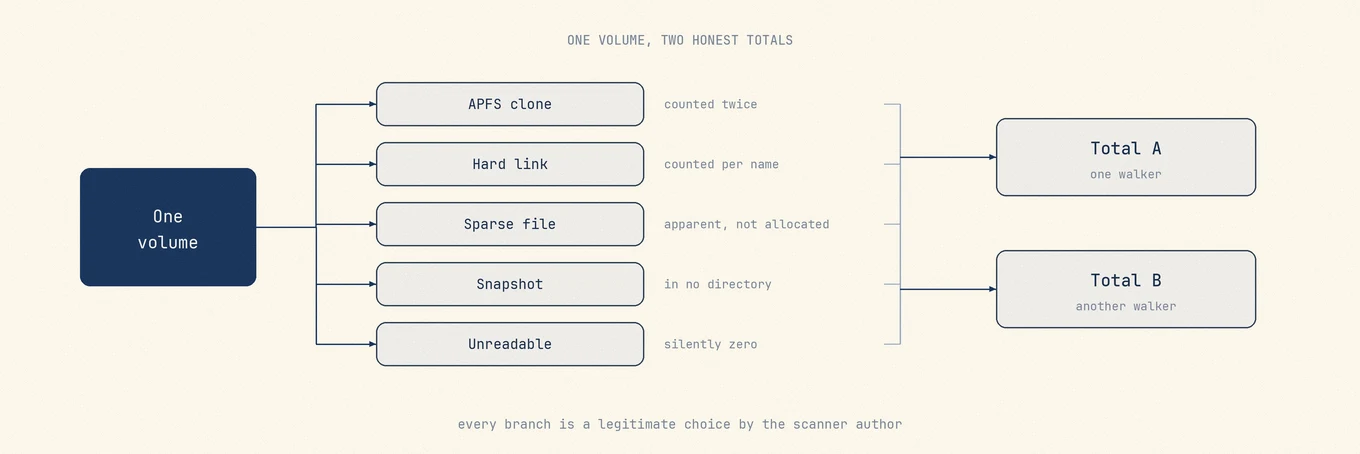
Many differences below come from a legitimate accounting choice by the scanner author,
although an unexplained gap can still be a bug.
**APFS clones.** Copying a file in Finder on APFS does not duplicate its blocks; the
copy shares them until one side is modified. An analyzer that sums logical file sizes
counts both copies in full and reports more than the volume holds.
**Hard links.** One inode can carry many names. A walker that counts every name inflates
the total; a walker that records each `(device, inode)` pair can distinguish shared
bytes from unique bytes. Package stores and developer trees with linked content can
therefore look much larger in one tool than another.
**Sparse files.** A file's apparent size can vastly exceed its allocated blocks. The
classic case is `Docker.raw`, which reports a large virtual size while occupying much
less. Reading `size` and reading allocated blocks give different answers.
**Snapshots and purgeable space.** Local Time Machine snapshots and purgeable data
occupy the volume but belong to no directory a walker can visit. No sum over the
directory tree will ever include them, so the gap between an analyzer's total and
Finder's figure is often exactly this.
**What the scanner cannot read.** Directories requiring Full Disk Access or root cannot
be stat'ed by an unprivileged process. The danger is not the failure, it is the silence:
an unreadable subtree contributing zero looks identical to an empty one. Administrator
scan modes and explicit unsized-entry badges exist for this reason.
**Symlinks.** Following them counts the target's bytes somewhere they do not live and
risks counting the same data twice. Resolving without descending is the safer default,
and the difference shows up most in developer trees.
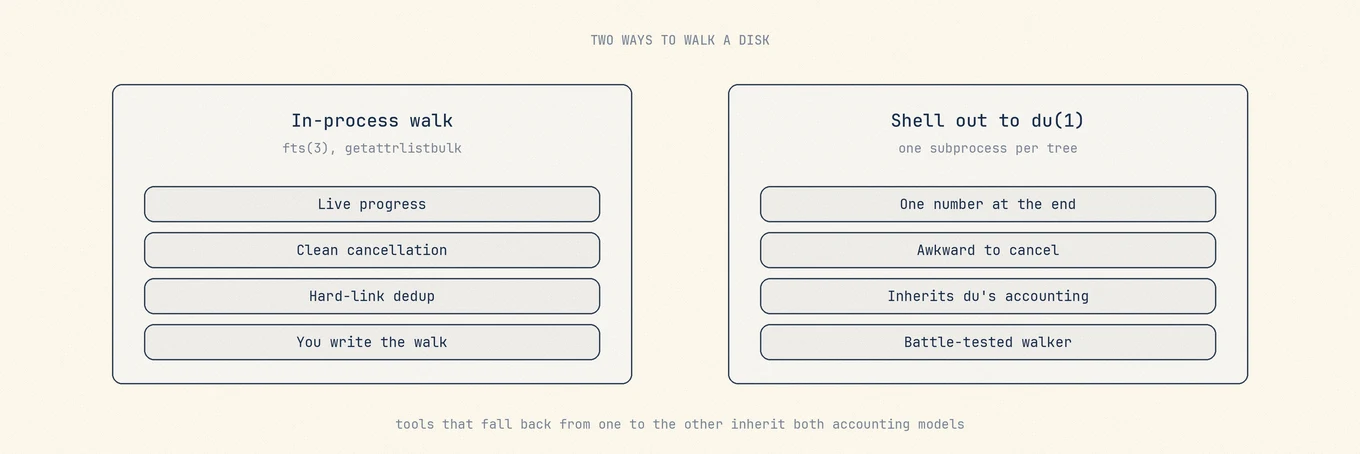
Then there is the scan method. A userland walk with `fts(3)` or `getattrlistbulk` keeps
the traversal inside the app, which gives the author direct control over progress,
cancellation, and hard-link accounting. Shelling out to `du(1)` inherits a
battle-tested walker and its accounting choices, but integrating granular progress and
partial failures is harder. A single `du` invocation can report a directory tree; a
tool does not need one subprocess per directory. Tools that mix an in-process walk with
`du` fallbacks can still inherit two accounting models, which is another reason totals
may differ.
These branches explain many honest disagreements between analyzers. A tool should still state which accounting model its total uses.
## Quick comparison
| Tool | Map shape | After it finds the item | Licensing model |
| --- | --- | --- | --- |
| Storage settings | Category bar, no paths | Delete from category browser | Included with macOS |
| DaisyDisk | Sunburst rings | Collector, then batch delete | One-time purchase |
| GrandPerspective | Treemap | Reveal or delete, plus export | Open source, GPL |
| OmniDiskSweeper | Sorted size list | Trash or open | Free |
| ncdu | Terminal list | Delete in place, JSON export | Open source, MIT |
| Mole | Treemap with drill-down | Reveal or Trash, roots protected | One-time purchase |
Neither method is inherently wrong. A tool that mixes an in-process walk with a du fallback can inherit two accounting models, so the result needs a stated definition.
## A repeatable way to find the weight
Read the container first. Compare what `df` reports with the APFS capacity view and the
Storage pane, so you know whether you face real physical pressure or a classification
artifact such as snapshots and purgeable space. Only then run an analyzer. Grant only
the access you are comfortable with, and prefer a tool that marks unreadable regions
instead of silently counting them as zero.
Drill into the largest branch until you reach a directory whose owner you can name.
Compare its total against one other measurement before acting: `du -sh` on the same
path, or Get Info in Finder. When those disagree, the reason is often on the list above,
and knowing which one tells you whether the space is recoverable at all.
Delete replaceable data first and keep it in the Trash until the affected app still
works. For the manual version of this workflow, see
[how to find and remove large files](https://mole.fit/blog/how-to-find-large-files-on-mac); when the
weight lands in a category with no path at all, see
[what System Data really is](https://mole.fit/blog/what-is-system-data-on-mac).
---
Canonical HTML page: https://mole.fit/blog/daisydisk-alternative
Blog index for agents: https://mole.fit/blog/llms.txt
Site index for agents: https://mole.fit/llms.txt