# AppCleaner Alternatives for Mac: What They Refuse to Delete
> Compare AppCleaner, Hazel, vendor uninstallers, and Mole by how they find leftovers, protect shared data, and recover from a bad match.
Published: 2026-07-20 | Updated: 2026-08-22
Point two uninstallers at the same app and they will hand you two different file lists.
That is not a bug in either one. Each tool picks its own rule for deciding which files
belong to an app, its own list of paths it refuses to touch, and its own limit on what
it will do with administrator privileges. Those three choices decide everything you
see. Once you know how attribution works, choosing an uninstaller stops being a feature
comparison and becomes a question of which trade-off you want.
## Under the hood: how leftover attribution actually works
An uninstaller has two ways to decide that a file belongs to an app, and they fail in
opposite directions.
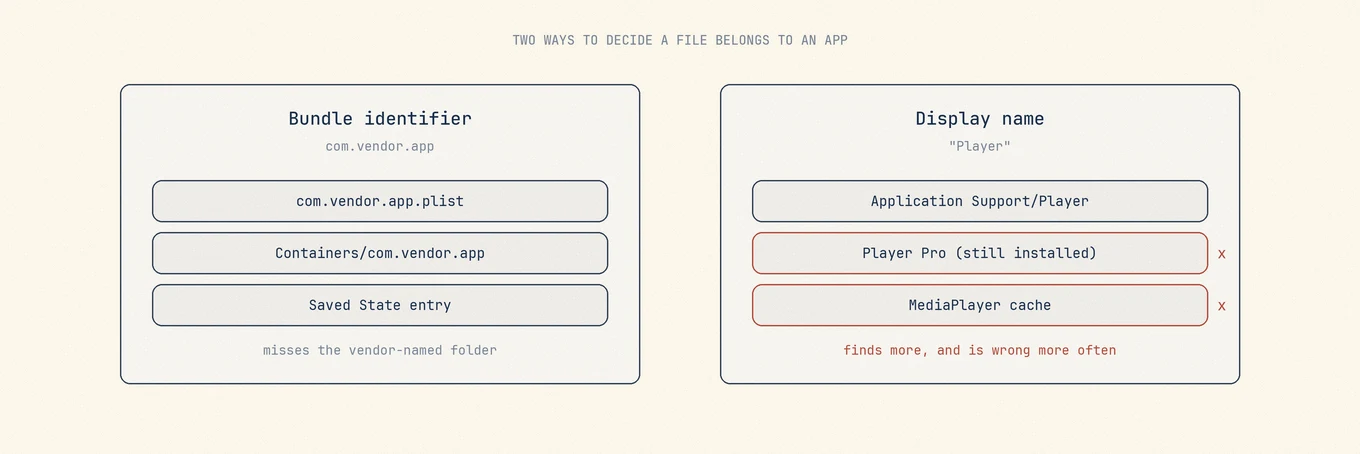
**Bundle identifier matching** follows the reverse-DNS string the app declares, such as
`com.vendor.app`. macOS itself names many files that way:
`~/Library/Preferences/com.vendor.app.plist`, the sandbox container, the entry in
`Saved Application State`, WebKit and HTTPStorages directories. It is precise and
produces almost no false positives, but it misses everything the app named after
itself, and most apps keep their real data in an
`~/Library/Application Support/VendorName` folder holding no identifier at all.
**Display-name and vendor-string matching** catches those folders, and also things that
merely share a word. An app called Notes, Sync, or Player matches paths belonging to
something else entirely, and matching on a vendor prefix sweeps in sibling apps you are
still using. Name matching finds more and is wrong more often; identifier matching
finds less and is right more often. Most disagreements between two scan results reduce
to that one choice.
The two matching strategies fail in opposite directions, which is the whole reason two uninstallers disagree about the same app.
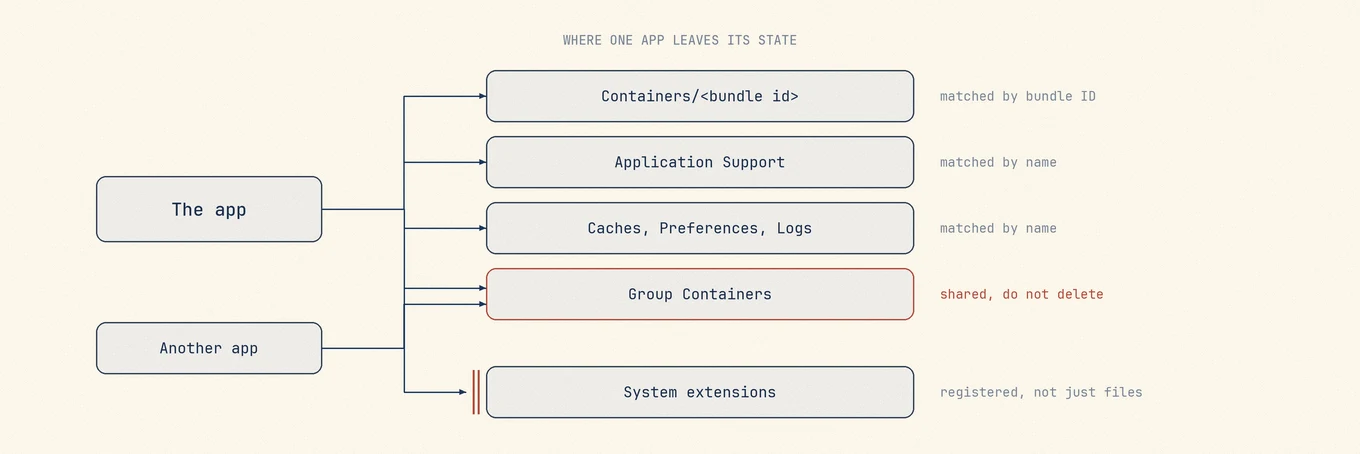
The app's architecture decides how much there is to disagree about. A sandboxed app
usually has a primary container under `~/Library/Containers/`, but it may
also use App Group containers, Application Scripts, shared caches, CloudKit, or
Keychain data. Sandboxing narrows direct file access; it does not guarantee a
one-directory footprint. A non-sandboxed app can write directly into Application
Support, Caches, Preferences, Logs, Saved Application State, WebKit storage, and
Cookies. That wider scatter creates more room for disagreement.
Three categories deserve caution, and how a tool handles them tells you more than its
feature list:
- **App Group containers** under `~/Library/Group Containers` are shared on purpose
between apps and extensions signed by the same team. Removing one because a single
app was uninstalled can delete data another installed app still reads. Name matching
will happily propose them.
- **LaunchAgents and LaunchDaemons** in `~/Library/LaunchAgents`,
`/Library/LaunchAgents`, and `/Library/LaunchDaemons` are jobs, not just files.
Deleting the plist without unloading the job leaves a stray process or a login-time
error, and the system-level paths need administrator rights, so a tool without them
can only skip.
- **Privileged helpers** in `/Library/PrivilegedHelperTools` are root-owned executables
installed through a system API, paired with a daemon that should be unloaded first.
System extensions and network extensions are registered with macOS, not merely placed
on disk. Deleting their files is not a reliable deactivation workflow. macOS provides a
deactivation request API, and the containing app or its vendor uninstaller is normally
the component that knows the extension identifier, approval state, and required order.
That is why VPN clients, antivirus, virtualization software, and audio drivers still
need their vendor's own removal tool.
Group containers are shared on purpose between apps from the same developer, and registered extensions are not merely files, which is why two uninstallers hand you two different lists.
## What a disagreement actually looks like
Point three tools at a non-sandboxed app from a developer who ships several products.
One lists the bundle plus a few identifier-named files. One adds the Application
Support folder and a group container. One adds the launch agent too. All three are
internally consistent, and the middle one is proposing the deletion that could hurt.
The total at the bottom of the screen is not a quality score. The categories above it
are.
## The choices
### AppCleaner by FreeMacSoft
[AppCleaner](https://freemacsoft.net/appcleaner/) is the free baseline. You drop an app
onto its window, it collects related files, and you review a checklist before deleting.
That is the whole product, and for a self-contained app it is genuinely enough.
One fact from its own pages is worth knowing. The download page lists version 3.6.8 for
macOS Mojave up to Tahoe, while the
[release notes](https://freemacsoft.net/appcleaner/releasenotes.html) date that release
to July 2023. The compatibility label has been updated more recently than the binary,
but the public release notes do not show newer matching logic. Use it as a quick remnant
remover for straightforward apps, and review group containers and privileged helpers
rather than treating any scanner as an authority.
### App Cleaner & Uninstaller by Nektony
Nektony's [App Cleaner & Uninstaller](https://nektony.com/mac-app-cleaner) is the
broadest of the dedicated uninstallers. Its official page covers uninstall with hidden
leftovers, remains from apps you already deleted, extensions including Safari
extensions and preference panes, startup programs including login items and daemons,
and updates for App Store and third-party apps. The page states support across macOS 11
and later and carries a recent update date, so it is actively maintained.
Licensing is the part to read carefully. The
[purchase page](https://nektony.com/mac-app-cleaner/buy) offers both subscriptions and
a one-time license, and states plainly that the one-time license includes minor updates
while major upgrades cost extra. Single, two-Mac, and five-Mac tiers are listed.
### AppZapper
[AppZapper](https://www.appzapper.com/) is still online, still sells a one-time
license, and still describes drag-and-drop uninstall plus a browser for installed apps
and a place to store license notes. Its copyright line runs to the current year.
What the official site does not publish is a version number, a supported macOS range,
or a changelog, and the download is an unversioned archive. That is not proof of
abandonment, but you cannot verify from the vendor that the build you install was
written for the macOS you run. For a tool whose job is deleting files from system
folders, that is the wrong thing to be uncertain about.
### Hazel by Noodlesoft
[Hazel](https://www.noodlesoft.com/) is not an uninstaller. It is a rules engine for
file automation whose App Sweep feature watches the Trash: throw an app away by hand
and Hazel offers the support files it finds, with checkboxes and a Keep All button.
Version 6.1.2 shipped in February 2026 and requires macOS 13 or later, on a one-time
license with paid major upgrades.
Its own manual sets the boundary better than most marketing does: if the app has its
own uninstaller you should use that instead, because removing certain apps requires
steps only the uninstaller knows, and App Sweep works best for apps installed by
dragging. Hazel suits people who want leftovers caught at the moment of deletion so
they never accumulate. It is not the tool for auditing years of accrued remnants.
### The vendor's own uninstaller
Apple's own guidance in
[Delete or uninstall apps on Mac](https://support.apple.com/102610) says to check
whether a non-Apple app ships an Uninstall app, because that is the best way to remove
login items, extensions, and data the app stored elsewhere.
This is the category most likely to know how to deactivate its system or network
extension, unload a privileged daemon in the right order, release a device
authorization, and remove installer receipts. A generic file scanner does not know
that lifecycle and should not pretend that deleting matching paths is equivalent.
### Mole's Software tab
[Mole](https://mole.fit/) handles app updates, startup items, and uninstall across many leftover
categories on one surface. It labels iOS wrapper apps, excludes system-critical
bundles, applies a conservative age rule before preselecting old orphan remains, clears
the app's Dock entry, and takes one administrator authorization per session for
root-owned bundles in Applications. Discovery and confirmed removal are separate steps,
and everything it removes goes through the system Trash, so a wrong call is
recoverable. It does not replace a vendor uninstaller for software with drivers, kernel
or system extensions, VPN components, or antivirus. The license is a one-time purchase
with lifetime updates for two Macs on macOS 14 or later, scanning is always free, each
destructive tool works twice before a license is needed, and terminal users can run the
free open-source CLI with `mo uninstall` instead.
## Quick comparison
| Choice | How it finds leftovers | Scope beyond uninstall | Licensing model |
| --- | --- | --- | --- |
| AppCleaner | Drop one app in, match related files | None | Free, donations |
| App Cleaner & Uninstaller | Scans installed apps and old remains | Extensions, startup, updates | Subscription or one-time |
| AppZapper | Drag-and-drop plus an app browser | License note storage | One-time, no published version |
| Hazel | Watches the Trash at delete time | General file automation | One-time, paid version upgrades |
| Vendor uninstaller | Knows its own install manifest | Extensions, daemons, licensing | Included with the app |
| Mole | Bundle identity plus leftover categories | Updates, startup items | One-time, lifetime updates, two Macs |
## A safe order of operations
1. Look for a vendor uninstaller first. If the app installed a driver, an extension, a
VPN component, or antivirus protection, stop here and use it.
2. Sign out or deauthorize inside the app while it still runs, and export what you want
to keep.
3. Quit the app and its visible helpers.
4. Run your scanner and read the categories rather than the total. Caches are usually
rebuildable; preferences and saved state are reasonable only when you intend to
reset the app. Application Support may hold the user's local database.
5. Leave group containers alone unless no other installed app from that developer uses
them.
6. Let the tool unload launch items rather than deleting plists by hand, and expect an
administrator prompt for anything under `/Library`.
7. Keep everything in the Trash while you use the Mac normally for a day, then empty it.
The free tool is the right answer more often than comparison tables suggest. Pay for
breadth only when you retire apps often enough that inventory, updates, and startup
items in one place save real time. To do it by hand, the procedure for
[uninstalling apps without losing shared data](https://mole.fit/blog/how-to-completely-uninstall-apps-on-mac)
covers the same ground, and it is worth deciding first
[whether you need a cleanup utility at all](https://mole.fit/blog/do-you-need-a-mac-cleaner).
## FAQ
### Is AppCleaner safe to use?
AppCleaner does not delete on its own initiative: it finds files related to an app and
shows them for confirmation, and you decide. That design is why it has kept a good
reputation for years. The risk it carries is the one every leftover finder carries, which
is name-based attribution claiming a file that a different app also uses. Read the list
before confirming, and be careful with entries that sit in shared vendor folders.
### Is App Cleaner & Uninstaller the same thing as AppCleaner?
No, and the near-identical names cause real confusion. AppCleaner is the long-standing
free tool from FreeMacSoft. App Cleaner & Uninstaller is a separate commercial product
from a different vendor. Check the developer name on the download page before installing
either, because search results routinely mix them up.
### Do I need a paid uninstaller at all?
Only if you retire apps often enough that the inventory view saves real time. For an
occasional uninstall, a free tool or the manual procedure covers the same ground. Paying
buys breadth and repetition, not a fundamentally safer deletion.
### What happens to the leftovers a tool refuses to touch?
They stay on disk, which is usually correct. Shared frameworks, license files, and vendor
folders used by more than one app are exactly the things that should survive an uninstall,
because removing them fixes nothing and can break an app you kept. A tool that leaves a
short, explainable residue is behaving better than one that reports zero every time.
---
Canonical HTML page: https://mole.fit/blog/appcleaner-alternative
Blog index for agents: https://mole.fit/blog/llms.txt
Site index for agents: https://mole.fit/llms.txt